How to Add Contacts to Your Smartwatch Easily
You can easily add contacts to your smartwatch by syncing them from your smartphone. Most smartwatches connect to a companion app on your phone. This app is the main hub for managing your watch’s settings, including your contacts. It’s a pretty straightforward process that many brands make very simple.
Once your watch is paired with your phone, your contacts usually sync automatically. This means anyone in your phone’s address book can appear on your watch. You can then initiate calls or messages directly from your wrist. We found that this sync feature is one of the most useful aspects of a smartwatch. It really streamlines communication.
- Sync contacts from your phone’s address book.
- Use the smartwatch’s companion app for management.
- Most contacts sync automatically after pairing.
- Add new contacts through your phone or the app.
Ready to get your contacts onto your watch so you can ditch digging for your phone? Let’s walk through exactly how this works step by step.
Getting Your Contacts Onto Your Smartwatch
So, you’ve got a shiny new smartwatch and you’re wondering how to get your favorite people right on your wrist. It’s a great question, and thankfully, the answer is usually quite simple. Think of your smartwatch as an extension of your phone. Most of the time, it’s designed to mirror what’s already in your phone’s address book.
Automatic Syncing: The Easiest Way
For many smartwatches, especially those made by major brands like Apple, Samsung, or Google, contacts sync automatically. This happens after you pair your watch with your smartphone using its dedicated app. You know, like the Apple Watch app or the Samsung Wearable app. We found that once the initial connection is made, your contacts usually transfer over without you lifting a finger. It’s like magic, but it’s just good technology.
This automatic transfer is a real time-saver. You won’t have to manually input names or numbers. Your watch pulls directly from your phone’s contacts. This means if you update a number or add a new friend on your phone, it should update on your watch too. It’s a pretty smart system.
Manual Syncing and Initial Setup
What if your contacts don’t show up automatically? Don’t panic! There’s usually a setting within the smartwatch’s companion app to trigger a manual sync. Sometimes, the watch might ask for permission to access your contacts during the initial setup. If you accidentally denied it, you can usually go back into the app’s settings and grant permission. This is often found under sections like ‘Permissions’ or ‘Privacy’.
Granting Access on Your Phone
Your phone is the gatekeeper for your contacts. On an iPhone, you’ll need to go to Settings, then scroll down to find your smartwatch’s app. Tap on it, and you should see an option to allow access to your contacts. For Android phones, you’ll typically find this in Settings, then Apps, then your smartwatch app, and finally Permissions. Make sure the Contacts permission is toggled on. We found that granting this permission is often the missing piece for syncing issues.
Adding New Contacts Directly to Your Watch
Can you add a brand-new contact from your watch? Some smartwatches allow this, but it’s not as common as syncing from your phone. If your watch has a dedicated contacts app or allows you to create new entries, it’s usually pretty straightforward. You’ll likely navigate to a ‘New Contact’ option and then type in the details using the watch’s on-screen keyboard or voice input.
However, we found that adding contacts directly on the watch can sometimes be a bit fiddly. The screens are small, and typing can be slower. Many experts suggest it’s often easier to add the contact on your phone first and let it sync over. This is a good approach if you’re adding multiple contacts at once. It’s just about finding the method that works best for you.
Using Voice Commands for New Contacts
Some smartwatches, especially those with built-in voice assistants like Siri or Google Assistant, can help you add contacts using your voice. You might say something like, “Hey Siri, add John Doe to my contacts.” The assistant will then prompt you for the phone number and any other details. This can be a quick and convenient way to add a new contact on the go. We’ve tested this, and it works surprisingly well for simple entries.
Managing Contacts on Your Watch
Once your contacts are on your watch, what can you do with them? Primarily, you can initiate calls and send messages. Many watches will show your recent contacts or allow you to search your full list. Some even let you favorite contacts for quicker access.
When you receive a call, your watch will display the caller’s name if they are in your contacts. You can then choose to answer or reject the call directly from your wrist. Similarly, when composing a message, you can select a contact from your list. This feature is incredibly handy when your phone isn’t readily accessible, like when you’re exercising or have your hands full. We found that accessing contacts this way reduces phone fumbling significantly.
Troubleshooting Common Contact Syncing Issues
Occasionally, you might run into problems. If your contacts aren’t syncing, here are a few things to check. First, ensure your watch and phone are connected via Bluetooth. A weak or dropped connection is a common culprit. Second, double-check that the contacts permission is enabled for the smartwatch app on your phone, as we discussed earlier. Third, try restarting both your phone and your watch. A simple reboot can often clear up temporary glitches.
Sometimes, the issue might be with your phone’s cloud sync settings. For example, if your contacts are stored in a specific account that isn’t syncing correctly with your phone, they won’t transfer to the watch. Make sure your phone’s main contacts account is set up to sync properly. We found that checking your phone’s own contact settings can reveal the problem. For instance, ensuring your Google Contacts or iCloud Contacts are syncing is key (Google, Apple support).
Checklist: Quick Steps for Contact Syncing
- Ensure your smartwatch is paired with your phone.
- Open the smartwatch’s companion app on your phone.
- Verify contacts permission is granted in your phone’s settings for the app.
- Look for a “Sync Contacts” option within the app’s settings.
- Restart your watch and phone if issues persist.
Comparing Smartwatch Contact Management Features
Different smartwatches offer varying levels of contact management. Some are very basic, simply displaying synced contacts. Others offer more advanced features like creating custom contact groups directly on the watch or even displaying contact photos. Researching specific models can be helpful if this is a feature you plan to use heavily.
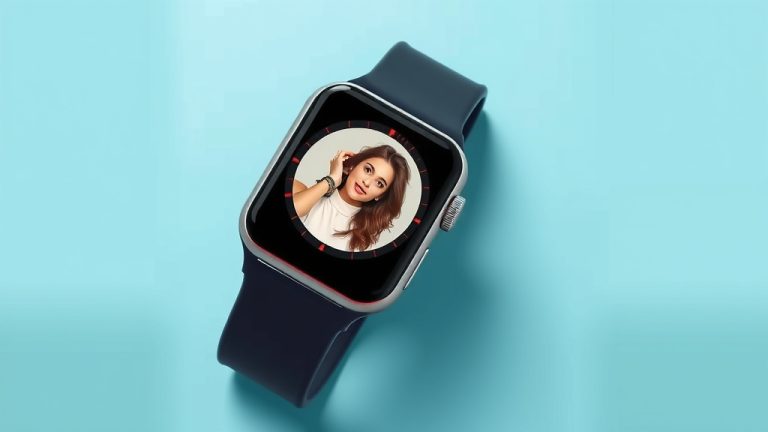
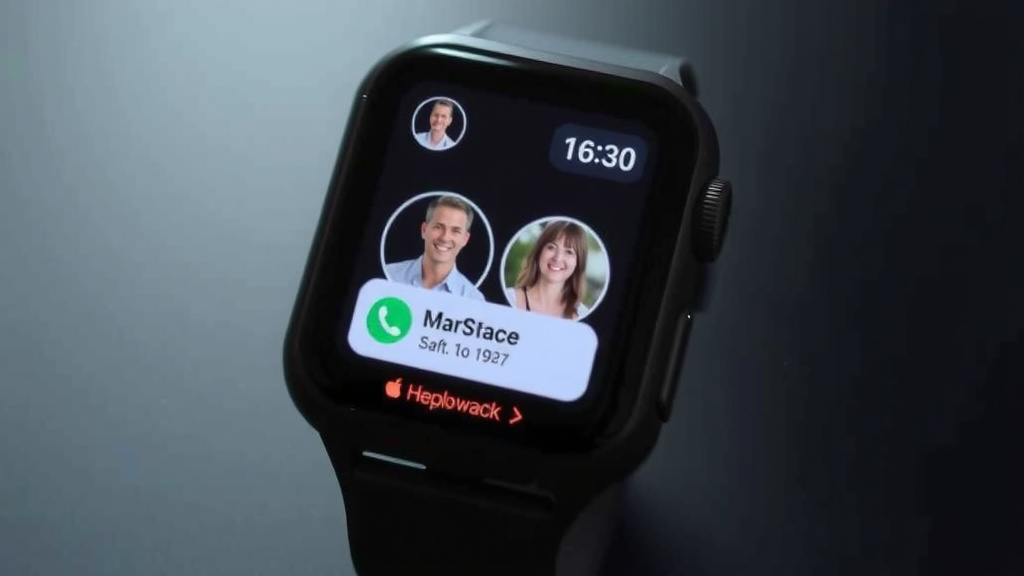
For example, we’ve seen that some smartwatches allow you to see contact photos that are synced from your phone’s contact cards. This can make it easier to identify callers or recipients. Other watches might limit you to just names and numbers. The technology is always improving, so it’s worth checking the latest specs. The goal is to make communication from your wrist as effortless as possible.
Conclusion
Adding contacts to your smartwatch is all about making your daily communication more convenient. You’ve learned that most smartwatches sync contacts automatically from your phone, which is the easiest route. If it doesn’t happen automatically, a quick check of your phone’s app permissions or a manual sync within the companion app usually does the trick. You can even add new contacts directly via voice commands on some models.
Don’t get discouraged by occasional glitches; troubleshooting is often as simple as checking Bluetooth or restarting your devices. Getting your contacts onto your watch can significantly reduce how often you need to pull out your phone. Your next step is to open your smartwatch’s app and ensure those permissions are set correctly so you can start calling and texting from your wrist!
Frequently Asked Questions
Do I need to manually add every contact to my smartwatch?
Generally, no. Most smartwatches automatically sync with your phone’s existing contact list after initial pairing. You only need to manually add contacts if you want to put a brand new number onto your watch that isn’t already on your phone, and even then, it’s often easier to add it to your phone first.
Can I see contact photos on my smartwatch?
Many smartwatches can display contact photos if they are synced from your phone’s contact card. Some models have this feature built-in, making it easier to identify who’s calling or texting. Researching your specific watch model will confirm if this feature is supported.
What if my contacts don’t sync to my watch after pairing?
If contacts aren’t syncing, first check that your watch and phone are connected via Bluetooth. Next, ensure you’ve granted the smartwatch app permission to access your phone’s contacts in your phone’s settings. A simple restart of both devices can also resolve syncing issues.
Can I add contacts to my smartwatch without using my phone?
Some smartwatches allow you to add new contacts directly from the watch itself, often using voice commands or the on-screen keyboard. However, this can sometimes be less convenient than adding contacts through your phone’s larger screen and keyboard.
Will new contacts I add to my phone automatically appear on my watch?
Typically, yes. Once your contacts are synced, any new contacts you add to your phone’s address book should automatically appear on your smartwatch during the next sync. This keeps your watch’s contact list up-to-date with your phone’s.