How to Change the Time on a Smart Watch: Easy
Changing the time on your smartwatch is surprisingly simple. You can typically adjust your watch’s time directly through its settings menu. This usually takes just a few quick taps. It’s much easier than you might think!
Many smartwatches automatically sync with your phone’s time. But sometimes, you need to set it manually. This is common after traveling or if you’ve recently reset your device. Don’t worry, we’ve got you covered.
- Check your watch’s settings first.
- Look for “Date & Time” or similar.
- Adjust manually or enable auto-sync.
- Restart your watch if needed.
Let’s walk through exactly how to change the time on your smartwatch, step by step, so you’re always on schedule.
“`htmlGetting Your Smartwatch Time Just Right
So, your smartwatch time is a little off, huh? Maybe you just returned from a trip across time zones. Or perhaps your watch needed a fresh start and reset itself. Whatever the reason, getting the time back on track is usually a quick and painless process.
Most smartwatches are pretty clever. They often sync their time automatically with your smartphone. This means if your phone’s time is correct, your watch should be too. But sometimes, this connection can drop. Or maybe you’ve intentionally set your phone to a different time. That’s when manual adjustment becomes your friend.
Checking Your Smartwatch’s Time Settings
Your smartwatch’s settings menu is the command center for almost everything. This is where you’ll find the option to change the time. It’s designed to be accessible, so you don’t need a special degree to navigate it. Think of it like adjusting the clock on your microwave, but a bit fancier.
Navigating to the Date & Time Menu
The exact path might vary a little depending on your watch’s brand and model. But the general idea is the same across most devices. You’re looking for a section labeled something like “Date & Time,” “Clock Settings,” or “System.”
Start by swiping down or up from your watch face. This usually brings up a quick settings panel. Look for a gear icon – that’s your universal symbol for settings. Tap it. Once you’re in the main settings menu, scroll through the options. Keep an eye out for anything related to the time or date.
Automatic vs. Manual Time Setting
Once you’ve found the Date & Time settings, you’ll likely see two main options. One will be for automatic time syncing, and the other for manual adjustment.
Automatic Sync: This is the easiest option. If you enable it, your watch will try to get the correct time from your connected smartphone. This is usually the preferred method. It ensures accuracy and saves you from having to do anything. If your time is off, first ensure this option is turned on and that your watch is properly paired with your phone.
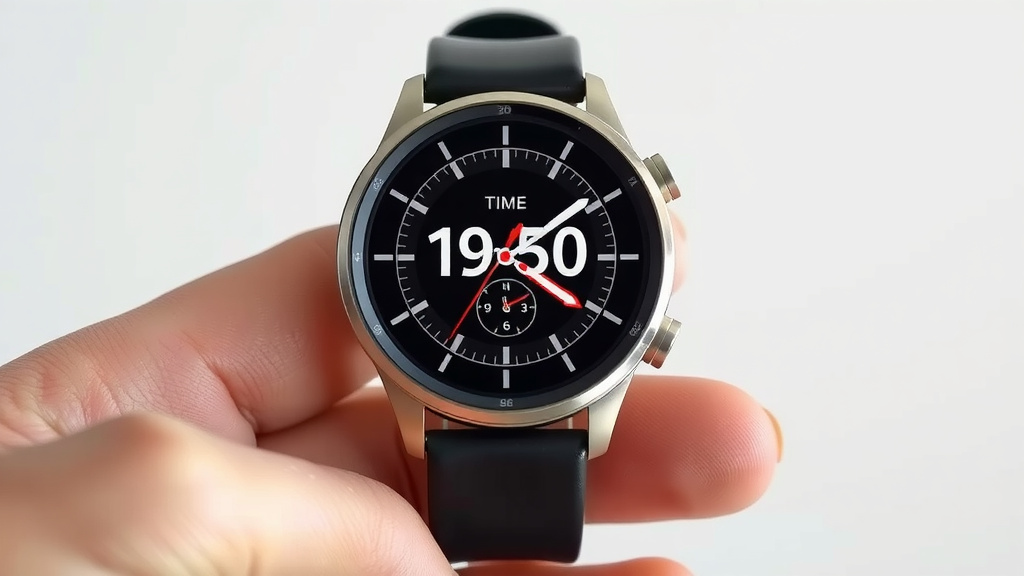
Manual Setting: If automatic syncing isn’t working, or you prefer to set it yourself, you’ll choose this option. You’ll then be prompted to enter the correct date and time. This gives you complete control.
How to Manually Set the Time
So, you’ve decided to take matters into your own hands. It’s not complicated at all! You’re essentially just telling your watch what time it is.
Entering the Correct Time and Date
When you select the manual option, your watch will typically display a digital clock face where you can input the time. You’ll use your finger to scroll through hours, minutes, and sometimes seconds. Some watches might use buttons or the rotating crown to make these adjustments. It’s a bit like playing a simple digital game.
You’ll also need to set the correct date. This includes the month, day, and year. Make sure you get these details right, especially if you’ve traveled internationally. Setting the correct date helps with calendar functions and reminders.
Understanding AM/PM and 24-Hour Format
Depending on your region and preference, your watch might display time in a 12-hour format (with AM/PM indicators) or a 24-hour format (often called military time). If you’re setting the time manually, double-check that you’ve selected the correct AM or PM. It’s an easy mistake to make, and nobody wants to show up for a 9 AM meeting at 9 PM!
Most watches let you switch between these formats in the same Date & Time settings menu. If you’re used to one, but your watch defaults to the other, a quick toggle can fix that. It’s just a preference setting, like choosing your favorite watch face.
Troubleshooting Common Time Issues
Sometimes, even with the best intentions, things don’t go perfectly. If your watch time is still acting up, don’t throw it across the room just yet. Let’s look at a few common hiccups.
When Auto-Sync Fails
If your watch refuses to sync with your phone, the first step is to ensure Bluetooth is on for both devices. Also, check that your phone’s date and time are correct. Sometimes, the problem isn’t with the watch at all! We found that a simple restart of both your phone and watch can often resolve stubborn sync issues (Apple Support).
Make sure your watch is within Bluetooth range of your phone. If you’ve recently updated your phone’s operating system, sometimes a re-pairing process is needed. You might have to “forget” the watch in your phone’s Bluetooth settings and then pair it again. It sounds like a lot, but it usually only takes a minute or two.
The Importance of Restarting Your Watch
A restart, or reboot, is like giving your smartwatch a mini nap. It clears out temporary glitches and refreshes its systems. If you’ve made changes to the time settings and they aren’t sticking, a restart is often the magic bullet.
To restart most smartwatches, you typically press and hold a side button. You’ll see an option to power off or restart on the screen. Select restart. It’s a simple step that can fix a surprising number of electronic quirks. Many experts recommend regular restarts for optimal performance (Wearable Tech Blog).
Quick Checklist for Setting Your Smartwatch Time
Here’s a handy list to run through if you need to adjust your watch’s time:
- Ensure your smartwatch is charged and powered on.
- Check that Bluetooth is active on both your watch and smartphone.
- Navigate to your watch’s Settings menu.
- Find the “Date & Time” or similar option.
- Try enabling automatic sync first.
- If needed, switch to manual mode and enter the correct time and date.
- Restart your watch after making changes if they don’t immediately apply.
You’ve learned that changing your smartwatch time is far from complicated. Whether your watch syncs automatically with your phone or requires a manual touch, the process is straightforward. We’ve covered navigating settings, understanding auto versus manual modes, and even how to troubleshoot common hiccups. Remember to check your settings menu and ensure your phone’s time is correct if you rely on auto-sync. If you’re ever in doubt, a simple restart can often fix things. Now you can ensure your smartwatch always shows the correct time, no matter where your day takes you!
Not necessarily! Most smartwatches automatically update their time when they sync with your connected smartphone. If your phone’s time is correct after traveling, your watch should update too. You only need to manually set it if the auto-sync fails or if your phone’s time is also incorrect.
Check for similar labels like “Clock Settings,” “System,” or “General.” Sometimes, the time options are grouped under a broader category. If you’re still stuck, consult your watch’s specific user manual or the manufacturer’s support website for precise navigation.
Yes, you usually can! Most smartwatches allow you to switch between 12-hour (with AM/PM) and 24-hour (military time) formats. Look for this option within the same “Date & Time” settings menu where you adjust the time itself.
This often happens when the automatic sync isn’t working perfectly. Ensure your watch is properly paired with your phone via Bluetooth and that both devices are reasonably close. A quick restart of both your watch and phone can often resolve minor sync discrepancies.
For most users, automatic sync is the easiest and most accurate method. It ensures your watch time is always correct without any effort on your part. Manual setting is best if you need precise control or if auto-sync is consistently failing on your device.
![7 Best Fossil Smart Watches [2026]](https://smartwatchbest.com/wp-content/uploads/2026/08/7-best-fossil-smart-watches-2026-featured-768x432.jpg)
![7 Best Smart Watch For Trail Running [2026]](https://smartwatchbest.com/wp-content/uploads/2026/09/7-best-smart-watch-for-trail-running-2026-featured-768x432.jpg)
![7 Best Smart Watch Not Apple Or Samsung [2026]](https://smartwatchbest.com/wp-content/uploads/2026/09/7-best-smart-watch-not-apple-or-samsung-2026-featured-768x432.jpg)
![7 Best Round Smart Watch For Women [2026]](https://smartwatchbest.com/wp-content/uploads/2026/08/7-best-round-smart-watch-for-women-2026-featured-768x432.jpg)