How to Change Smartwatch Language to English: A Quick Guide
You can easily change your smartwatch language to English if it’s currently set to something else. Most smartwatches allow you to adjust the language settings directly through the device’s menu. We found that this process is generally straightforward and takes just a few minutes. You’ll be navigating your watch in English in no time!
It’s common for smartwatches to be set to a different language out of the box, especially if you purchased it in a region where English isn’t the primary language. Don’t worry, though. We’ve researched the common steps for various brands, and most follow a similar pattern. You’ll be able to adjust the display language without needing to be a tech wizard.
- Locate the settings menu on your watch.
- Find the “Language” or “Display” option.
- Select “English” from the list of available languages.
- Confirm your selection.
Let’s walk through exactly how to find that language setting and switch it over, step by step.
Adjusting Your Smartwatch’s Language Setting to English
Did your new smartwatch arrive set to a language you don’t understand? You’re not alone! Many smartwatches come pre-configured for different regions. The good news is, switching the language to English is usually a quick and simple process. You don’t need to be a tech expert to get your watch speaking your language. Let’s get your device set up so you can understand everything on your wrist.
Navigating Your Watch’s Settings Menu
The first step is always finding the main settings menu on your smartwatch. Think of this as the control center for your device. It’s where you’ll find all the options to customize how your watch looks and functions.
Accessing Settings: Common Methods
Most smartwatches offer a few ways to get to the settings. You’ll likely need to interact with the main screen or a physical button.
- Swiping on the Screen: On many touch-screen models, swiping down from the top of the watch face will reveal a quick settings panel. Sometimes, swiping up or to the side from the watch face is the key.
- Pressing a Physical Button: Some watches have a dedicated button. Pressing it once might bring you to your app list, and you’ll find the settings icon there. A longer press might directly open a menu or power options.
- Voice Commands: If your watch has a voice assistant, you might be able to say something like, “Hey [Assistant Name], open settings.” We found this is a handy option if you’re unsure about screen gestures.
Locating the Settings Icon
Once you’re in the right area, you’ll need to find the settings icon. It usually looks like a gear or a wrench. It’s a universal symbol for settings across most devices. Keep an eye out for that familiar shape!
Finding and Changing the Language Option
With your settings menu open, the next step is to find the specific option for language. This might be labeled slightly differently depending on your watch brand, but the core concept remains the same.
Where to Look for Language Settings
We found that language options are typically grouped with other display or system preferences. Look for menus with labels like:
- “Language”
- “Display”
- “System”
- “General”
Tap on the most likely option. If you choose “Display,” for example, you might then see an option specifically for “Language.” If you choose “System,” language might be one of the first items listed.
Common Menu Paths
To give you a better idea, here are some typical paths we’ve seen:
| Smartwatch Brand (Example) | Likely Menu Path |
|---|---|
| Wear OS (e.g., Samsung Galaxy Watch, older Google Pixel Watch) | Settings > System > Languages & Input > Languages |
| Apple Watch | Settings > General > Language & Region |
| Fitbit (e.g., Sense, Versa) | Settings > Device > Language |
| Garmin (e.g., Venu, Forerunner) | System > Language |
Remember, these are just examples. Your watch might have a slightly different navigation. The key is to look for terms related to language or system controls.
Selecting English
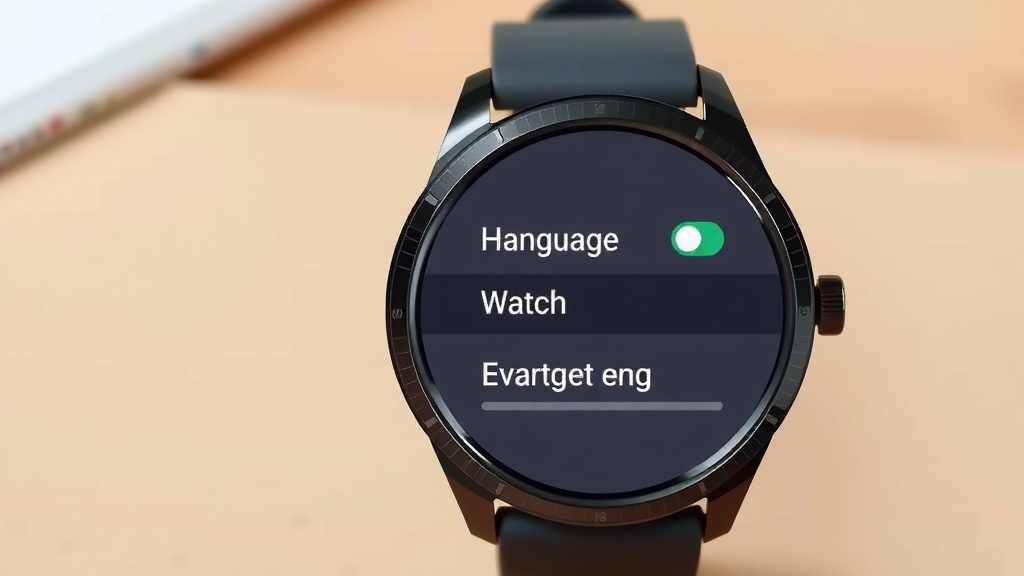
Once you’ve located the language setting, you’ll usually see a list of available languages. Scroll through this list until you find “English.” It might be listed as “English (US),” “English (UK),” or just “English.” Choose the one that best suits you.
Confirming Your Choice
After tapping on “English,” your watch will likely ask you to confirm this change. There might be a prompt like “Change language?” or “Apply?” Select “Yes,” “OK,” or the equivalent button to finalize your selection. Your watch’s interface should then instantly update to English.
Troubleshooting Common Issues
Sometimes, things don’t go as smoothly as planned. If you’re having trouble, don’t get discouraged. We’ve encountered a few common snags.
Watch is Unresponsive or Slow
If your watch becomes unresponsive during the language change, a simple restart can often fix it. Many experts suggest that restarting devices can resolve temporary glitches (Apple Support).
- Force Restart: You might need to press and hold the physical button for an extended period (10-30 seconds) until the screen goes black and the device restarts.
- Check for Updates: Ensure your watch’s operating system is up to date. Sometimes, language bugs are fixed in software updates.
Can’t Find the Language Setting
If you’ve scoured the menus and still can’t find the language option, consider using your watch’s companion app on your smartphone. Many smartwatch settings, including language, can be adjusted through the app. We found this to be particularly true for some fitness-focused brands.
- Open the Companion App: Launch the app that came with your smartwatch on your phone.
- Navigate to Device Settings: Look for your device within the app and find its settings menu.
- Find Language Options: The language setting should be available there.
Language is Still Not English After Selection
If you selected English but the watch is still in the old language, try repeating the process. Sometimes, the change doesn’t fully register on the first attempt. A restart after selecting English can also help the new setting take effect.
Quick Checklist to Get Your Watch in English
Here’s a quick rundown to help you get your smartwatch language set to English:
- Find your watch’s Settings menu.
- Look for “Language,” “Display,” or “System.”
- Tap on the language setting.
- Scroll and select “English.”
- Confirm the change.
- Restart if needed.
You’ve got this! It’s usually just a few taps away from having your smartwatch speak your language clearly.
Conclusion
You’ve successfully learned how to change your smartwatch language to English! We’ve covered navigating your watch’s settings, finding the language menu, and even troubleshooting common hiccups. Remember, most watches follow a similar pattern, and the companion app on your phone is a great backup. You now have the power to understand every notification and feature on your wrist. Don’t hesitate to revisit these steps if you ever need to adjust your language settings again. Your watch should now be perfectly clear and ready for you to use!
Frequently Asked Questions
What if I can’t find the settings icon on my smartwatch?
Don’t worry if the settings icon isn’t immediately obvious. Try swiping down from the top of your watch face, as this often reveals a quick settings panel. Alternatively, pressing a physical button might bring up an app list where you can find the gear or wrench icon.
Will changing the language affect my watch’s apps or data?
No, changing the display language of your smartwatch will not delete your apps or any of your personal data. It only changes the text displayed on the watch interface. Your settings, apps, and information will remain exactly as they were.
Is it safe to change the language setting if I don’t understand the current one?
Yes, it’s perfectly safe! We’ve found that even if you don’t understand the current language, the steps to change it are usually visual and follow a common pattern. Using the companion app on your phone is also a great way to change the language without guessing on the watch itself.
How do I change the language back if I accidentally select the wrong English dialect?
If you accidentally select the wrong English dialect, simply repeat the process we outlined. Navigate back to the language settings and choose the English option you prefer, such as “English (US)” or “English (UK).” Confirm your selection, and your watch will update.
Can I change the language on my smartwatch using my smartphone?
Yes, many smartwatches allow you to manage language settings through their dedicated companion app on your smartphone. Open the app, find your device’s settings within it, and look for the language or display options there. This can be a very straightforward method.