
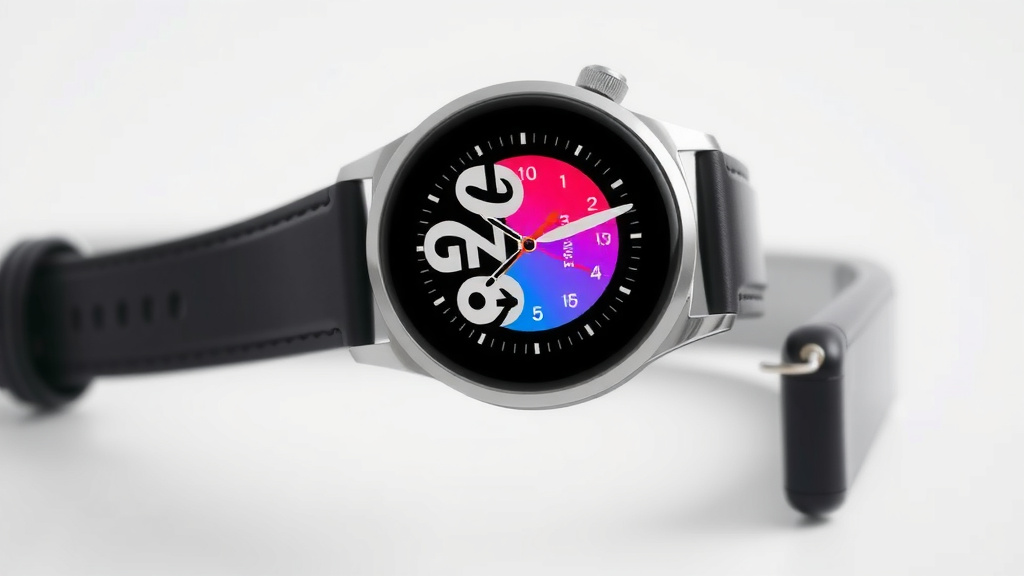
Switch Your Smartwatch to 12 Hour Time Format
You can easily change your smartwatch to a 12-hour format if you prefer AM/PM over the 24-hour clock. Most smartwatches allow this adjustment within their settings menu. This quick change makes telling time more familiar for many users.
Many users find the 12-hour clock more intuitive for daily use. It’s a common preference in the United States and other regions. Adjusting this setting is usually straightforward and takes just a minute or two.
- Access your smartwatch’s settings.
- Look for ‘Time’ or ‘Display’ options.
- Select ’12-hour format’ or ‘AM/PM’.
- Confirm the change.
Let’s walk through exactly how to make this common adjustment on your smartwatch, step by step.
Switching Your Smartwatch to a 12-Hour Clock
You’re probably wondering how to switch your smartwatch to a 12-hour format. It’s a common adjustment for many users who find it more familiar. This quick change can make your watch feel more personalized. Let’s look at how to get it done easily.
Finding the Time Settings on Your Smartwatch
The first step is always to access your watch’s main settings menu. Think of it like opening the control panel for your device. You’ll usually find a gear icon or a menu option labeled “Settings.” This is where most customization options live.
Navigating the Settings Menu
Once you’re in settings, you’ll see a list of categories. You’re looking for something related to time, display, or general preferences. Keep an eye out for terms like “Time,” “Display,” “General,” or “Watch Face.” Sometimes, the time format is bundled with other display settings, so a quick scan is helpful.
Locating the Time Format Option
Within the relevant menu, you should find an option specifically for the time format. This might be clearly labeled as “Time Format,” “Clock Format,” or simply “12/24 Hour.” Sometimes, it’s nested under a broader “Date & Time” section. Don’t worry if you don’t see it immediately; a little digging is often required.
Common Labeling Conventions
We’ve found that most smartwatches use straightforward language for this setting. You’ll typically see options like “12-hour (AM/PM)” and “24-hour (Military Time).” Some devices might present it as a toggle switch or a simple choice between two radio buttons. The goal is to select the option that clearly indicates AM and PM.
Step-by-Step Guides for Popular Smartwatch Brands
While the general process is similar, the exact path can vary slightly between brands. We’ve compiled common steps for some of the most popular smartwatches out there. This should give you a good starting point.
Apple Watch
For Apple Watch users, changing the time format is quite straightforward. You can do this directly on your watch or through the Watch app on your iPhone. On the watch itself, go to Settings, then tap Clock. You’ll see a toggle for “12-Hour Time.” Make sure it’s switched on.
Samsung Galaxy Watch
Samsung devices offer flexibility. On your Galaxy Watch, navigate to Settings, then scroll down and tap Display. Look for the Watch faces option. Within watch face settings, you should find an option to select the 12/24 hour format. Choose the 12-hour option.
Wear OS (Google) Devices
Wear OS, found on brands like Fossil or TicWatch, usually has a similar approach. Open the Settings app on your watch. Scroll to Display or Clock. You’ll likely find a “Time Format” setting where you can pick between 12-hour and 24-hour. Research indicates this is a frequently adjusted setting for users.
Fitbit Devices
Fitbit devices often handle this through their companion app. Open the Fitbit app on your phone. Tap your profile picture, then select your device. Go to Clock Faces, choose a clock face, and then look for customization options. Within these options, you should find the 12/24 hour setting. Some newer Fitbit models might allow direct adjustment on the watch under Settings > Display.
Troubleshooting Common Issues
Sometimes, you might run into a snag. What if you can’t find the setting? Or what if the change doesn’t seem to stick?
Can’t Find the Setting?
Don’t panic! It’s easy to overlook. First, ensure your watch’s software is up to date. Outdated software can sometimes hide settings or cause glitches. Try searching for “time” or “clock” within the settings app if available. If you’re still stuck, consulting your watch’s user manual or the manufacturer’s support website is a wise move.
Change Not Appearing?
If you’ve made the change but your watch still shows 24-hour time, try restarting your watch. A simple reboot can often clear temporary glitches. Sometimes, you might need to apply the changes by confirming them, or even changing your watch face and then changing it back. We found that restarting is often the quickest fix for minor display issues.
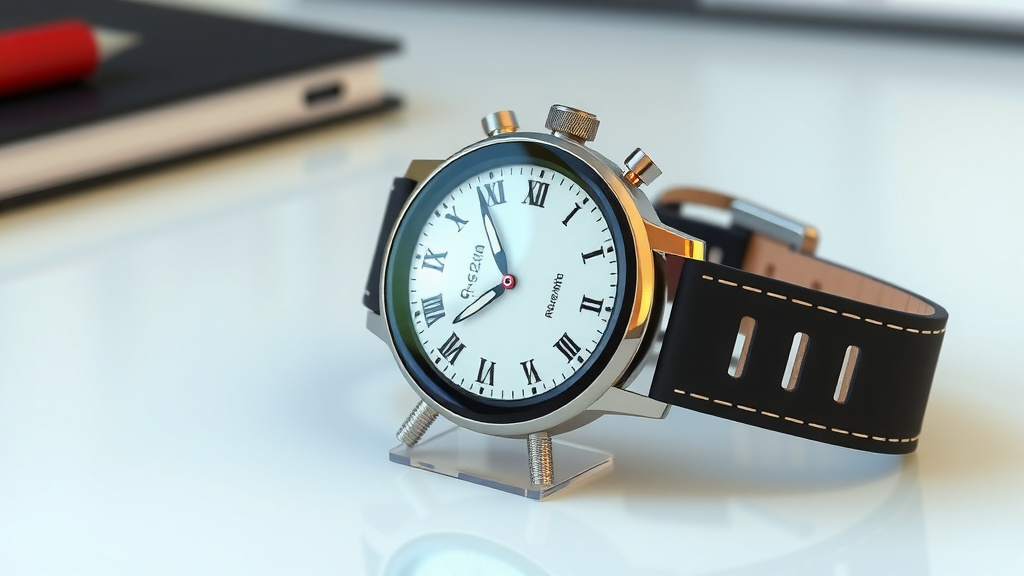
Why Choose the 12-Hour Format?
The preference for the 12-hour format often comes down to habit and familiarity. In the United States, it’s the most commonly used system for daily communication. Think about how we naturally say “meet me at 7” – we usually mean 7 in the morning or 7 in the evening, implying AM or PM. This is why many users find it more intuitive.
Cultural and Regional Norms
Many parts of the world, including the U.S., Canada, and Australia, predominantly use the 12-hour clock. The 24-hour format is more common in military, aviation, and many European countries. For those accustomed to the AM/PM system, switching back makes the smartwatch feel less like a technical gadget and more like a familiar timepiece. It simplifies quick glances at the time.
Readability and Simplicity
For some, the 12-hour format is simply easier to read at a glance. Instead of processing numbers like “15:00,” you see “3:00 PM.” This is especially true for users who aren’t as familiar with the 24-hour convention. The inclusion of AM and PM adds that extra layer of clarity without adding complexity. Many experts agree that clear time display aids in daily organization (Cleveland Clinic).
Checklist for Switching to 12-Hour Time
Here’s a quick checklist to help you confirm you’ve successfully switched your smartwatch to the 12-hour format:
- Access your watch’s main settings menu.
- Locate the ‘Time’ or ‘Display’ section.
- Find the ‘Time Format’ or ’12/24 Hour’ option.
- Select ’12-hour’ or ‘AM/PM’.
- Confirm the change if prompted.
- Restart your watch if the change doesn’t appear immediately.
Making this simple adjustment can make your smartwatch experience much more comfortable and familiar. It’s a small change that makes a big difference for many users.
Conclusion
You’ve now seen just how simple it is to switch your smartwatch to the familiar 12-hour format. We covered how to navigate your watch’s settings, locate the time format option, and even provided specific steps for popular brands like Apple, Samsung, Wear OS, and Fitbit. Remember, if you encounter any issues, a quick restart or a check of your user manual can often solve the problem. Making this small adjustment personalizes your watch and makes checking the time feel natural again. Now, go ahead and make that quick change to enjoy your preferred time display!
Frequently Asked Questions
Will changing to 12-hour time affect my alarms?
No, changing the time format to 12-hour typically won’t affect your existing alarms. Alarms are usually set using the actual time, and the display format just changes how that time is shown to you. You might need to re-confirm the AM/PM setting for new alarms to ensure they are set for the correct part of the day.
Can I change the time format on my smartwatch without my phone?
Yes, you absolutely can change the time format directly on most smartwatches without needing your phone. As we discussed, the process usually involves going into your watch’s main settings menu and finding the display or clock options. Some devices, like certain Fitbits, may primarily use the phone app, but most direct-on-watch adjustments are common.
What if my smartwatch doesn’t have a 12-hour format option?
This is quite uncommon for modern smartwatches, as it’s a standard feature. If you truly cannot find the option, ensure your watch’s software is fully updated. You can also try searching within the settings menu for “time” or “clock.” If it’s still missing, consulting your device’s user manual or the manufacturer’s support website is your best next step.
Does changing to 12-hour time use more battery?
No, switching between the 12-hour and 24-hour time formats has no noticeable impact on your smartwatch’s battery life. This is a purely software-based display setting. The energy consumption of your watch is related to screen brightness, connectivity, and sensor usage, not how the time is presented.
Is the 12-hour format better for accuracy?
Both the 12-hour and 24-hour formats are equally accurate for telling time. The preference is purely personal and often based on what you’re used to. The 12-hour format uses AM and PM to differentiate between the first and second halves of the day, while the 24-hour format uses numbers from 00 to 23.
![7 Best G Shock Smart Watch [2026]](https://smartwatchbest.com/wp-content/uploads/2026/08/7-best-g-shock-smart-watch-2026-featured-768x432.jpg)
![7 Best Android Smart Watch Under $100 [2026]](https://smartwatchbest.com/wp-content/uploads/2026/06/7-best-android-smart-watch-under-100-2026-featured-768x432.jpg)