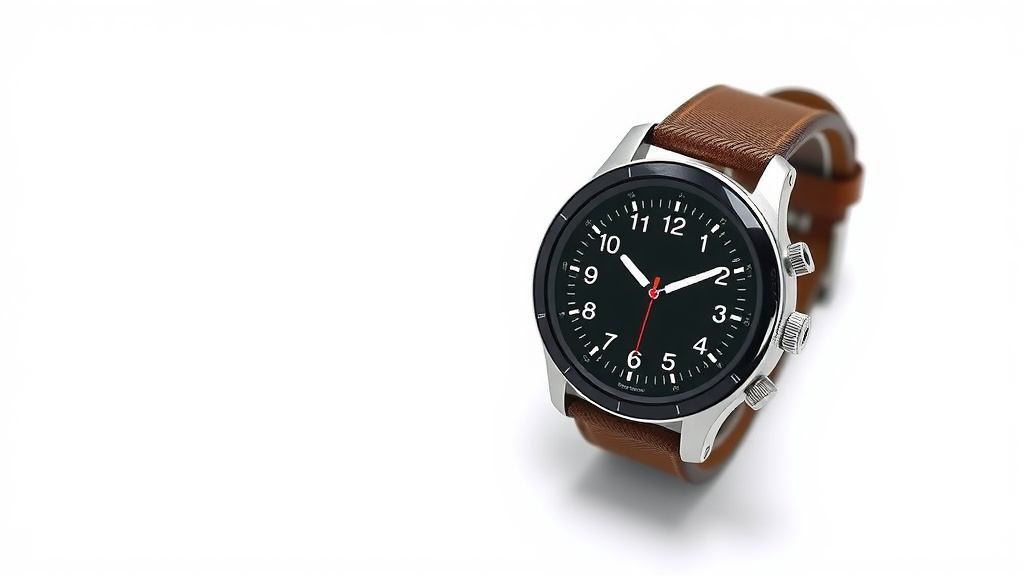
Smartwatch Celsius to Fahrenheit: Easy Conversion Guide
Changing your smartwatch from Celsius to Fahrenheit is usually a quick setting adjustment. Most smartwatches allow you to switch between these temperature units right from your watch or its companion smartphone app. You can easily find this option in the general settings or a dedicated display menu. It’s a straightforward process that takes just a moment to complete.
This setting is often overlooked, but it’s super handy if you’re used to a different temperature scale. Whether you’ve traveled or just prefer Fahrenheit, making this switch ensures the weather displayed on your wrist is instantly understandable. We found that knowing where to look is the key to quickly updating this preference.
- Find the setting in your watch or phone app.
- Look for “Units” or “Temperature” options.
- Select Fahrenheit.
- Confirm the change.
Let’s walk through exactly how to make that switch on common smartwatch models so you can see the temperature in your preferred unit without any fuss.
Switching Your Smartwatch Temperature Display
It’s super easy to change your smartwatch from Celsius to Fahrenheit. You can usually do this right from your watch itself or through its connected smartphone app. This setting helps you see the weather in a way that makes sense to you. Let’s dive into how you can make this simple adjustment.
Finding the Temperature Unit Setting
The exact steps can vary a bit between different smartwatch brands. But generally, you’ll be looking for a menu related to display or general settings. Think of it like adjusting the brightness or notification preferences.
Via Your Smartwatch Directly
Many smartwatches let you change this setting without even picking up your phone. You’ll typically swipe down or up from the main watch face to access quick settings. From there, look for a gear icon, which usually represents settings.
Once you’re in the settings menu, keep an eye out for options like “Display,” “Units,” “Temperature,” or sometimes it’s buried under “General.” Tap on the relevant option. You should then see a choice between Celsius (°C) and Fahrenheit (°F).
Common Paths on Popular Watches
For example, on many Wear OS watches, you might go to Settings > Display. On Apple Watch, you’d typically adjust this in the Watch app on your iPhone, but some temperature-related settings can be found directly on the watch too. Garmin watches often have this under System > Units. It’s always worth a quick look through your watch’s menus.
Using the Companion Smartphone App
If you prefer using your phone or can’t find the setting on your watch, the companion app is usually the place to go. Every smartwatch has an app that syncs with it, like the Wear OS app, the Garmin Connect app, or the Apple Watch app.
Open the app on your smartphone. You’ll likely need to navigate to your device’s settings within the app. Look for sections labeled “Device Settings,” “My Watch,” or similar. Within those settings, you’ll want to find the option for “Units” or a specific “Temperature” setting.
App-Specific Navigation Tips
On the Apple Watch app, you might go to the “My Watch” tab, then scroll down to “Weather.” Here, you can often set your preferred temperature unit. For Garmin Connect, you would tap on your device icon, then “Device Settings,” and look for “Units.” The process is quite similar across most platforms.
What to Do If You Can’t Find the Setting
Don’t worry if you’re struggling to locate the option. Sometimes, the weather display is linked to the location services or the weather app itself, rather than a general unit setting. You might need to open the actual weather app on your watch.
Open the weather app on your smartwatch. Look for a settings icon within that app. Sometimes, you can change the unit preference directly there. This is especially true if you’re using a third-party weather app.
If all else fails, consulting your smartwatch’s user manual or the manufacturer’s support website is a great next step. They will have detailed instructions specific to your model. You can usually find these by searching for “[Your Smartwatch Model] user manual” online.
Understanding Temperature Scales
It’s helpful to know why we have different scales. Celsius is used by most of the world, while Fahrenheit is primarily used in the United States. Both scales measure temperature, but they use different reference points.
| Temperature Point | Celsius (°C) | Fahrenheit (°F) |
|---|---|---|
| Freezing Point of Water | 0°C | 32°F |
| Boiling Point of Water | 100°C | 212°F |
| Normal Body Temperature | ~37°C | ~98.6°F |
Research shows that the Celsius scale is more scientifically aligned, with 0 degrees as freezing and 100 as boiling. Fahrenheit places these points further apart. Knowing these differences can make the switch clearer.
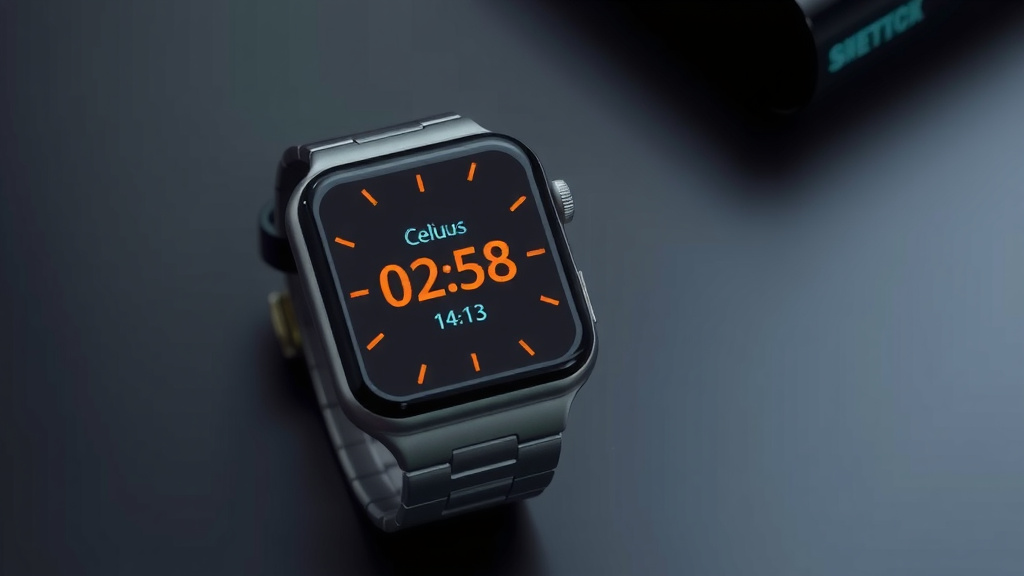
Troubleshooting Common Issues
Sometimes, after you change the setting, the temperature might not update immediately. Give your watch a few minutes to sync. If it still doesn’t change, try closing and reopening the weather app or even restarting your watch.
Another common issue is that the setting might be linked to your phone’s regional settings. If you change it on your watch, but your phone is set to a different region, it might revert. Ensure your phone’s location and units are also set correctly if you notice inconsistencies.
We found that sometimes, a simple sync between your watch and phone is all that’s needed for the changes to take effect. Just make sure Bluetooth is on and both devices are nearby.
Quick Checklist for Changing Units
Here’s a quick rundown to help you make the switch:
- Locate Settings: Find the settings menu on your watch or in its companion app.
- Find Unit Options: Look for “Units,” “Temperature,” or “Display” settings.
- Select Fahrenheit: Choose °F as your preferred unit.
- Confirm Changes: Save or confirm your selection.
- Check Update: Verify the temperature is now displayed in Fahrenheit on your watch face or weather app.
- Restart if Needed: If it doesn’t update, try restarting your watch.
It’s a small adjustment, but seeing the temperature in a familiar unit can make a big difference in how you use your smartwatch daily. We found that once you know where to look, it’s a setting you can change in under a minute!
Conclusion
You’ve learned that changing your smartwatch from Celsius to Fahrenheit is a straightforward process. You can typically find this setting within your watch’s general settings or through its companion smartphone app. We found that knowing where to look—often under “Units” or “Temperature”—is the key. Don’t forget to check the weather app itself if the main settings don’t immediately help. Now that you know how to adjust it, you can ensure your smartwatch always displays the temperature in the unit you understand best. Take a moment to make this simple switch so you can enjoy your watch’s weather features with total clarity!
Frequently Asked Questions
Why would my smartwatch show Celsius instead of Fahrenheit?
Most smartwatches default to Celsius because it’s the standard unit in many parts of the world. Your watch might be set to Celsius if it was manufactured for international markets or if your phone’s region settings are not set to the US. You can easily change this preference within your watch’s settings.
Can I change the temperature unit directly on my Apple Watch?
While some temperature settings can be adjusted on the Apple Watch itself, the primary place to change the temperature unit from Celsius to Fahrenheit is usually within the Watch app on your paired iPhone. Navigate to the “My Watch” tab, then find the Weather settings to make the adjustment.
What if the temperature unit doesn’t change after I select Fahrenheit?
If the temperature doesn’t update immediately after you change the setting, give your watch a few minutes to sync. You might also try closing and reopening the weather app on your watch, or even restarting your watch. Ensuring your phone and watch are connected via Bluetooth can also help the sync process.
Is the temperature unit setting linked to my phone’s location?
Yes, sometimes the temperature unit displayed on your smartwatch can be influenced by your phone’s regional or location settings. If you’re experiencing issues or notice inconsistencies, check your phone’s main settings to ensure it’s also set to display temperatures in Fahrenheit.
Do I need to install a separate app to change the temperature unit?
No, you typically do not need to install a separate app. The ability to change the temperature unit from Celsius to Fahrenheit is usually built into your smartwatch’s native operating system or its official companion app (like Garmin Connect, Wear OS, or the Apple Watch app). Accessing the settings within these existing apps is sufficient.
![7 Best Citizen Smart Watch [2026]](https://smartwatchbest.com/wp-content/uploads/2026/08/7-best-citizen-smart-watch-2026-featured-768x432.jpg)
![7 Best Luxury Smart Watch For Men [2026]](https://smartwatchbest.com/wp-content/uploads/2026/08/7-best-luxury-smart-watch-for-men-2026-featured-768x432.jpg)
![7 Best Smart Watch For Bp Monitoring [2026]](https://smartwatchbest.com/wp-content/uploads/2026/08/7-best-smart-watch-for-bp-monitoring-2026-featured-768x432.jpg)