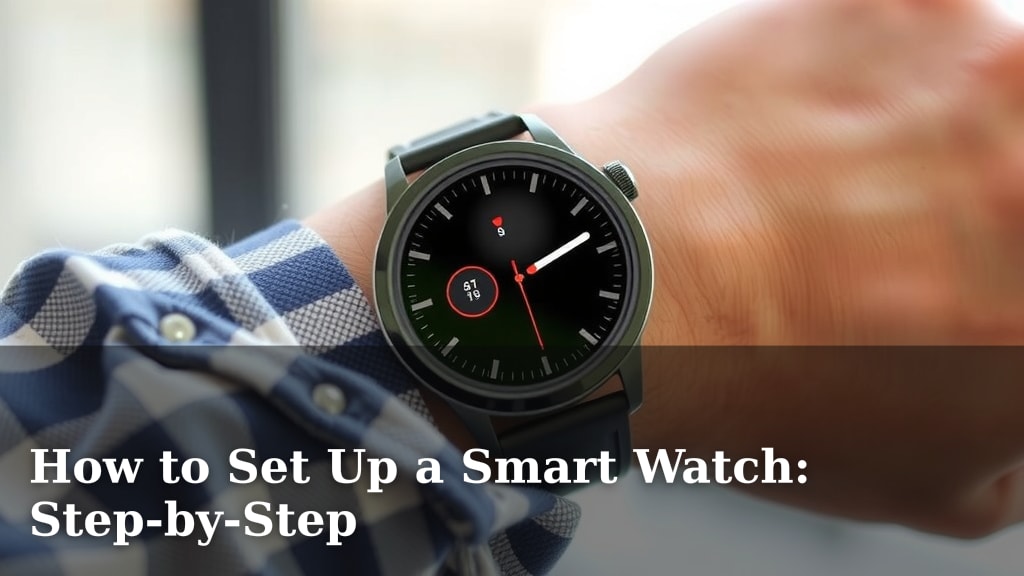
How to Set Up a Smart Watch: Step-by-Step
Setting up your new smartwatch is surprisingly straightforward. You’ll typically need to download a companion app on your phone, pair your watch via Bluetooth, and then follow the on-screen prompts to complete the initial setup. This process often takes less than 15 minutes. It’s designed to be user-friendly, even if you’re not super tech-savvy.
Once paired, your smartwatch becomes an extension of your phone. We found that most smartwatches offer features like fitness tracking, notifications, and contactless payments right out of the box. Many experts agree that proper setup is key to enjoying all the convenient features your new device offers. It’s all about making your daily life a little simpler and more connected.
- Download the correct app for your watch brand.
- Ensure Bluetooth is enabled on your phone.
- Follow the app’s step-by-step pairing instructions.
- Update your watch’s software if prompted.
- Customize basic settings like time and notifications.
Ready to get started? Let’s walk through exactly how to set up your smartwatch step by step.
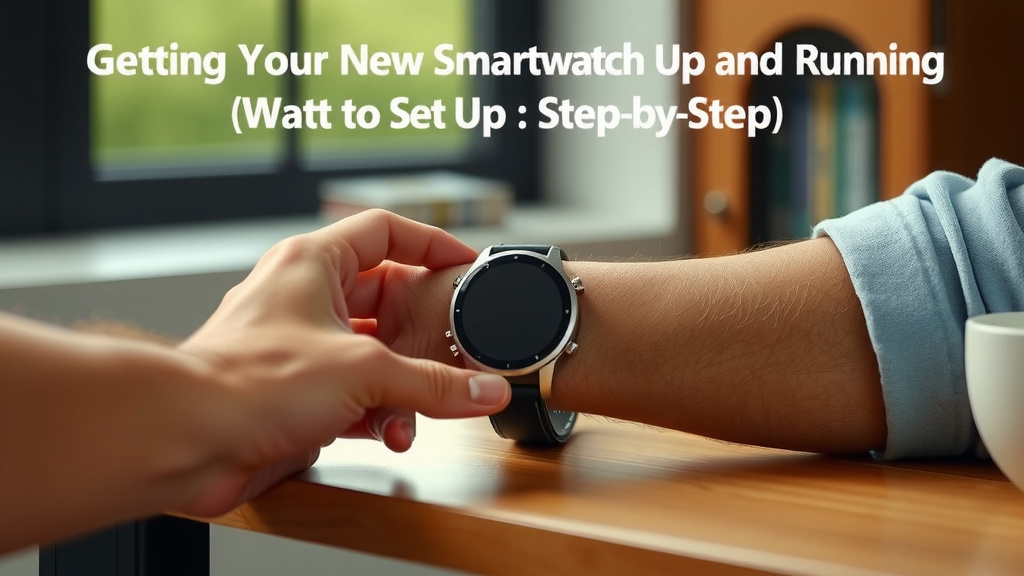
Getting Your New Smartwatch Up and Running
So you’ve got a shiny new smartwatch, and you’re eager to start exploring all its capabilities. That’s exciting! Setting it up might seem a bit daunting, but we’ve found the process is generally quite straightforward. Think of it like setting up a new phone; it just needs a little initial connection to your existing tech.
Step 1: Charge It Up!
Before you dive into any software setup, the very first thing you should do is give your smartwatch some juice. You wouldn’t want it to die halfway through the process, right? Most smartwatches come with a specific charging puck or cable.
Simply connect the charger to a power source – like a wall adapter or a USB port on your computer – and attach it to your watch. The watch will usually show a charging indicator on its screen. We recommend letting it charge for at least 30 minutes to an hour, or until it shows a substantial battery percentage.
Step 2: Download the Companion App
Your smartwatch needs a way to talk to your smartphone. This is where the companion app comes in. Every major smartwatch brand has its own app, and it’s essential for setup and management.
Finding the Right App
First, you’ll need to identify which app corresponds to your specific smartwatch model. This information is usually found in the watch’s quick start guide or on the packaging. Don’t worry if you can’t find it; a quick web search for “[Your Smartwatch Brand/Model] companion app” will point you in the right direction.
Once you know the app name, head to your smartphone’s app store. This will be the Apple App Store for iPhones or the Google Play Store for Android devices. Search for the app and download it. We found that having your phone’s Wi-Fi connected can speed up the download process.
Permissions and Account Creation
When you open the app for the first time, it will likely ask for several permissions. These can include access to Bluetooth, location services, and notifications. These are generally needed for the watch to function correctly, like displaying map directions or alerting you to calls (Mayo Clinic). You’ll also probably need to create an account or log in with an existing one. This helps sync your data across devices.
Step 3: Pair Your Smartwatch with Your Phone
This is the core step where your watch and phone become buddies. The app you just downloaded will guide you through this, but here’s what you can expect.
Bluetooth is Key
Make sure Bluetooth is turned on on your smartphone. You can usually find this in your phone’s settings menu. Most smartwatches use Bluetooth Low Energy (BLE) to connect, which is efficient and doesn’t drain your phone’s battery too quickly.
The Pairing Process
The companion app will typically prompt you to start the pairing process. This might involve selecting your watch from a list of nearby discoverable devices. Some watches will display a unique code or a simple graphic that you’ll need to confirm on your phone to complete the pairing. It’s like a digital handshake!
We found that keeping both devices close to each other during this process helps ensure a smooth connection. If it doesn’t connect right away, try turning your phone’s Bluetooth off and on again, or even restarting both devices.
Step 4: Initial Watch Setup and Updates
Once paired, your watch might seem like it’s ready to go, but there are a couple more important steps.
On-Watch Prompts
Your smartwatch itself will likely have a few screens to get through. This could include selecting your language, agreeing to terms and conditions, and setting up basic preferences. Just follow the prompts on the watch screen. It’s designed to be intuitive.
Software Updates
This is a big one! Manufacturers frequently release software updates to improve performance, add new features, and patch security vulnerabilities. The companion app or the watch itself will usually notify you if an update is available. We strongly recommend installing these updates right away. Many experts say keeping your device’s software up-to-date is essential for both security and functionality (CDC).
Make sure your watch is connected to its charger and has a stable Wi-Fi connection (if applicable) or that your phone has a good data connection during the update. Updates can sometimes take a while, so be patient.
Step 5: Personalize Your Experience
Now for the fun part – making your smartwatch truly yours!
Watch Faces and Layouts
You can usually change your watch face to suit your style. Some offer simple, classic looks, while others display a wealth of information at a glance, like weather, calendar events, or fitness stats. Experiment to find one you love!
Notification Settings
One of the best features of a smartwatch is getting notifications without having to pull out your phone. In the companion app, you can select which apps you want to receive alerts from on your wrist. You probably don’t need a notification for every single email or social media like, but getting alerts for calls, texts, or calendar reminders is incredibly handy.
Fitness Tracking Setup
If your watch has fitness features, you’ll likely be prompted to enter some personal details, like your height, weight, age, and gender. This helps the watch provide more accurate tracking of your steps, calories burned, and heart rate. Having this information set up correctly is key for meaningful fitness data (NIH).
A Quick Checklist for Success
Here’s a quick rundown to ensure you haven’t missed anything:
- Fully charged smartwatch.
- Companion app downloaded and installed.
- Bluetooth enabled on your phone.
- Watch successfully paired with your phone.
- Software updates completed.
- Basic settings (language, notifications) customized.
Troubleshooting Common Hiccups
Occasionally, things don’t go perfectly smoothly. If you encounter issues:
Pairing Problems
Try forgetting the device in your phone’s Bluetooth settings and then re-pairing. Restarting both your phone and watch can also often resolve connection glitches.
App Not Responding
Close the app completely and reopen it. If that doesn’t work, try uninstalling and reinstalling the companion app.
Watch Not Charging
Ensure the charging contacts on both the watch and the charger are clean and free of debris. Try a different USB port or wall adapter.
Conclusion
You’ve now got a clear roadmap to getting your new smartwatch up and running. We’ve covered everything from that initial charge to personalizing your watch face and notification settings. Remember, the setup process is designed to be simple, connecting your watch to your phone for all those convenient features. By following these steps, you’re well on your way to enjoying a more connected and informed lifestyle. Now, take a moment to explore your new device and discover all it can do for you!
Frequently Asked Questions
How long does it typically take to set up a smartwatch?
Most smartwatch setups can be completed in under 15 minutes. This includes charging, downloading the app, and pairing the devices. Some software updates might take a little longer.
Do I need to pay for the companion app?
No, the companion app required for setup is almost always free. You can find it in your smartphone’s official app store (Apple App Store or Google Play Store).
Can I use my smartwatch without a smartphone?
While some smartwatches have limited standalone features like step counting, most core functionalities require pairing with a smartphone. This includes receiving notifications, using GPS, and making contactless payments.
What if my smartwatch won’t pair with my phone?
If you’re having trouble pairing, first ensure Bluetooth is enabled on your phone and try restarting both devices. You can also try “forgetting” the watch in your phone’s Bluetooth settings and initiating the pairing process again through the app.
How often should I update my smartwatch’s software?
It’s recommended to install software updates as soon as they become available. These updates often include important security patches, performance improvements, and new features that enhance your user experience.

![7 Best Citizen Smart Watch [2026]](https://smartwatchbest.com/wp-content/uploads/2026/08/7-best-citizen-smart-watch-2026-featured-768x432.jpg)
![7 Best Smart Watch For Sleep And Stress Tracking [2026]](https://smartwatchbest.com/wp-content/uploads/2026/09/7-best-smart-watch-for-sleep-and-stress-tracking-2026-featured-768x432.jpg)