
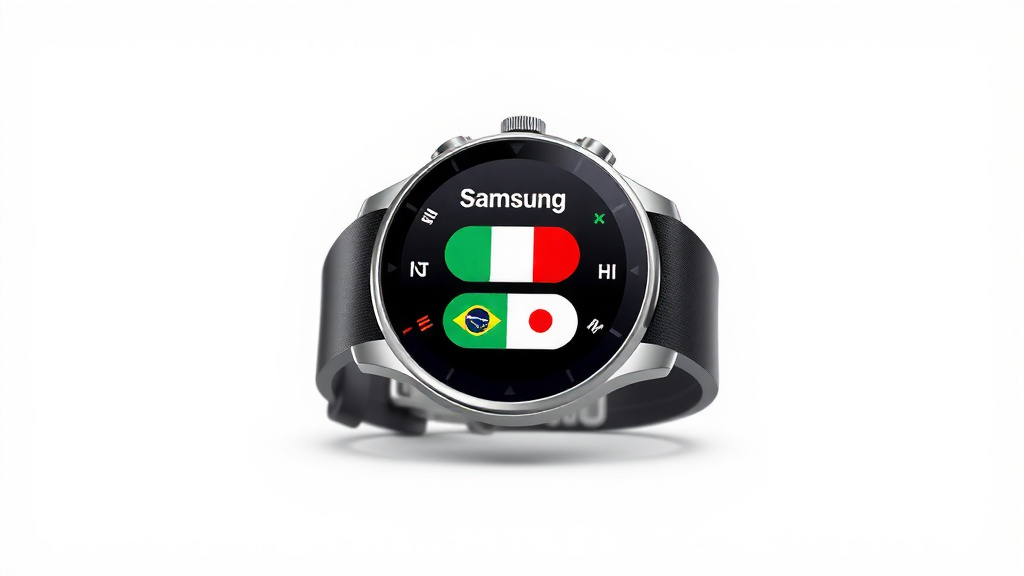
Change Language on Samsung Smartwatch: Easy Guide
Changing the language on your Samsung smartwatch is surprisingly simple. You can easily switch your watch to a new language by navigating through the settings menu on your device. This allows you to get the most out of your watch, no matter where you are.
Many users find this setting helpful for understanding notifications or apps. It’s a quick way to personalize your watch experience. We found that most Samsung models offer a straightforward process for this. It’s a key feature for global users.
- Go to your watch’s Settings.
- Find the ‘General’ or ‘Device’ section.
- Tap on ‘Language and input’.
- Select your preferred language.
Let’s walk through exactly how to change the language on your Samsung smartwatch step by step.
Switching Your Samsung Smartwatch Language
Changing the language on your Samsung smartwatch is a pretty straightforward process. You can easily update it to a language you’re more comfortable with. This makes using your watch for notifications, apps, and general navigation much easier.
Accessing Language Settings on Your Watch
The primary place you’ll look for this setting is within your watch’s main settings menu. Think of it like changing the language on your phone. You need to go into the device’s core settings to find the language options.
Navigating to the Settings Menu
First things first, you’ll need to wake up your watch. Swipe down from the top of your watch face to open the Quick Panel. From there, you should see a small gear icon. This gear icon is your gateway to all the settings. Tap on it.
Locating the General or Device Section
Once you’re in the Settings menu, you’ll see a list of various options. Scroll down until you find a section labeled ‘General’ or sometimes ‘Device’. The exact wording can differ slightly depending on your specific Samsung Galaxy Watch model and its software version. We found that most recent models use ‘General’.
Finding ‘Language and input’
Within the ‘General’ or ‘Device’ menu, keep scrolling. You’re looking for an option that clearly states ‘Language and input’. This is where all the text-related settings reside, including the language your watch displays. Tap on this option.
Selecting Your New Watch Language
You’re almost there! Once you tap ‘Language and input’, you’ll see the current language listed. There should be an option right below it that says ‘Language’. Go ahead and tap on that.
Choosing from the Available Languages
Now, you’ll be presented with a list of languages that your Samsung smartwatch supports. These lists are usually quite extensive, covering many of the world’s most common languages. Simply scroll through the list until you find the language you want to use.
Confirming Your Selection
After you’ve found your desired language, tap on it. Your watch might ask you to confirm this change. This is a good safeguard to ensure you don’t accidentally switch to a language you don’t understand. Once confirmed, your watch will immediately update its display language.
What Happens After the Change?
All the text on your watch interface will instantly change to the new language. This includes menus, app names, notifications, and any system messages. It’s a pretty cool transformation to watch!
Changing Language via Your Connected Phone
Sometimes, it’s easier to make adjustments on your phone, especially if you’re already familiar with its interface. Your Samsung smartwatch often mirrors some settings from the phone it’s connected to via the Galaxy Wearable app. We found this can be a helpful alternative.
Opening the Galaxy Wearable App
On your smartphone, open the Galaxy Wearable app. This is the app you used to set up your watch initially. Make sure your watch is connected to your phone. You should see your watch listed as a connected device.
Accessing Watch Settings in the App
Within the Galaxy Wearable app, navigate to your watch’s settings. You’ll usually see a section dedicated to your watch’s specific settings, often labeled ‘Watch settings’ or similar. Tap into this area.
Finding Language Settings in the App
Now, you’re looking for the same options you’d find on the watch itself, but within the app interface. Scroll through the settings within the app until you find ‘General’ or ‘Device’. Inside that menu, you should see ‘Language and input’, followed by the ‘Language’ option.
Making the Change Through Your Phone
Just like on the watch, you can select your preferred language from the list provided in the app. Once you confirm your choice, the app will sync this setting to your smartwatch. This method can feel quicker if you’re already using your phone.
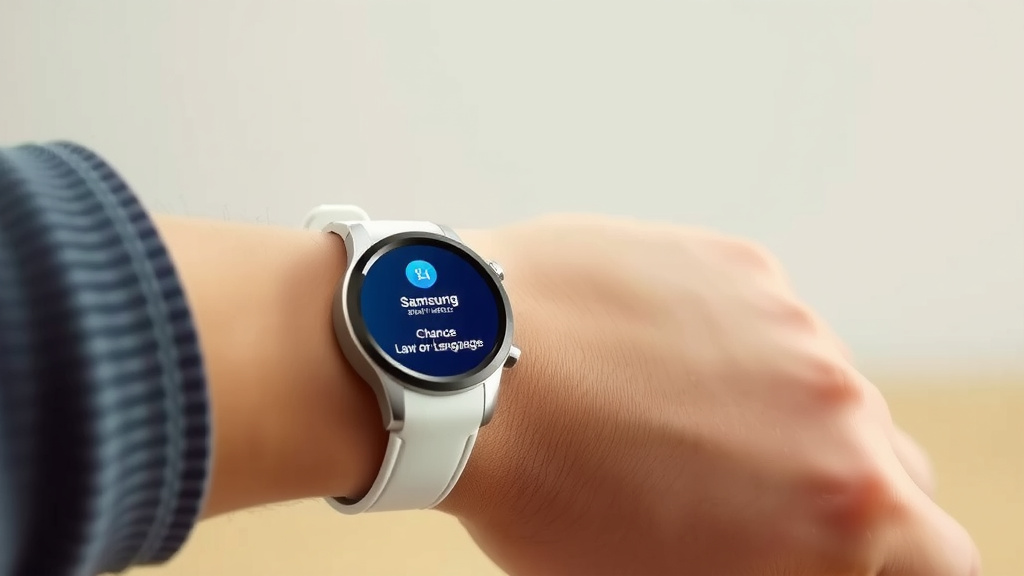
Troubleshooting Common Language Issues
What if you accidentally changed the language to something you can’t read at all? Don’t panic! We’ve all been there. Here’s a quick way to get back on track.
The “Blind Navigation” Method
If you can’t read the menus, you’ll need to navigate by remembering the icon positions and order. We found that the sequence is usually consistent across models.
- Start from the watch face.
- Swipe down to open Quick Panel.
- Tap the Settings icon (it looks like a gear).
- Scroll down a few times (you might need to estimate how many swipes).
- Tap the option that looks like it has text or symbols related to input (often it’s 4th or 5th down).
- Tap the first option, which is typically ‘Language’.
- Scroll down the list, looking for your familiar language or a flag you recognize.
- Tap your language and confirm.
It might take a few tries, but this method works. Many users find success by referencing a video or diagram of their watch’s settings menu on their phone while performing these steps.
Why Changing Your Watch Language Matters
Having your watch in a language you understand makes a big difference. It ensures you can quickly read important notifications, manage your apps effectively, and feel more confident using your device. It’s a simple setting that greatly enhances your overall user experience.
Quick Checklist for Changing Your Language
Here’s a quick rundown to help you remember the steps:
- Wake up your watch.
- Access the Settings menu (gear icon).
- Find and tap ‘General’ or ‘Device’.
- Select ‘Language and input’.
- Choose ‘Language’ from the options.
- Pick your preferred language and confirm.
Following these steps should have your Samsung smartwatch speaking your language in no time!
Conclusion
You’ve now seen how easy it is to change your Samsung smartwatch’s language. Whether you prefer using your watch directly or the Galaxy Wearable app on your phone, the process is quite straightforward. We’ve covered how to navigate the menus and even what to do if you get a little lost. This simple setting can greatly improve your daily interaction with your watch. Take a moment to set your watch to your preferred language so you can enjoy all its features comfortably.
Frequently Asked Questions
Can I change the language on my Samsung watch if I can’t read it?
Yes, you can! This is called “blind navigation.” You’ll need to carefully follow the sequence of icons and menu positions you learned from the article, or even reference a diagram on your phone. It takes a bit of patience, but you can successfully reset the language without understanding the current display.
Will changing the watch language also change my phone’s language?
No, changing the language on your Samsung smartwatch will not affect the language settings on your connected smartphone. These are independent settings. You are only altering the display language on the watch itself.
How many languages does a Samsung smartwatch typically support?
Samsung smartwatches usually support a wide range of languages. The exact number can vary by model and software version, but they aim to cover most major languages spoken globally. You’ll likely find your preferred language is available.
Does the Galaxy Wearable app offer more language options than the watch itself?
Generally, no. The language options available through the Galaxy Wearable app are the same as those directly on your watch. The app just provides an alternative, often more familiar, interface for making the change.
What if the language I want isn’t available on my Samsung watch?
If your desired language isn’t listed, it means your specific Samsung smartwatch model does not support it. You may need to use the closest available language or continue using the language it came with. Software updates sometimes add new language support, so checking for updates might be an option in the future.


![7 Best Smart Watch For Professional Athletes [2026]](https://smartwatchbest.com/wp-content/uploads/2026/09/7-best-smart-watch-for-professional-athletes-2026-featured-768x432.jpg)