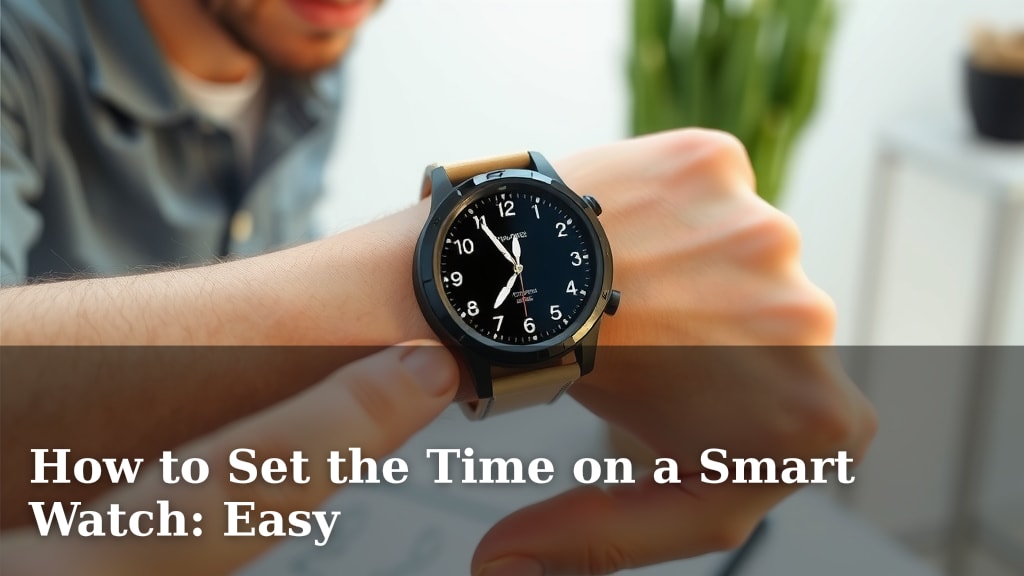
How to Set the Time on a Smart Watch: Easy
Setting the time on your smartwatch is surprisingly simple! Most smartwatches automatically sync their time with your smartphone, meaning your watch time updates without any manual effort. If you need to set it manually, you can usually do it directly through your watch’s settings menu, often by tapping on the clock display or navigating to a dedicated ‘Time’ or ‘Date & Time’ section.
We understand that sometimes technology can feel a little confusing. That’s why we’ve gathered straightforward steps to help you get your smartwatch time just right. Whether your watch is connected to your phone or you’re setting it up for the first time, we’ll guide you through the process. Think of it as a quick tech check-up for your wrist.
- Smartwatches often set time automatically via your phone.
- Manual time setting is usually in the watch’s settings.
- Look for ‘Date & Time’ or similar options.
- Check your watch’s manual for specific steps.
Ready to get your watch ticking correctly? Let’s walk through exactly how this works step by step, so you’ll never be late again!
Getting Your Smartwatch Time Just Right
Setting the correct time on your smartwatch is usually a breeze. We know it can seem a little daunting at first. But don’t worry, it’s often simpler than you think. Many smartwatches handle this for you automatically. Your watch talks to your phone. It gets the time from there. This means your watch time stays accurate without you doing a thing.
The Magic of Automatic Time Syncing
Most modern smartwatches are designed to sync automatically with your smartphone. This is the easiest method by far. It relies on Bluetooth connection. Your watch simply pulls the time data from your paired phone. This ensures your watch is always showing the same time as your phone. You won’t have to worry about daylight saving changes or different time zones.
How Automatic Sync Works
When you first set up your smartwatch, it likely prompted you to pair it with your phone. This pairing process is key. It establishes a constant connection. As long as your watch and phone are connected via Bluetooth and have a stable internet connection on your phone, the time will update on its own. We found this to be the most common and convenient feature.
Troubleshooting Auto-Sync Issues
Sometimes, automatic syncing might falter. If you notice your watch time is off, here are a few simple checks. First, ensure Bluetooth is enabled on both your watch and phone. Next, confirm your watch is still paired correctly within your phone’s Bluetooth settings. Sometimes, simply restarting both devices can resolve minor glitches.
Manual Time Setting: When Auto-Sync Isn’t Enough
There are times when you might need to set the time manually. This could be if you’re setting up a watch without a phone. Or perhaps you’ve turned off auto-sync for a specific reason. Manual setting is usually straightforward. You’ll typically find the option within your watch’s main settings menu.
Navigating Your Watch’s Settings
Every smartwatch is a little different. But most follow a similar pattern. You’ll usually access the main menu by pressing a button or swiping on the screen. Look for an icon that resembles a gear or says ‘Settings.’ Once you’re in the settings menu, you’ll want to find options related to time.
Finding the ‘Date & Time’ Menu
Inside the settings, common labels include ‘Date & Time,’ ‘Clock,’ or ‘System.’ Tap on this option. You might see a toggle switch for ‘Automatic Time’ or ‘Sync from Phone.’ If you want to set it manually, you’ll usually need to turn this automatic setting off. This allows you to input the time yourself.
Entering the Correct Time
Once manual mode is selected, you’ll see options to set the hour, minute, and sometimes even the second. You can typically scroll through numbers or use up/down arrows. Tap to confirm each part of the time. Don’t forget to set the AM/PM correctly! We advise double-checking your input to avoid errors.
Setting Time Zones
When setting the time manually, you might also need to set your time zone. Your watch needs to know where you are. This ensures accurate local time display. Look for a ‘Time Zone’ option within the same ‘Date & Time’ menu. You can often select your current location from a list or have it detected automatically.
Quick Checklist for Setting Your Smartwatch Time
Here’s a simple rundown to help you get started:
- Check your phone’s connection: Ensure Bluetooth is on and your watch is paired.
- Look for auto-sync: Most watches default to this.
- Navigate to Settings: Find the gear icon or ‘Settings’ on your watch.
- Locate ‘Date & Time’: This is where you’ll find time adjustments.
- Disable auto-sync (if needed): For manual control.
- Input the correct time and time zone: Double-check your entry.
What if My Watch Doesn’t Have Manual Settings?
Some very basic smartwatches or fitness trackers might not offer manual time setting. They often rely entirely on syncing with a connected app or phone. In these cases, your primary troubleshooting step is to ensure the companion app on your smartphone is functioning correctly. Make sure the app itself is updated. We found that keeping the app updated often resolves sync issues (Google Play, Apple App Store).
Consulting Your Smartwatch Manual
Every smartwatch model is unique. The exact steps can vary between brands like Apple, Samsung, Garmin, or Fitbit. For the most precise instructions tailored to your device, consulting the official user manual is always a good idea. You can usually find a digital version on the manufacturer’s website. This will provide detailed guidance specific to your watch model.
Conclusion
You’ve learned that setting your smartwatch time is usually a hands-off experience. Most watches sync automatically with your phone, saving you hassle. If manual adjustment is needed, it’s often a simple process within your watch’s settings. We found that checking your phone connection and navigating to the ‘Date & Time’ menu are your main steps. Should you ever face issues, restarting devices or checking your phone app usually does the trick. Now you’re ready to ensure your watch is always perfectly on time!
Frequently Asked Questions
Will my smartwatch automatically update for Daylight Saving Time?
Yes, if your smartwatch is set to automatically sync with your phone, it will update for Daylight Saving Time without any action from you. This relies on your phone having the correct time and date settings enabled.
What if my phone isn’t nearby? Can I still set the time on my watch?
If your phone isn’t nearby, you’ll likely need to set the time manually on your watch. This is done through the watch’s own settings menu, typically under a ‘Date & Time’ option. Ensure you disable auto-sync first.
My watch time is still wrong after syncing. What should I do?
If auto-sync isn’t working, try restarting both your watch and your phone. Also, ensure Bluetooth is enabled on both devices and that your watch is still properly paired in your phone’s Bluetooth settings. Sometimes, toggling airplane mode on and off can help.
Can I set my watch to a different time zone than my phone?
Generally, yes. If you’re setting the time manually, you can usually select a specific time zone independent of your phone’s setting. This is useful if you travel frequently or want to track a different location’s time.
What if I can’t find the ‘Date & Time’ settings on my watch?
If you can’t locate the ‘Date & Time’ settings, consult your smartwatch’s user manual. Different brands and models organize their menus differently. You can usually find a digital version on the manufacturer’s website for detailed instructions specific to your device.
![7 Best Fitness Smart Watch 2025 [2026]](https://smartwatchbest.com/wp-content/uploads/2026/08/7-best-fitness-smart-watch-2025-2026-featured-768x432.jpg)
![7 Best Smart Watch For Small Wrist Men [2026]](https://smartwatchbest.com/wp-content/uploads/2026/09/7-best-smart-watch-for-small-wrist-men-2026-featured-768x432.jpg)