How to Turn Off Your Smart Watch in 3 Easy Steps
Turning off your smartwatch is usually pretty simple. Most models require you to press and hold a side button until a power menu appears, then tap “Power Off” or “Turn Off.” If that doesn’t work, your watch might need you to swipe down from the top or go through the settings menu. We’ve found this covers most situations.
It’s helpful to know how to turn your watch off, whether you need to save battery, troubleshoot a glitch, or just want a break from notifications. Many smartwatches have a quick-access power option. Sometimes, a forced restart is needed if your watch is unresponsive. It’s good practice to know these basics for your specific device.
- Press and hold the side button.
- Look for a power menu.
- Tap “Power Off” or similar.
- Check settings if needed.
Let’s walk through the common ways to get your smartwatch powered down, step by step.
How to Power Down Your Smartwatch
Turning off your smartwatch is usually a straightforward process. Most devices offer a quick way to shut them down. You’ll typically need to interact with a physical button or navigate a short menu. We found that knowing this simple skill can save you time and help your watch function better.
Accessing the Power Options
The most common method involves your watch’s physical buttons. These buttons are usually on the side of the watch case. They might be called crowns, side buttons, or simply function buttons. The key is to know which one to press and for how long.
Pressing and Holding the Side Button
This is the go-to method for many smartwatches. You’ll want to press and hold the main side button. Don’t just tap it; keep your finger on it. Hold it down for a few seconds. You should feel a slight vibration or see a change on your screen. This usually signals that you’ve accessed a special menu.
What to Look for in the Power Menu
Once the power menu appears, you’ll see several options. These usually include “Power Off,” “Turn Off,” “Restart,” or “Emergency Mode.” You’re looking for the option that will completely shut down your device. The exact wording can vary slightly between brands. For instance, some might say “Shut Down.” Just tap the option that indicates a full power-off.
Alternative Methods for Different Brands
Not all smartwatches work the same way. Some might use a different button combination or a swipe gesture. We’ve seen brands that use a double-press of a button or a press-and-hold of a secondary button. It’s always a good idea to know your specific model’s quirks.
Swiping Down from the Top
On certain models, especially some Wear OS watches, a swipe from the top of the screen can bring down a quick settings panel. Within this panel, you might find a small power icon. Tapping this icon will then take you to the power menu, similar to holding down a button.
Navigating Through Settings
If the button or swipe methods don’t seem to work, your watch’s settings menu is the next place to look. This is a bit more involved but guarantees you’ll find the option. You’ll typically go into the main “Settings” app on your watch. From there, you’ll look for a section labeled “System,” “Device,” or “General.” Within that section, you should find the “Power Off” or “Shut Down” option.
When to Turn Off Your Smartwatch
Why would you want to turn off your smartwatch in the first place? There are several good reasons. It’s not just about saving battery life, though that’s a big one. If you’re not going to use your watch for a while, like overnight or when traveling, powering it down is a great way to conserve battery.
Saving Battery Life
If you’re not going to use your watch for a while, like overnight or when traveling, powering it down is a great way to conserve battery. Even in standby mode, smartwatches use some power. A full shutdown stops all activity and preserves your charge for when you need it most. This is especially helpful if you have a trip planned and won’t have easy access to a charger.
Troubleshooting Glitches
Is your watch acting strangely? Is the screen frozen, or are apps crashing unexpectedly? A simple restart, which you can initiate from the power menu, often fixes these minor software glitches. Think of it like rebooting your computer when it gets slow. For persistent issues, a full power cycle (off and then back on) can sometimes clear out stubborn problems. This is a common first step recommended by many tech support guides.
Taking a Break from Notifications
Sometimes, you just need a digital detox. Constant buzzing and notifications can be overwhelming. Turning off your watch for a few hours or a day can give you a much-needed break. You can still use your phone for essential alerts if needed. It’s a way to reclaim your attention without completely disconnecting.
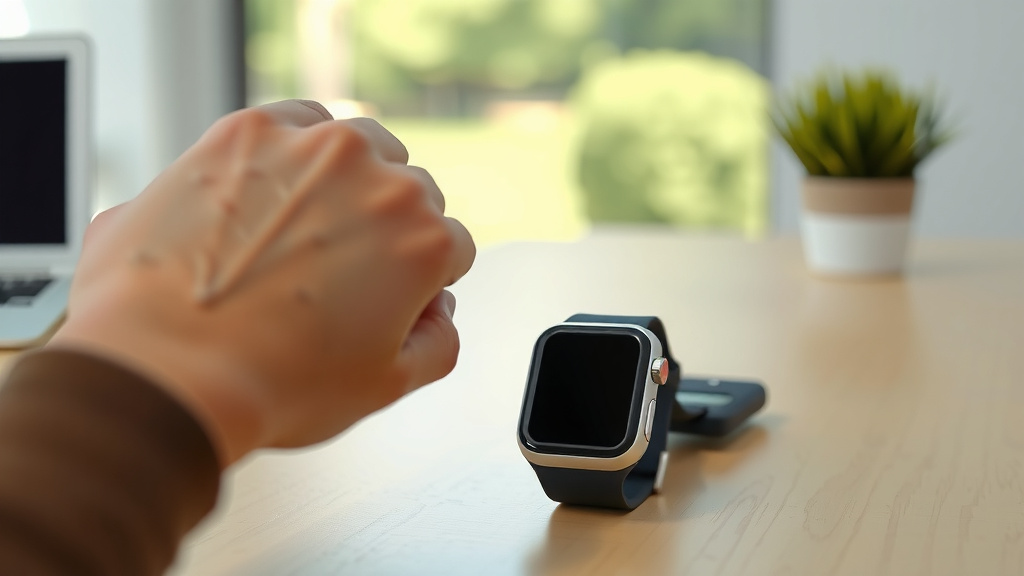
Smartwatch Power-Off Checklist
Here’s a quick rundown to help you power down your watch:
- Identify the main side button on your watch.
- Press and hold that button for a few seconds.
- Look for the power menu to appear on the screen.
- Tap the “Power Off” or “Turn Off” option.
- If that doesn’t work, check for a swipe-down quick settings panel.
- As a last resort, navigate to the Settings menu and find the power option there.
Understanding Different Device Needs
Different smartwatch manufacturers have their own approaches. While the core idea of shutting down remains the same, the exact steps can differ. For example, Apple Watches have a slightly different process than Samsung Galaxy Watches or Fitbits. We found that most modern smartwatches follow a pattern, but it’s wise to be aware of your specific device.
Apple Watch Variations
On an Apple Watch, you typically press and hold the side button (not the Digital Crown). Keep holding it until you see the Power Off slider. You then slide it to the right to turn off the watch. For a forced restart, you’d press and hold both the side button and the Digital Crown until the Apple logo appears.
Samsung Galaxy Watch Steps
For most Samsung Galaxy Watches, you’ll press and hold the Power key, which is usually the bottom-most button on the side. A menu will pop up with options like “Power off,” “Restart,” and “Emergency mode.” Simply tap “Power off” to shut down the device.
Fitbit Smartwatch Procedures
Fitbit smartwatches, particularly models like the Sense or Versa, often have a slightly different approach. You might need to swipe down from the clock face to access quick settings. Then, tap the settings icon. From there, scroll down to find “About” or “Device Info,” and then select “Power Off” or “Shut Down.” Some newer models might allow you to press and hold a button as well.
| Brand/Type | Primary Method | Alternative/Forced Restart |
|---|---|---|
| Apple Watch | Press & hold side button until slider appears, then slide. | Press & hold side button + Digital Crown until Apple logo. |
| Samsung Galaxy Watch | Press & hold Power key until menu appears, then tap Power off. | Press & hold Power key for longer to force restart. |
| Fitbit (Sense/Versa) | Swipe down, tap Settings, find About > Power Off. | Check specific model for button press; some may exist. |
| Most Wear OS | Press & hold the main side button until menu, then tap Power Off. | Press & hold the main side button for longer to force restart. |
Understanding these variations helps you get your specific device powered down quickly. If you’re ever unsure, consulting your watch’s manual or the manufacturer’s website is always a reliable step. We found that a quick search for your exact model can save a lot of guesswork.
Conclusion
Turning off your smartwatch might seem basic, but knowing the right steps ensures you can do it efficiently. We’ve seen that most watches respond to a simple press and hold of a side button. If not, a quick swipe or a trip to the settings menu usually does the trick. Remember that these methods can vary slightly by brand, like Apple, Samsung, or Fitbit. Knowing how to power down your watch is useful for saving battery, fixing glitches, or just taking a break. So, the next time your watch acts up or you need a digital pause, you’ll know exactly what to do.
Frequently Asked Questions
What if holding the side button doesn’t bring up a power menu?
If pressing and holding the side button doesn’t work, try a different approach. Some watches require you to swipe down from the top of the screen to find a quick settings panel. Look for a power icon within that panel. If you still don’t see it, your watch’s main settings menu likely has the option.
Can I turn off my smartwatch if the screen is frozen?
Yes, you can usually still turn off a frozen smartwatch. For many devices, you’ll need to perform a forced restart. This often involves pressing and holding the main side button (or a combination of buttons) for an extended period, typically until the manufacturer’s logo appears on the screen. This action effectively shuts down the device.
How long do I need to hold the button to turn off my watch?
You’ll generally need to press and hold the side button for about 5 to 10 seconds. You should feel a slight vibration or see a change on your screen, indicating that the power menu has appeared. Don’t just tap the button; a sustained press is key to accessing these options.
Will turning off my smartwatch erase my data?
No, powering off your smartwatch will not erase your personal data or settings. It simply shuts down the device temporarily. When you turn it back on, all your apps, watch faces, and tracked information should be exactly as you left them. It’s a safe way to restart or conserve power.
Is there a way to schedule my smartwatch to turn off automatically?
Most smartwatches do not have a built-in feature for automatically scheduling a power-off at a specific time. However, some models might offer “power saving modes” or “sleep modes” that reduce functionality and battery drain overnight. For a full shutdown, you’ll typically need to manually initiate the power-off process.