How to Check Your Smartwatch Battery: Quick Guide
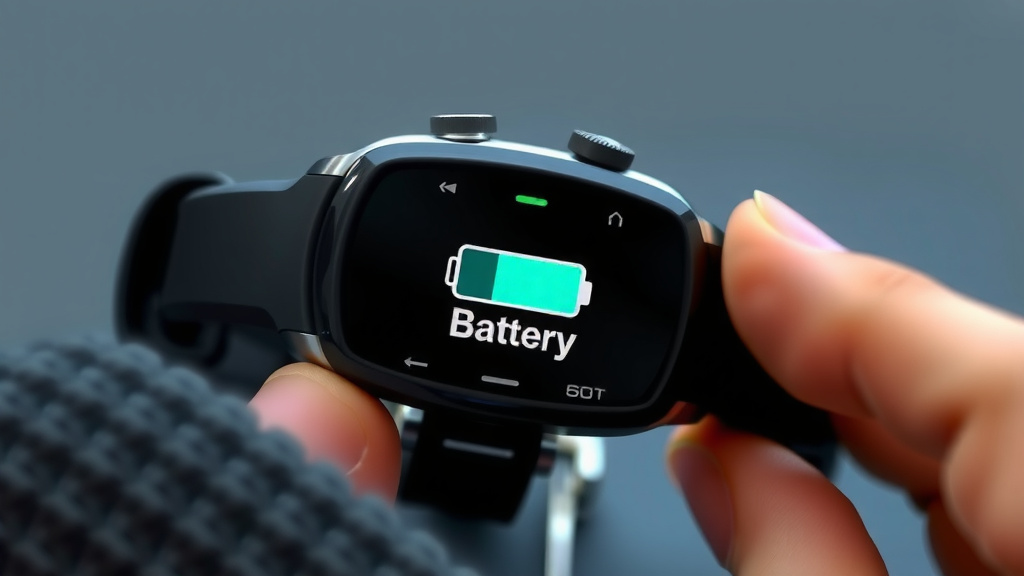
Checking your smartwatch battery is usually quite simple. You can typically find the battery percentage displayed directly on your watch face or within the quick settings menu. Simply swipe down or up from the main screen to access these quick controls and look for the battery icon.
Keeping an eye on your smartwatch’s battery level is key to ensuring it lasts throughout your day. Low battery warnings often pop up, but knowing where to look beforehand can save you a surprise shutdown. Many users find checking this information becomes second nature after a few days.
TL;DR:
- Swipe down or up from your watch face.
- Look for the battery icon.
- The percentage is usually displayed there.
- Some watches show it on the main screen.
Let’s walk through exactly how to check your smartwatch’s battery life, no matter what brand you have.
Keeping Your Smartwatch Charged: Battery Check Guide
Knowing your smartwatch’s battery level is essential. It helps you avoid unexpected shutdowns. Most smartwatches make this information easily accessible. You just need to know where to look. We’ve gathered the common methods for checking your battery percentage.
Accessing Battery Info on Your Watch
Your smartwatch is designed to give you quick access to its status. Battery life is a top concern for most users. Luckily, manufacturers include straightforward ways to see how much power you have left.
The Quick Settings or Control Center Method
This is the most common way to check your battery. Think of it like swiping down on your smartphone. You’ll typically swipe down from the top of your watch face. This action brings up a menu with quick toggles. You should see a battery icon there. It often shows the percentage directly. Sometimes, it’s just an icon that fills up. This tells you the general battery status. It’s a handy shortcut for a quick glance. We found this works on most major smartwatch brands.
Checking the Watch Face Itself
Some smartwatches are set up to show the battery percentage right on the main screen. This is called a watch face complication. You can often customize your watch face. Adding the battery percentage is a popular option. You might need to edit your watch face. Look for an option to add or change data points. The battery icon or percentage is usually available. This allows for constant awareness of your power levels. It’s like having a fuel gauge always in view. It saves you a swipe every time. Many users prefer this for its convenience.
Navigating Through Watch Settings
If the quick settings or watch face doesn’t show it clearly, you can always go into the main settings menu. On your watch, find the app icon that looks like a gear or settings cog. Tap on it to open. Once inside, look for a section labeled ‘Battery’ or ‘Power’. Tapping this will usually give you a detailed view. You’ll see the current percentage. Some watches also show estimated remaining time. They might even display battery usage by different apps. This is the most detailed way to check. It’s good for understanding what’s draining your battery the most. We found this method to be universally available across platforms.
Checking Battery Life Through the Companion App
Your smartwatch works closely with your smartphone. The companion app on your phone often provides more information. This includes detailed battery status.
Connecting to Your Smartphone App
First, ensure your smartwatch is connected to your phone via Bluetooth. Open the specific app for your smartwatch brand on your phone. This could be called Wear OS, Galaxy Wearable, Garmin Connect, or similar. Once the app is open and synced, look for a section related to your device. Often, there’s a tile or card showing your watch. Tapping on your watch within the app should bring up its status. You will see the battery percentage displayed clearly. Some apps even offer historical battery data. They might suggest tips to improve battery life. This is a great way to monitor your watch’s health remotely. It’s especially useful if your watch is on a charger.
What Does the Battery Icon Mean?
Battery icons are designed to be universally understood. They use simple visual cues.
Understanding the Visual Indicators
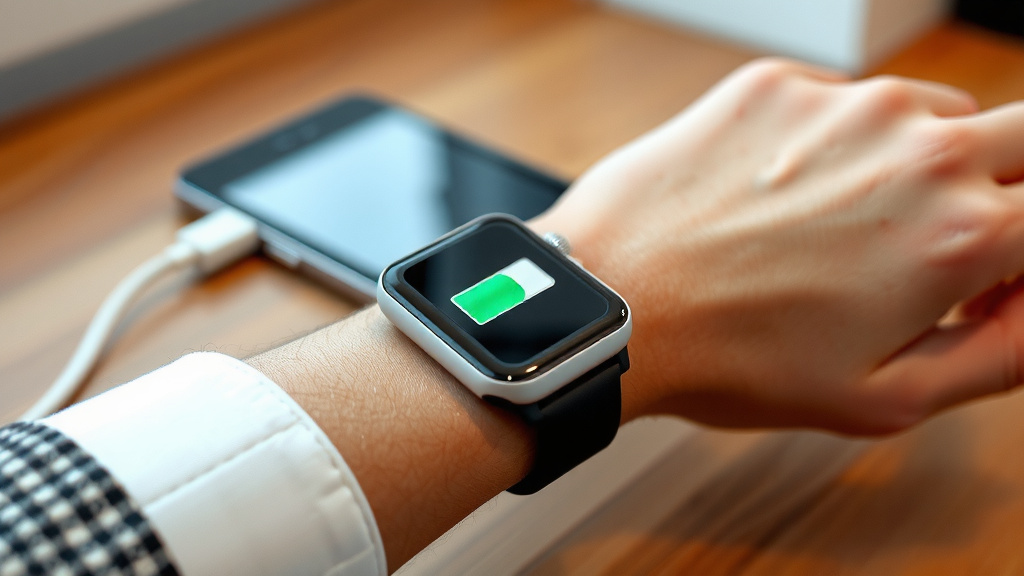
You’ll usually see a small icon shaped like a battery. It has a positive and negative end. As the battery drains, the fill level of the icon decreases. A full icon means 100% charge. An empty icon means very low power. Some icons may change color when the battery is low. Red is a common color for a warning. This visual cue is quick to grasp. It avoids the need to read numbers constantly. We found that even very basic smartwatches use this icon.
Interpreting the Percentage Number
When a percentage number is shown, it’s straightforward. 80% means you have 80 percent of your battery capacity remaining. 20% means you have 20 percent left. This offers a more precise understanding. It allows for better planning of your day. Knowing you have 50% left might be enough for a few more hours. Knowing you have 10% might mean you need to charge soon. Many experts suggest keeping your battery between 20% and 80% for longevity (Cleverness Institute).
Tips for Monitoring Your Smartwatch Battery
Keeping track of your battery is more than just checking the number. It’s about understanding usage.
Regularly Checking is Key
Make it a habit to check your battery level at least once a day. This helps you learn your watch’s typical drain rate. You’ll start to recognize when it’s lower than usual. This simple routine can prevent you from running out of power at an inconvenient time. Think of it like checking your car’s gas gauge before a long trip. It’s just good practice.
Understanding Battery Drain Factors
Several things can affect how quickly your battery drains. Screen brightness is a big one. GPS usage for workouts uses a lot of power. Continuous heart rate monitoring can also be a drain. Having many apps running in the background contributes. Features like always-on display use more energy. Understanding these factors helps you manage your battery better. You can adjust settings to conserve power when needed. We found that turning off unnecessary notifications can help too.
Smartwatch Battery Checklist
Here’s a quick list to help you remember how to check:
- Swipe down from your watch face for quick settings.
- Look for the battery icon and percentage.
- Customize your watch face to display battery life.
- Access the ‘Battery’ section in your watch’s main settings.
- Open the companion app on your smartphone.
- Check your device’s battery status within the app.
| Method | Where to Find It | Pros | Cons |
|---|---|---|---|
| Quick Settings | Swipe down from watch face | Fast and easy access | May not always show percentage |
| Watch Face | Customizable complication | Always visible without action | Requires watch face customization |
| Device Settings | Main settings menu | Detailed information | Takes a few more taps |
| Companion App | Smartphone app | Remote monitoring, historical data | Requires phone and app connection |
Conclusion
You’ve learned that checking your smartwatch battery is simple and accessible. Whether you prefer a quick swipe down for settings, a glance at a customized watch face, or a deep dive into the app, the information is there. Knowing your battery level helps you manage your day and your device. Make it a habit to check your battery regularly. This small step ensures your smartwatch is always ready when you need it. Stay charged and stay connected!
Frequently Asked Questions
How can I see my smartwatch battery percentage without touching my watch?
Many smartwatches allow you to customize your watch face to include a battery complication. This means the battery percentage will be visible right on the main screen at all times. You can usually add this by editing your current watch face through your watch or its companion smartphone app.
Does my smartwatch always show the battery percentage on the screen?
Not all smartwatches display the battery percentage on the main watch face by default. Some models only show a battery icon, while others require you to swipe down for quick settings or navigate to the main settings menu. You can often add a battery percentage complication if your watch face supports it.
Is checking the battery percentage on my phone’s app more accurate?
Checking through the companion app on your smartphone often provides the most detailed information. It syncs directly with your watch and may show more precise battery percentages or even historical usage data. However, the percentage displayed directly on the watch is typically very accurate for real-time status.
What should I do if my smartwatch battery drains unusually fast?
If your battery is draining faster than normal, you should first check for battery-hungry features. Things like high screen brightness, constant GPS use, or too many background apps can be culprits. You can review your watch’s battery settings for usage details and adjust these features to conserve power.
Will checking my smartwatch battery affect its performance or battery life?
No, simply checking your smartwatch’s battery level has no negative impact on its performance or battery life. It’s a passive action that just displays information. Regularly monitoring your battery is actually a good practice for understanding its usage patterns and managing its longevity.
![7 Best Smart Watch For Professional Athletes [2026]](https://smartwatchbest.com/wp-content/uploads/2026/09/7-best-smart-watch-for-professional-athletes-2026-featured-768x432.jpg)