Smartwatch Sleep Mode Setup Guide
You can easily set sleep mode on your smartwatch through your watch’s settings menu. Look for options like “Sleep Mode,” “Do Not Disturb,” or “Bedtime Mode.” This feature helps minimize distractions while you rest.
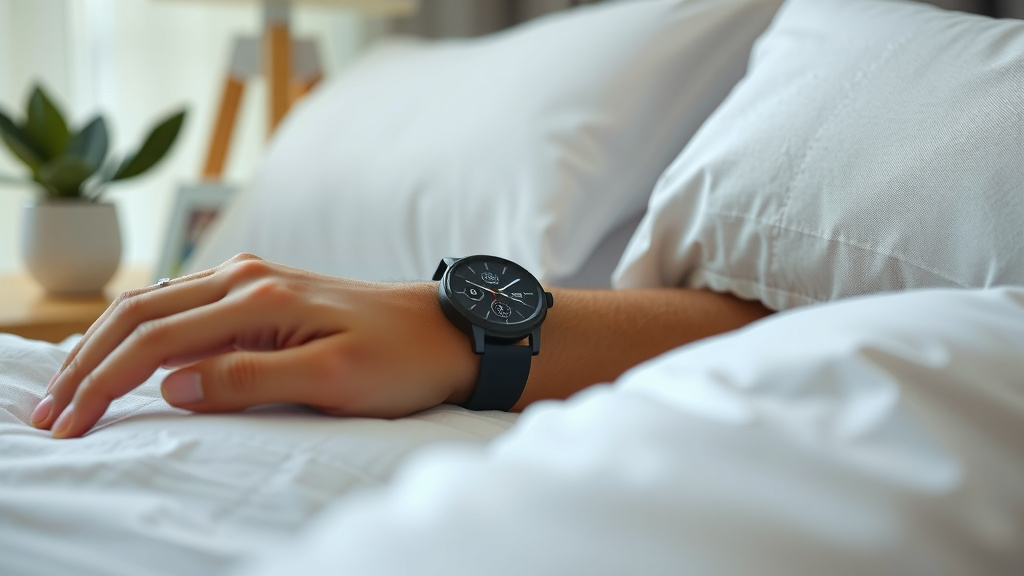
Activating sleep mode on your smartwatch is a smart move for better sleep hygiene. It often dims the screen and silences notifications. Many smartwatches also track your sleep patterns when this mode is on, giving you helpful data.
- Access sleep mode via your watch’s settings.
- Look for “Sleep Mode,” “Do Not Disturb,” or “Bedtime Mode.”
- This feature silences notifications.
- It also dims your watch screen.
- Your watch may track sleep quality.
Let’s walk through exactly how to get your smartwatch into sleep mode step by step, so you can get some uninterrupted rest.
“`htmlGetting Your Smartwatch Into Sleep Mode
Ready to finally get some peaceful sleep without your watch buzzing you awake? Setting your smartwatch to sleep mode is your golden ticket. Think of it as giving your watch a little nap so you can get yours. We’ll guide you through the common ways to activate this essential feature. It’s usually quite straightforward, even if your watch brand is different from your neighbor’s. Your goal is a quiet, dim screen that respects your downtime.
Accessing Sleep Mode on Different Smartwatches
Most smartwatches have a similar approach to activating sleep mode. The exact button or swipe might vary, but the principle remains the same. We’ve found that looking for a dedicated “Sleep” or “Do Not Disturb” option is usually the fastest route. Many watches also offer a quick access menu from the main watch face. This lets you toggle features on and off with a single tap.
For Wear OS (Google) Devices
If you have a smartwatch running Wear OS, like many from Fossil or TicWatch, the process is usually quite intuitive. You’ll typically swipe down from the top of your watch face to open the quick settings panel. From there, look for an icon that resembles a moon or a bed. Tapping this icon should activate sleep mode. Some Wear OS watches also allow you to schedule this mode. This means it turns on automatically when you usually go to bed.
For Apple Watch
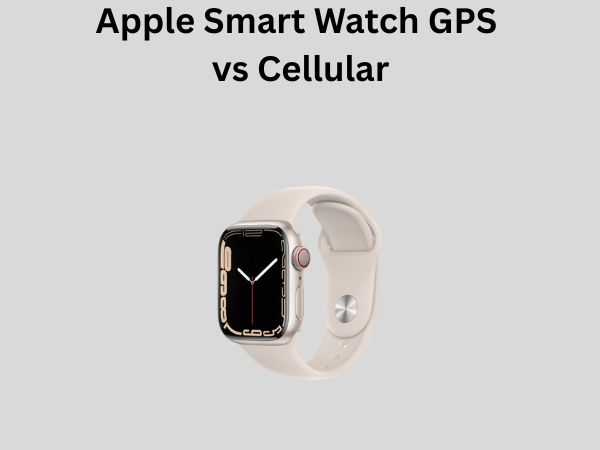
Apple Watch users can access sleep mode through its “Focus” feature. Navigate to the Control Center by swiping up from the bottom of your watch face. You’ll see an icon that looks like a crescent moon. Tap this to enable “Do Not Disturb.” You can customize this Focus mode in your iPhone’s Settings app. This allows you to choose which notifications, if any, can break through the silence. It’s a powerful way to control your digital interruptions.
For Samsung Galaxy Watches (Tizen/Wear OS Powered)
Samsung Galaxy Watches often have a “Sleep Mode” or “Do Not Disturb” option readily available. Similar to Wear OS, you’ll likely swipe down from the top of the watch face to access quick settings. Look for an icon that signifies sleep or quiet time. Tapping it will engage the mode. Samsung also allows for scheduling, so your watch can automatically enter sleep mode at a set time each night.
For Garmin Smartwatches
Garmin devices usually offer a “Do Not Disturb” mode that functions similarly. You’ll often find this option within the device’s settings menu. Some Garmin models also let you access it via a long-press of a physical button or by swiping through widgets. Check your watch’s specific user manual for the most accurate instructions, as Garmin offers a wide range of models.
Understanding Your Sleep Mode Options
Once you find the setting, you might see a few different terms. “Sleep Mode,” “Bedtime Mode,” and “Do Not Disturb” all aim for the same result: quiet. However, some might offer slightly different features. Understanding these can help you tailor the mode to your needs.
“Do Not Disturb” (DND)
“Do Not Disturb” is a general silencing feature found on most smart devices. On your watch, it typically mutes all notifications. Some DND modes allow exceptions for calls from contacts marked as favorites. Research from the National Sleep Foundation suggests that minimizing stimuli before bed is key for sleep quality (National Sleep Foundation). DND is a good starting point for achieving this.
“Sleep Mode” or “Bedtime Mode”
These modes are specifically designed for sleep. They often go beyond just silencing notifications. Many smartwatches will dim the display significantly when in sleep mode. This prevents the bright screen from startling you if you check the time. Some also disable always-on display features. This saves battery and reduces visual distractions. Several studies indicate that light exposure, especially blue light from screens, can disrupt melatonin production (NIH). Dimming the screen helps mitigate this effect.
Customizing Your Sleep Mode Settings
Your smartwatch is smart, but you’re the one who knows your sleep habits best. Most devices allow you to customize how sleep mode works. This ensures it’s helpful, not just an extra step.
Scheduling Sleep Mode
This is a game-changer for consistent sleep. You can set specific times for your watch to automatically enter and exit sleep mode. For example, you might set it to turn on at 10 PM and off at 7 AM. This way, you don’t have to remember to activate it every night. It becomes part of your bedtime routine. Many experts recommend a consistent sleep schedule for optimal health (CDC). Automated sleep mode supports this consistency.
Allowing Exceptions
Do you need to be reachable by a partner or child? Most sleep modes let you set exceptions. You can often allow calls from specific contacts or repeated calls to come through. This gives you peace of mind without sacrificing your quiet time. We found that this flexibility is key for users who can’t completely disconnect.
Display Settings During Sleep Mode
As mentioned, dimming the screen is a common feature. Some watches allow you to choose just how dim. You might also be able to disable the “raise-to-wake” gesture. This prevents the screen from lighting up when you simply move your arm. This can be a lifesaver if you tend to toss and turn. Keeping your environment dark is a well-established sleep hygiene practice (Mayo Clinic).
Sleep Tracking and Sleep Mode
Many smartwatches use sleep mode as a trigger for their sleep tracking features. When sleep mode is active, your watch is primed to monitor your sleep patterns. It can track how long you slept, your different sleep stages (light, deep, REM), and any disturbances. This data can be incredibly useful. You can review it in the morning via the companion app on your phone. Understanding your sleep can help you identify habits that might be affecting your rest. For instance, you might notice you sleep worse on nights you exercise late.
A Quick Checklist for Setting Up Sleep Mode
Let’s make sure you’re all set. Here’s a simple rundown:
- Find the Settings menu on your watch.
- Look for “Sleep Mode,” “Bedtime,” or “Do Not Disturb.”
- Toggle it ON manually or set a schedule.
- Customize notification exceptions if needed.
- Adjust display settings for minimal brightness.
- Ensure sleep tracking is enabled if you want it.
Conclusion
You’ve learned how simple it is to set your smartwatch to sleep mode. This essential feature silences notifications and dims your screen. It helps create a peaceful environment for rest. Whether you’re using Wear OS, Apple Watch, Samsung, or Garmin, the process is similar. Look for “Sleep Mode” or “Do Not Disturb” in your settings. Now, you can take control of your sleep hygiene. Your next step is to find that setting on your watch and activate it tonight. Sweet dreams!
Frequently Asked Questions
Can I set sleep mode to turn on automatically?
Yes, most smartwatches allow you to schedule sleep mode. You can set specific times for it to turn on and off each day. This ensures your watch respects your sleep schedule without you having to remember.
Will sleep mode stop all notifications?
Typically, sleep mode or Do Not Disturb will silence most notifications. However, you can usually customize exceptions. This means you can allow calls from certain contacts or emergency alerts to come through.
Does sleep mode use more battery?
No, sleep mode generally helps conserve battery life. By dimming the screen and disabling features like “raise-to-wake,” it reduces power consumption. This is especially true if your watch has an always-on display that gets turned off.
Can I still track my sleep if sleep mode is on?
Absolutely! Many smartwatches use sleep mode as a trigger for their sleep tracking features. When sleep mode is active, your watch is ready to monitor your sleep stages and duration.
What’s the difference between “Sleep Mode” and “Do Not Disturb”?
“Do Not Disturb” is a general silencing feature for any time. “Sleep Mode” or “Bedtime Mode” is specifically designed for rest. It often includes screen dimming and sometimes disables other distractions like gestures.
![7 Best Budget Smart Watches For Women [2026]](https://smartwatchbest.com/wp-content/uploads/2026/08/7-best-budget-smart-watches-for-women-2026-featured-768x432.jpg)
![7 Best Smart Watch For Small Wrist Men [2026]](https://smartwatchbest.com/wp-content/uploads/2026/09/7-best-smart-watch-for-small-wrist-men-2026-featured-768x432.jpg)
![7 Best Smart Watch For Treadmill [2026]](https://smartwatchbest.com/wp-content/uploads/2026/09/7-best-smart-watch-for-treadmill-2026-featured-768x432.jpg)
![7 Best Heavy Duty Smart Watch [2026]](https://smartwatchbest.com/wp-content/uploads/2026/08/7-best-heavy-duty-smart-watch-2026-featured-768x432.jpg)