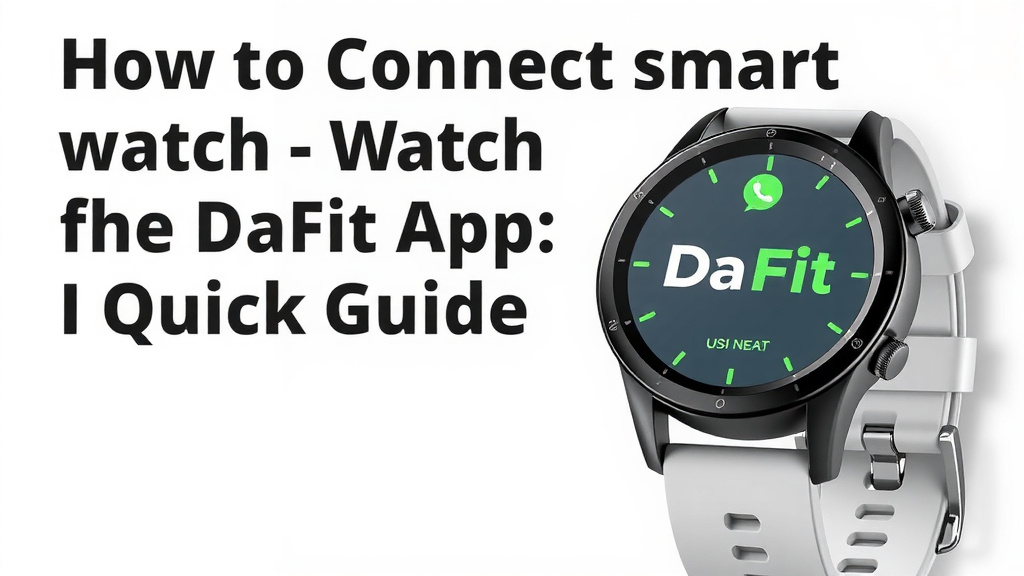
Connect Your Smartwatch to the DaFit App: A Quick Guide
Connecting your smartwatch to the Da Fit app is quite simple. You’ll want to make sure your watch’s Bluetooth is on and that you’ve downloaded the Da Fit app from your phone’s app store. This connection lets you sync data and control your watch.
Once connected, your watch can send fitness stats and notifications to your phone. The Da Fit app is your central hub for viewing this information. It helps you keep track of your health goals and watch settings effectively. Many users find this synchronization makes their smartwatch experience much better.
TL;DR:
- Download the Da Fit app.
- Turn on Bluetooth on your watch and phone.
- Open the app and search for your watch.
- Follow the on-screen prompts to pair.
- You’re all set to sync data!
Ready to get your watch talking to your phone? Let’s walk through exactly how to connect your smartwatch to the Da Fit app step by step.
Pairing Your Smartwatch with Da Fit: A Step-by-Step Guide
So, you’ve got a new smartwatch and want to get it connected to the Da Fit app? It’s a pretty straightforward process. This connection is key to unlocking all the cool features your watch offers. It allows your watch to send all your fitness data and important notifications right to your phone. Think of the Da Fit app as the command center for your wrist. We’re here to guide you through each step so you can get syncing in no time!
Before You Begin: Essential Preparations
There are a few things you’ll want to have ready before you even open the app. These small steps make the entire connection process much smoother. Let’s make sure you’re set up for success!
Ensure Your Phone is Ready
Your smartphone is the other half of this dynamic duo. First, make sure you have a stable internet connection. This is usually Wi-Fi or your cellular data. Both are important for downloading the app and for the initial pairing. Also, check that your phone’s operating system is up to date. Sometimes older software can cause compatibility issues. A quick update can often prevent headaches down the line.
Download the Da Fit App
If you haven’t already, the first major step is getting the Da Fit app onto your phone. You can find it in your device’s app store. For most Android phones, this will be the Google Play Store. iPhone users will find it on the Apple App Store. Just search for “Da Fit” and look for the official app. It’s usually free to download. Once it’s installed, go ahead and open it up.
Enable Bluetooth on Both Devices
Bluetooth is the magic technology that allows your watch and phone to talk to each other. You’ll need to turn it on for both your smartwatch and your smartphone. On your phone, this setting is usually found in the quick settings menu (swipe down from the top) or in the main settings app under “Connections” or “Bluetooth.” On your smartwatch, the process can vary. Check your watch’s settings menu for a Bluetooth option and make sure it’s toggled on. Many smartwatches will show a Bluetooth icon when it’s active. This is probably the most common reason why connections fail, so double-check this step.
Connecting Your Smartwatch to the Da Fit App
Now that everything is prepped, let’s dive into the actual pairing process. This is where your watch and phone become best friends.
Open the Da Fit App and Start the Search
With Bluetooth on and the app open, you’ll likely see an option within the Da Fit app to “Add Device” or “Bind Device.” Tap on this. The app will then start searching for nearby Bluetooth devices. Make sure your smartwatch is close to your phone during this process. You might also see a prompt asking for permission to access your phone’s location services. For Bluetooth to work effectively in finding devices, the app often needs these permissions. It’s a standard security measure for Bluetooth scanning.
Identify and Select Your Watch
As the app scans, a list of available devices will appear. You should see your smartwatch listed there, often by a model name or number. If you’re unsure which one is yours, some watches will display a unique code or name on their screen when being searched for. Select your watch from the list. This tells the app which device you intend to connect with.
Confirm the Pairing Request
Once you’ve selected your watch, your phone will likely send a pairing request. Your smartwatch might also display a confirmation message or a pairing code. You’ll need to accept this on your watch. This usually involves tapping a checkmark or a “Pair” button on the watch screen. Sometimes, the phone will display a code, and your watch will show the same code for you to verify. Confirming this ensures that you are intentionally connecting your specific devices. It’s a security feature to prevent accidental pairing.
The App Will Finalize the Connection
After you confirm the pairing on both devices, the Da Fit app will work to finalize the connection. You might see a progress indicator. The app will then confirm that your device is successfully connected. Congratulations! You’ve officially paired your smartwatch with the Da Fit app.
Understanding the Da Fit App Interface
Now that you’re connected, let’s briefly look at what you can do within the app. It’s designed to be your central hub for all things smartwatch.
Syncing Your Data
The primary function is syncing. Your watch automatically collects data like steps, heart rate, sleep patterns, and workouts. When the app is open and connected, this data transfers to your phone. We found that sometimes a manual sync is needed. You can usually trigger this by pulling down on the main screen of the Da Fit app. This keeps your phone’s data current with what your watch has recorded.
Navigating Key Features
Within the app, you’ll typically find sections for your fitness data, device settings, and personal profile. The “Device” tab is where you can manage your watch’s settings, customize watch faces, set alarms, and check for firmware updates. The “Profile” section is for your personal health information, which helps the app provide more accurate insights. Exploring these sections will help you get the most out of your connected experience.
Troubleshooting Common Connection Issues
Sometimes, things don’t go perfectly smoothly. If you run into trouble, don’t worry! Most issues are easily resolved.
Bluetooth Isn’t Connecting
If the app can’t find your watch, the first thing to check is Bluetooth on both devices. Is it truly on? Try turning Bluetooth off and then on again on both your phone and watch. We’ve also found that restarting both devices can often clear up temporary glitches. Sometimes, forgetting the device in your phone’s Bluetooth settings and then trying to re-pair through the Da Fit app can solve persistent problems.
The Watch Isn’t Syncing Data
If your devices are paired but not syncing, ensure the Da Fit app has all necessary permissions on your phone. This includes background app activity and location services. Also, verify that your phone has a stable internet connection. If your watch has a low battery, it might also prevent syncing. Charging your watch can sometimes resolve syncing issues. Many experts recommend keeping the Da Fit app running in the background for the best syncing experience (Mayo Clinic).
Here’s a quick checklist to get you back on track:
- Double-check that Bluetooth is ON on both your phone and watch.
- Ensure your watch is close to your phone during pairing.
- Restart both your phone and your smartwatch.
- Verify Da Fit app has necessary permissions on your phone.
- Check for app updates in your phone’s app store.
- Make sure your watch has sufficient battery life.
Conclusion
You’ve successfully navigated the steps to connect your smartwatch with the Da Fit app. Remember, a stable connection means your fitness data is always at your fingertips. You can track your progress and manage your watch settings with ease. We found that checking your Bluetooth and ensuring app permissions are set correctly are key. Now, dive into the app and personalize your watch experience. Your journey to better health tracking starts with this simple pairing!
Frequently Asked Questions
Why can’t the Da Fit app find my smartwatch?
This is usually due to Bluetooth. Make sure Bluetooth is turned on for both your phone and your watch. Also, try restarting both devices. Sometimes, toggling Bluetooth off and then back on again can resolve the issue.
Do I need to keep the Da Fit app running all the time?
For the best syncing experience, it’s recommended to keep the Da Fit app running in the background. This ensures your data transfers automatically. You may also need to grant the app background activity permissions in your phone’s settings.
My watch is paired, but it’s not syncing data. What should I do?
First, check your phone’s internet connection. Also, ensure the Da Fit app has all the necessary permissions. Sometimes, a low battery on your watch can prevent syncing, so try charging it fully.
Can I connect one smartwatch to multiple phones using Da Fit?
Typically, a smartwatch is designed to connect to only one phone at a time. If you want to connect it to a new phone, you’ll usually need to unpair it from the old phone first.
How do I update my smartwatch’s firmware through the Da Fit app?
Once connected, navigate to the ‘Device’ section in the Da Fit app. You should find an option for firmware updates or device information. If an update is available, the app will guide you through the process.

![7 Best Lightweight Smart Watch [2026]](https://smartwatchbest.com/wp-content/uploads/2026/08/7-best-lightweight-smart-watch-2026-featured-768x432.jpg)