
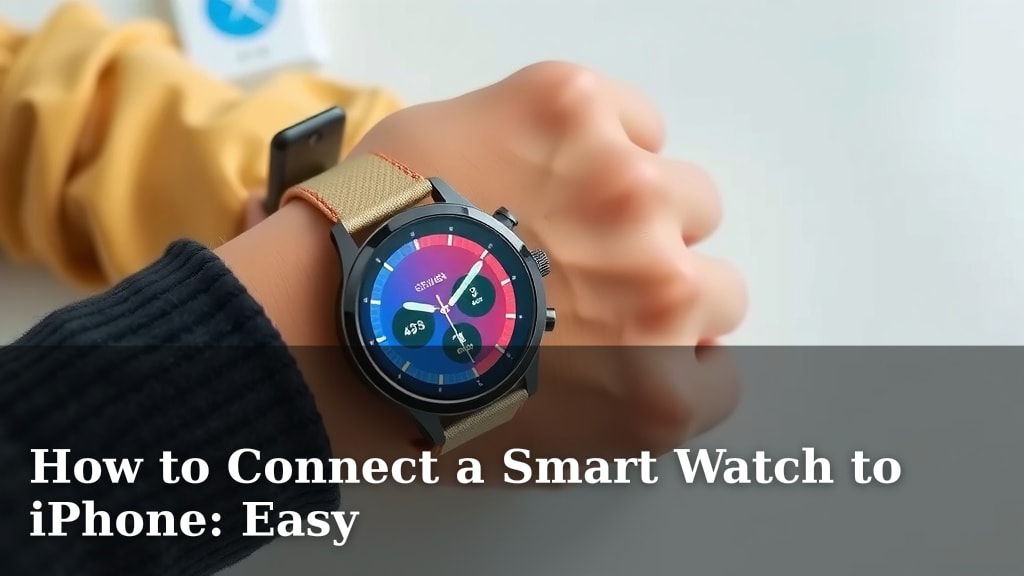
How to Connect a Smart Watch to iPhone: Easy
Connecting your smart watch to your iPhone is surprisingly easy. You’ll mostly use the Apple Watch app on your iPhone to get started. It guides you through the pairing process quickly.
This simple connection lets you do so much more with your watch. You can get notifications, track fitness goals, and even make payments. Many users find it makes their daily life much more convenient.
TL;DR:
- Use the Apple Watch app on your iPhone.
- Follow the on-screen prompts.
- Ensure Bluetooth is on.
- Keep your watch and iPhone close.
- You’ll be connected in minutes!
Ready to get your new smart watch paired up? Let’s walk through exactly how this works step by step.
Pairing Your Smart Watch with Your iPhone: A Step-by-Step Guide
So, you’ve got a shiny new smart watch and your trusty iPhone. You’re probably eager to see them work together, right? It’s like giving your phone a smart sidekick. The good news is, connecting them is usually a breeze. We’ll guide you through the entire process so you can start enjoying all the cool features in no time.
Before You Begin: What You Need
First things first, let’s make sure you have everything ready. This ensures the pairing process goes as smoothly as possible. Think of it as gathering your ingredients before you start cooking!
1. Your iPhone and Smart Watch
This might sound obvious, but ensure both your iPhone and your smart watch are **charged up**. A low battery can interrupt the pairing. Nobody wants that to happen mid-setup. We recommend at least a 50% charge for both devices.
2. The Apple Watch App
This is your command center. You’ll need the Apple Watch app installed on your iPhone. If it’s not already there, you can easily download it from the App Store. It’s free, of course.
3. Bluetooth Enabled
Bluetooth is the magic technology that lets your devices talk to each other wirelessly. Make sure Bluetooth is turned on on your iPhone. You can check this in your iPhone’s Settings app under “Bluetooth.”
4. Wi-Fi Connection
While not strictly required for the initial pairing, a stable Wi-Fi connection will be helpful for downloading updates or setting up certain features later. It’s a good idea to have it ready.
Getting Started: The Initial Pairing Process
Now, let’s dive into the actual connection. The Apple Watch app is designed to make this super intuitive. You’ll feel like a tech wizard in minutes.
1. Open the Apple Watch App
Locate the Apple Watch app on your iPhone’s home screen. Tap it to open. If it’s your first time, you’ll likely see a “Start Pairing” option.
2. Initiate Pairing Mode on Your Watch
Turn on your smart watch. If it’s brand new, it should automatically enter pairing mode. You might see a visual prompt or an animation on the watch screen. If it’s not new, you may need to navigate to its settings to find the pairing option.
3. Hold Your Devices Together
Keep your iPhone and smart watch close to each other. The app will prompt you to scan the watch face with your iPhone. Point your iPhone’s camera at the watch. It looks a bit like taking a picture, but it’s actually establishing the connection.
4. Confirm the Pair
Your iPhone will detect the watch and ask you to confirm the pairing. Simply tap “Pair Apple Watch” on your iPhone screen. It’s like saying “yes” to a new friendship.
Setting Up Your Smart Watch After Pairing
Once your devices are linked, you’ll go through a few more steps to personalize your watch. Think of this as customizing your new digital companion.
1. Restore or Set Up as New
You’ll have the choice to restore from a backup (if you’ve had an Apple Watch before) or set it up as a new device. If you’re new to smart watches, choose “Set Up as New.”
2. Sign In with Your Apple ID
You’ll be prompted to sign in with your Apple ID. This is important for syncing data like contacts, calendars, and for using features like Apple Pay. It’s the same ID you use for your iPhone and other Apple services.
3. Configure Settings and Features
The app will guide you through setting up various features. This includes things like workout preferences, health data sharing, and app installations. You can customize notifications to avoid getting overwhelmed. Many experts suggest starting with essential notifications (Mayo Clinic).
4. Wait for Syncing
There will be a syncing process that transfers settings and apps. This might take a few minutes. You can continue using your iPhone during this time, but keep the watch nearby. The app will let you know when it’s complete.
Troubleshooting Common Connection Issues
Sometimes, things don’t go perfectly on the first try. Don’t worry, we’ve all been there! Here are a few common hiccups and how to fix them.
Bluetooth Not Connecting?
If your iPhone isn’t finding your watch, try turning Bluetooth off and then back on again on your iPhone. Sometimes a quick refresh is all it needs. Also, ensure your watch is in pairing mode and close enough.
Pairing Failed Message?
This usually means something interrupted the connection. Restart both your iPhone and your smart watch. Then, try the pairing process again from the beginning. A fresh start often solves the problem.
Watch Not Responding?
If your watch seems frozen, try a force restart. The exact method varies by model, but it often involves holding down a button or two for a specific amount of time. Check your watch’s manual for precise instructions.
Quick Checklist for a Smooth Connection
Want a super-fast way to remember the key steps? Here’s a quick rundown:
- Ensure both devices are charged.
- Turn Bluetooth ON on your iPhone.
- Download and open the Apple Watch app.
- Keep watch and iPhone close together during pairing.
- Follow the on-screen prompts on both devices.
- Confirm the pairing when asked.
Conclusion
Connecting your smart watch to your iPhone is a straightforward process. By using the Apple Watch app and following the simple on-screen steps, you can link your devices in minutes. Remember to ensure Bluetooth is on and your devices are charged for a smooth setup. You’re now ready to enjoy all the enhanced features your connected watch offers, from fitness tracking to staying on top of notifications.
Your next step is to dive into your watch’s settings and customize it to perfectly suit your daily routine and preferences!
Frequently Asked Questions
How long does it usually take to connect my smart watch to my iPhone?
The initial pairing process typically takes just a few minutes. Following the prompts in the Apple Watch app on your iPhone is usually very quick. Ensure both devices are charged and Bluetooth is enabled for the fastest connection.
Do I need to pay for the Apple Watch app?
No, the Apple Watch app is completely free. You can download it from the App Store on your iPhone without any cost. It’s the essential tool for managing your watch and its connection to your phone.
What should I do if my iPhone doesn’t find my smart watch?
First, double-check that Bluetooth is turned on in your iPhone’s settings. Make sure your watch is powered on and in pairing mode. Try restarting both your iPhone and your watch, then attempt the pairing process again.
Can I connect multiple smart watches to one iPhone?
No, an iPhone can only be paired with one smart watch at a time. If you want to connect a new watch, you’ll need to unpair your current one first through the Apple Watch app.
Is it safe to share my health data between my watch and iPhone?
Yes, Apple has strong privacy measures in place for health data. You have control over what data is shared and with whom. Research confirms that Apple prioritizes user privacy for health information synced through its devices.
![7 Best Smart Watch For Scuba Diving [2026]](https://smartwatchbest.com/wp-content/uploads/2026/09/7-best-smart-watch-for-scuba-diving-2026-featured-768x432.jpg)
![7 Best Android Smart Watch For Health [2026]](https://smartwatchbest.com/wp-content/uploads/2026/06/7-best-android-smart-watch-for-health-2026-featured-768x432.jpg)
![7 Best Brands For Smart Watches [2026]](https://smartwatchbest.com/wp-content/uploads/2026/08/7-best-brands-for-smart-watches-2026-featured-768x432.jpg)