Disable Apple Watch Smart Charge: A Step-by-Step Guide
You can turn off Apple Watch smart charging directly in your watch’s settings. This feature helps preserve your battery’s For more on charging, our guide on how to charge your Apple Watch covers the basics.long-term health by reducing its time spent fully charged. Here’s how to disable optimized battery charging on your Apple Watch.
Smart charging, also known as optimized battery charging, learns your daily charging routine. It then waits to finish charging past 80% until closer to when you typically use your watch. While it’s great for battery longevity, sometimes you might need it to charge to 100% right away. You might be wondering if you can simply turn it off.
- Smart charging optimizes your Apple Watch battery.
- It learns your charging habits.
- You can disable it in Settings.
- This allows for faster charging when needed.
Ready to take control of your Apple Watch charging? Let’s walk through the simple steps to turn off smart charging together.
Okay, so your Apple Watch has a nifty feature called Optimized Battery Charging, or sometimes called Smart Charging. It’s designed to help your battery age gracefully. Think of it like letting your phone charge only part of the way overnight if you usually unplug it at 7 AM. It waits to top off that last 20% until just before your alarm goes off. This is brilliant for battery health long-term, as batteries don’t love sitting at 100% for hours on end. But what if you need a full charge *now*? You’re in luck! You absolutely can turn off this smart charging feature on your Apple Watch.
Understanding Apple Watch Smart Charging
Before we dive into how to disable it, let’s quickly chat about what Smart Charging actually does. It’s pretty smart! Your watch learns your daily charging patterns. Based on this, it tries to predict when you’ll need your watch fully charged. So, if you plug it in every night before bed, it might charge to 80% and then pause. It will then finish charging to 100% just before your usual wake-up time. This reduces the strain on your battery, helping it last longer over the years. It’s a thoughtful feature for battery longevity.
Why You Might Want to Turn It Off
While Smart Charging is generally a good thing, there are perfectly valid reasons why you might want to bypass it. Maybe you have an early morning workout planned and need every ounce of power. Or perhaps you’re heading out on a trip and want to ensure your watch is at 100% before you even leave your home. Sometimes, you just don’t want your watch playing games with its charge level. You want it fully charged, pronto. Knowing how to disable this feature gives you that control back.
How to Disable Smart Charging on Your Apple Watch
Turning off Optimized Battery Charging is a straightforward process. You’ll do it directly on your Apple Watch itself, so you don’t need your iPhone for this particular setting. Let’s get right to it.
Accessing Watch Settings
First things first, you need to open the Settings app on your Apple Watch. You can find the Settings icon on your Home Screen. It looks like a gray gear. Just tap on it to open.
Navigating to Battery Settings
Once you’re inside the Settings app, you’ll want to scroll down. Look for an option labeled “Battery”. Tap on that to enter the battery settings menu. Here you’ll find information about your current battery level and other related options.
Finding the Optimized Battery Charging Option
Within the Battery menu, you’ll see a few choices. One of them will be labeled “Optimized Battery Charging”. This is the setting we want to adjust. Tap on it.
Turning Off the Feature
You’ll likely see a few options here, usually “Optimized” (which is likely on by default) and “Off.” To disable the feature completely, simply select “Off”. That’s it! Your Apple Watch will now charge to 100% every time you plug it in, without any pauses.
What to Expect After Disabling
After you’ve turned off Optimized Battery Charging, your watch will revert to charging to 100% immediately. This means if you plug it in at 20%, it will work its way up to 100% without delay. You’ll notice it charges up faster to full capacity. This is perfect for those times when you need your watch ready to go, fully powered, as quickly as possible. Keep in mind, though, that consistently charging to 100% and leaving it there might slightly impact your battery’s long-term health compared to using the optimized feature. It’s a trade-off for immediate charging speed.
Re-Enabling Smart Charging If Needed
Life changes, and so do your charging habits! If you decide later that you want to give your battery the benefit of Smart Charging again, the process is exactly the same. Just go back into Settings > Battery, tap on “Optimized Battery Charging,” and select the “Optimized” option. Your watch will then start learning your patterns again. It’s good to know you have this flexibility and can switch back and forth as your needs dictate.
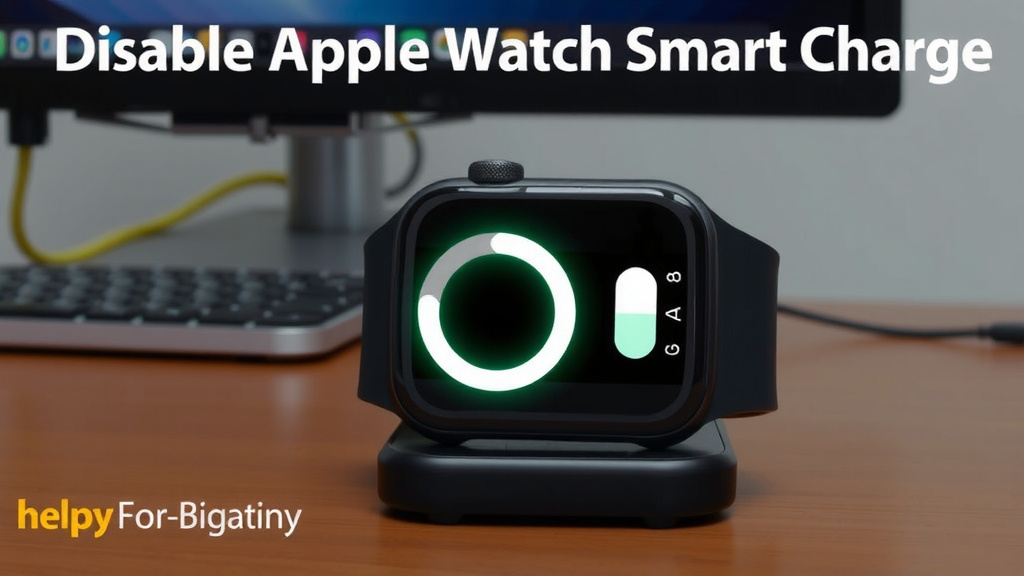
A Quick Checklist for Your Settings
Need a quick reminder of the steps? Here’s a simple checklist:
- Open the Settings app on your Apple Watch.
- Scroll down and tap on Battery.
- Tap on Optimized Battery Charging.
- Select Off to disable the feature.
- Your watch will now charge to 100% immediately.
It’s really that simple! You’ve successfully taken control of your Apple Watch’s charging behavior. This ensures you always have the power you need, exactly when you need it, without waiting for your watch to decide it’s the right time to finish charging.
Conclusion
You’ve now learned how to easily disable Optimized Battery Charging on your Apple Watch. This puts you in complete control of when your watch reaches 100% power. While the smart feature is great for long-term battery health, knowing how to turn it off ensures you can get a full charge quickly when you need it most. Whether it’s for an early workout or a sudden trip, your watch will be ready. Now, go ahead and adjust your settings to match your daily routine!
Frequently Asked Questions
Will turning off smart charging hurt my Apple Watch battery?
While Optimized Battery Charging helps extend your battery’s lifespan over time, turning it off isn’t immediately harmful. If you consistently charge to 100% and keep it there, it might slightly impact the battery’s long-term health compared to using the optimized feature. It’s a trade-off for immediate full charging.
Can I turn off smart charging using my iPhone?
No, you need to turn off Optimized Battery Charging directly on your Apple Watch. The setting is located within the watch’s own Settings app, under the Battery menu. You won’t find this option on your paired iPhone.
How do I know if smart charging is turned on?
On your Apple Watch, navigate to Settings > Battery. If “Optimized Battery Charging” is set to “Optimized,” the feature is active and learning your habits. If it’s set to “Off,” your watch charges to 100% immediately.
What happens if I accidentally turn off smart charging?
If you turn off Optimized Battery Charging by mistake, don’t worry! You can easily turn it back on. Just go back to Settings > Battery on your watch and select the “Optimized” option. Your watch will then resume its smart charging behavior.
Does turning off smart charging make my watch charge faster overall?
When smart charging is on, it pauses charging at 80% until closer to when you typically use your watch. By turning it off, you remove that pause, allowing your watch to go from its current charge level straight to 100%. This means it will reach full power without delay, which can feel faster when you need it urgently.
![7 Best Mid Price Smart Watch [2026]](https://smartwatchbest.com/wp-content/uploads/2026/08/7-best-mid-price-smart-watch-2026-featured-768x432.jpg)
![7 Best Military Smart Watches For Men [2026]](https://smartwatchbest.com/wp-content/uploads/2026/08/7-best-military-smart-watches-for-men-2026-featured-768x432.jpg)
![7 Best Smart Watch For Seniors 2024 [2026]](https://smartwatchbest.com/wp-content/uploads/2026/09/7-best-smart-watch-for-seniors-2024-2026-featured-768x432.jpg)
![7 Best Smart Watch For Texting And Calling [2026]](https://smartwatchbest.com/wp-content/uploads/2026/09/7-best-smart-watch-for-texting-and-calling-2026-featured-768x432.jpg)