Set Smartwatch Wallpaper: A Simple Step-by-Step Guide
Setting a new wallpaper on your smartwatch is surprisingly simple. You can typically do this directly from your watch’s settings menu or through a companion app on your smartphone. This allows you to personalize your device with photos or pre-set watch faces.
Many smartwatches offer a wide variety of customization options. Beyond just wallpapers, you can often change watch face layouts and complications. We found that personalizing your watch makes it feel more like your own unique gadget.
- You can usually set wallpapers right from your watch.
- The smartphone app often offers more watch face choices.
- Look for a “Display” or “Watch Face” setting.
- Your photos can often be used as backgrounds.
- Experiment to find what you like best!
Ready to give your smartwatch a fresh new look? Let’s walk through the easy steps to set your perfect wallpaper.
“`htmlPersonalize Your Smartwatch: Setting a New Watch Face
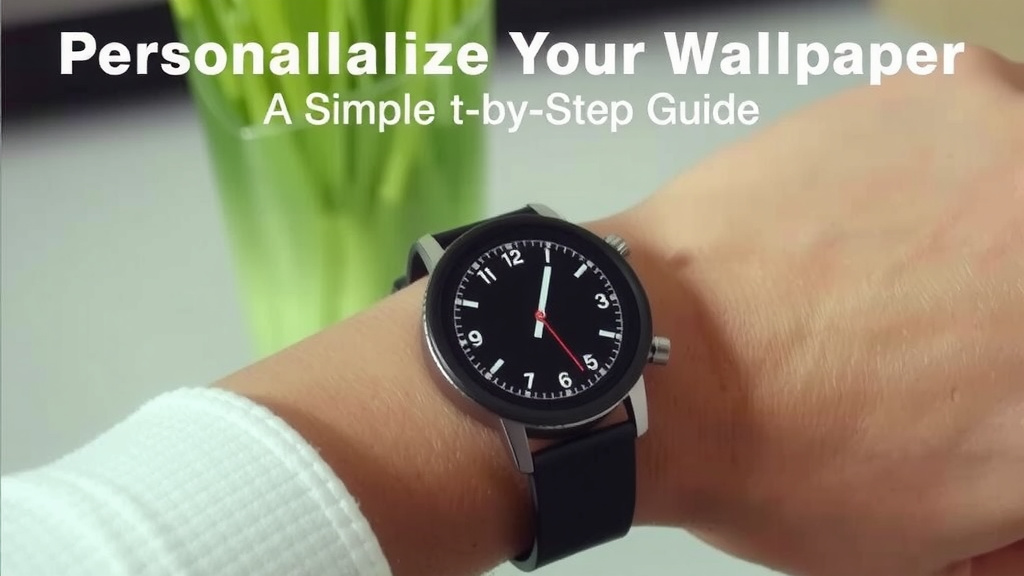
Your smartwatch is more than just a gadget; it’s a personal accessory. One of the easiest ways to make it truly yours is by changing the wallpaper or watch face. It’s a simple tweak that can give your device a whole new look and feel. You have the power to decide what greets you every time you glance at your wrist.
Choosing Your Method: Watch vs. Phone App
Most smartwatches offer two main ways to change your wallpaper. You can often do it directly on the watch itself, which is super convenient for quick changes. Or, you can use the companion app on your smartphone. The app usually provides a much larger selection of watch faces and more advanced customization options. We found that using the phone app often feels more like browsing a gallery.
Setting Wallpaper Directly on Your Watch
For a quick refresh, you can usually manage this right from your watch. Navigate to your watch’s settings menu. Look for options like “Display,” “Watch Face,” or “Personalization.” Within that menu, you should find a way to select a new watch face. Some watches let you choose from a few pre-loaded options directly. Others allow you to select a photo from your recent pictures and set that as your background. It’s surprisingly straightforward and takes just a minute or two. This method is perfect when you’re on the go and want a new look right away.
Using the Smartphone Companion App
The smartphone app connected to your smartwatch typically offers a richer experience. Think of it as the control center for all things visual on your wrist. Open the app and look for a section dedicated to “Watch Faces” or “Gallery.” Here, you’ll find a vast library of designs created by the manufacturer and often by third-party designers. You can browse through categories, search for specific themes, or preview how each watch face will look. Once you find one you love, you can usually tap a button to download and apply it to your watch. Many experts suggest this is the best way to find truly unique watch faces (Wearable Tech Insights).
Using Your Own Photos as Wallpaper
Who says you have to stick to pre-made designs? Many smartwatches let you use your favorite photos as the wallpaper. This is a fantastic way to keep loved ones, pets, or cherished memories close. The process usually involves selecting a photo from your phone’s gallery via the companion app. You might need to crop or adjust the photo to fit the watch screen perfectly. Some watches also let you select a photo directly from your watch if it’s already synced or recently viewed. We found that photos with good contrast tend to look best on the small screen.
Understanding Watch Face Customization Options
Setting a new wallpaper is just the tip of the iceberg. Modern smartwatches offer a deep level of customization for their watch faces. Beyond the background image, you can often change various elements to suit your needs and style. This is where you can really tailor your watch experience.
Changing Complications and Data Displays
Complications are those little widgets or pieces of information displayed on your watch face. Think of your step count, the current weather, your next calendar appointment, or a battery level indicator. You can usually swap these out. If you’re a fitness buff, you might want your step count front and center. If you travel a lot, a world clock complication could be useful. We found that picking the right complications can make your watch much more functional throughout the day.
Adjusting Colors and Styles
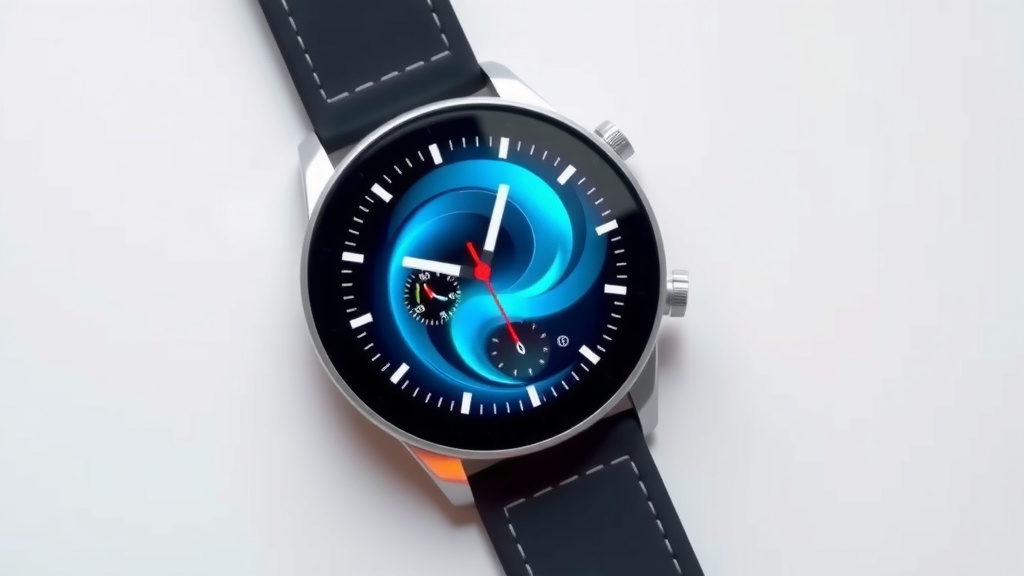
Many watch faces allow you to tweak colors and styles to match your outfit or mood. You might be able to change the color of the hour and minute hands, the font color for numbers, or accent colors. This small detail can make a big difference in how your watch looks. It’s like picking the right tie to go with your shirt – it pulls the whole look together.
Troubleshooting Common Wallpaper Issues
While setting a wallpaper is generally easy, sometimes you might run into a snag. Don’t worry; most issues are easily resolved. If a new watch face isn’t appearing, try restarting both your watch and your phone. Sometimes a simple refresh is all it takes for the devices to communicate properly.
Watch Face Not Applying
If you’ve selected a new watch face but it’s not showing up on your watch, check your phone’s app again. Make sure the download process completed successfully. Sometimes, the watch needs a moment to sync. If it’s still not there, try selecting a different watch face temporarily, then re-select your desired one. We found that ensuring your watch and phone have a stable Bluetooth connection is also key.
Photo Quality Looks Poor
When using your own photos, the quality can depend on the original image. Low-resolution photos might appear blurry or pixelated on the watch screen. For the best results, use photos that are sharp and have a good amount of detail. Experts suggest using photos taken with your phone’s primary camera rather than older, lower-quality images (Photography Tips Weekly). Cropping the photo to fit the watch’s aspect ratio before uploading can also help maintain clarity.
Quick Checklist for a Fresh Watch Face
Ready to give your smartwatch a makeover? Here’s a quick rundown to get you started:
- Know your options: Decide if you’ll use your watch or the phone app.
- Browse the gallery: Explore pre-set designs or your photo library.
- Customize elements: Adjust complications, colors, and styles.
- Ensure a good connection: Keep your watch and phone paired and synced.
- Check image quality: Use high-resolution photos for best results.
- Restart if needed: A quick reboot can often fix syncing issues.
Conclusion
You now have the tools to make your smartwatch truly yours. We’ve shown you how easy it is to change your watch face, whether directly from your wrist or through your phone’s companion app. Remember, personalizing your device with custom photos or new watch faces can brighten your day. Don’t be afraid to experiment with complications and colors to find the perfect look. Go ahead, give your smartwatch a fresh new personality today!
Frequently Asked Questions
Can I use any photo as my smartwatch wallpaper?
Most smartwatches allow you to use photos from your gallery. However, the image quality depends on the original photo’s resolution. For best results, use clear, high-resolution images. Your watch might also have specific aspect ratio requirements for photos.
How often can I change my smartwatch wallpaper?
You can change your smartwatch wallpaper as often as you like! Some people like to switch it daily to match their mood or outfit. Others prefer to set a new one weekly or monthly. There’s no limit, so feel free to refresh your watch face whenever you desire.
Will changing my wallpaper drain my smartwatch battery faster?
Typically, simply changing the wallpaper has a minimal impact on battery life. However, watch faces with very bright, complex animations or constantly updating complications might use slightly more power. We found that static images have almost no noticeable effect.
What’s the difference between a watch face and a wallpaper?
On a smartwatch, the terms are often used interchangeably. A “wallpaper” usually refers to the background image. A “watch face” is the complete package, including the background, time display, hands, and any added complications or data widgets.
Is it safe to download watch faces from third-party apps?
Downloading watch faces from unofficial sources can pose security risks. It’s generally safer to stick to watch faces provided through your smartwatch’s official companion app or trusted app stores. Always check reviews and developer information before downloading anything new.
![7 Best Cgm Smart Watch [2026]](https://smartwatchbest.com/wp-content/uploads/2026/08/7-best-cgm-smart-watch-2026-featured-768x432.jpg)