
How to Set Up Your Smart Watch: A Simple Guide
Setting up your new smartwatch is pretty straightforward! You’ll typically connect it to your smartphone using a dedicated app, which guides you through pairing and initial configuration. This process ensures your watch can sync data, receive notifications, and access all its smart features. You can often start using basic functions like checking the time right away, but full setup unlocks its potential. Setting up your new smartwatch is pretty straightforward; here’s how to connect your smartwatch to your phone.
Getting your smartwatch connected means opening up a world of convenience right on your wrist. We found that most brands offer a similar setup process, focusing on pairing via Bluetooth. This connection is key for features like fitness tracking, mobile payments, and receiving texts. It’s like giving your phone a stylish, wearable assistant.
- Download the companion app for your smartwatch.
- Turn on Bluetooth on your smartphone.
- Follow the app’s on-screen prompts to pair your watch.
- Complete the initial setup and personalization steps.
- Explore your watch’s unique features and settings.
Ready to get started? Below, we’ll walk you through the typical steps to get your smartwatch up and running smoothly, ensuring you can enjoy all its cool capabilities.
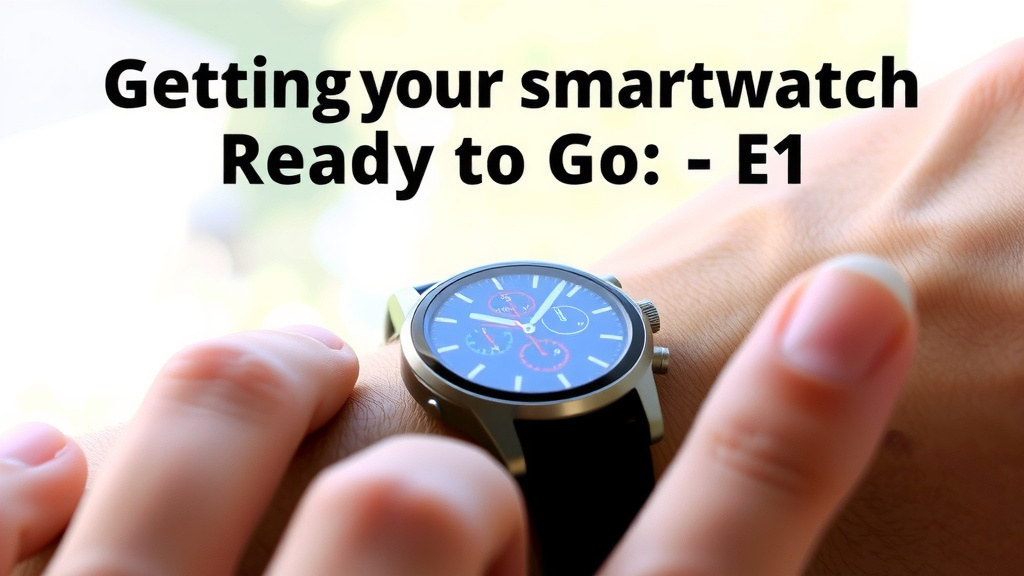
Getting Your Smartwatch Ready to Go
So, you’ve got a new smartwatch! That’s exciting. Let’s get it set up so you can start enjoying all its cool features. Most smartwatches follow a similar setup process, and it’s generally quite easy. Think of it like introducing your watch to your smartphone. They need to become friends via Bluetooth to share information.
The Essential First Steps: App and Pairing
The absolute first thing you’ll want to do is grab the correct app. Every smartwatch brand has its own companion app. You’ll find this in your smartphone’s app store. Search for the name of your watch brand, like “Fitbit,” “Samsung Health,” or “Apple Watch.” Download and install the one that matches your device.
Finding and Installing the Right App
Why is this app so important? Well, it’s the bridge between your watch and your phone. It’s where you’ll manage settings, view your fitness data, and update your watch’s software. Without it, your smartwatch is just a pretty (and expensive) regular watch. We found that most users have no trouble locating the app. Just type in your watch’s brand name. Easy peasy!
Making Sure Bluetooth is Ready
Before you even open the app, make sure Bluetooth is turned on on your smartphone. This is like turning on the radio so your watch can find its station. You can usually find the Bluetooth setting in your phone’s main settings menu. Most phones will show a Bluetooth icon when it’s active. Keep it on during the entire setup process.
The Pairing Dance
Now, open that companion app you just downloaded. It will likely ask you to create an account or log in if you already have one. Then, it will guide you through the pairing process. You’ll probably see an option like “Add Device” or “Pair New Watch.” Tap that. Your app will then search for nearby devices. Your smartwatch should appear on the screen.
What to Do if Your Watch Doesn’t Appear
Sometimes, your watch might not show up right away. Don’t panic! First, double-check that your watch is on and nearby. Many smartwatches will display a code or a simple prompt when they’re ready to pair. Make sure your phone’s Bluetooth is definitely on. You might even try turning Bluetooth off and on again on your phone. A quick restart of both devices can also often solve the problem.
Confirming the Connection
Once your watch appears in the app, you’ll usually need to confirm the pairing. Your watch might show a number or a symbol that you’ll need to verify on your phone, or vice versa. This is just a security step to ensure you’re pairing the correct devices. Once confirmed, the two devices will connect. This connection is usually quick.
Personalizing Your Smartwatch Experience
Congratulations, your watch is now connected! But we’re not quite done yet. The setup app is also where you’ll make your smartwatch truly your own. This is the fun part where you tailor it to your needs and preferences. Think of it like decorating your new home.
Setting Up Your Profile and Health Data
The app will likely ask for some personal information. This includes things like your age, gender, height, and weight. This data is super important for accurate fitness tracking. For example, your calorie burn calculations depend on your weight and metabolism. Many health organizations, like the CDC, recommend tracking these metrics for a healthier lifestyle.
Choosing Your Watch Face
What does your watch face say about you? You can usually choose from a variety of watch faces in the app. Some are simple and elegant, showing just the time. Others are packed with information, displaying your heart rate, steps, weather, and calendar. Pick one that suits your style and shows you the information you check most often.
Customizing Notifications
This is one of the best parts of a smartwatch! You can decide which apps can send notifications to your wrist. Do you want every single email to buzz your watch? Probably not. The app will let you select which apps you want to receive alerts from. You might choose to get alerts for texts, calls, and your favorite messaging apps, while disabling others. This helps you stay connected without being overwhelmed.
Setting Fitness Goals
If your smartwatch has fitness tracking capabilities, now is the time to set some goals. Want to walk 10,000 steps a day? Aiming for a certain number of active minutes? You can often set these targets within the companion app. Reaching these goals can be really motivating. We found that setting realistic, achievable goals is key for long-term success.
Exploring Key Smartwatch Features
Now that everything is set up, you can start actually using your smartwatch! Here are some common features you’ll want to get familiar with. Each watch is a bit different, so be sure to check your specific model’s manual or help section.
Basic Navigation and Controls
Learn how to swipe, tap, and press buttons on your watch. Most smartwatches use a combination of touch screen gestures and physical buttons. Swiping down might open quick settings, while swiping up could show notifications. The main button often takes you back to the watch face or opens an app menu. Experiment a little!
Fitness and Activity Tracking Made Easy
Your watch is likely a fitness powerhouse. It can track your steps, distance, heart rate, sleep patterns, and even specific workouts like running or swimming. Many studies show that activity trackers can encourage people to move more (NIH). Just make sure you’re wearing the watch snugly for accurate heart rate readings.
Managing Notifications on the Go
You’ll see those alerts pop up right on your wrist! You can often read messages, see who’s calling, and even dismiss notifications directly from your watch. Some watches even allow you to send quick replies to messages. It’s incredibly handy when your phone is in your pocket or bag.
Other Smart Features to Discover
Depending on your watch, you might have access to mobile payments (like Google Pay or Apple Pay), music controls for your phone, voice assistants, GPS for navigation, and even apps for things like weather forecasts or finding your phone. Spend some time browsing the app store on your watch or through the companion app to see what else it can do.
Keeping Your Watch Updated
Just like your phone, your smartwatch needs software updates. These updates often bring new features, fix bugs, and improve performance. Your companion app will usually notify you when an update is available. Make sure your watch is charged and connected to your phone’s Wi-Fi or cellular data for the update to install smoothly.
Here’s a quick checklist to make sure you’ve covered the essentials:
- Downloaded the correct companion app.
- Enabled Bluetooth on your smartphone.
- Successfully paired your watch with your phone.
- Set up your personal profile in the app.
- Customized notification settings to your liking.
- Familiarized yourself with basic navigation.
Conclusion
You’ve successfully navigated the setup process for your new smartwatch! By downloading the right app, pairing via Bluetooth, and personalizing your settings, you’ve transformed a great gadget into a true extension of yourself. You can now enjoy all the convenience of notifications, fitness tracking, and more, right on your wrist. Your smartwatch is ready to support your daily life and goals. Now, take some time to explore all the unique features your watch offers and start making the most of it!
Frequently Asked Questions
What if my smartwatch won’t connect to my phone?
If your watch isn’t appearing in the app, ensure Bluetooth is on and both devices are close. Sometimes, restarting both your phone and watch can solve connection issues. Double-check that you’ve selected the correct watch model within the app.
Do I need to have my phone nearby for the smartwatch to work?
For most functions like notifications, fitness syncing, and using apps, you’ll need your phone nearby for the Bluetooth connection. Some smartwatches can operate independently for certain features like GPS tracking or playing music stored on the watch, but full functionality usually requires your phone.
How often should I update my smartwatch’s software?
It’s a good idea to update your smartwatch whenever a new software version is available. Updates often bring important security patches, bug fixes, and sometimes even new features. Your companion app will usually notify you when an update is ready.
Can I use my smartwatch without creating an account in the app?
Typically, you’ll need to create an account or log in to the companion app to fully set up and use your smartwatch. This account is often necessary for syncing data, backing up settings, and accessing features like cloud storage for your fitness information.
Is it okay to wear my smartwatch in the shower or while swimming?
Many smartwatches are water-resistant, but the level of protection varies by model. Always check your watch’s specifications for its water resistance rating before exposing it to water. Some can handle splashes or brief submersion, while others are designed for swimming or diving.

![7 Best Smart Watch For Jogging [2026]](https://smartwatchbest.com/wp-content/uploads/2026/09/7-best-smart-watch-for-jogging-2026-featured-768x432.jpg)
![7 Best Outdoors Smart Watch [2026]](https://smartwatchbest.com/wp-content/uploads/2026/08/7-best-outdoors-smart-watch-2026-featured-768x432.jpg)
