Set Up Your Smart Watch with iPhone: A Simple Guide
Setting up your new smartwatch with your iPhone is easier than you might think. You can typically get them paired and ready to go in just a few minutes by using the official app. This connection lets your watch receive notifications and sync data right from your phone.
This process is designed to be user-friendly for most people. It involves a few simple steps that ensure your watch and iPhone can communicate effectively. Having your watch linked to your iPhone opens up a world of convenience for your daily activities.
TL;DR:
- Pairing is usually quick and easy.
- You’ll need your iPhone and the smartwatch.
- Download the official companion app.
- Follow the on-screen prompts.
- Enjoy your connected watch!
Ready to get your new gadget up and running? Let’s walk through exactly how to set up your smartwatch with your iPhone, step by step.
“`htmlConnecting Your Smartwatch to Your iPhone
Setting up your smartwatch with your iPhone is usually a straightforward process. Most smartwatches are designed to work closely with iPhones. This pairing allows for a smooth flow of information. You’ll get notifications and can manage settings easily.
Before You Begin: What You’ll Need
Gathering a few things beforehand makes the setup smoother. You’ll want your new smartwatch and your iPhone readily accessible. Make sure your iPhone is connected to Wi-Fi. Also, ensure your iPhone’s Bluetooth is turned on. Many experts recommend charging both devices partially before starting. This prevents interruptions during the setup. Make sure your iPhone’s Bluetooth is turned on, as this is crucial for pairing.
Downloading the Companion App
Most smartwatches require a specific app on your iPhone. This app acts as the bridge between your watch and phone. For Apple Watches, this is the Watch app, which is pre-installed on your iPhone. If you have a smartwatch from another brand, like Samsung or Garmin, you’ll need to visit the App Store. Search for the official app associated with your watch brand. For example, search for “Samsung Health” or “Garmin Connect.” Once found, tap to download and install it. This app is where you’ll manage most of your watch’s features.
Starting the Pairing Process
Turn on your smartwatch. It will likely display a prompt to begin pairing. On your iPhone, open the companion app you just downloaded or the pre-installed Watch app. The app will guide you through the next steps. You’ll typically see an option to “Start Pairing” or “Pair New Watch.” Follow the on-screen instructions on both devices. This is often where the magic happens.
Using Your iPhone Camera for Pairing
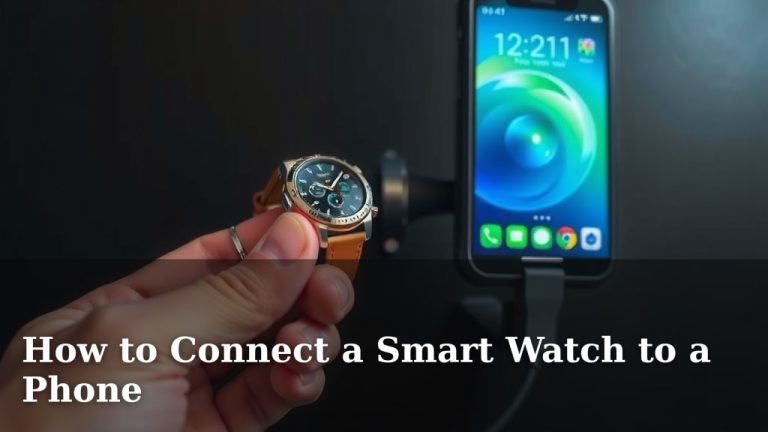
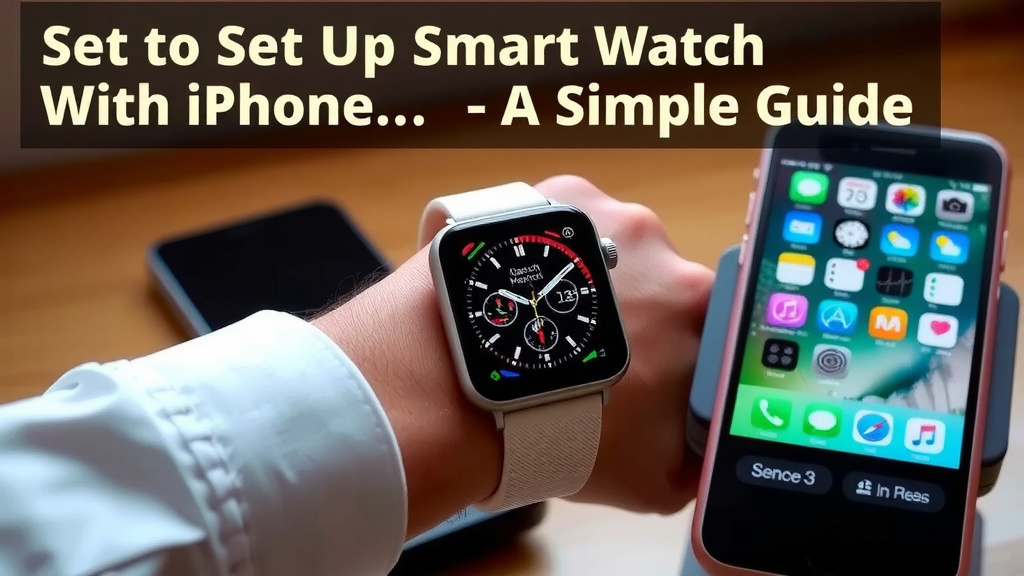
For many smartwatches, including Apple Watches, you’ll use your iPhone’s camera to scan a unique image on your watch screen. This creates an immediate, secure connection. Hold your iPhone over the smartwatch display. The camera should automatically detect the pairing code. If it doesn’t, there might be a manual pairing option. This might involve entering a code. We found this method to be incredibly quick and efficient.
Manual Pairing Option
In some cases, the camera method might not work. Don’t worry, there’s usually a manual pairing option. Your watch may display a short code. You’ll then need to enter this code into the companion app on your iPhone. Follow the app’s prompts carefully. This ensures both devices recognize each other correctly.
Setting Up Your Watch Preferences
Once paired, the app will walk you through setting up your watch. This includes transferring settings from your iPhone. You might be asked to choose which apps can send notifications to your watch. This is a good time to decide what alerts you really need. Fewer notifications can mean less distraction. Many users select only essential apps here. You can always change this later in the app settings. You’ll also set up health and fitness tracking preferences. This might include setting your goals or allowing access to health data.
Choosing Your Watch Face
Your watch face is the first thing you’ll see. You can customize it to your liking. The app usually offers a variety of watch faces. Some are simple and elegant. Others are packed with information, like weather or your activity progress. You can often change the color and style of complications (small widgets on the watch face). Pick one that suits your style and needs. Research from various tech reviewers suggests that a personalized watch face improves user satisfaction.
Setting Up Apple Pay or Other Payment Methods
If your smartwatch supports contactless payments, you can set it up now. For Apple Watch users, this is done through Apple Pay. You’ll add your credit or debit cards within the Watch app on your iPhone. Follow the instructions to verify your cards with your bank. This feature lets you pay for items simply by tapping your wrist. It’s a convenient way to leave your wallet behind.
Keeping Your Smartwatch Updated
Software updates are important for security and new features. Your companion app will notify you when an update is available for your smartwatch. It’s a good idea to install these updates promptly. Ensure your watch is connected to its charger and has a good Wi-Fi connection. Updates can take some time, so plan accordingly. Keeping your software current is a key recommendation from many cybersecurity experts.
Troubleshooting Common Issues
Sometimes, things don’t go perfectly. If your watch isn’t pairing, try these steps. First, restart both your iPhone and your smartwatch. Ensure Bluetooth is enabled on your iPhone. Check that your watch is in pairing mode. If the issue persists, unpair the watch from your iPhone and try the setup process again from the beginning. Sometimes, deleting and reinstalling the companion app can resolve connection problems. Many online forums suggest these simple fixes first.
Finalizing Your Setup Checklist
Here’s a quick checklist to ensure you’re all set:
- Smartwatch charged and turned on
- iPhone Bluetooth and Wi-Fi are active
- Official companion app downloaded and opened
- Watch successfully paired using camera or manual code
- Key app notifications selected
- Preferred watch face chosen
- Payment methods added (if applicable)
With these steps, your smartwatch should now be fully connected to your iPhone. You’re ready to enjoy all the benefits of a connected wearable device!
“`
Conclusion
You’ve successfully connected your smartwatch to your iPhone! The setup process, from downloading the right app to choosing your favorite watch face, is now complete. Your devices are ready to work together, bringing notifications and fitness tracking right to your wrist. Enjoy the convenience and new capabilities this connection offers you. Your next step is to explore all the features your new setup provides. Try out different watch faces and notification settings to find what works best for your daily routine.
Frequently Asked Questions
My smartwatch isn’t showing up in the iPhone app. What should I do?
First, ensure Bluetooth is turned on for your iPhone. Also, restart both your smartwatch and your iPhone. Sometimes, simply restarting the devices can resolve unexpected connection issues. If it still doesn’t appear, try forgetting the device in your iPhone’s Bluetooth settings and attempt the pairing process again from the beginning.
Can I connect my smartwatch to an iPhone if it’s not an Apple Watch?
Yes, absolutely. While Apple Watch uses the built-in Watch app, other brands like Samsung, Garmin, or Fitbit have their own companion apps. You’ll download their specific app from the App Store and follow its unique pairing instructions. This ensures your non-Apple smartwatch can sync data and receive notifications from your iPhone.
How do I know if my smartwatch is compatible with my iPhone?
Most modern smartwatches are designed to be compatible with iPhones, especially those released in the last several years. Check the product packaging or the manufacturer’s website for explicit compatibility information. Generally, if your iPhone runs a recent version of iOS, it should work with most popular smartwatch brands.
Do I need to pay for the companion app for my smartwatch?
Typically, the official companion apps required for smartwatch setup are free to download from the App Store. These apps allow you to manage your watch’s settings, sync data, and update its software. While the apps themselves are usually free, some may offer optional in-app purchases for premium features or subscriptions.
How long does the initial smartwatch setup process usually take?
The initial pairing and setup process is generally quite quick, often taking between 5 to 15 minutes. This timeframe can vary depending on your internet speed for downloads and any software updates that might be needed for the watch. Once paired, you can then spend more time customizing your settings and watch face.