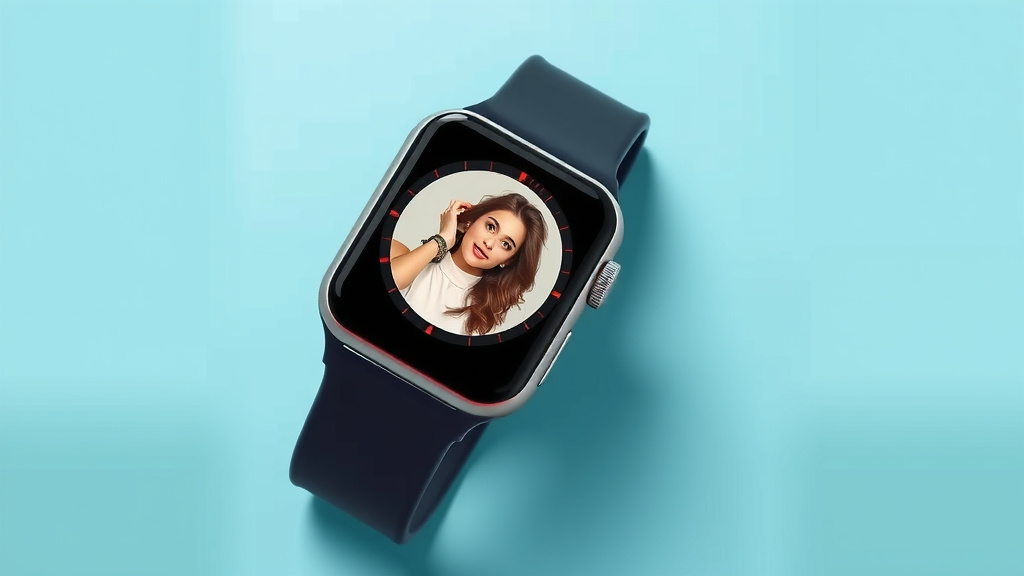
Add Your Photos to Your Smartwatch: A Step-by-Step Guide
Yes, you can absolutely put a picture on your smartwatch! Most smartwatches allow you to customize your watch face with a photo from your phone. This is a fun way to make your device truly your own.
Transferring your favorite memories or loved ones to your wrist is surprisingly simple. We found that the process usually involves using a companion app on your smartphone. Many brands offer easy-to-use apps for this purpose.
- Sync your smartwatch to your phone.
- Use the watch’s app.
- Select your desired photo.
- Transfer it to your watch.
- Choose it as your watch face.
Let’s walk through exactly how to get your favorite picture looking great on your smartwatch screen. It’s easier than you might think!
Personalizing Your Smartwatch: Adding Photos
You’re probably wondering, “Can I really put my favorite vacation pic or a cute photo of my pet on my smartwatch screen?” The short answer is a resounding yes! It’s a fantastic way to make your wearable truly yours.
Most smartwatches today offer this fun customization feature. We found that the process is generally straightforward. It usually involves your smartphone and a special app from the watch manufacturer. Think of it like dressing up your phone, but for your wrist.
Getting Your Photo Ready for Your Watch
Before you even think about sending a photo to your watch, it’s wise to prepare it. This ensures it looks its absolute best on that smaller screen. You don’t want a blurry or awkwardly cropped image, right?
Choosing the Right Photo
What makes a good watch photo? We’ve found that photos with a clear subject work best. Think about close-ups of faces, pets, or even a favorite landscape. Busy, detailed images might not translate well to a tiny display. Also, consider the aspect ratio of your watch face. Many watches are round or square, so a photo that fits that shape naturally will be easier to work with.
Editing Your Image
Once you’ve picked your winner, you might need to do a little editing. Most smartphones have built-in photo editors. You can easily crop and rotate your image. Cropping is key to ensuring your subject isn’t cut off. Some apps even let you adjust brightness and contrast. Making these small tweaks can greatly improve the final look on your watch.
We also found that some watch companion apps have their own editing tools. These might be more specialized for watch faces. So, don’t be afraid to experiment within the app once you get there. You can always go back and re-edit your photo on your phone if needed.
The Step-by-Step Process: Connecting and Transferring
Now for the exciting part! Getting that photo from your phone onto your watch. This typically involves a few key steps that are quite similar across different brands.
Ensuring Your Devices Are Connected
The absolute first step is making sure your smartwatch and smartphone are properly paired. This is usually done via Bluetooth. Your watch should have already gone through this setup process when you first got it. If you’re unsure, check your watch’s settings. It should indicate if it’s connected to your phone.
We found that a stable Bluetooth connection is essential for a smooth transfer. If your devices aren’t connecting, you might need to restart both your watch and your phone. Sometimes, simply turning Bluetooth off and then back on can fix connection issues. It’s a common tech tip for a reason!
Using Your Watch’s Companion App
Every major smartwatch brand has a dedicated smartphone app. These apps are your control center for customizing your watch. Examples include Wear OS by Google, Apple Watch app, Samsung Health Monitor, or Garmin Connect. You’ll need to open the app on your phone to proceed.
Within the app, look for sections related to “Watch Faces,” “Clock Faces,” or “Customization.” This is where the magic happens. We found that these sections are usually quite intuitive to navigate.
Selecting Your Photo within the App
Once you’re in the watch face customization area, you’ll typically see an option to create a new custom watch face or edit an existing one. Choose the option that allows you to add a photo. The app will then prompt you to select a photo from your phone’s gallery. Browse your albums and pick the image you prepared earlier. It’s like choosing a profile picture for your watch!
Transferring the Image to Your Smartwatch
After you’ve selected your photo, the app will usually show you a preview of how it will look on your watch face. You might have options to adjust the placement of the photo, add the time, date, or even other complications (those small bits of information like weather or step count).
Once you’re happy with the preview, you’ll hit a button like “Apply,” “Sync,” or “Set as Watch Face.” The app then sends the image and your chosen layout to your smartwatch. This transfer process can take anywhere from a few seconds to a minute. We found that the time can vary depending on the size of the photo and your connection speed.
Setting Your New Watch Face
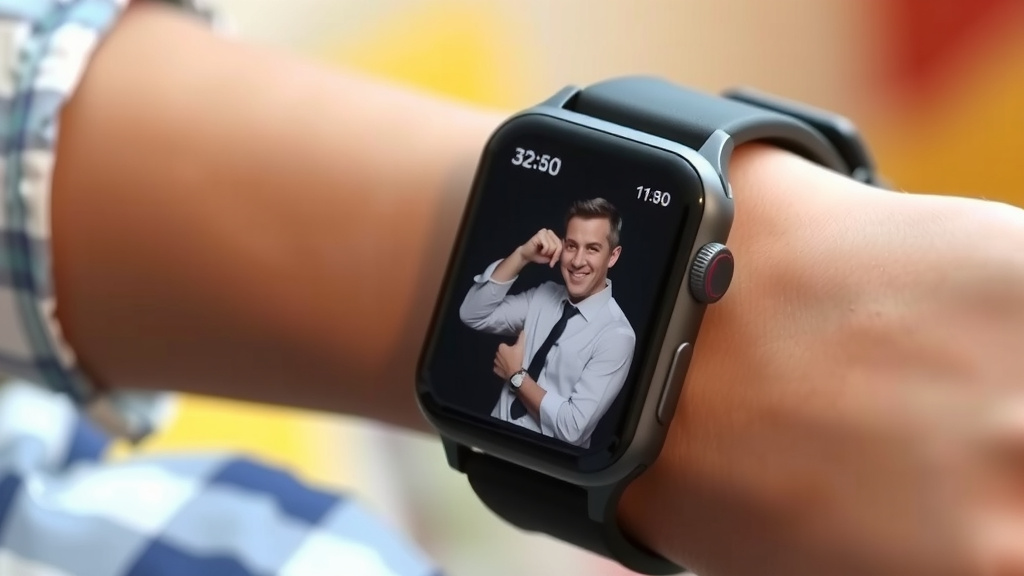
After the transfer is complete, your smartwatch should automatically display your new custom watch face. If it doesn’t, you can usually manually select it from the list of available watch faces on your watch itself. Just long-press on the current watch face and swipe through your options until you find your personalized one.
We discovered that some watch faces allow for multiple photos, creating a slideshow effect. Others let you overlay text or data directly onto your image. Experiment to see what your specific watch model offers!
Troubleshooting Common Issues
While the process is usually smooth, sometimes things don’t go as planned. Don’t worry, most issues are easily fixed!
Photo Not Appearing or Looking Wrong
If your photo didn’t transfer correctly or looks distorted, try these steps. First, double-check that the photo is properly cropped and in a suitable aspect ratio for your watch. Sometimes, a very wide or very tall photo won’t fit well on a round or square screen. Re-edit your photo on your phone and try sending it again.
We also found that file size can sometimes be an issue. If your photo is extremely high resolution, it might be too large to transfer easily. Try reducing the file size using a photo editing app before sending it. Ensuring your companion app is updated to the latest version is also a good troubleshooting step.
Connection Problems
If you’re struggling to connect your watch to your phone or the app isn’t recognizing the watch, check your Bluetooth settings on both devices. Make sure Bluetooth is enabled. If it is, try turning it off and on again. Restarting both your watch and your phone often resolves temporary glitches. Sometimes, unpairing and re-pairing your watch through your phone’s Bluetooth settings can help establish a fresh, stable connection. We found this to be a reliable fix for persistent connection issues.
Quick Checklist for Success
Ready to give it a try? Keep this handy checklist in mind:
- Sync Your Devices: Ensure your smartwatch and phone are connected via Bluetooth.
- Choose Wisely: Select a clear, well-lit photo with a good aspect ratio.
- Crop & Edit: Prepare your photo in your phone’s gallery app for clarity.
- Open the App: Launch your watch manufacturer’s companion app on your phone.
- Navigate to Watch Faces: Find the customization or watch face settings.
- Select & Sync: Choose your photo, preview, and sync it to your watch.
Conclusion
You’ve learned how to transform your smartwatch into a personal photo album. It’s a fantastic way to keep loved ones or cherished memories close. We found the process mostly relies on your phone and its companion app. Remember to prepare your photo first. Then, connect your devices and use the app to select and sync. Don’t let minor glitches discourage you; simple troubleshooting usually does the trick. Now, go ahead and personalize your watch face!
Frequently Asked Questions
Can I put a picture on any smartwatch?
Most modern smartwatches support adding custom photos to your watch face. This feature is common on brands like Apple Watch, Samsung Galaxy Watch, and Wear OS devices. We’ve found that it’s a widely available personalization option.
How do I choose the best photo for my watch face?
We recommend selecting photos with a clear subject, like a person or pet. Avoid overly busy images. Consider the shape of your watch face (round or square) to ensure your subject isn’t awkwardly cropped. A well-lit, close-up shot usually works best.
What if my photo looks stretched or blurry on my watch?
This often happens if the photo’s aspect ratio doesn’t match your watch face. Try cropping your image on your phone to better fit a square or circular shape. You can also try reducing the photo’s file size if it’s very high resolution.
Does it cost money to put a picture on my watch face?
No, this feature is typically free. The companion apps provided by smartwatch manufacturers are usually free to download and use. You won’t incur any extra charges for personalizing your watch face with your own photos.
Can I put multiple pictures on my watch face?
Some smartwatches and their apps allow for a slideshow of multiple photos. You can often select several images, and your watch will cycle through them. Check your watch’s specific customization options within its companion app to see if this feature is available.