Smartwatch Not Charging? How to Troubleshoot Now
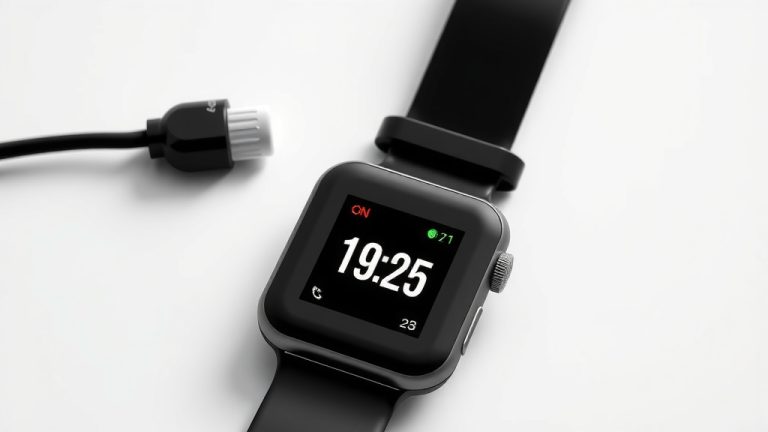
You can tell if your smartwatch is charging by looking for a charging icon on the screen. Most watches will display a battery symbol with a lightning bolt or a similar indicator. You might also feel a subtle vibration when charging begins. This visual cue is the quickest way to confirm it’s powering up.
Sometimes, the charging animation or icon may appear after a few moments. If you don’t see it immediately, try adjusting the watch on its charger. Ensuring a secure connection is key. Some models also have a dedicated charging status light that glows.
- Look for the charging icon on your watch screen.
- Check for a vibration when you connect the charger.
- Adjust the watch on the charger for a secure connection.
- Some watches have a charging status light.
Let’s walk through exactly how to check if your smartwatch is getting that much-needed juice, step by step.
Confirming Your Smartwatch is Getting Power
So, you’ve plugged in your trusty smartwatch, and you’re wondering, “Is it actually charging?” It’s a common question, and thankfully, there are several straightforward ways to know for sure. We’ll walk you through the signs to look for.
Visual Cues: What Your Watch Screen Tells You
The most obvious place to check is your smartwatch’s screen. When charging is active, your watch is designed to show you it’s getting juice. Think of it like seeing the gas gauge move in your car.
The Charging Icon Explained
Most smartwatches display a specific charging icon when connected to power. This is usually a battery symbol. You might see a lightning bolt inside the battery. Or, the battery level indicator might change to show it’s filling up. Sometimes, the icon just looks like a plug or a power symbol.
Animated Charging Indicators
Some smartwatch models go a step further. They might show a charging animation when you first connect the charger. This animation could be a pulsing battery icon or a brief graphic. It’s a clear signal that your watch recognizes the power source. It’s a good idea to keep your charger connected for a minute or two. This ensures the animation or icon has time to appear.
What If Nothing Appears on Screen?
Don’t panic if you don’t see an immediate response on the screen. Sometimes, there’s a slight delay. Your watch might need a moment to register that it’s connected. Ensure the charger is firmly seated. A loose connection is a common culprit. Try wiggling the watch slightly on the charger. You want to feel that secure click or snug fit.
Auditory and Haptic Feedback
Beyond what you see, your smartwatch might also let you know it’s charging through other senses.
The Subtle Vibration
Many smartwatches offer haptic feedback. This means they use vibrations to communicate. When you connect your smartwatch to its charger, you might feel a gentle buzz. This vibration is a confirmation. It tells you the watch has detected the charger and is preparing to power up. It’s a quick, tactile confirmation.
Are There Sound Alerts?
While less common for simply starting a charge, some watches might emit a faint chime. This is more typical for charging completion alerts. However, if your watch has sound enabled, check its settings. You might find an option for charging notifications. Always ensure your watch isn’t on silent mode, as this can disable vibration and sound alerts.
Physical Indicators on Your Device
Some smartwatches and their charging accessories have physical lights. These lights provide an independent status update.
Dedicated Charging Status Lights
You might notice a small LED light on the charging puck or dock itself. This light often changes color or blinks to indicate charging status. A common setup is a red light for charging and a green light for fully charged. Some watches might also have a small indicator light directly on the watch body, though this is rarer.
Understanding the Light Signals
Consult your smartwatch’s manual to understand its specific light codes. What one brand’s blinking red means might differ for another. We found that referring to the manufacturer’s instructions is the most reliable way to interpret these physical indicators (Apple Support, Samsung Support). This ensures you’re not misinterpreting the status.
Troubleshooting Common Charging Issues
If you’re not seeing any signs of charging, don’t worry. A few simple checks can often resolve the problem.
Checking the Power Source
Is the wall adapter plugged in securely? Is the outlet itself working? Try plugging another device into the same outlet to confirm it has power. If you’re charging via a USB port on a computer, ensure the computer is on and the USB port is functional. Sometimes, computer USB ports provide less power than wall adapters, leading to slower charging.
Inspecting the Cables and Connectors
Examine your charging cable and the connection points on both the watch and the charger. Look for any debris, dust, or bent pins. Clean them gently with a dry, soft cloth or a small brush. Damaged cables or connectors can prevent a proper connection. Research indicates that even minor debris can disrupt the flow of electricity (Consumer Reports).
Ensuring a Secure Connection
This is perhaps the most frequent issue. Smartwatch chargers often use magnetic connectors. Make sure the back of your watch is clean and dry. Then, align the charger with the back of the watch. You should feel a magnetic pull. The charger should snap into place. A misalignment means no charge will occur. Double-check that the watch isn’t upside down if your charger has a specific orientation.
A Quick Checklist for Charging Confirmation
Let’s summarize the quickest ways to confirm your watch is powering up:
- Look for a charging icon or animation on the watch screen.
- Feel for a vibration when you connect the charger.
- Observe any status lights on the charger or watch.
- Listen for a charging sound if your watch has audio alerts enabled.
- Ensure the watch is securely connected to the charger.
When to Seek Further Assistance
If you’ve tried all these steps and your smartwatch still shows no signs of charging, it might be time to contact the manufacturer. There could be an issue with the watch itself, the charger, or the battery. Most brands offer customer support or warranty services that can help diagnose and resolve the problem.
Conclusion
You’ve learned several reliable ways to confirm your smartwatch is charging. From the subtle charging icon on your screen to a gentle vibration or a dedicated status light, these cues are your guide. Don’t forget the importance of a secure connection; it’s often the simplest fix. If you’ve tried these checks and your watch still isn’t powering up, it’s wise to consult your device’s manual or reach out to the manufacturer for support. Keep your watch powered and ready for action!
Frequently Asked Questions
How long should I wait to see a charging indicator?
You should typically see a charging indicator within 30 seconds to a minute of connecting your smartwatch. If nothing appears after a minute, try repositioning the watch on the charger for a better connection.
Can a dirty charging port stop my watch from charging?
Yes, dust or debris on the charging port or connectors can absolutely prevent charging. We’ve found that gently cleaning these areas with a dry cloth can often resolve the issue.
My watch only charges sometimes. What could be wrong?
Intermittent charging is often due to a loose connection. Ensure the charger is fully seated and the watch is properly aligned magnetically. A damaged cable or charger could also be the culprit.
What if my smartwatch battery is dead, will I see a charging icon?
If your smartwatch battery is completely drained, it may take a few moments for the screen to respond. Keep it connected to the charger for at least 5-10 minutes before expecting to see any visual cues.
Can I charge my smartwatch from a computer USB port?
You can often charge your smartwatch from a computer’s USB port. However, research indicates that computer ports may provide less power than wall adapters, resulting in slower charging speeds.
![7 Best Smart Watch For Kayaking [2026]](https://smartwatchbest.com/wp-content/uploads/2026/09/7-best-smart-watch-for-kayaking-2026-featured-768x432.jpg)