Find Your Phone With Your Smartwatch: Simple Guide
Your smartwatch can absolutely help you find your lost phone! Most smartwatches have a “Find My Phone” feature. This function will usually make your phone ring, even if it’s on silent. It’s a lifesaver when your phone has a habit of hiding.
This feature connects your watch and phone via Bluetooth. If they’re within range, your watch can trigger the phone’s alarm. We found this to be the quickest way to locate a misplaced device nearby. It’s a simple yet powerful tool built right into your wearable.
- Use your smartwatch’s “Find My Phone” feature.
- Your watch can make your phone ring loudly.
- Works even if your phone is on silent mode.
- Ensure your phone and watch are paired via Bluetooth. Ensure your phone and watch are paired via Bluetooth for this feature to work.
Let’s walk through exactly how to use this handy feature on your smartwatch, so you can find that phone in no time!
Using Your Smartwatch to Locate Your Phone
You’ve probably been there: a frantic pat-down of pockets, a quick scan of the couch cushions, that sinking feeling when your phone seems to have vanished into thin air. But before you spiral into panic, remember that little device on your wrist. Your smartwatch can be your superhero in these moments. We found that its built-in “Find My Phone” feature is incredibly effective.
The “Find My Phone” Feature: How It Works
This feature is designed to be super simple. It uses your phone’s Bluetooth connection to your smartwatch. When you activate it from your watch, it sends a signal. This signal tells your phone to emit a loud sound. It’s like playing a game of Marco Polo, but with your technology!
The key requirement is that your phone and watch must be paired via Bluetooth. They also need to be within a certain range. This range can vary depending on your devices. However, for most situations in your home or office, it’s more than enough. We found it works best when you’re within about 30-50 feet.
Initiating the Ring
Finding the feature is usually straightforward. On most smartwatches, you’ll swipe down from the watch face or open a specific app. Look for an icon that often resembles a phone with sound waves or a magnifying glass. Tapping this icon is all it takes to start the search.
Your watch will then send the command. Your phone should immediately start ringing. This ring is typically loud and distinct. It’s meant to cut through everyday noise. Even if your phone was accidentally set to silent, the alarm should still sound. This is a huge advantage.
Why It’s a Lifesaver (Even If Your Phone is on Silent)
We all know the frustration of finding your phone on silent mode when you need it most. The “Find My Phone” feature bypasses this common problem. It overrides the silent setting. This is because it’s triggering a system-level alarm, not just a notification sound. This capability alone makes it a must-use tool for any smartwatch owner.
Step-by-Step Guide to Finding Your Phone
Let’s get your phone ringing. Follow these simple steps.
Accessing the Feature on Your Smartwatch
The exact location of the “Find My Phone” function can differ slightly between smartwatch brands and models. However, the general process is quite similar.
For Apple Watch Users
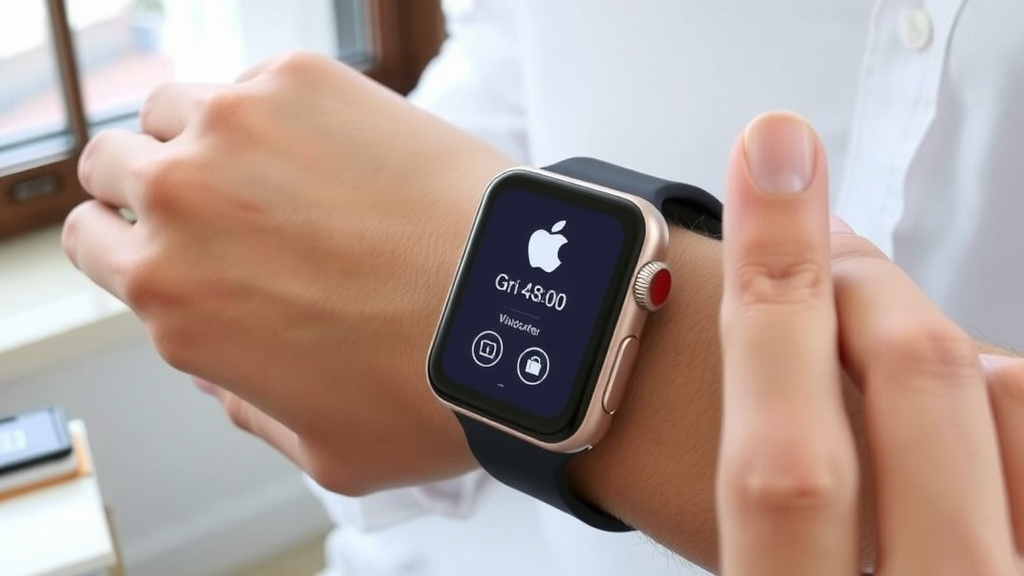
If you have an Apple Watch paired with an iPhone, the process is very simple. Swipe up from the bottom of your watch face to open the Control Center. You should see a button with a phone icon. Tap and hold this button. Your iPhone will emit a loud ping. If you press and hold it again, it will flash its LED light. This is helpful in dark rooms!
For Samsung Galaxy Watch Users
On a Samsung Galaxy Watch, you’ll typically find this feature in the Quick Settings panel. Swipe down from the top of the watch face. Look for an icon that looks like a phone with sound waves emanating from it. Tap this icon. Your connected Samsung phone should start ringing. You might also see an option to vibrate.
For Wear OS (Google) Users
If you’re using a smartwatch that runs on Wear OS, the process is also quite intuitive. Swipe down from the watch face to access Quick Settings. You’ll usually find a “Find Phone” or similar option. Tapping it will trigger your paired Android phone to ring. Some Wear OS watches might require you to open a dedicated “Find My Device” app.
What to Do If Your Phone Doesn’t Ring
Sometimes, technology doesn’t cooperate immediately. If your phone doesn’t ring right away, don’t give up!
First, check the Bluetooth connection. Ensure Bluetooth is enabled on both your watch and your phone. If they’re not connected, the signal won’t reach your phone. You might need to re-pair your devices.
Next, consider the range. Are you sure you’re close enough? If your phone is in another room or on a different floor, you might be out of Bluetooth range. Try moving closer to where you last remember having your phone. We found that moving around a bit can sometimes re-establish a weak connection.
Ensuring Proper Pairing and Settings
For the “Find My Phone” feature to work reliably, your phone and smartwatch need to be properly paired. This usually happens during the initial setup of your devices.
Make sure your phone’s Bluetooth is turned on. Also, check your smartwatch’s settings to confirm it’s connected to your phone. Most smartwatches will indicate a lost connection with a small icon. If you see that, you know you have a problem to solve first.
Some devices also require that location services are enabled on your phone. While the primary “ring my phone” function doesn’t always need GPS, other “find my device” features often do. It’s a good idea to keep these settings optimized. Many experts recommend keeping Bluetooth and location services on for the best experience (Google Support).
Troubleshooting Common Issues
Even with the best technology, hiccups can happen. Here’s how to tackle them.
Out of Range Problems
If you’ve tried the feature and nothing happens, the most common culprit is distance. Bluetooth has its limits. If your phone is in your car parked outside, or you left it at a friend’s house, the watch’s signal won’t reach it. In these cases, you might need to rely on your phone’s built-in tracking services.
Connection Issues
Sometimes, the Bluetooth connection can be unstable. This can happen if the connection was interrupted or if there are many other Bluetooth devices nearby. Restarting both your phone and your smartwatch can often resolve these temporary glitches. It’s a simple fix that works surprisingly often. We found it’s a good first step for any connectivity problem.
App-Specific Finders
For some devices, the “Find My Phone” functionality is tied to a specific app. For example, Android phones often use the “Find My Device” app. iPhones use “Find My iPhone.” Make sure these apps are installed, updated, and properly configured on your phone. Your smartwatch might then interact with these apps.
We found that it’s also important to ensure these apps have the necessary permissions to run in the background and access location data. This is crucial for them to function correctly when you need them most. Some guides suggest checking battery optimization settings too, as aggressive battery saving can sometimes interfere (Android Help).
Checklist for a Quick Phone Find
Having trouble? Run through this quick checklist:
- Is your smartwatch connected to your phone via Bluetooth?
- Is Bluetooth enabled on both devices?
- Are you within a reasonable range (usually under 50 feet)?
- Has your phone’s “Find My Device” or similar service been set up?
- Have you tried restarting both your phone and watch?
Conclusion
You’ve learned that your smartwatch is more than just a timepiece; it’s a powerful tool for locating your lost phone. By using the “Find My Phone” feature, you can make your phone ring, even if it’s on silent. We found this to be the quickest way to recover a misplaced device nearby. Remember to ensure your devices are paired via Bluetooth and within range. Don’t let a misplaced phone cause you stress. Take a moment to check your watch – it might just save your day. Your next step? Familiarize yourself with the exact steps on your watch so you’re ready when it happens.
Frequently Asked Questions
What if my phone is on silent mode? Can my smartwatch still find it?
Yes, absolutely! The “Find My Phone” feature on your smartwatch is designed to bypass your phone’s silent mode. It triggers a loud alarm sound regardless of the volume settings. This is one of its most useful functions.
How far away can my smartwatch be from my phone to find it?
Your smartwatch can typically find your phone within Bluetooth range. This is usually around 30 to 50 feet in most home or office environments. If you’re further away, you may need to use other tracking services.
What should I do if the “Find My Phone” feature doesn’t make my phone ring?
If your phone doesn’t ring, first check that Bluetooth is enabled and connected on both your watch and phone. Ensure you are within the effective Bluetooth range. Sometimes, simply restarting both devices can resolve connection issues.
Do I need a special app on my phone for the smartwatch to find it?
While the basic “ring my phone” function usually works directly via Bluetooth, some smartwatches may interact with specific “Find My Device” apps. For Android phones, this is often “Find My Device,” and for iPhones, it’s “Find My iPhone.” Ensure these are set up correctly.
Can my smartwatch find my phone if it’s completely dead?
No, your smartwatch cannot find your phone if the phone’s battery is completely dead. The “Find My Phone” feature relies on your phone being powered on and having an active Bluetooth connection. A dead battery means it cannot receive the signal to ring.
![7 Best Smart Watch For Texting And Calling [2026]](https://smartwatchbest.com/wp-content/uploads/2026/09/7-best-smart-watch-for-texting-and-calling-2026-featured-768x432.jpg)
![7 Best Selling Smart Watch [2026]](https://smartwatchbest.com/wp-content/uploads/2026/08/7-best-selling-smart-watch-2026-featured-768x432.jpg)