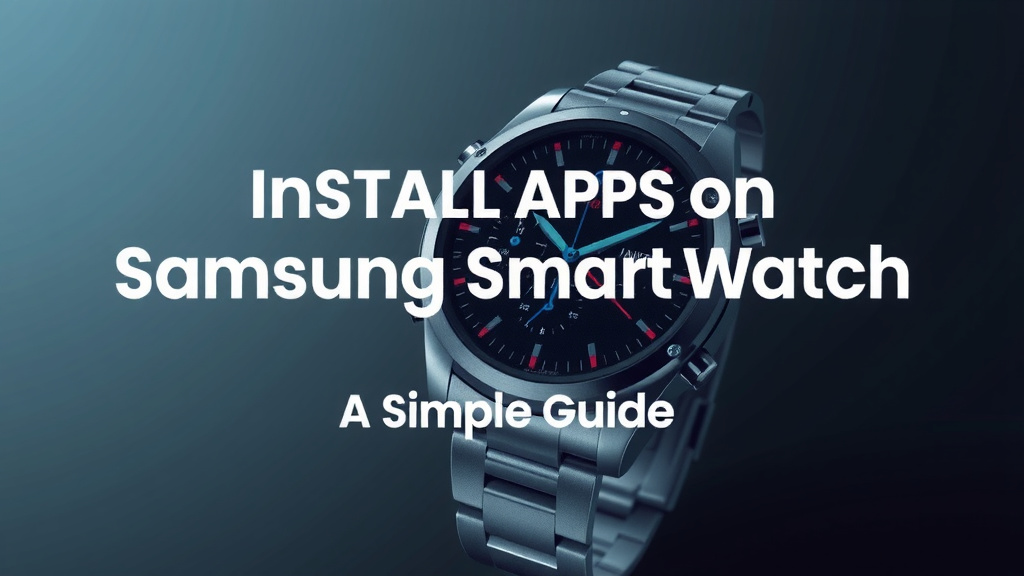
Install Apps on Samsung Smartwatch: A Simple Guide
Installing apps on your Samsung smartwatch is a straightforward process. You can easily do it through the Galaxy Store app right on your watch or via the Galaxy Wearable app on your connected phone. Think of it like adding new tools to your wrist, making your watch even more useful.
We found that many popular apps are available for your Samsung smartwatch. This includes everything from fitness trackers and music players to productivity tools and handy widgets. Getting these apps can enhance your watch’s functionality and personalize your experience significantly. It’s a great way to make your watch work harder for you.
- Install apps directly from your watch’s Galaxy Store.
- Use the Galaxy Wearable app on your phone to manage apps.
- Browse categories like Health, Productivity, and Entertainment.
- Download and install apps with just a few taps or clicks.
Ready to add some new capabilities to your wrist? Let’s walk through exactly how to get those apps onto your Samsung smartwatch, step by step.
Adding New Apps to Your Samsung Smartwatch
So, you’ve got your shiny Samsung smartwatch and you’re ready to jazz it up with some new applications. Great idea! It’s like giving your watch superpowers. You can do this in two main ways: directly from your watch or using your paired smartphone. We’ve found that both methods are pretty user-friendly.
Installing Apps Directly From Your Watch
This is often the quickest way to get apps onto your wrist. Think of it like browsing a mini-app store right there on your watch face. It’s convenient when you see an app you like and want it immediately.
First, make sure your smartwatch is connected to Wi-Fi. You’ll also need to be logged into your Samsung account on the watch. If you’re not sure about the Wi-Fi connection, you can usually find this setting under ‘Connections’ or ‘Network’ in your watch’s settings menu. For your Samsung account, it’s typically set up when you first start your watch, but you can check under ‘Accounts’ in the settings.
Navigating the Watch’s Galaxy Store
On your watch, find and tap the Galaxy Store app icon. It usually looks like a shopping bag with a star on it. Once you open it, you’ll see different categories like ‘Featured,’ ‘New,’ and ‘Categories.’ We found that ‘Categories’ is a great place to start if you have something specific in mind.
Tap on ‘Categories,’ and you’ll see options like ‘Health & Fitness,’ ‘Productivity,’ ‘Entertainment,’ and ‘Utilities.’ Tap the category that interests you. You’ll then see a list of apps available for your watch. Some are free, while others you’ll need to purchase. Look for the price displayed under each app. If it says ‘Free,’ you’re in luck!
Downloading and Installing
Found an app you want? Tap on its name. You’ll see more details, screenshots, and reviews. To install, simply tap the ‘Install’ button. If it’s a paid app, it will say ‘Buy’ or show the price. You’ll likely need to confirm the purchase using your Samsung account password or a PIN.
The app will then download and install automatically. You’ll see a progress indicator. Once it’s done, you can usually find the new app in your watch’s app list or sometimes directly on a home screen or watch face if it’s designed to be. We recommend checking your app list first, which is typically accessed by swiping up from the bottom of the watch face.
Using the Galaxy Wearable App on Your Phone
Installing apps via your phone gives you a larger screen to browse and manage your watch’s applications. It’s also where you’ll often manage settings for those apps. We found this method is very popular among users who prefer managing things from their phone.
First, ensure your smartwatch is connected to your smartphone via Bluetooth. Open the Galaxy Wearable app on your phone. If you don’t have it, you can download it from your phone’s app store (like the Google Play Store for Android or the App Store for iOS). Once the app is open and connected to your watch, look for an option related to ‘Apps’ or ‘Galaxy Store.’ This is usually found in the main menu of the Wearable app.
Browsing and Selecting Apps on Your Phone
Within the Galaxy Wearable app, tap on the ‘Galaxy Store’ tab or section. This will take you to the same app store you’d find on your watch, but displayed on your phone’s screen. Here, you can browse through various categories, search for specific apps, or check out personalized recommendations. It’s a good place to discover new apps you might not have found on the watch itself.
Many experts recommend using the phone app for a more visual overview. You can easily compare different apps and read detailed descriptions without squinting at your watch screen. We found that browsing by category here is just as effective as on the watch.
Installing and Managing Apps from Your Phone
When you find an app you want, tap on it. You’ll see the familiar details page. Tap ‘Install’ or ‘Buy’ just like you would on the watch. The app will then be sent to your watch and install automatically. You might get a notification on your phone or watch when it’s complete.
The Galaxy Wearable app also lets you manage the apps already on your watch. You can uninstall apps you no longer use by going to the ‘Apps’ section in the Wearable app, selecting the app, and choosing ‘Uninstall.’ This is a handy way to free up space on your watch if it starts to feel crowded. We found that keeping your watch clean of unused apps can improve performance.
Understanding App Compatibility and Requirements
Not every app you find will work on every Samsung smartwatch. Newer models usually support a wider range of apps. The Galaxy Store is smart about this; it typically only shows you apps compatible with your specific watch model. Always check the app’s details page for any listed compatibility information.
Some apps might require specific permissions to function correctly. For example, a fitness tracker app will need access to your heart rate sensor and GPS data. You’ll be prompted to grant these permissions when you first open the app on your watch. It’s a good practice to review these permissions, as many privacy guidelines suggest (Electronic Frontier Foundation).
Tips for a Smooth App Installation Experience
Here’s a quick checklist to make sure things go smoothly:
- Ensure a Stable Connection: Use a strong Wi-Fi connection for faster downloads.
- Check Your Storage: Make sure your watch has enough free space for new apps. You can usually check this in the watch’s settings.
- Update Your Software: Keep both your watch and phone’s operating systems and the Galaxy Wearable app updated. This often resolves compatibility issues.
- Log In: Confirm you are logged into your Samsung account on both your watch and phone.
- Restart if Needed: If an app is stuck downloading, try restarting your watch.
What If an App Doesn’t Appear?
Sometimes, a newly installed app might not show up right away in your watch’s app list. Don’t panic! First, try refreshing your app list by swiping around or restarting your watch. If you installed it via the phone app, check the Galaxy Wearable app on your phone to see if it lists the app as installed.
If it’s still missing, try uninstalling and reinstalling it. It’s also possible that the app is running in the background or is a watch face complication. For watch faces, you often add them by long-pressing the current watch face and then tapping the ‘Customize’ option. We found that these little quirks are usually resolved with a simple restart or reinstallation.
Conclusion
You’ve learned that adding apps to your Samsung smartwatch is simple, whether you prefer using the Galaxy Store directly on your wrist or the Galaxy Wearable app on your phone. Both methods offer easy ways to find and install new functionalities. We found that these apps can greatly personalize your watch experience, from boosting your fitness tracking to keeping you organized. Now you’re ready to expand your watch’s capabilities. Go ahead and explore the Galaxy Store to find apps that fit your lifestyle!
Frequently Asked Questions
Can I install apps on my Samsung smartwatch without my phone nearby?
Yes, you can install apps directly from your watch’s Galaxy Store. Just make sure your smartwatch is connected to Wi-Fi and you’re logged into your Samsung account. This allows you to browse and download apps independently of your phone.
What happens if a paid app doesn’t install correctly?
If a paid app has installation issues, first try uninstalling and then reinstalling it. Ensure your payment method is up-to-date in your Samsung account. You can also contact Samsung support if the problem persists after multiple attempts.
How do I know if an app is compatible with my specific Samsung watch model?
The Galaxy Store is designed to show you only compatible apps for your watch model. When browsing on your watch or through the phone app, it will typically filter out incompatible ones. Always check the app’s detail page for any specific compatibility notes.
My new app isn’t showing up on my watch, what should I do?
If an app doesn’t appear immediately, try refreshing your watch’s app list or restarting your watch. Sometimes, a simple reboot can make newly installed apps appear. You can also check the Galaxy Wearable app on your phone to confirm the installation status.
Can I uninstall apps from my Samsung smartwatch?
Yes, you can uninstall apps to free up space. The easiest way to manage and uninstall apps is through the Galaxy Wearable app on your connected phone. Navigate to the ‘Apps’ section, select the app you want to remove, and choose the uninstall option.
![7 Best Smart Watch For Skinny Wrist [2026]](https://smartwatchbest.com/wp-content/uploads/2026/09/7-best-smart-watch-for-skinny-wrist-2026-featured-768x432.jpg)