
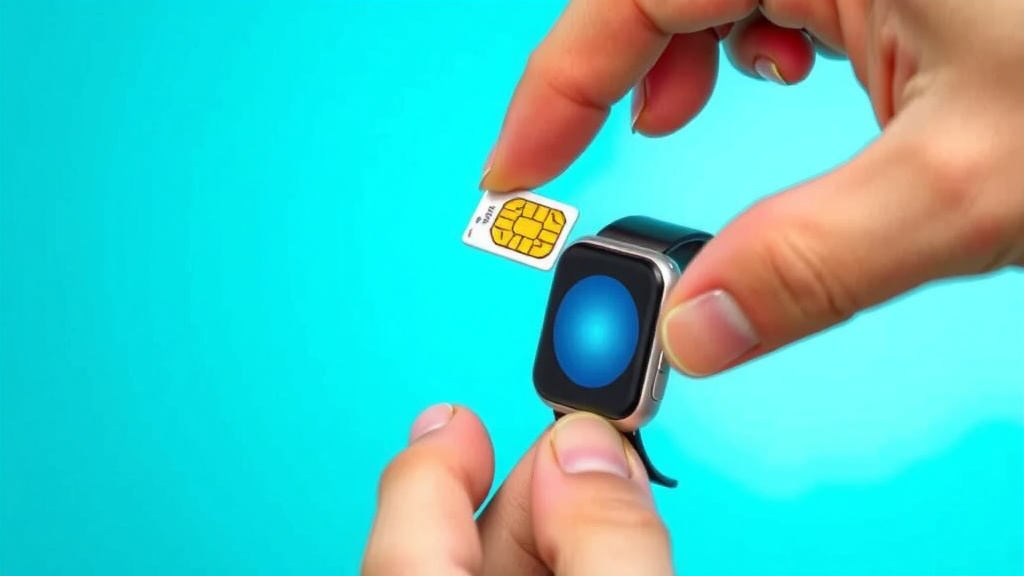
How to Insert SIM Card in Your Smartwatch: Step-by-Step Guide
Inserting a SIM card into your smartwatch is quite simple! You’ll typically need to locate a small tray or slot on your watch, often on the side, and gently push a SIM ejector tool or a tiny paperclip into a pinhole to pop it open. This lets you swap out or insert your nano-SIM card, which enables cellular connectivity for calls, texts, and data without your phone.
Many smartwatches, especially those advertised as cellular or LTE models, are designed to work with a SIM card. This feature allows your watch to function more independently, letting you leave your phone at home on runs or when you just need to stay connected. It’s about giving your wearable more freedom and functionality, right on your wrist.
- Find the SIM tray on your watch.
- Use a SIM ejector tool or paperclip to open it.
- Place the nano-SIM card correctly in the tray.
- Gently push the tray back into the watch.
- Restart your watch if needed.
Ready to get your smartwatch connected? Let’s walk through the process step by step, so you can get your SIM card installed without a hitch.
Getting Your Smartwatch Connected: A SIM Card Guide
Ready to give your smartwatch some extra independence? Inserting a SIM card is your ticket to making calls, sending texts, and using data right from your wrist, even when your phone isn’t nearby. It’s a fantastic way to stay connected on the go. Let’s break down how you can get that tiny SIM card into your watch.
Understanding Your Smartwatch’s SIM Needs
Not all smartwatches need a SIM card. The ones that do are usually advertised as having cellular capabilities or LTE support. These models are designed to connect to mobile networks just like your smartphone. If your watch doesn’t mention cellular or LTE, it likely won’t have a SIM card slot. You can usually find this information in your watch’s manual or on the manufacturer’s website.
Types of Smartwatch SIM Cards
The SIM card you’ll need for your smartwatch is almost always a nano-SIM. This is the smallest SIM card size currently available. Before you start, double-check your watch’s specifications to confirm the exact size required. You can get a nano-SIM from your mobile carrier. They can usually cut down a larger SIM card for you or provide a new one.
What You’ll Need to Insert the SIM
You won’t need a toolbox for this! Most smartwatches come with a tiny tool called a SIM ejector tool. It looks like a little metal pin. If you can’t find it, a straightened-out paperclip is a common and effective substitute. You’ll also need your nano-SIM card, of course. And make sure your smartwatch is powered off before you begin, just to be safe.
Step-by-Step SIM Card Insertion
Let’s get this done! Follow these steps carefully, and you’ll have your smartwatch connected in no time. Remember, patience is key here, especially with tiny components.
Locating the SIM Card Tray
The SIM card tray is usually hidden on the edge of your smartwatch. Look closely along the sides of the watch case. You might see a small, almost invisible slot or a tiny hole next to it. This hole is where you’ll insert your ejector tool. Some watches might have a small cover that needs to be gently pried open first, but most have a simple ejector pinhole. Don’t force anything; if you can’t find it, your watch might not support a SIM card.
Opening the SIM Card Tray
Once you’ve spotted the pinhole, take your SIM ejector tool or paperclip. Gently insert the tip of the tool into the pinhole. Apply a steady, light pressure. You should feel a small click or resistance, and the SIM tray will pop out slightly. You can then gently pull the tray the rest of the way out with your fingers. Be careful not to bend the tray or lose it!
Placing the SIM Card Correctly
This is a critical step. Look closely at the SIM tray. You’ll see an indentation or a specific shape designed to fit only one way. Your nano-SIM card will have a small notched corner. Line up this notch on your SIM card with the corresponding notch on the tray. The gold contacts on the SIM card should face downwards, towards the watch body, when you place it in the tray. It should sit snugly without any wobbling.
If you’re having trouble getting the SIM to sit flat, don’t force it. Take it out and try again. A correctly placed SIM card will be flush with the tray. Many experts advise against using a SIM card that isn’t seated properly, as it can cause connection issues or even damage the watch (Apple Support).
Inserting the SIM Tray Back Into Your Watch
With the SIM card securely in the tray, it’s time to put it back. Gently slide the tray back into the slot on your watch. Make sure it goes in straight. You might need to apply a little pressure until it sits flush with the watch case. You should feel it click or settle into place. If it doesn’t slide in smoothly, remove it and check again that the SIM card is positioned correctly in the tray and the tray is aligned properly.
Powering On and Initial Setup
After the SIM tray is back in place, it’s time to power on your smartwatch. You might be prompted to set up cellular service. This often involves following on-screen instructions or visiting a specific website or app provided by your mobile carrier. Your watch will likely need to connect to your carrier’s network, which can take a few minutes. Sometimes, a simple restart of your watch after inserting the SIM card is all that’s needed to get it recognized.
Troubleshooting Common SIM Card Issues
What if it doesn’t work right away? Don’t panic! Most issues are easily resolved.
“No SIM” or Connection Errors
If your watch displays a “No SIM” error or can’t connect to the cellular network, first try removing and reinserting the SIM card. Double-check that it’s the correct size and placed in the tray with the gold contacts facing down and the notch aligned. Ensure your watch is powered off before doing this.
Checking Network Settings
Sometimes, the issue might be with your cellular plan or network settings. Make sure your mobile carrier has activated the SIM card for your smartwatch. You might need to contact them to ensure your plan supports smartwatch connectivity. Also, check your watch’s settings menu for any cellular or network options that might need to be enabled.
Restarting Your Device
A simple restart can often fix temporary glitches. Turn your watch off completely, wait about 30 seconds, and then turn it back on. This allows the device to re-establish its connection to the cellular network.
A Quick Checklist for Success
- Confirm your watch supports a SIM card.
- Use a nano-SIM card.
- Locate the SIM tray and pinhole.
- Use a SIM ejector tool or paperclip.
- Align the SIM card notch correctly.
- Ensure the SIM is flush in the tray.
- Slide the tray back in smoothly.
- Restart your watch if needed.
Conclusion
You’ve now learned how to give your smartwatch cellular independence by inserting a SIM card. Remember, it’s a straightforward process focused on finding the tray, using the right tool, and placing the nano-SIM correctly. If you encounter any issues, a quick re-insertion or a restart often does the trick. Your connected smartwatch is just a few steps away!
Ready to experience your watch without your phone? Take a moment to power down your watch, gather your nano-SIM and ejector tool, and follow these steps to get connected.
Frequently Asked Questions
What if my smartwatch doesn’t have a SIM card slot?
Not all smartwatches are designed for SIM cards. If yours doesn’t have a visible SIM tray or a pinhole to eject one, it likely relies on Bluetooth or Wi-Fi to connect to your phone. You can confirm this by checking your watch’s manual or the manufacturer’s specifications online. For cellular capabilities, you’d need a model specifically advertised with LTE or cellular support.
Can I use a regular-sized SIM card in my smartwatch?
Generally, no. Smartwatches almost exclusively use the smallest SIM card size available, which is the nano-SIM. Using a larger SIM card won’t fit and could damage the tray or your watch. Your mobile carrier can usually provide you with a nano-SIM or cut down a larger one to the correct size.
Do I need to turn off my smartwatch before inserting the SIM card?
Yes, it’s highly recommended. Turning off your smartwatch before inserting or removing the SIM card is a safety precaution. It prevents any electrical issues that could potentially damage the watch or the SIM card. Once the SIM is properly seated, you can then power your watch back on.
What should I do if the SIM tray won’t go back in smoothly?
If the SIM tray doesn’t slide back in easily, don’t force it. The most common reason is that the nano-SIM card isn’t seated correctly in the tray. Remove the tray and carefully realign the SIM card, ensuring its notched corner matches the tray’s shape and it sits flat. Also, check that the tray itself is aligned straight with the slot.
How do I activate my SIM card for smartwatch use?
After inserting the SIM card, you’ll usually need to activate it with your mobile carrier. This process often involves following on-screen prompts on your watch or visiting your carrier’s website or app. They will link the SIM card to your cellular plan, enabling your watch to connect to the mobile network. Contact your carrier directly if you need assistance with activation.



![7 Best Dress Smart Watches For Men [2026]](https://smartwatchbest.com/wp-content/uploads/2026/08/7-best-dress-smart-watches-for-men-2026-featured-768x432.jpg)