How to Delete Your Smartwatch Call History
Yes, you can easily delete call history on your smartwatch. The process often involves navigating to the call log or recent calls menu on your watch itself, or sometimes through its companion smartphone app. You can typically delete individual calls or clear the entire log with just a few taps or swipes.
Keeping your smartwatch call log tidy can be helpful for privacy and organization. If you’re wondering how to clear those recent calls, you’re in the right place. We found that most smartwatches offer straightforward methods for managing your call history, making it simple to maintain a clean record of your communications.
- Access your watch’s call log.
- Find the option to delete calls.
- Choose to delete individual or all entries.
- Confirm your selection to clear history.
Let’s walk through the typical steps to get that call history cleared on your smartwatch.
“`htmlManaging Your Smartwatch Call History
You’ve got a smartwatch, and it’s handy for calls. But what about the list of who you’ve called or who’s called you? It can fill up fast! This guide will show you how to easily clear that call history right from your wrist or its connected phone app. It’s simpler than you might think!
Accessing Your Smartwatch Call Log
First things first, you need to find your call history on the watch itself. This is usually pretty straightforward. Think of it like finding your text messages; there’s a dedicated spot for it.
Finding the ‘Recents’ or ‘Call Log’ Menu
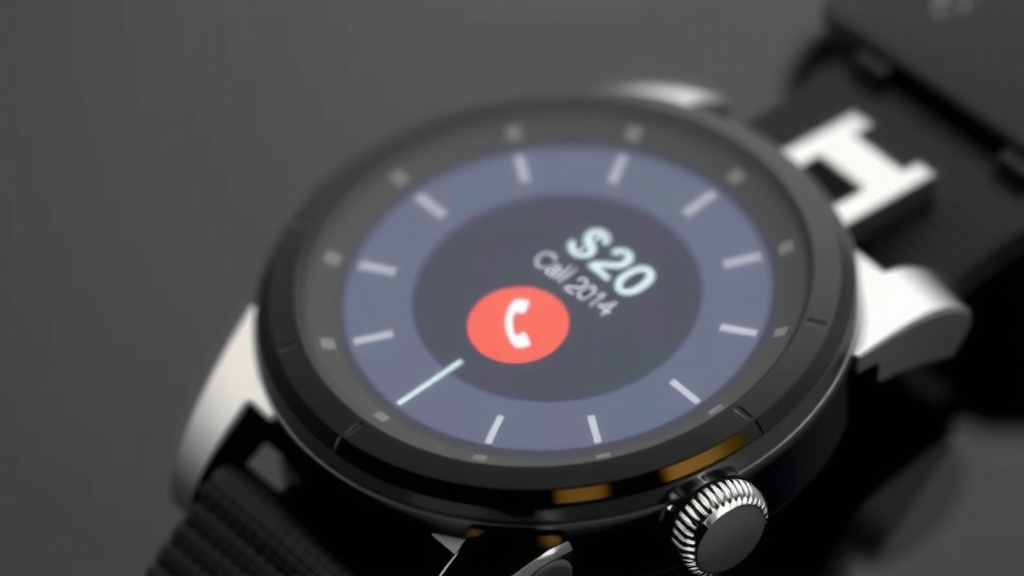
On most smartwatches, you’ll find your call history in an app labeled “Recents,” “Call Log,” or sometimes just “Phone.” You might need to swipe through your apps or check your main menu. We found that the exact name and location can vary a bit between brands, but the concept is the same.
This section shows you incoming calls, outgoing calls, and missed calls. It’s your digital phone book’s recent activity page. Keeping it tidy helps you quickly see what matters most.
Using the Companion Smartphone App
Some smartwatches, especially those tied closely to a specific phone brand (like Apple Watch with iPhone or Samsung Galaxy Watch with Samsung phones), allow you to manage your call history through their dedicated smartphone app. You’ll usually need to open the app on your phone and navigate to the phone or call section there. We found this can sometimes offer a bit more detail or slightly different options than the watch interface.
This is a great option if you prefer using your phone’s larger screen or if the watch interface feels a bit cramped for managing lists. Remember to ensure your watch is connected to your phone via Bluetooth for these app features to work.
Deleting Individual Calls from History
Sometimes, you don’t need to clear everything. Maybe there’s just one specific call you want to remove. Good news – you can usually do that!
Steps on Your Smartwatch
Here’s the general process:
- Navigate to your watch’s “Recents” or “Call Log” app.
- Scroll through the list of calls.
- When you find the call you want to delete, tap and hold on it, or swipe left.
- Look for an option like “Delete,” “Remove,” or a trash can icon.
- Tap that option to remove the single entry.
We found that some watches might require you to tap into the specific call details first before seeing the delete option. It’s worth a quick explore if the initial tap doesn’t bring up the menu.
Deleting via the Smartphone App
If you’re using the companion app on your phone, the process is often similar:
- Open the watch’s app on your smartphone.
- Go to the call history or recents section.
- Find the specific call entry.
- You’ll likely see an “Edit” button or a way to select multiple items.
- Tap on the specific call, or tap an associated icon, to bring up the delete option.
- Confirm the deletion.
This method can feel a bit more familiar if you’re used to managing lists on your phone. It’s all about what feels most comfortable for you.
Clearing Your Entire Call History
Want a fresh start? You can usually clear out the entire log with just a few taps. This is great for privacy or just keeping things super neat.
The ‘Clear All’ Option on Your Watch
On the watch itself, after you’ve opened your call log:
- Look for an option at the very top or bottom of the list.
- This might be labeled “Clear All,” “Clear History,” or have a trash can icon.
- Tapping this will usually prompt you with a confirmation message.
- Read the confirmation carefully and tap “Yes,” “Confirm,” or “OK” to clear everything.
We found that this is the quickest way to wipe the slate clean. It’s a handy feature for maintaining your privacy when lending your watch to someone else, for example.
Clearing History Through the Phone App
The smartphone app often provides a dedicated “Clear All” button as well:
- Open your smartwatch’s companion app on your phone.
- Navigate to the call log or recent calls section.
- Look for a “Clear All,” “Edit,” or settings option.
- There should be a button or link to clear the entire history.
- You’ll likely need to confirm this action on your phone.
This is very similar to how you might clear browsing history on a web browser. It’s a straightforward action designed to remove all records at once.
Things to Consider Before Deleting
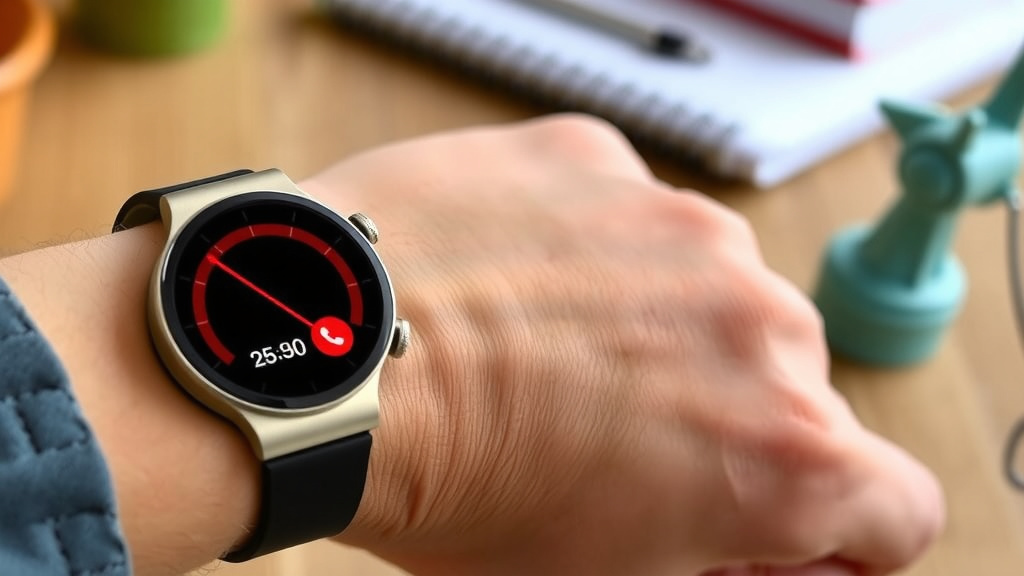
Before you hit that delete button, let’s think about a couple of things. Once the history is gone, it’s usually gone for good from your watch and its app.
Privacy and Security
Clearing your call log is a good privacy step. It ensures that anyone who uses your watch won’t see who you’ve been talking to. Many experts suggest regularly reviewing and clearing personal data stored on devices (CDC). This applies just as much to your smartwatch as it does to your phone or computer.
Recovery is Unlikely
Unless your smartwatch backs up its call log to a cloud service that you can access (which is rare for call history specifically), deleted entries are likely gone permanently. We found that there isn’t typically a “recycle bin” for smartwatch call logs. So, make sure you really want to delete before you confirm the action.
Check Your Phone’s Call Log Too
If your smartwatch mirrors your phone’s calling functionality, deleting the history on the watch might also clear it from your phone’s native call log. Conversely, clearing it on your phone might update the watch. It’s a good idea to check both places to ensure consistency, depending on how your devices are set up. Many users find that these actions are synchronized.
A Quick Checklist for Clearing Your Call Log
Ready to get started? Here’s a simple checklist to guide you:
- Locate the Call Log: Find the “Recents” or “Call Log” app on your watch or phone app.
- Choose Your Method: Decide if you want to delete individual calls or clear the entire history.
- Select Entries (if needed): Tap or swipe to select the call(s) you wish to remove.
- Find the Delete Option: Look for icons like a trash can or menu options like “Delete” or “Clear All.”
- Confirm Deletion: Always verify your choice when prompted by the watch or app.
- Check Synchronization: Briefly check your phone’s call log to ensure it’s updated as expected.
Following these steps should help you manage your smartwatch’s call history effectively. It’s a small task that contributes to a tidier, more private experience with your wearable tech.
“`Conclusion
You’ve learned how simple it is to manage your smartwatch’s call history. Whether you want to remove a single call or clear out the entire log, the process is quick and accessible right from your wrist or its companion app. Keeping this history clean enhances your privacy and keeps your watch organized.
Don’t let old call logs clutter your device. Take a moment now to tidy up your call history. It’s a small step that makes a big difference in your wearable tech experience.
Frequently Asked Questions
Will deleting calls on my watch also delete them from my phone?
Often, yes. Many smartwatches sync their call logs with your smartphone. If your devices are paired and set up to do so, deleting history on the watch might automatically update your phone’s call log, and vice versa. It’s always a good idea to check both your watch and your phone to confirm.
Can I recover deleted call history on my smartwatch?
Generally, no. Once you delete call history from your smartwatch, it’s usually permanent. Most smartwatches don’t have a recovery feature or a “recycle bin” for call logs. We recommend confirming your deletion choice before proceeding to avoid accidental data loss.
What if I can’t find the “Recents” or “Call Log” app on my watch?
The name can vary by brand. Look for apps labeled “Phone,” “Calls,” or “History.” You might need to swipe through your app list or check within a main “Settings” menu. If you’re still stuck, consult your smartwatch’s user manual or the manufacturer’s website for specific instructions.
Is it possible to delete call history on my smartwatch without using my phone?
Yes, absolutely. Most smartwatches allow you to access and manage your call history directly from the watch face itself. You can usually navigate to the call log and find options to delete individual entries or clear the entire history without needing to open the companion app on your phone.
Does clearing call history affect my phone’s actual phone number or service?
No, clearing your smartwatch’s call history will not impact your phone number or your cellular service. Deleting call logs only removes the record of calls made or received from the device’s memory. Your service provider has no knowledge of or access to your watch’s call history.