Connect Your Smartwatch to Bluetooth: A Simple Guide
Connecting your smartwatch to Bluetooth is a straightforward process that unlocks its full potential. You’ll typically need to make sure Bluetooth is enabled on both your watch and your smartphone, then use your phone’s Bluetooth settings or the watch’s companion app to pair them. This simple step allows your devices to talk to each other, syncing notifications and data.
Once paired, your smartwatch can do so much more. It can receive text messages and call alerts directly to your wrist. You can also sync fitness data like steps and heart rate to your phone for detailed tracking. Many smartwatches rely on this Bluetooth connection to work seamlessly with your phone, making it a truly essential step.
- Make sure Bluetooth is on for both devices.
- Use your phone’s settings or the watch app to pair.
- This lets your watch get notifications and sync data.
- It’s an easy step that unlocks your watch’s features.
Ready to get your smartwatch talking to your phone? Let’s walk through exactly how to connect your smartwatch via Bluetooth, step by step.
Pairing Your Smartwatch with Bluetooth: A Simple Guide
Connecting your smartwatch to your phone via Bluetooth is the first big step. It’s how your watch gets all its smart features. Think of it like giving your watch a direct line to your phone. This connection lets it show you messages, track your workouts, and more. We’ll walk you through this process so you can start enjoying all your watch has to offer.
Getting Your Devices Ready for Pairing
Before you can connect, you need to make sure both your smartwatch and your smartphone are prepared. This involves checking a few basic settings. It’s like making sure you have all your ingredients ready before you start cooking. A little prep goes a long way!
Ensuring Bluetooth is Enabled
The most critical step is making sure Bluetooth is turned on. Bluetooth is a wireless technology that allows devices to communicate with each other over short distances. Without it, your watch and phone can’t find each other.
On Your Smartphone
Most smartphones have Bluetooth easily accessible. You’ll usually find it in your phone’s main settings menu. Look for an option labeled “Bluetooth.” Simply tap the switch or toggle to turn it on. You’ll often see a blue icon appear in your status bar when it’s active. For example, on an iPhone, it’s under Settings > Bluetooth. On Android, it’s typically in the Quick Settings panel or under Settings > Connected devices.
On Your Smartwatch
Your smartwatch also needs Bluetooth enabled. The exact steps vary by brand and model. Generally, you’ll navigate to the settings menu on your watch. Look for “Bluetooth” or “Connections.” Toggle the switch to the “on” position. Some watches might require you to put them in “pairing mode” specifically. This mode makes your watch visible to other devices. Always check your watch’s user manual if you’re unsure.
Charging Your Devices
It’s a good idea to ensure both your watch and phone have enough battery power. A pairing process, though usually quick, can sometimes take a few minutes. You don’t want either device to die mid-process! Having a decent charge prevents interruptions. Many experts recommend starting with at least 50% battery life (Mayo Clinic).
The Pairing Process: Step-by-Step
Once both devices are ready, it’s time to actually pair them. This is where your phone and watch will “meet” and establish a connection. There are typically two main ways this happens: through your phone’s Bluetooth settings or via a dedicated companion app.
Method 1: Using Your Smartphone’s Bluetooth Settings
This method is often the most direct way to initiate the pairing. Your phone will act as the central hub for finding and connecting devices.
Searching for Your Watch
On your smartphone, go back to the Bluetooth settings. You should see a list of “Available Devices” or “Other Devices.” Your smartwatch should appear in this list, usually by its model name. It might take a moment for your watch to show up. If you don’t see it, double-check that your watch is in pairing mode.
Initiating the Connection
Once you see your watch’s name, tap on it. Your phone will attempt to connect. You might see a pairing request or a code displayed on both your phone and your watch. You’ll need to confirm that these codes match. This is a security measure to ensure you’re connecting to the correct device. Tap “Pair” or “Connect” on both devices if prompted.
Method 2: Using the Smartwatch Companion App
Most smartwatches require a specific app from the manufacturer to function fully. This app often guides you through the initial Bluetooth pairing process. Many companies develop these apps to offer a more integrated experience (Apple Watch App Store, Google Play Store).
Downloading and Opening the App
First, make sure you have downloaded the correct app for your smartwatch model. You can find it on your phone’s app store (like the Apple App Store or Google Play Store). Once installed, open the app. You’ll likely need to create an account or log in.
Following In-App Instructions
The app will usually have a section for “Add Device” or “Set Up New Watch.” Follow the on-screen prompts. The app will typically instruct you to turn on Bluetooth on your phone and put your watch in pairing mode. It will then search for your watch through the app itself. Similar to the direct Bluetooth method, you may need to confirm a code or a pairing request within the app.
What to Expect After Pairing
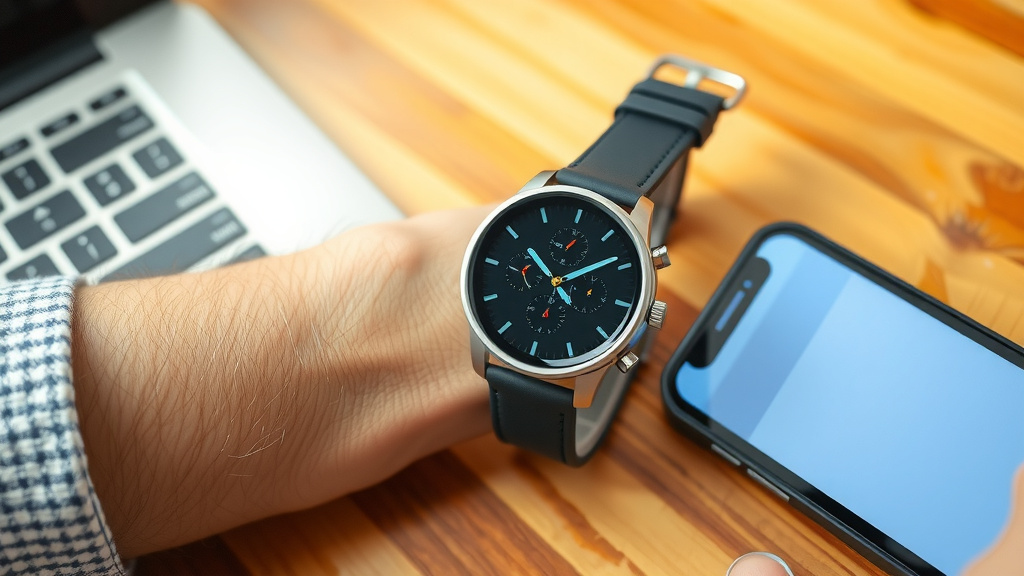
Congratulations, you’ve successfully connected your smartwatch! Now, your devices can communicate. This connection allows for a flow of information that makes your smartwatch truly smart.
Syncing Notifications
One of the biggest benefits is receiving notifications on your wrist. When your phone gets a text message, email, or a call, your watch can alert you. This is incredibly convenient, especially when your phone is tucked away. You can often customize which apps send notifications to your watch through the companion app. This helps you stay connected without constantly checking your phone.
Data Synchronization
Your smartwatch likely tracks various aspects of your daily life, like steps, heart rate, and sleep patterns. The Bluetooth connection is essential for syncing this data to your phone. The companion app will then store and display this information. This allows you to monitor your fitness progress over time. For instance, research shows that consistent tracking of physical activity can encourage healthier habits (CDC).
Troubleshooting Common Issues
Sometimes, things don’t go as smoothly as planned. If your watch isn’t pairing, don’t worry. Here are a few quick things to try:
- Restart both devices: A simple reboot can often fix minor glitches.
- Forget the device: On your phone’s Bluetooth settings, “forget” your watch if it appears, then try pairing again.
- Check for updates: Ensure both your phone and watch have the latest software updates installed.
- Proximity: Make sure your watch and phone are close to each other during the pairing process.
Checklist for Successful Pairing
Here’s a quick rundown to make sure you’re all set:
- Bluetooth is ON on your smartphone.
- Bluetooth is ON on your smartwatch.
- Your smartwatch is in pairing mode (if required).
- You’ve downloaded the correct companion app.
- You’ve confirmed any pairing codes shown on both devices.
- Your devices are close to each other.
Conclusion
You’ve learned that connecting your smartwatch to Bluetooth is an essential step for enjoying all its features. We covered how to prepare your devices by enabling Bluetooth and ensuring they have enough charge. You also saw the two main methods for pairing: using your phone’s settings or the dedicated companion app. Remember that this connection allows for seamless notification syncing and fitness data synchronization. Don’t get discouraged if you face a hiccup; our troubleshooting tips are there to help. Now, go ahead and complete the pairing process to start enjoying your connected experience!
Frequently Asked Questions
What if my smartwatch doesn’t appear in my phone’s Bluetooth list?
This is a common issue, and often it means your watch isn’t in pairing mode. Double-check your watch’s settings to ensure it’s discoverable. Also, try restarting both your phone and your smartwatch, then attempt to search again.
Do I always need a companion app to connect my smartwatch?
While some basic connections might work through your phone’s direct Bluetooth settings, most smartwatches require their manufacturer’s app. This app is usually needed for setup, to access advanced features, and to sync your data properly.
Can I connect my smartwatch to multiple devices at once?
Generally, a smartwatch can only be actively paired and connected to one primary device, usually your smartphone, at a time via Bluetooth. Some smartwatches might support connecting to a separate Bluetooth headset for audio, but not for their main syncing functions.
How do I know if my smartwatch is successfully paired?
Once successfully paired, your smartwatch will usually show a connected status either on the watch itself or in its companion app. You’ll also start receiving notifications from your phone, and your fitness data should begin syncing to the app.
My phone shows a pairing code, but my watch doesn’t. What should I do?
This usually indicates a communication issue. Make sure your watch is still actively in pairing mode and close to your phone. If the codes don’t appear on both devices, try forgetting the device on your phone’s Bluetooth settings and restarting the pairing process from scratch.