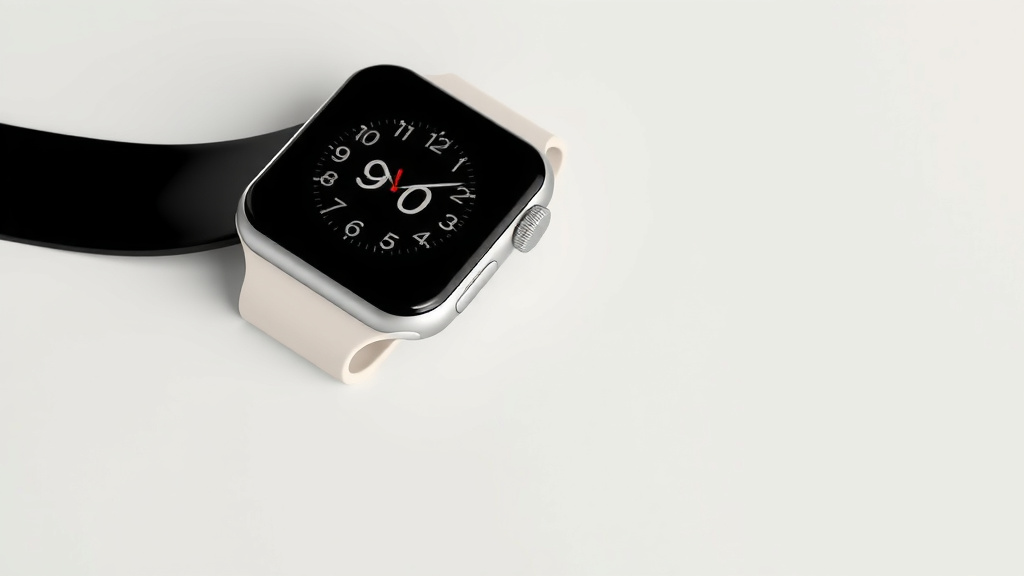
Apple Watch Smart Stack: Your Essential October 2026 Guide
Smart Stack on your Apple Watch is a If you’re considering a new device, our guide on how to choose a smartwatch can help.smart way to organize your watch face. It’s a collection of widgets that automatically show you the right app at the right time. Think of it as your watch face knowing what you need before you do.
This feature uses your habits and location to predict which information will be most helpful. It intelligently rotates through widgets from different apps. This keeps your watch face tidy and your important information glanceable. It’s like having a personal assistant on your wrist.
- Smart Stack is an automatic widget organizer for your Apple Watch.
- It shows you the right app widget when you need it most.
- Widgets change based on time, location, and your activity.
- It helps keep your watch face clutter-free.
- It makes accessing info quick and easy.
Ready to make your Apple Watch even smarter? Let’s walk through how Smart Stack works and how you can make it work for you.
Understanding Your Apple Watch Smart Stack
So, what exactly is this Smart Stack feature on your Apple Watch? Think of it as your watch face’s own little personal assistant. It’s a dynamic collection of widgets. These widgets aren’t just randomly placed. They intelligently appear and disappear based on what it thinks you’ll need. It’s all about showing you the right information at the right time, without you having to search for it. This keeps your watch face clean and your most relevant data just a glance away.
How Smart Stack Works Its Magic
The “smart” in Smart Stack comes from its ability to learn and predict. It uses a few key factors to figure out which widgets to show you. Your location is a big one. If you’re at the gym, it might show your workout app. If you’re at home, it might bring up your smart home controls. Time of day also plays a role. Your morning news widget might be prominent in the morning, while your sleep tracking widget could appear later in the evening.
Learning Your Habits and Routines
Beyond location and time, Smart Stack also pays attention to your usage patterns. Over time, it learns which apps and widgets you access most frequently at certain times or in certain places. For example, if you always check the weather before you leave for work, Smart Stack will likely surface the weather widget around that time. This learning process is what makes the feature feel so personalized and helpful. It’s like your watch is getting to know you better.
The Role of Predictive Intelligence
Apple’s watchOS uses sophisticated algorithms for this predictive intelligence. These algorithms analyze your data (while keeping your privacy secure, of course). They look for patterns in your daily routines. The goal is to anticipate your needs. This means less fumbling through apps and more immediate access to what matters. It’s an intelligent rotation of information designed to streamline your interactions with your watch.
Setting Up and Customizing Your Smart Stack
Getting started with Smart Stack is pretty straightforward. It’s often included by default on many watch faces. If you’re looking to add it or customize the widgets it uses, you can do so directly from your Apple Watch or your iPhone. The beauty is that you can curate what goes into the stack. This ensures that the predictions are even more relevant to your specific lifestyle and preferences. You’re not just letting it guess; you’re guiding its intelligence.
Adding Smart Stack to a Watch Face
To add Smart Stack to a watch face, you’ll typically edit that watch face. You can usually do this by pressing and holding on the current watch face. Then, tap “Edit.” You’ll then be able to select the Smart Stack complication. If you’re using a watch face that supports it, you can assign Smart Stack to one of the available complication slots. It’s a simple addition that brings a lot of dynamic functionality.
Choosing Your Widgets for the Stack
The real power comes from deciding which apps can contribute widgets to your Smart Stack. You do this through the Watch app on your iPhone.
- Open the Watch app on your iPhone.
- Go to the My Faces tab.
- Select the watch face that uses Smart Stack.
- Tap on the Smart Stack complication.
- You’ll see a list of apps that can contribute widgets.
- You can toggle them on or off.
This selection process is key. Think about the apps you use most often throughout your day. Do you want your fitness app? Your calendar? Your music player? By choosing carefully, you’re telling Smart Stack what kind of information it should prioritize showing you. It’s like giving your assistant a cheat sheet of your priorities.
Managing Widgets within the Stack
Within the Smart Stack itself, you can also manually reorder widgets or pin a specific widget to the top. This is useful if you know you’ll need a particular app’s information for an extended period, like during a meeting or a flight. To do this, simply swipe up on the Smart Stack on your watch face. You’ll see options to reorder or pin. This gives you a handy override for when you need something specific *now*, even if the stack wouldn’t normally show it.
Benefits of Using Smart Stack
Why bother with Smart Stack? Well, it offers some compelling advantages. The most obvious is simplicity. Instead of a cluttered watch face with tons of app icons or complications, you get a curated experience. It reduces the number of taps and swipes needed to get to your information. This is especially useful when you’re on the go and only have a moment to check your watch.
Reduced Watch Face Clutter
Many users find their watch faces becoming too busy over time. Smart Stack offers a clean alternative. It consolidates multiple app functions into a single, intelligent stack. This means you can enjoy a more minimalist aesthetic while still having access to a wide range of information. You get the best of both worlds: a tidy display and powerful functionality.
Quicker Access to Information
Imagine needing to quickly check your next calendar event or start a timer. Without Smart Stack, you might have to navigate through menus or scroll through apps. With it, the relevant widget could already be there, ready for you. This efficiency saves you precious seconds. It makes your Apple Watch feel more responsive and less like a device you have to work with.
Personalized and Contextual Awareness
The contextual nature of Smart Stack is its real superpower. It adapts to your day. Whether you’re commuting, working out, or relaxing, the widgets that appear are designed to be relevant to your current situation. Many studies highlight the importance of context-aware technology for improving user experience (National Academy of Sciences). This means less wasted effort and more useful interactions.
Smart Stack vs. Traditional Widgets and Complications
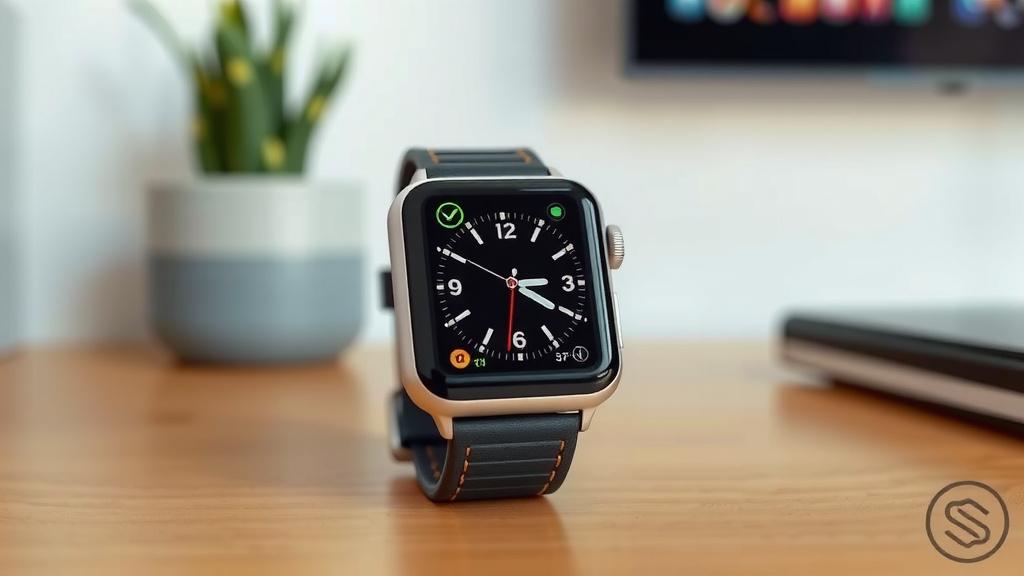
It’s helpful to understand how Smart Stack differs from older ways of organizing your watch face. Traditional complications are static icons or small bits of information displayed directly on the watch face. They show one piece of data from one app. Widgets, which were introduced more broadly with watchOS 9, can be more interactive and larger than complications. Smart Stack takes this a step further by being dynamic and predictive.
| Feature | Smart Stack | Traditional Complications |
|---|---|---|
| Display | Rotates automatically based on time, location, activity | Static, always visible |
| Information | Multiple widgets from various apps | Single piece of data per complication |
| User Interaction | Tap to expand, swipe to manually cycle/pin | Tap to open app |
| Customization | Select contributing apps, pin widgets | Choose which complications to display |
| Intelligence | Learns user habits, predicts needs | None |
While traditional complications are great for immediate, constant access to specific data points, Smart Stack offers a more adaptive and less cluttered experience. Widgets offer interactivity, but Smart Stack adds the predictive layer. It’s about having the right information surface itself when you’re most likely to need it.
Tips for an Optimized Smart Stack Experience
To get the most out of your Smart Stack, consider a few best practices. Be thoughtful about which apps you allow to contribute widgets. Regularly review your selections. As your routines change, so should your Smart Stack’s configuration. Think of it as an ongoing conversation with your watch.
Regularly Review Your Widget Selections
The apps you rely on might change. What was essential last year might be less so today. Take a few minutes every few months to revisit the list of apps contributing to your Smart Stack. Remove any that you rarely use or find irrelevant. Adding new apps that have become part of your routine can also enhance its usefulness. Research suggests regular system review improves efficiency (Harvard Business Review).
Utilize the Pinning Feature
Don’t forget about the ability to pin a widget. If you have a specific task or event coming up, like a flight where you’ll need your boarding pass or a conference call where you need meeting details, pin that widget. It ensures you have immediate access to what you need, overriding the usual rotation. You can unpin it later when it’s no longer relevant.
Combine with Other Watch Face Features
Smart Stack works best when it’s part of a well-thought-out watch face. Consider other complications or features that complement it. For instance, a weather complication might be useful in conjunction with a Smart Stack that includes your commute app. The goal is to create a watch face that is both aesthetically pleasing and highly functional for your specific needs.
Here’s a quick checklist to help you manage your Smart Stack:
- Review allowed apps for Smart Stack monthly.
- Pin widgets for important upcoming events.
- Unpin widgets once they are no longer needed.
- Experiment with different watch faces that support Smart Stack.
- Consider how Smart Stack complements other complications.
- Check for watchOS updates for new Smart Stack features.
Conclusion
You’ve learned how your Apple Watch Smart Stack works as a dynamic organizer for your watch face. It uses your habits and location to show you the right widgets at the right time. This keeps your screen tidy and your essential information easily accessible. By customizing which apps contribute to the stack and using features like pinning, you can make your Smart Stack truly work for your daily life. Start by reviewing your current watch face and deciding if Smart Stack is the right fit for you. It’s a simple way to make your Apple Watch even more personal and efficient.
Frequently Asked Questions
How does Smart Stack know what I need?
Smart Stack uses predictive intelligence. It learns from your location, the time of day, and how you use your apps. This helps it guess which widget will be most useful to you at any given moment.
Can I use Smart Stack with any watch face?
Smart Stack is available on many watch faces, but not all. You’ll need to choose a watch face that supports the Smart Stack complication. You can usually add it when you’re editing a watch face.
What happens if Smart Stack shows me the wrong widget?
If the predicted widget isn’t what you need, you can simply swipe up on the stack to see other available widgets. You can also manually pin a widget to keep it visible, or reorder them to your preference.
Will Smart Stack drain my Apple Watch battery faster?
While any feature that uses intelligence and location services can have a small impact, Smart Stack is designed to be efficient. Apple prioritizes battery life, so the impact is generally minimal for most users.
How do I stop certain apps from appearing in my Smart Stack?
You can control which apps contribute widgets to your Smart Stack through the Watch app on your iPhone. Navigate to “My Faces,” select your watch face, tap “Smart Stack,” and then toggle off any apps you don’t want included.

![7 Best Cheap Waterproof Smart Watch [2026]](https://smartwatchbest.com/wp-content/uploads/2026/08/7-best-cheap-waterproof-smart-watch-2026-featured-768x432.jpg)
![7 Best Smart Watch For Adventure [2026]](https://smartwatchbest.com/wp-content/uploads/2026/08/7-best-smart-watch-for-adventure-2026-featured-768x432.jpg)