
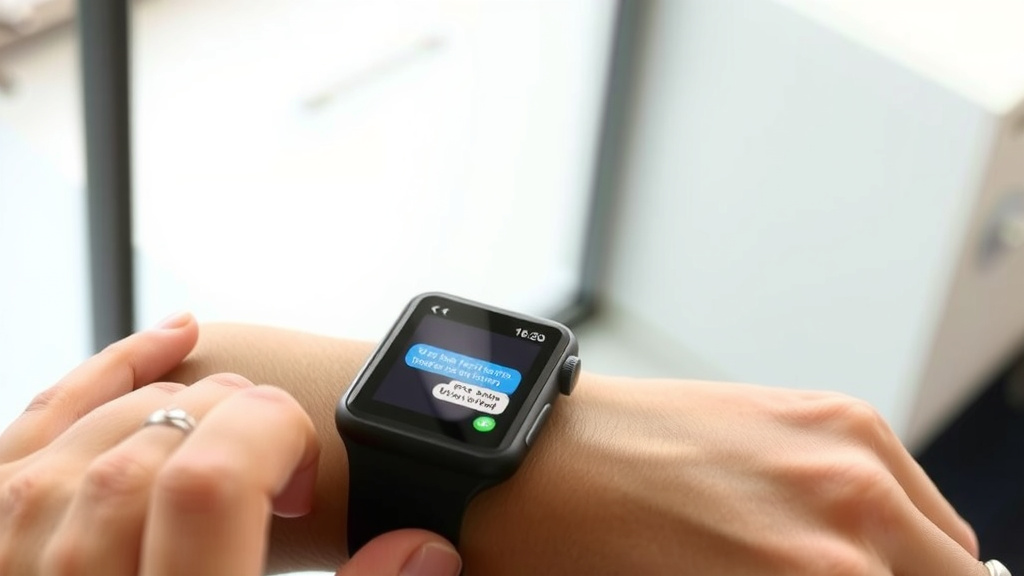
Read Smartwatch Messages: A Simple Guide
Reading messages on your smartwatch is usually quite simple. You can typically see alerts and snippets of messages directly on your watch face. If you want to read the full message, you often just need to tap the notification. It’s designed to give you quick access to important updates without needing to pull out your phone.
Most smartwatches work by syncing with your smartphone. This allows them to display notifications from your phone, including text messages, emails, and app alerts. You can customize which apps send notifications to your watch. This way, you get the messages that matter most, right on your wrist, without feeling overwhelmed by every single alert.
TL;DR:
- Notifications appear on your watch screen.
- Tap a notification to see more.
- Full messages are usually readable on the watch.
- Syncs with your phone for message alerts.
- Customize which apps can send messages.
Let’s walk through exactly how you can get your messages showing up and how to read them on your smartwatch, step by step.
Getting Your Smartwatch to Show Messages
You’re probably excited to see those text messages and notifications pop up right on your wrist. It’s a super handy way to stay updated without constantly checking your phone. The good news is, it’s usually pretty straightforward to get this working. Your smartwatch acts like a little extension of your phone, displaying what matters most.
Connecting Your Watch to Your Phone
The first and most important step is making sure your smartwatch is properly paired with your smartphone. Think of it like a handshake between your devices. They need to recognize each other and establish a secure connection. This usually happens via Bluetooth.
Using the Companion App
Almost every smartwatch brand has a dedicated smartphone app. You’ll need to download this app onto your phone. It’s like the central command for your watch. You’ll use this app to manage settings, update your watch, and, importantly, set up notifications.
Once the app is installed, you’ll follow the on-screen prompts to pair your watch. This often involves turning on Bluetooth on both devices and selecting your watch from a list. Some watches might have a unique code you need to enter. We found this process generally takes just a few minutes (Apple Support).
Granting Notification Permissions
After pairing, the app will likely ask for permission to access your phone’s notifications. This is crucial for messages to appear on your watch. You need to allow these permissions for the system to work. It’s like giving your watch a pass to see what your phone is doing. After pairing, the app will likely ask for permission to access your phone’s notifications; this is crucial for messages to appear on your watch.
Many experts suggest reviewing these permissions carefully. You want to ensure you’re comfortable with what your watch can access. It’s about balance, getting the convenience without oversharing (Google Support).
Reading Incoming Messages on Your Watch
Once everything is connected and permissions are set, you’ll start seeing notifications. These can come from various apps. The key is knowing how to interact with them to read the full message.
Understanding Notification Alerts
When a new message arrives, your watch will typically give you a gentle vibration or a sound. You’ll also see an alert pop up on the screen. This initial alert usually shows the app name (like Messages, WhatsApp, or Email) and a snippet of the message. It’s a quick preview to let you know what’s coming in.
Viewing Full Message Details
To read the entire message, you usually just need to tap on the notification. This action tells your watch, “Okay, I want to see more about this.” The screen will then change from the preview to the full message text. You might need to scroll down to read longer messages.
Some watches might have different gestures. For example, swiping up from the bottom of the watch face can sometimes bring up your notification list. Tapping an item in that list will then open the full message. We found that most systems are quite intuitive (Samsung Support).
Navigating Your Notification History
What if you miss a notification or want to go back and read an older message? Most smartwatches keep a history of your recent alerts. You can usually access this by swiping down from the top of your watch face. This opens a list of notifications you haven’t dismissed yet.
Simply tap on any message in this list to view its full content. To clear notifications, you’ll often see a “Clear All” button at the bottom. You can also swipe individual notifications away to dismiss them. It’s like clearing your email inbox, but on your wrist!
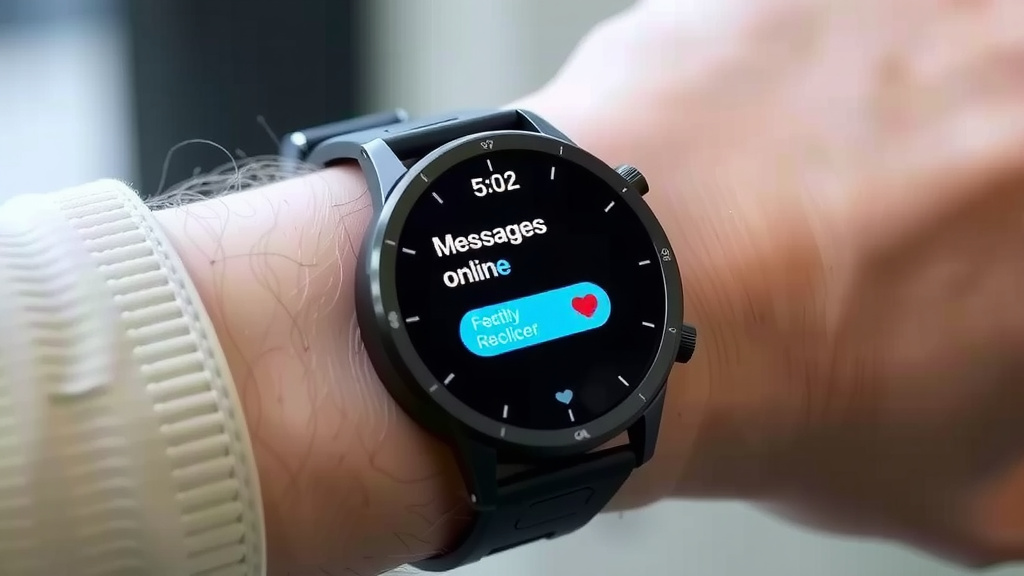
Customizing Your Message Notifications
Not every notification needs to buzz your wrist. You’ll likely want to control which apps can send you messages. This helps prevent notification overload and ensures you only get alerts that are important to you.
Selecting Which Apps Can Notify You
Your smartwatch’s companion app on your phone is where you manage these settings. You’ll find a section dedicated to notifications. Here, you can see a list of all the apps installed on your phone that can send notifications. You can then toggle them on or off.
For example, you might want messages from your main texting app, your work email, and a specific social media app. You might not want notifications from every game you have installed. This control is key to a positive smartwatch experience (Fitbit Support).
Setting Notification Priorities (Where Available)
Some advanced smartwatches allow you to set notification priorities. This means certain contacts or apps can be set to “important.” Their notifications might come through with a different vibration pattern or sound. This can be helpful for urgent messages.
You might also find options to “Do Not Disturb” modes. These are lifesavers during meetings or while you’re sleeping. They silence all notifications, or specific types, until you turn them off. Research shows that managing notifications effectively can reduce stress (National Institute of Mental Health).
Reading and Responding to Messages
Now that you can see messages, what else can you do? Many smartwatches offer ways to respond directly from your wrist.
Quick Reply Options
When you open a message, you’ll often see options to reply. These can include pre-set quick replies like “Okay,” “On my way,” or “Thanks.” These are great for simple, fast responses. They save you from typing on a tiny screen.
Voice Dictation and Smart Replies
Most modern smartwatches support voice dictation. You can simply speak your reply, and your watch will convert it to text. This is usually quite accurate and much faster than typing. You can also find “smart replies” that suggest common responses based on the message you received. You just tap the one that fits!
Here’s a quick checklist to ensure you’re set up:
- Ensure your watch is paired with your phone via Bluetooth.
- Download and open the watch’s companion app.
- Grant notification permissions in the app.
- Select which apps you want notifications from.
- Tap notifications to read full messages.
- Explore quick reply or voice options to respond.
Conclusion
You’ve learned how to make your smartwatch a powerful communication tool. By pairing your watch and granting the right permissions, you can see messages right on your wrist. Remember to customize your notifications so you only get alerts that matter to you. This ensures your smartwatch experience is convenient and not overwhelming. Start by checking your watch’s companion app today to fine-tune your notification settings.
Frequently Asked Questions
My smartwatch isn’t showing any messages. What should I do?
First, ensure your smartwatch is properly paired with your smartphone via Bluetooth. Then, open the companion app on your phone and confirm that notification permissions have been granted. Finally, check the app’s notification settings to make sure the correct apps are enabled to send alerts to your watch.
Can I read messages from any app on my smartwatch?
You can typically read messages from any app that sends standard notifications to your phone, as long as you allow it in your watch’s companion app. Some apps might have specific integrations, but generally, if your phone gets it, your watch can too with the right settings.
How do I find older messages that I missed on my watch?
Most smartwatches keep a history of recent notifications. You can usually access this by swiping down from the top of your watch face. This will bring up a list of your unread and recent messages. Tap on any message in the list to view its full content.
Is it safe to grant notification permissions to my smartwatch?
It’s generally safe, but you should review permissions carefully. Granting notification access allows your watch to see what’s on your phone’s screen. We recommend only allowing notifications from apps you trust and need alerts from. Your watch’s companion app often lets you select specific apps.
Can I respond to messages directly from my smartwatch without my phone?
Yes, many smartwatches offer response options directly from the wrist. You can use pre-set quick replies, voice dictation to speak your message, or smart replies that suggest common responses. These features allow for quick communication without needing to use your phone.
![7 Best Smart Watch For Running With Music [2026]](https://smartwatchbest.com/wp-content/uploads/2026/09/7-best-smart-watch-for-running-with-music-2026-featured-768x432.jpg)
![7 Best Smart Watch For Seniors Blood Pressure [2026]](https://smartwatchbest.com/wp-content/uploads/2026/09/7-best-smart-watch-for-seniors-blood-pressure-2026-featured-768x432.jpg)