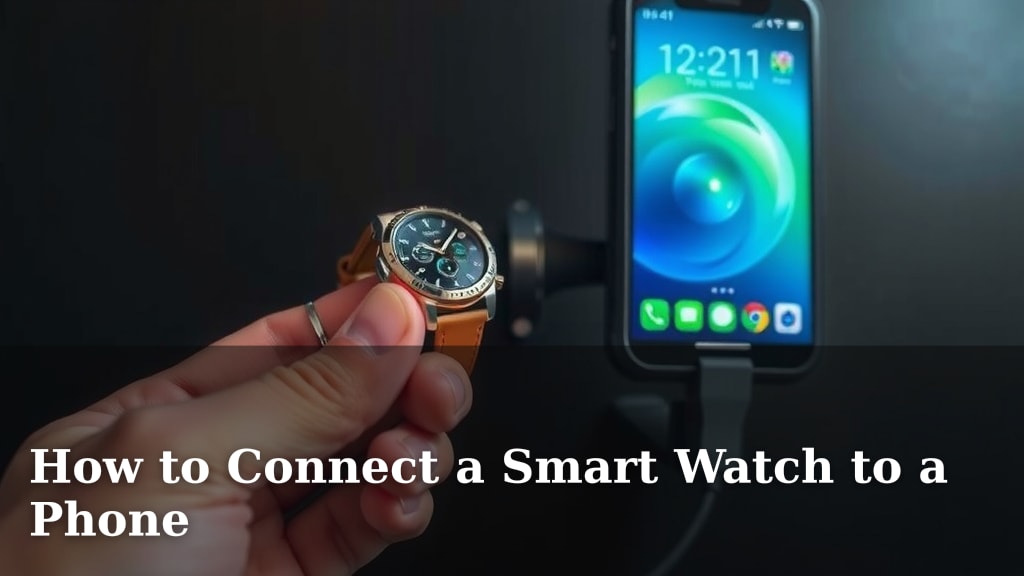
How to Connect a Smart Watch to a Phone
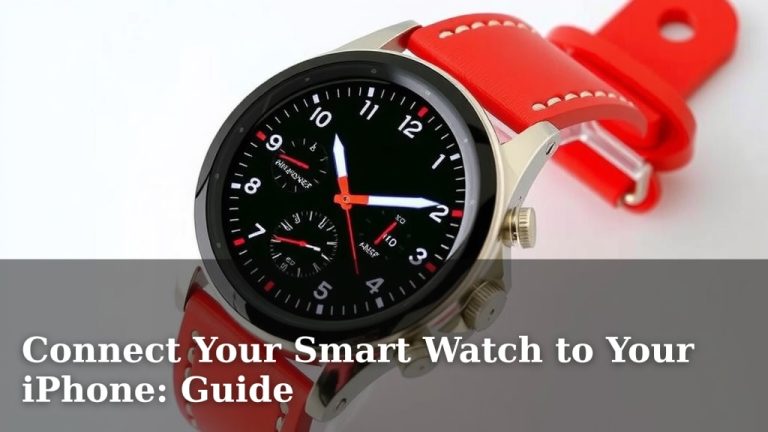
Connecting your smartwatch to your phone is usually a straightforward process. You’ll typically use a dedicated app on your phone to pair the two devices. This allows your watch to display notifications and sync data, making it a truly smart accessory.
Getting these gadgets to talk to each other unlocks a lot of convenience. From checking texts to tracking your fitness, a connected smartwatch offers a world of features right on your wrist. It’s less about complicated tech and more about making your day a little easier.
- Download the watch’s companion app.
- Enable Bluetooth on both devices.
- Follow the app’s pairing instructions.
- Grant necessary permissions.
- Confirm the connection.
Let’s walk through exactly how this works step by step, so you can get your watch and phone synced up in no time!
Pairing Your Smartwatch With Your Phone: A Step-by-Step Guide
Connecting your smartwatch to your smartphone is simpler than you might think. It essentially allows your watch to borrow your phone’s internet connection and all its smart capabilities. Think of it like giving your watch a direct line to the digital world.
Step 1: Download the Right App
Almost every smartwatch brand has its own dedicated mobile app. This app is your command center for managing your watch. You’ll need to find it first. Check your watch’s user manual or the packaging it came in. It will usually tell you the name of the app. Then, head to your phone’s app store – the Apple App Store for iPhones or the Google Play Store for Android phones.
Finding Your Watch’s App
For example, if you have an Apple Watch, you’ll look for the “Watch” app, which is often pre-installed on iPhones. If you have a Samsung Galaxy Watch, you’ll search for “Samsung Wearable.” Garmin watches usually use the “Garmin Connect” app. Brands like Fitbit have their own “Fitbit” app. Downloading this app is the first essential step to getting your devices talking.
Step 2: Get Your Devices Ready
Before you start the pairing process, make sure both your phone and your smartwatch are prepared. This means ensuring they have enough battery power. You don’t want your watch to die halfway through the setup! Also, make sure your phone’s operating system is up-to-date. Sometimes, older software can cause connection issues.
Bluetooth is Key!
The magic behind connecting your devices is Bluetooth. You need to make sure Bluetooth is turned on on both your phone and your smartwatch. On your phone, you can usually find the Bluetooth setting in the quick settings menu (swipe down from the top) or in the main Settings app. For your smartwatch, the location varies by model, but it’s typically found in the device’s settings menu under “Connections” or “Bluetooth.”
Step 3: Starting the Pairing Process
Now, open the smartwatch app you downloaded on your phone. The app will likely guide you through the setup. You might see options like “Add Device,” “Set Up New Watch,” or something similar. Tap on that to begin. The app will then start searching for nearby devices that are ready to pair.
The “Discoverable” Mode
Your smartwatch also needs to be in a mode where it can be found. When you first turn on a new smartwatch, it usually goes into pairing mode automatically. If it doesn’t, you might need to navigate through its settings to activate it. The app on your phone will be looking for your watch specifically. This is where having Bluetooth enabled on both is so important.
Step 4: Confirming the Connection
Once the app finds your watch, you’ll typically see a code or a prompt on both your phone and your watch screen. This is a security measure to ensure you’re connecting to the correct device. You might be asked to confirm that the numbers or letters displayed on both screens match. Simply tap “Pair” or “Connect” on both devices if they match. This step confirms that you are intentionally linking your devices.
Step 5: Setting Up Your Watch
After the initial pairing is successful, the app will usually take you through a few more setup steps. This often includes granting permissions. Your watch needs access to certain things on your phone to function fully. For example, it needs permission to read notifications so you can see texts and calls. It might also need access to your location for GPS features or your contacts to display caller ID.
Granting Permissions Wisely
We found that many users are concerned about privacy. It’s smart to review what permissions the app is asking for. Most reputable apps will explain why they need access. For instance, a fitness tracker needs access to your movement data. A smartwatch needing to show you your calendar events needs calendar access. Granting these permissions is usually necessary for the full smartwatch experience (Cleveland Clinic). You can typically manage these permissions later in your phone’s settings if needed.
Step 6: Syncing and Personalizing
Once permissions are set, your watch will likely sync data with your phone. This might take a few minutes. You can then start personalizing your watch. This includes choosing watch faces, selecting which apps can send notifications to your watch, and setting up fitness goals. The companion app is where you’ll manage most of these settings moving forward. It’s how you tailor the watch to your lifestyle.
Troubleshooting Common Connection Issues
What if it doesn’t work on the first try? Don’t worry! Connection problems are fairly common. The first thing to try is simply turning Bluetooth off and then back on for both devices. Sometimes, a quick reset is all that’s needed.
Restarting is Often the Solution
If that doesn’t help, try restarting both your phone and your smartwatch. A full reboot can clear out temporary glitches that might be preventing a connection. Also, ensure your phone and watch are close to each other during the pairing process. Bluetooth has a limited range, so being right next to each other helps.
Checking for Updates
We also found that sometimes, an app or device firmware update can resolve persistent issues. Check the app store for updates to your watch’s companion app. You might also find options within the app or on the watch itself to check for and install firmware updates for the watch. Keeping everything current is good practice.
Your Connected Smartwatch Checklist
To recap, here’s a quick checklist to make sure you’re on the right track:
- Downloaded the correct companion app for your watch.
- Enabled Bluetooth on both your phone and smartwatch.
- Ensured both devices have sufficient battery charge.
- Located the “Add Device” or “Pair New Watch” option in the app.
- Confirmed the pairing code displayed on both screens matches.
- Granted necessary permissions when prompted by the app.
Conclusion
You’ve now learned how to connect your smartwatch to your phone. This process brings a lot of convenience right to your wrist. Remember to download the right app and turn on Bluetooth on both devices. Following the app’s prompts and granting necessary permissions are key steps. Your smartwatch is now ready to sync data and keep you connected! Get ready to personalize your watch and make it your own.
Your next step is to dive into your watch’s companion app and start customizing it to fit your daily routine. Enjoy the connected experience!
Frequently Asked Questions
Why won’t my smartwatch find my phone during pairing?
Ensure Bluetooth is turned on for both your phone and watch. Also, double-check that your smartwatch is in “pairing mode,” which usually happens automatically when you first turn it on or by going into its settings. Make sure the devices are close to each other.
Can I connect my smartwatch to multiple phones?
Generally, most smartwatches are designed to pair with only one phone at a time. If you want to connect it to a different phone, you’ll usually need to unpair it from the first phone through the companion app or your phone’s Bluetooth settings.
My smartwatch is connected, but notifications aren’t showing up. What should I do?
This often means you need to grant notification permissions within the smartwatch app on your phone. Go into your phone’s settings, find the smartwatch app, and ensure it has permission to access notifications. You may also need to select which apps can send notifications in the watch’s companion app.
Is it safe to grant all permissions to the smartwatch app?
It’s wise to be mindful of permissions. We researched and found that reputable apps explain why they need certain access. Grant permissions that make sense for the features you want to use, like fitness tracking or calendar alerts. You can usually review and manage these permissions later in your phone’s main settings.
What if my phone or smartwatch is too old to connect?
Older devices might have compatibility issues. Ensure your phone’s operating system is updated to the latest supported version for the smartwatch app. Some older smartwatches may also require specific Bluetooth versions, so checking the device’s specifications can help determine compatibility.