
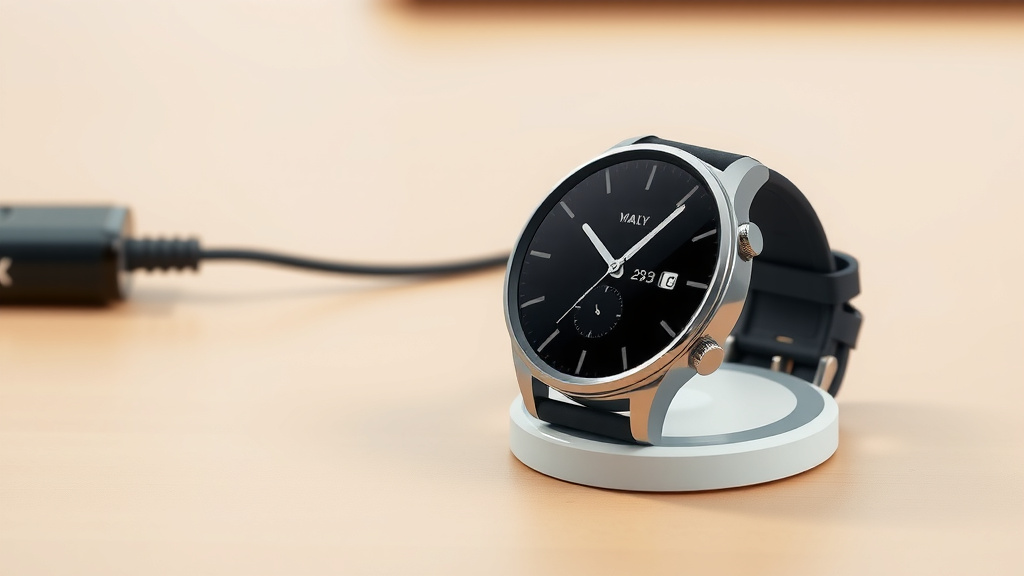
How to Charge Your Samsung Smart Watch: A Quick Guide
Charging your Samsung smartwatch is simple. You’ll need the correct charging cable that came with your watch. Place your watch onto the charger, making sure it snaps securely into place. Then, plug the cable into a power source.
Keeping your Samsung watch charged ensures you don’t miss important notifications or fitness tracking. Many users wonder about charging speed and if they can use third-party chargers. We found that using the original charger is usually best for optimal battery health.
- Always use the charger that came with your watch.
- Ensure the charger connects properly to the watch.
- Plug the charger into a reliable power outlet.
- Check that the watch is charging on the screen.
Let’s walk through exactly how to get your Samsung smartwatch powered up, step by step.
Keeping Your Samsung Smartwatch Charged Up
You’ve got a fantastic Samsung smartwatch, and keeping it powered is key to enjoying all its features. We’ve found that charging it is usually a straightforward process. Your watch comes with a specific charging cable designed for it. You’ll want to use this to ensure the best connection.
The Basic Charging Steps
First things first, locate the charging puck or cable that came with your watch. Most Samsung smartwatches use a magnetic puck or a USB-C cable with a specific connector. You’ll see a small port or contacts on the back of your watch. This is where the charger connects.
Connecting the Charger
Now, take the charging puck and align it with the back of your watch. You should feel a gentle magnetic pull. This helps the charger snap into place. Make sure it sits flat and securely. A good connection is essential for power to flow.
Plugging into Power
Once your watch is on the charger, it’s time to connect the other end of the cable. Most Samsung chargers use a USB-A or USB-C connector. You can plug this into a wall adapter, a computer’s USB port, or even a portable power bank. We found that using a wall adapter generally provides the most consistent charge.
What to Look for on Your Watch Screen
After plugging everything in, your watch should indicate that it’s charging. You’ll typically see a charging icon on the watch face. This might be a battery symbol with a lightning bolt. Some models might show a percentage. If you don’t see this, double-check the connection. Is the charger firmly attached? Is the power source working?
Understanding Charging Speeds and Options
You might be curious about how fast your watch charges or if you can use other charging methods. We’ve researched this, and it’s good to know your options.
Using the Original Charger
The charger included with your Samsung smartwatch is specifically designed to work with its battery. Using it helps maintain optimal battery health. Many battery experts suggest using the manufacturer’s charger whenever possible.
Third-Party Chargers and Wireless Charging
Can you use a charger that didn’t come in the box? Sometimes, yes. If you’re using a Qi-certified wireless charger, your Samsung watch might support it. However, charging speeds can vary. Some third-party chargers might not deliver power as efficiently. We found that while convenient, wireless charging pads can sometimes be slower than a direct cable connection. Always ensure the third-party charger is reputable and compatible.
Fast Charging Capabilities
Some newer Samsung smartwatch models support fast charging. This means you can get a significant amount of power in a shorter time. For example, a 15-minute charge might give you hours of use. Check your watch’s manual or Samsung’s website to see if yours has this feature and what type of charger it requires for fast charging.
Troubleshooting Common Charging Issues
It can be frustrating when your watch isn’t charging. Don’t worry, we’ve got some common fixes for you.
Checking the Connection Points
Sometimes, dirt or debris can build up on the charging contacts on your watch or the charger. This can prevent a good connection. Gently clean both surfaces with a dry, soft cloth. A cotton swab can be useful for getting into small areas. We found that a clean connection makes a big difference.
Trying a Different Power Source
Is the wall outlet working? Try plugging something else into it. If you’re using a computer’s USB port, try a different port or a different computer. Sometimes, the issue isn’t with the watch or charger but with the power source itself. We’ve seen this happen more often than you might think!
Restarting Your Watch and Charger
A simple restart can often resolve minor glitches. Try unplugging the charger, restarting your watch, and then plugging the charger back in. It’s like giving both devices a quick reset.
Optimizing Battery Health While Charging
Want your watch’s battery to last as long as possible? There are a few best practices we’ve learned.
Avoid Extreme Temperatures
Charging your watch in very hot or very cold conditions can affect its battery health. Try to charge it at room temperature. Many experts suggest keeping electronics away from extreme heat (National Institutes of Health).
Don’t Let it Die Completely Too Often
While modern lithium-ion batteries are quite forgiving, constantly letting your watch’s battery drain to 0% isn’t ideal for long-term health. It’s generally better to charge it when it gets low, say around 20-30%.
Using Optimized Charging Features
Some Samsung devices have features like “Optimized Battery Charging.” This learns your charging habits and might slow down charging overnight to reduce battery stress. Check your watch’s settings to see if this is available and enabled.
Quick Charging Checklist
Here’s a quick rundown to ensure you’re charging correctly:
- Confirm you have the correct Samsung charging cable.
- Ensure the charger is snapped securely onto the watch.
- Plug the charger into a reliable power outlet or USB port.
- Check the watch screen for the charging indicator.
- Clean charging contacts if charging is slow or not happening.
- Try a different power source if it’s not charging.
Conclusion
You’ve now got a clear roadmap for keeping your Samsung smartwatch charged and ready to go. We’ve walked through the simple steps of connecting your charger and ensuring a solid connection. Remember, using the original charger is your best bet for battery longevity. Don’t forget to keep those charging contacts clean for optimal power flow. If you encounter any issues, the troubleshooting tips we covered should help you get back on track. Now, go ahead and make sure your watch is powered up for your next adventure!
Frequently Asked Questions
Can I charge my Samsung watch with a phone charger?
Generally, you cannot use a standard phone charger directly. Samsung smartwatches require a specific charging cable or puck that connects to the watch’s charging port or contacts. Always check compatibility before trying to use a different charger.
How do I know if my Samsung watch is charging?
Your watch screen will typically display a charging icon, like a battery with a lightning bolt, when it’s properly connected and receiving power. Some models also show a charging percentage. If you don’t see this, double-check the connection.
Is it bad to charge my watch overnight?
Modern Samsung watches have built-in protections to prevent overcharging. While it’s usually safe, constantly charging overnight might not be ideal for long-term battery health. Some models offer “Optimized Battery Charging” to manage this better.
What should I do if my Samsung watch isn’t charging?
First, ensure the charger is securely attached to the watch and the power source is working. Gently clean the charging contacts on both the watch and the charger with a dry cloth. Trying a different power outlet or USB port can also help.
Can I use a third-party wireless charger for my Samsung watch?
Some Samsung smartwatches support Qi-certified wireless charging. You may be able to use a compatible third-party wireless charger, but charging speeds can vary and might be slower than the original charger. Always use reputable brands to ensure compatibility and safety.

![7 Best Smart Watch For Running And Cycling [2026]](https://smartwatchbest.com/wp-content/uploads/2026/09/7-best-smart-watch-for-running-and-cycling-2026-featured-768x432.jpg)
![7 Best Smart Watch Sale [2026]](https://smartwatchbest.com/wp-content/uploads/2026/10/7-best-smart-watch-sale-2026-featured-768x432.jpg)
![7 Best Basic Smart Watch For Women [2026]](https://smartwatchbest.com/wp-content/uploads/2026/07/7-best-basic-smart-watch-for-women-2026-featured-768x432.jpg)
![7 Best Smart Watch For Ladies [2026]](https://smartwatchbest.com/wp-content/uploads/2026/09/7-best-smart-watch-for-ladies-2026-featured-768x432.jpg)