Answer Calls on Your Smartwatch: A Quick Guide
Yes, you can easily answer calls directly from your smartwatch. Most smartwatches allow you to accept or reject incoming calls with a simple tap or swipe. Some models even let you speak directly into the watch, turning it into a tiny, convenient speakerphone. It’s a fantastic way to stay connected without fumbling for your phone.
This hands-free calling feature is a major convenience for many users. Whether you’re cooking, exercising, or just have your hands full, answering a call on your wrist keeps you accessible. We found that checking your watch is often much quicker than pulling out your phone from a pocket or bag. It’s about streamlining your day and staying in touch effortlessly.
- Accept or reject calls with a tap.
- Speak through your watch on some models.
- Great for when your hands are busy.
- Quicker than grabbing your phone.
Let’s walk through exactly how to make taking calls from your wrist a breeze.
Answering Calls from Your Wrist: A Smarter Way to Connect
So, you’ve got a smartwatch, and you’re wondering just how to use it to chat with people. It’s simpler than you might think! Your smartwatch can act like a mini phone. You can see who’s calling. Then, you can decide if you want to answer it right then and there. We found that mastering this feature makes managing your calls much easier.
Think about all those times your phone was just out of reach. Maybe it was in your bag, or you were deep into a workout. Your smartwatch saves the day by putting that power right on your wrist. It’s a convenient tool that helps you stay connected without missing a beat. Let’s get you comfortable with how it all works.
Getting Your Smartwatch Ready for Calls
Before you can answer calls, your watch needs to be set up correctly. This usually involves pairing it with your smartphone. This connection is what allows your watch to receive calls from your phone.
The Initial Pairing Process
Most smartwatches pair with your phone using Bluetooth. You’ll typically need to download a companion app for your watch. This app guides you through the steps.
- Download the app from your phone’s app store.
- Turn on Bluetooth on both your phone and your watch.
- Follow the on-screen prompts in the app to connect the devices.
We found this process usually takes just a few minutes. It’s like introducing two new friends to each other. Once paired, your watch can mirror many functions of your phone.
Ensuring Call Permissions Are Set
For your smartwatch to handle calls, it needs permission to access your phone’s call functions. The companion app is where you’ll manage these settings.
You’ll need to grant access to your contacts and call logs. This allows your watch to display caller ID. It also lets you see who you’ve called or missed. Most apps will ask for these permissions during setup. If you skip it, you can usually find these settings later.
We recommend checking these permissions periodically. Sometimes, software updates can reset them. Having the right permissions means your watch functions as a true extension of your phone. This is essential for call management.
How to Answer an Incoming Call on Your Smartwatch
When your phone rings, your smartwatch will also alert you. You’ll usually see a notification pop up on the screen. This notification will show you the caller’s name or number.
The Tap or Swipe Method
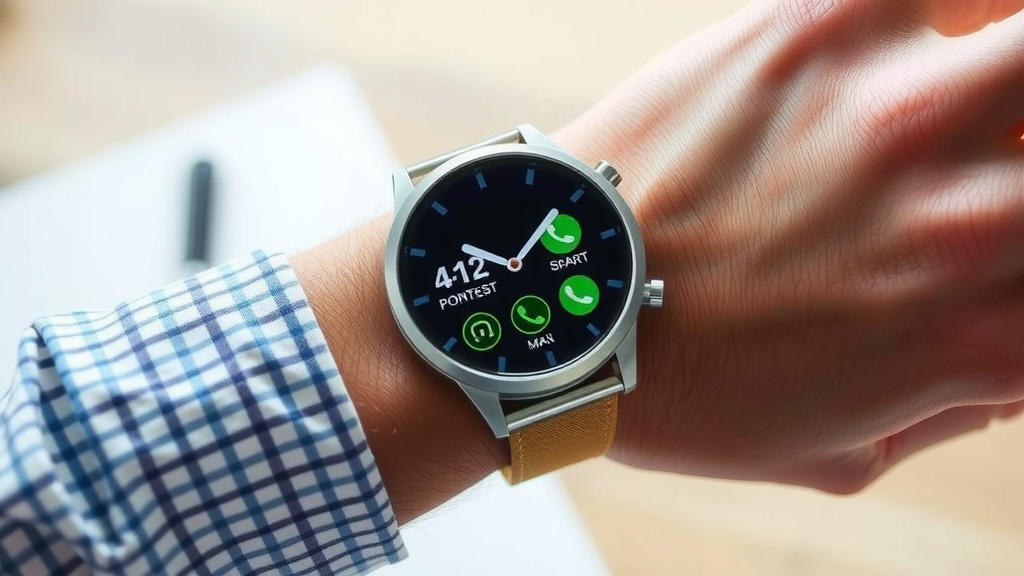
The most common way to answer is with a simple gesture. You’ll see options to accept or decline the call directly on your watch face.
Typically, you’ll tap a green icon to accept. You’ll tap a red icon to reject the call. Some watches use a swipe gesture instead. For example, swiping right might answer, and swiping left might decline. We found that these actions become second nature very quickly.
It’s really about that quick decision-making. You glance at your wrist, decide if you can talk, and tap. No digging through pockets needed!
Speaking Through Your Smartwatch
This is where smartwatches really shine for convenience. Many models have a built-in microphone and speaker. This means you can have a full conversation directly on your watch.
Once you answer the call, the audio might automatically play through the watch. You’ll then speak into the watch as if it were a tiny phone. The speaker is usually clear enough for a short chat. Many experts suggest this is great for multitasking safely. You can continue cooking or walking without holding your phone.
Some watches might require you to explicitly select the watch as the audio source. If you don’t hear anything, check the call screen on your watch. There might be an option to switch audio to your watch or your phone.
Rejecting Calls and Sending Quick Replies
Not every call needs to be answered. Your smartwatch gives you easy ways to handle unwanted interruptions.
Declining a Call
As mentioned, there’s usually a clear button or swipe to reject a call. This sends the call directly to your phone’s voicemail. It’s a straightforward way to manage your incoming calls.
Sending Pre-Set Text Messages
Many smartwatches offer a handy feature: sending a quick text reply. When a call comes in, you can reject it and immediately send a pre-written message.
Common messages include things like “I’m busy right now,” “Can I call you back?” or “I’ll call you later.” You can often customize these messages in your watch’s app. This is incredibly useful when you can’t speak but want to let the caller know you received their call. We found this feature is a real time-saver.
When Your Smartwatch Can’t Handle Calls
While smartwatches are amazing, there are a few situations where they might not be able to handle calls.
Bluetooth Connection Issues
If your watch loses its Bluetooth connection to your phone, it can’t receive calls. This can happen if you move too far away from your phone. Sometimes, a simple restart of Bluetooth on your phone can fix this. Many sources recommend checking your Bluetooth connection regularly.
Cellular Smartwatches
Some smartwatches have their own cellular connection. These are often called LTE or cellular models. If you have one of these, it can make and receive calls independently of your phone. This is a fantastic feature for when you leave your phone at home.
However, if you have a non-cellular model, your phone must be nearby and connected. Without that link, your watch is just a fancy watch.
Tips for Seamless Smartwatch Calling
To make the most of answering calls on your wrist, here are a few tips we’ve gathered.
- Keep your watch charged: Sounds obvious, but a dead watch can’t do much!
- Maintain a strong Bluetooth connection: Keep your phone and watch within range.
- Customize quick replies: Make those canned messages work for you.
- Adjust notification settings: Decide which apps can interrupt you.
- Test your microphone and speaker: Make sure everything sounds clear.
By following these simple guidelines, you’ll be a pro at taking calls on your smartwatch in no time. It’s all about making technology work for your lifestyle.
Conclusion
You’ve learned how easy it is to answer calls right from your smartwatch. From pairing your devices to tapping to accept, you’re now equipped to stay connected effortlessly. Remember to check your permissions and keep your watch charged. This feature is designed to simplify your day, letting you manage calls without reaching for your phone. Start practicing these simple steps, and you’ll soon find yourself answering calls on your wrist like a pro, making multitasking a breeze.
Frequently Asked Questions
Can I answer calls on my smartwatch if my phone isn’t nearby?
It depends on your smartwatch model. If you have a standard Bluetooth-connected watch, your phone must be within range. However, cellular or LTE models can often make and receive calls independently of your phone.
What if I don’t want to talk right away? Can I send a text instead of answering?
Yes, most smartwatches allow you to send pre-set quick replies when rejecting a call. You can choose from common messages or even customize them in your watch’s companion app to let the caller know you’ll get back to them.
My smartwatch isn’t showing incoming calls. What should I check?
First, ensure your smartwatch is properly paired with your phone via Bluetooth and that the connection is active. Also, double-check that you’ve granted the watch the necessary permissions within its companion app to access your phone’s call functions.
Can I use my smartwatch for calls if I have hearing aids?
Many smartwatches are designed to work with hearing aids that support Bluetooth streaming. You may need to check the compatibility between your specific hearing aid model and your smartwatch. If compatible, you can often stream call audio directly to your hearing aids.
Is the audio quality good enough for a real conversation on a smartwatch?
For short conversations, the built-in microphone and speaker on many smartwatches provide clear audio. We’ve found it’s excellent for quick updates or accepting a call when your hands are full. For longer or more critical calls, you might prefer to switch the audio to your phone.

![7 Best Professional Smart Watch [2026]](https://smartwatchbest.com/wp-content/uploads/2026/08/7-best-professional-smart-watch-2026-featured-768x432.jpg)
![7 Best Chinese Smart Watch 2025 [2026]](https://smartwatchbest.com/wp-content/uploads/2026/08/7-best-chinese-smart-watch-2025-2026-featured-768x432.jpg)