
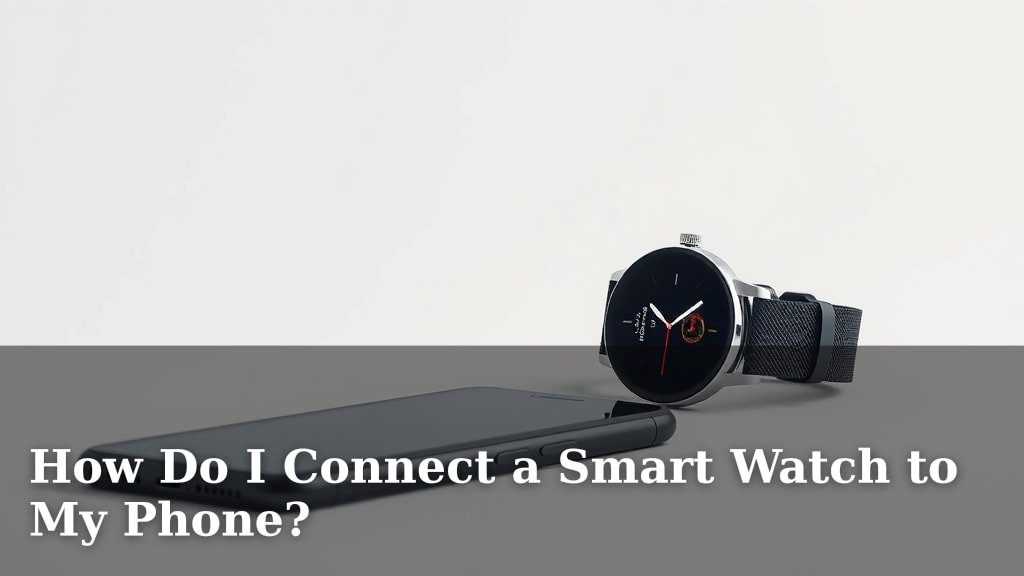
How Do I Connect a Smart Watch to My Phone?
Connecting your smartwatch to your phone is usually a straightforward process, often involving a dedicated app and your phone’s Bluetooth. You’ll typically need to download an app from your watch manufacturer, like the Wear OS app or the Apple Watch app. Then, follow the in-app prompts to find and pair your watch, ensuring both devices are nearby and powered on. This simple connection lets you sync data and use all your watch’s smart features.
This connection is what brings your smartwatch to life, allowing it to receive notifications, track your fitness, and even make payments. Many experts say that a stable connection is key to getting the most out of your wearable tech. You’ll find that pairing them correctly means your watch can become an extension of your phone, offering convenience right on your wrist.
TL;DR:
- Download the watch manufacturer’s app.
- Turn on Bluetooth on your phone.
- Follow in-app pairing instructions.
- Keep watch and phone close during setup.
- A good connection unlocks all smart features.
Ready to get your new gadget talking to your phone? Let’s walk through exactly how this works step by step, so you can start enjoying your smartwatch in no time.
Getting Your Smartwatch Connected to Your Phone
You’ve got that shiny new smartwatch, and now you’re wondering, “How do I actually get this thing to talk to my phone?” It’s a common question, and thankfully, the process is usually quite simple. Think of it like introducing two friends – they need a little help breaking the ice before they can start chatting.
The core of this connection relies on Bluetooth technology. This wireless wizardry allows your devices to communicate over short distances. We’ll guide you through the steps to make sure your watch and phone become best buddies.
Downloading the Essential App
Almost every smartwatch requires a dedicated app on your smartphone to function properly. This app is like the translator and control center for your watch.
Finding the Right Manufacturer App
Your first step is to identify the brand of your smartwatch. Is it an Apple Watch, a Samsung Galaxy Watch, a Garmin, or perhaps a Fitbit? Each brand has its own app, and it’s crucial to download the correct one.
For Android Users
If you have an Android phone and a compatible smartwatch, you’ll likely be looking for the Wear OS by Google app. Some specific brands might have their own apps that work alongside Wear OS, so check your watch’s packaging or manual.
For iPhone Users
If you own an iPhone and an Apple Watch, you’ll need the Watch app, which is pre-installed on most iPhones. For other smartwatch brands compatible with iPhones, search for their specific app in the Apple App Store.
Installing the App
Once you know which app you need, open your phone’s app store (Google Play Store for Android or Apple App Store for iPhone). Search for the app by name and tap “Install” or “Get.” Make sure you have a stable internet connection, as these apps can sometimes be a few hundred megabytes.
Preparing Your Devices for Pairing
Before you can officially connect your watch, a little preparation goes a long way. These quick checks ensure a smooth pairing process.
Ensure Bluetooth is On
This is probably the most important step. Your phone needs to have its Bluetooth radio switched on. You can usually find this setting in your phone’s quick settings menu (swipe down from the top of your screen) or within the main Settings app under “Connections” or “Bluetooth.” Make sure the toggle is switched to the “On” position.
Keep Devices Close and Charged
For the initial pairing, it’s best to have both your smartwatch and your smartphone very close to each other, ideally within a few feet. Also, ensure both devices have a decent amount of battery life. A sudden shutdown during pairing can cause problems. We found that starting with both devices at least 50% charged works best.
Turn On Your Smartwatch
If your smartwatch is brand new, it might be in a low-power or sleep mode. You’ll need to power it on. Many watches have a side button you press and hold. If it’s already been set up, simply make sure it’s awake and displaying its watch face.
The Pairing Process Itself
Now for the exciting part – connecting them! This is where the app you downloaded comes into play.
Open the Manufacturer’s App
Launch the app you installed earlier on your smartphone. When you first open it, you’ll likely be prompted to create an account or log in if you already have one. This account helps sync your data across devices and the cloud.
Follow In-App Prompts
The app will guide you through the pairing process. Look for options like “Add Device,” “Pair New Watch,” or “Set Up New Device.” The app will then start searching for nearby Bluetooth devices.
Your smartwatch should appear in a list of available devices. Tap on your watch’s name. You might see a pairing code or a confirmation prompt appear on both your phone and your watch screen. If they match, confirm the connection on both devices.
Allow Permissions
During setup, your phone will ask for various permissions for the watch app. These might include access to contacts, location, notifications, and your microphone. We found that granting these permissions is necessary for most features, like getting call alerts or using GPS for workouts.
What Happens After Pairing?
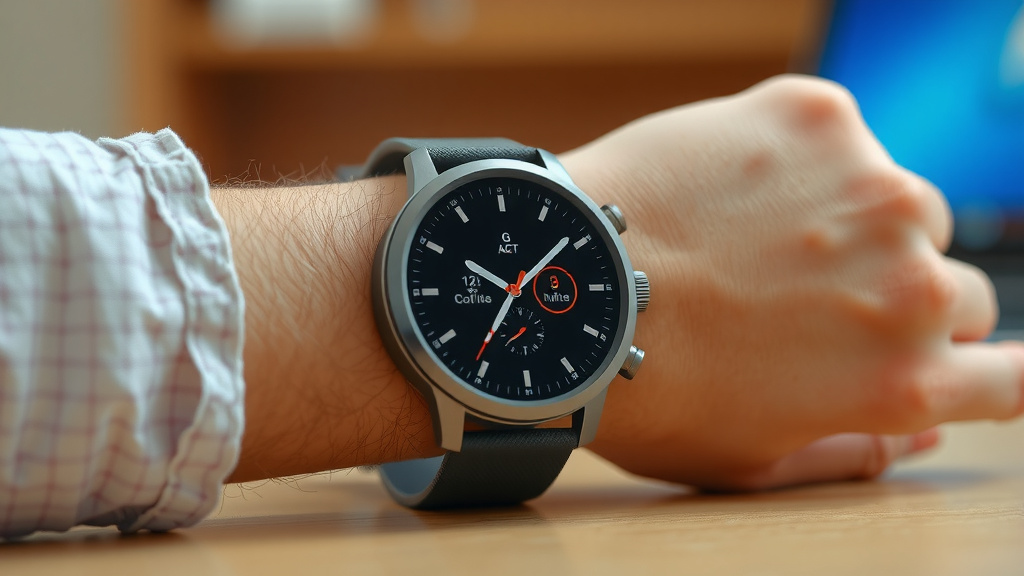
Congratulations! Your watch and phone are now connected. But what does that actually mean for you?
Data Synchronization
Your watch will begin syncing data with your phone. This includes fitness tracking (steps, heart rate, sleep), app usage, and any other information the watch collects. This information is stored in the app on your phone and often backed up to the cloud.
Receiving Notifications
One of the biggest benefits of connecting your smartwatch is getting notifications on your wrist. Calls, texts, emails, social media alerts – you can customize which ones appear on your watch through the app. This means you can glance at your wrist instead of pulling out your phone constantly.
Customization and Settings
The manufacturer’s app is also where you’ll manage your watch’s settings. You can change watch faces, install new apps on your watch, adjust notification preferences, set alarms, and manage your fitness goals. It’s your command center for everything watch-related.
Firmware Updates
Your smartwatch will periodically need software updates, much like your phone. The app will usually notify you when an update is available. It’s important to install these updates to ensure your watch has the latest features and security improvements. Many experts recommend keeping your devices updated (Apple Support).
Troubleshooting Common Connection Issues
Even with simple steps, sometimes things don’t go as planned. Here are a few common hurdles and how to clear them.
- Bluetooth Interference: Other Bluetooth devices or even strong Wi-Fi signals can sometimes interfere. Try moving away from other electronics.
- Outdated Software: Ensure both your phone’s operating system and the watch app are up-to-date.
- Restart Everything: The classic tech solution often works wonders. Turn off both your phone and your watch, wait 30 seconds, and turn them back on. Then try pairing again.
- Forget and Re-pair: If your watch was previously paired but isn’t connecting, go into your phone’s Bluetooth settings, “forget” the watch, and then try the pairing process from scratch.
- Check Compatibility: Double-check that your smartwatch is indeed compatible with your specific phone model and operating system version.
Here’s a quick checklist to help you through the process:
- Download the correct manufacturer app.
- Turn on Bluetooth on your phone.
- Keep watch and phone close.
- Open the app and follow pairing prompts.
- Confirm pairing codes if shown.
- Grant necessary app permissions.
Conclusion
You’ve successfully learned how to connect your smartwatch to your phone! By downloading the right app, ensuring Bluetooth is enabled, and following the simple pairing steps, your wearable is now ready to enhance your daily life. This connection is your gateway to instant notifications, detailed fitness tracking, and convenient controls right from your wrist. Don’t hesitate to dive into the app settings to customize your experience further. Your next step? Explore all the amazing features your connected smartwatch has to offer!
Frequently Asked Questions
My smartwatch won’t show up in the app’s Bluetooth list. What should I do?
First, double-check that your smartwatch is powered on and close to your phone. Also, confirm that Bluetooth is activated on your phone and that no other devices are actively trying to connect to it. Sometimes, restarting both your phone and watch can resolve this issue.
Do I need a paid app to connect my smartwatch?
Generally, no. Most smartwatch manufacturers provide a free companion app for initial setup and basic functions. You might find optional premium features or subscriptions within the app later, but the core connection process is usually free.
Can I connect my smartwatch to more than one phone?
Typically, a smartwatch is designed to pair with only one phone at a time for stable performance and data synchronization. If you need to connect it to a new phone, you’ll usually have to unpair it from the old one first through its settings.
How long does the initial pairing process usually take?
The initial pairing process itself is usually quite quick, often taking just a few minutes once you start following the app’s prompts. Factors like your phone’s speed and the initial data sync can extend the total setup time slightly.
Will connecting my smartwatch drain my phone’s battery faster?
Using Bluetooth and receiving constant notifications can contribute to increased battery usage on your phone. However, modern smartphones and smartwatches are optimized for efficiency, so the impact is usually manageable for most users.
![7 Best Round Smart Watch For Women [2026]](https://smartwatchbest.com/wp-content/uploads/2026/08/7-best-round-smart-watch-for-women-2026-featured-768x432.jpg)
![7 Best Android Smart Watch For Health [2026]](https://smartwatchbest.com/wp-content/uploads/2026/06/7-best-android-smart-watch-for-health-2026-featured-768x432.jpg)