FitPro Smart Watch: How to Turn It On and Get Started
So you’ve just unboxed your brand new FitPro smart watch, and you’re probably thinking, “Now what?” I get it—there’s that mix of excitement and slight confusion when you’re holding a shiny new piece of technology. Don’t worry. Turning on your FitPro smart watch is actually one of the simplest steps in your journey, and I’m here to walk you through it like we’re sitting down over coffee.
Introduction to FitPro Smart Watch Technology
The FitPro smart watch is a fantastic device that bridges the gap between fashion and functionality. It’s designed to track your daily activities, monitor your heart rate, manage your notifications, and honestly, make you look pretty cool doing it. But before you can enjoy all these benefits, you need to know how to power it on properly. Think of this process as waking up a sleeping friend—you want to do it gently and correctly so they respond well.
The good news? FitPro has made this incredibly straightforward. Unlike some tech products that feel like they require an engineering degree just to get started, this watch is designed with user-friendliness in mind. Whether you’re tech-savvy or someone who still asks their kids for help with their phone, you’ll be able to turn on this device without breaking a sweat.
Understanding Your Device Before Turning It On
Let me be honest with you—taking five minutes to understand what you’re looking at before you start pressing buttons is a game-changer. It prevents unnecessary panic and helps you feel more confident with your new purchase.
Identifying the Key Components
Your FitPro smart watch has several important physical features. On the right side of the watch, you’ll find what’s called the power button. It’s usually a small, slightly raised circular or rectangular button that feels distinct from the rest of the casing. This is your gateway to turning on the device. You might also notice a secondary button below it, which typically functions as a back button or menu navigator once the watch is on.
The screen itself is your main interaction point—a vibrant AMOLED or LCD display that’ll show you everything from time to fitness metrics. Along the left side, depending on your specific FitPro model, you might find additional ports or sensors. The underside of the watch houses the heart rate monitor and charging contacts, which you’ll need to know about if you’re planning to charge it soon.
Checking the Initial Battery Status
Here’s something crucial that many new users overlook: your FitPro might have a small amount of battery charge from the factory, but it could also be completely drained. It’s like a new phone that spent weeks in a shipping container—you never really know. Some watches ship with enough juice to turn on, while others need a quick charge first. We’ll talk about how to handle this in just a moment.
Pre-Activation Checklist: Get Ready to Power On
Before you press that power button, let’s make sure you have everything you need. This isn’t about being overly cautious; it’s about setting yourself up for success.
- Ensure you’re in a well-lit area where you can see the watch screen clearly
- Have your smartphone nearby and ready to connect
- Check that you have the charging cable available, just in case
- Clear your workspace so you can comfortably handle the watch
- Locate the instruction manual or have the FitPro app downloaded on your phone
- Make sure your smartphone’s Bluetooth is capable of pairing with wearables
Do You Need to Charge First?
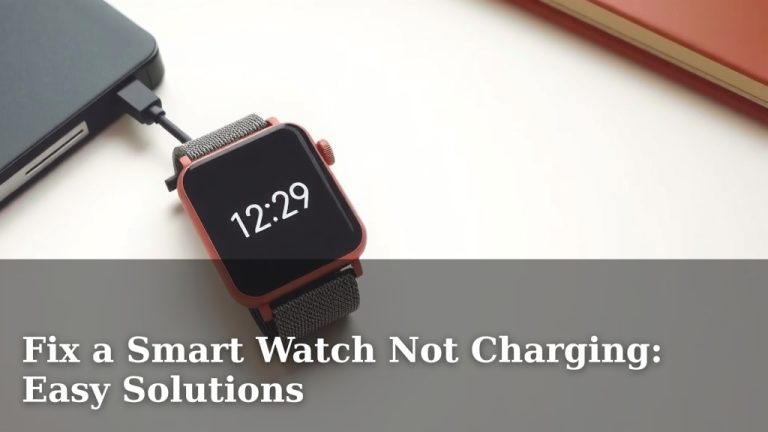
This is the question I get asked most often. The answer is: it depends on how long your watch sat in storage and packaging. If it arrived completely dead, you’ll need to charge it for at least 30 minutes before attempting to turn it on. Connect it to the provided USB charging cable and plug it into a power adapter. You’ll know it’s charging because you’ll see a charging indicator on the screen or a light near the charging port.
If your watch has some juice left, you might be able to power it on immediately. However, I always recommend giving it at least a quick 15-minute charge just to be safe. Think of it like this: you wouldn’t try to start a car with a weak battery when you’ve got a charger right there.
Step-by-Step Guide to Turning On Your FitPro Smart Watch
Alright, let’s get to the main event. Here’s exactly what you need to do to bring your FitPro smart watch to life.
Locate the Power Button
Look at the right side of your watch face. You’re looking for a button that stands out slightly from the case. It might have a subtle symbol on it, often depicting a power icon (a circle with a line at the top). This is your power button. Some FitPro models have it positioned near the 3 o’clock position if you’re thinking of the watch like a clock face.
Press and Hold the Power Button
This is critical: don’t just tap the button. You need to press and hold it for approximately 3 to 5 seconds. It’s similar to starting up your computer or phone—a simple tap won’t do it. You’re telling the device’s processor, “Hey, wake up and get ready to work.” While you’re holding it, keep watching the screen. You should see some signs of life, even if it’s just a subtle vibration or a logo appearing on the display.
Wait for the Startup Sequence
After you release the power button, give the watch a few seconds to fully boot up. This isn’t instantaneous like flipping a light switch. The FitPro needs to initialize its operating system, check its sensors, and prepare its interface. You might see the brand logo appear, followed by a welcome screen or a prompt asking you to set up the device. Patience is your friend here—don’t assume something went wrong if it takes 5-10 seconds to fully load.
Initial Setup Process After Powering On
Congratulations! Your watch is now on. But we’re not done yet. The initial setup is where the real magic happens, and it’s where most of the customization takes place.
Welcome Screen Navigation
The first screen you’ll see is typically a welcome message. You’ll be prompted to select your language. Use the side buttons to scroll through the language options—usually the lower button on the right side moves you down through the list, and the upper button confirms your selection. Choose the language you’re most comfortable with. This is important because every subsequent menu will be in this language.
Setting the Time and Date
After language selection, you’ll get to time and date settings. Here’s where you’ll input the current date and time. The watch will try to auto-detect these details if it’s connected to your smartphone later, but you might need to set them manually now. Use the side buttons to navigate through the fields—hours, minutes, day, month, and year. It’s a bit like setting an alarm on an old-school digital watch, just with more options.

Connecting Your FitPro to Your Smartphone
Now comes the part that ties your watch to your digital life. Your FitPro is really at its best when it’s synchronized with your phone.
Downloading the FitPro App
Before you can connect your watch to your phone, you need to download the official FitPro app. Head to your phone’s app store—whether that’s Google Play for Android or the Apple App Store for iOS—and search for “FitPro.” Download the official app (make sure it’s by the actual FitPro manufacturer, not a knockoff). Install it and open it up. You’ll typically be asked to create an account or sign in if you already have one.
Enabling Bluetooth on Your Phone
Make sure your phone’s Bluetooth is turned on. Go to your phone’s settings, find the Bluetooth section, and toggle it to on. Your phone will start searching for nearby Bluetooth devices. This is the handshake process between your watch and phone—they’re essentially saying hello to each other.
Pairing the Devices
In the FitPro app, look for a “Pair Device” or “Connect Watch” option. The app will prompt you to put your watch into pairing mode. On your watch, you might need to go to settings and select “Bluetooth” or “Connect to Phone.” Once both devices are in pairing mode, your phone should detect the FitPro and ask if you want to connect to it. Confirm the pairing, and boom—you’re connected. It’s like introducing two friends who immediately hit it off.
Configuring Basic Settings for Optimal Performance
Now that your watch is on and connected, let’s fine-tune some settings to make it work exactly how you want.
Display and Screen Settings
Navigate to your watch’s settings menu. Here you can adjust the brightness of the display, which is crucial for battery life. Brighter screens drain battery faster, so consider setting it to a level that’s readable in your typical environment but not wastefully bright. You can also choose your watch face here—FitPro typically offers several options ranging from classic analog-style faces to modern digital designs packed with information.
Activity Tracking Preferences
This is where you tell your watch what activities you care about tracking. You can set it to monitor steps, distance, calories burned, and various exercise modes. If you’re primarily a runner, you might want to emphasize running metrics. If you’re more into general fitness, you might want a balanced view. These settings directly impact what data your watch collects and how it displays information on your home screen.
Notification Settings
Decide which notifications you want on your wrist. Do you want text message alerts? What about email? Social media? Phone calls? You can customize this in both your watch settings and the FitPro app. The goal is to find that sweet spot where you’re informed but not overwhelmed. There’s nothing worse than a device that buzzes every five seconds with information you don’t care about.
Troubleshooting Common Startup Issues
What if things don’t go smoothly? Don’t panic. I’m here to help you troubleshoot.
The Watch Won’t Turn On
If nothing happens when you press the power button, the most likely culprit is a dead battery. Connect your FitPro to the charger and let it charge for at least an hour. Some watches need a bit more time to accumulate enough charge to boot up. If it still won’t turn on after an hour of charging, try a different USB cable or power adapter—sometimes the issue is with the charging equipment, not the watch itself.
The Screen Is Black But the Watch Vibrates
This suggests the watch is on but the display isn’t working properly. Try pressing the power button to wake the screen from sleep mode. If the screen remains black, try a soft reset by holding the power button for 10-15 seconds until you see the FitPro logo appear. This is like giving your watch a quick restart, which often fixes display glitches.
Pairing Issues with Your Phone
If your watch and phone won’t pair, first try restarting both devices. Turn off your phone completely and also power down your watch, then turn them back on. Try pairing again. If that doesn’t work, forget the device from your phone’s Bluetooth settings and start the pairing process fresh. Sometimes the connection gets confused and needs a clean slate.
Battery Management Tips for New Users
Your FitPro’s battery life is critical to enjoying the device, so let’s talk about preserving it from day one.
Understanding Battery Drain
Several factors affect how quickly your FitPro drains its battery. A constantly-on display uses a lot of power, as does frequent Bluetooth communication with your phone. Heart rate monitoring, especially continuous monitoring, also consumes battery. GPS tracking is particularly power-hungry. Understanding these factors helps you make smart choices about which features to always have on and which to use selectively.
Charging Best Practices
Charge your FitPro regularly, ideally before it gets completely dead. Modern smartwatch batteries last longer when you avoid complete discharge cycles. Think of it like eating—small, regular meals are better than one massive feast. Most FitPro watches need a full charge every 7-10 days depending on usage. I recommend charging overnight once a week as a baseline.
Understanding the Display Interface
Now that your watch is on and running, let’s decode what you’re looking at.
The Home Screen Layout
Your home screen typically shows the current time as the centerpiece, with additional information displayed around it. This might include your current step count, heart rate, battery percentage, and date. The layout depends on which watch face you’ve selected. Most FitPro watches allow you to customize which metrics appear, so you can prioritize the information that matters most to you.
Navigating Menus
You navigate your FitPro primarily using the side buttons. Swiping on the screen also works for some functions. Generally, swiping up shows notifications, swiping down accesses quick settings, and swiping left or right cycles through different screens or apps. It takes a few minutes of play to get the feel for it, but it becomes second nature quickly.
Syncing Your Health Data
One of the main reasons people love smartwatches is the health data collection. Let’s make sure that’s working properly.
What Data Gets Collected
Your FitPro automatically tracks steps, distance, calories, active time, and heart rate throughout the day. When you exercise, it records additional details specific to that activity. All this data gets stored on the watch initially and then syncs to the FitPro app on your phone, which creates a more detailed database of your health trends over time.
Ensuring Smooth Data Syncing
Keep your watch and phone close when you want to sync data, though they don’t need to be touching. Make sure Bluetooth remains enabled on your phone. Open the FitPro app periodically—sometimes it syncs automatically, but occasionally you might need to manually trigger a sync. You’ll usually find a refresh button or sync option in the app’s main screen or settings.
Customizing Watch Faces and Features
Making your FitPro feel like yours is one of the joys of owning it. Here’s how to personalize it.
Selecting Different Watch Faces
FitPro typically comes with multiple watch face options ranging from classic to contemporary. Access this through your watch settings or by long-pressing the watch face itself on some models. Choose based on your preference and how much information you want displayed. Some faces show tons of data; others focus on simplicity and elegance.
Adding and Removing Apps
Beyond the core features, you can add or remove apps from your
![7 Best Smart Watch For Firefighters [2026]](https://smartwatchbest.com/wp-content/uploads/2026/08/7-best-smart-watch-for-firefighters-2026-featured-768x432.jpg)