
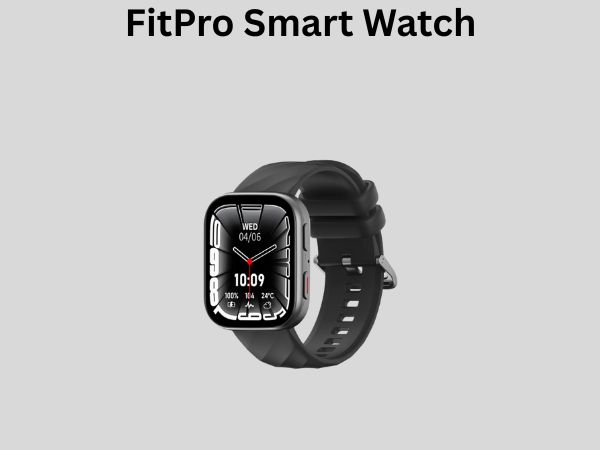
FitPro Smart Watch: How to Connect to Your Phone – Complete Step-by-Step Guide
So you’ve just unboxed your brand new FitPro smart watch, and you’re excited to start tracking your workouts and staying connected. But there’s one thing standing between you and all those amazing features: getting it paired with your phone. Don’t worry—I’ve got you covered. In this guide, I’m going to walk you through everything you need to know about connecting your FitPro smart watch to your phone, troubleshooting common issues, and making sure you get the most out of your device from day one.
Understanding Your FitPro Smart Watch and Phone Compatibility
Before you even think about connecting your FitPro smart watch, it’s important to understand what you’re working with. Think of your smart watch and phone as two dancers who need to learn the same choreography—they have to move in sync to create something beautiful. Your FitPro watch uses Bluetooth technology to communicate with your smartphone, whether you’re using an iPhone or an Android device.
The good news? FitPro smart watches are compatible with both iOS and Android platforms. However, the specific steps you’ll take might vary slightly depending on which operating system you’re using. I’ll break down both processes so you can follow along regardless of your device.
What You’ll Need Before Starting
Let me give you a quick checklist of everything you should have ready before you begin the pairing process:
- Your FitPro smart watch (fully charged or with at least 20 percent battery)
- Your smartphone with Bluetooth enabled
- The FitPro companion app installed on your phone
- A stable internet connection
- Your phone’s Bluetooth settings accessible
Having these items ready is like gathering all your ingredients before cooking a meal—it makes the whole process smoother and prevents you from having to pause midway through.
Step One: Download the FitPro Companion App
This is your first crucial step, and honestly, it’s the foundation of everything that follows. The FitPro companion app is the bridge that connects your watch to your phone, allowing them to communicate and share data.
For iPhone Users
If you’re using an iPhone, head over to the Apple App Store. You can do this by opening the App Store app on your phone or searching directly through Siri. Look for “FitPro” or “FitPro Health” depending on your specific watch model. Once you find the official FitPro app (make sure it’s the one made by FitPro Technologies), tap the cloud icon or the “Get” button. Your phone might ask you to authenticate using Face ID or Touch ID—go ahead and do that. The app will then download and install automatically.
For Android Users
Android users should open the Google Play Store on their devices. Search for “FitPro” in the search bar at the top. You’ll see several results, but you want to select the official FitPro app. Look for the verification checkmark next to the developer’s name to make sure you’re downloading the legitimate app. Tap “Install” and wait for the installation to complete. This usually takes less than a minute on a decent internet connection.
Why This Step Matters
You might be wondering why you can’t just pair your watch directly through your phone’s Bluetooth settings. Well, imagine trying to have a conversation with someone who only speaks your language but has a completely different accent and dialect—you might understand bits and pieces, but you’d miss the nuances. The FitPro app acts as a translator, making sure your watch and phone understand each other perfectly.
Step Two: Enable Bluetooth on Your Smartphone
Now that you’ve got the app installed, it’s time to enable Bluetooth on your phone. This is your watch’s way of shouting into the digital ether and saying, “Hey, is anyone out there?”
Enabling Bluetooth on iPhone
Open your Settings app and look for the Bluetooth option near the top of the menu. Tap on it and toggle the switch to the right until it turns green and shows “On.” Alternatively, you can swipe down from the top-right corner of your screen to open Control Center, find the Bluetooth icon, and tap it to enable Bluetooth quickly.
Enabling Bluetooth on Android
Open your Settings app and navigate to “Connected Devices” or “Bluetooth,” depending on your Android version and manufacturer. Look for the Bluetooth toggle and switch it on. Some Android phones also allow you to access Bluetooth through the Quick Settings panel by swiping down from the top of your screen.
How to Know It’s Working
Once Bluetooth is enabled, you should see a small Bluetooth icon appear in your phone’s status bar (usually at the top of your screen). On iPhones, it looks like a small “B” symbol. On Android devices, it typically appears as a standard Bluetooth logo. This icon tells you that your phone is ready to discover and pair with nearby Bluetooth devices.
Step Three: Prepare Your FitPro Smart Watch
While your phone is getting ready, let’s prepare your watch for the big introduction. Your FitPro watch needs to be in a state of readiness—what I like to call “discovery mode.”
Charging Your Watch Before Pairing
First things first: make sure your watch has enough battery life. I recommend charging it to at least 50 percent before you start the pairing process. A watch with a low battery is like a person who’s just woken up—they’re not going to perform at their best. Connect your FitPro watch to its charging cable and wait for the battery icon to show adequate charge. Most FitPro watches come with a magnetic charging dock, so make sure the pins align properly.
Turning On Your Watch
If your watch isn’t already on, it’s time to power it up. Depending on your specific FitPro model, you might press and hold a physical button on the side of the watch, or you might press the screen itself and hold it for a few seconds. You should see the FitPro logo appear on the display, followed by the watch’s startup screen. This usually takes about 10 to 15 seconds.
Accessing the Pairing Mode
Once your watch is on, you’ll need to access its pairing settings. Most FitPro watches have a dedicated Bluetooth or connection menu. Look for a settings icon on your watch’s home screen (usually represented by a gear icon). Tap on it and look for options like “Bluetooth,” “Pairing,” “Connect to Phone,” or “Device Connection.” Select this option, and your watch will enter a state where it’s actively looking for nearby devices to connect with. Some models will display a message like “Waiting to Connect” or “Pairing Mode Active.”
Step Four: Open the FitPro App and Initiate Pairing
Now we’re getting to the exciting part. You’ve got Bluetooth enabled on your phone, your watch is ready to pair, and you’ve got the FitPro app installed. Let’s bring them together.
Launching the FitPro App
Open the FitPro app on your phone. When you launch it for the first time, you might be prompted to create an account or log in. Go ahead and set up your account with your email address and a secure password. This account will serve as your digital hub, storing all your fitness data, personal settings, and preferences. Make sure you use an email address you have easy access to—you might need it later for account recovery or updating your information.
Finding the Pairing Option
Once you’re logged into the app, look for a button or menu option that says “Add Device,” “Pair Device,” “Connect Device,” or “Set Up New Watch.” This is usually prominently displayed on the app’s home screen or within a settings menu. The exact location might vary depending on which version of the FitPro app you have, but it’s typically easy to find because it’s one of the first things new users need to do.
Initiating the Connection
Tap on the pairing or device connection option. The app will now begin scanning for nearby FitPro devices. You should see a loading indicator or a message saying something like “Searching for Devices” or “Scanning for FitPro Watches.” Make sure your watch is still in pairing mode and is close to your phone—within about 10 to 15 feet. Bluetooth has a limited range, so proximity matters here.
Step Five: Confirm and Complete the Pairing
This is where the magic happens. Your phone will detect your watch, and you’ll be presented with options to confirm the pairing.
Selecting Your Device from the List
After a few seconds of scanning, you should see your FitPro watch appear in a list of available devices. It will probably be labeled with the watch model name and a series of numbers or letters (like “FitPro Pro 2” or “FitPro XS-1A2B”). Tap on your device to select it.
Confirming on Both Devices
Here’s where things get interesting. Some FitPro models will ask you to confirm the pairing on both your phone and your watch. You might see a confirmation prompt on your watch’s screen asking if you want to pair with your phone. Look for options like “Confirm,” “Yes,” or a checkmark button, and select it. Simultaneously, your phone app might also ask you to confirm—tap “Yes” or “Confirm” on your phone as well.
The Connection Complete Message
Once both devices have confirmed the pairing, you should see a success message on your phone. The FitPro app will typically display something like “Device Connected,” “Pairing Successful,” or “Device Set Up Complete.” Your watch might also show a confirmation message or vibrate to let you know that the pairing was successful. Congratulations—you’ve just connected your FitPro smart watch to your phone!
Setting Up Your FitPro Profile and Preferences
Now that your devices are talking to each other, it’s time to personalize your experience. The FitPro app will likely guide you through a setup wizard, but let me break down what you should do.
Personal Information Entry
The app will ask for personal details like your age, height, weight, and gender. Don’t skip this step—it might seem unnecessary, but this information helps your watch calculate accurate fitness metrics. For example, calorie burn calculations depend heavily on your weight and age. The more accurate your information, the more reliable your fitness data will be.
Fitness Goals and Activity Preferences
Next, you’ll set your fitness goals. Do you want to track daily steps? Are you aiming for a certain number of calories burned? Are you focused on sleep quality or heart rate monitoring? Tell the app what matters to you, and it will tailor your watch’s interface and notifications accordingly.
Notification Settings
You’ll have the option to choose which notifications you want your watch to display. You can typically enable or disable notifications for calls, text messages, emails, calendar reminders, and app-specific alerts. I’d recommend starting with the essentials and adding more as you get comfortable with your watch.
Troubleshooting Common Connection Issues
Even with the best intentions, things don’t always go smoothly on the first try. Let me walk you through some common issues and how to fix them.
Your Watch Isn’t Appearing in the Device List
If your watch isn’t showing up when the app searches for devices, try these steps: First, restart your watch by turning it off and back on. Second, make sure Bluetooth is definitely enabled on your phone—check the status bar to confirm. Third, move your phone and watch closer together, within a few feet of each other. Fourth, restart the FitPro app by closing it completely and reopening it. If none of these work, restart your phone.
Connection Keeps Dropping
If your watch and phone are constantly disconnecting, it might be a Bluetooth interference issue. Move away from areas with lots of wireless devices like WiFi routers or microwave ovens, as these can interfere with Bluetooth signals. Also, try “forgetting” your watch from your phone’s Bluetooth settings and re-pairing it from scratch. Sometimes a fresh start is all you need.
App Crashes or Won’t Open
If the FitPro app keeps crashing or won’t open, try clearing the app’s cache. On iPhone, go to Settings, find the FitPro app, and look for cache or data options. On Android, go to Settings, Apps, FitPro, and select “Clear Cache.” If that doesn’t work, uninstall the app entirely and reinstall it from the app store.
Pairing Was Successful, But Data Isn’t Syncing
Sometimes your devices are paired, but data isn’t flowing between them. Make sure both your phone and watch are connected to the internet. On your phone, you’ll need either WiFi or cellular data. Your watch typically syncs through your phone’s connection, so make sure that’s active. Try manually syncing by opening the FitPro app and looking for a refresh or sync button. If your watch has a sync option in its settings, try that too.
Understanding Bluetooth Permissions and Privacy
In this modern age, privacy is paramount. When you connect your FitPro watch, you’re giving your phone permission to communicate with your watch. Let me explain what that means and why it matters.
Why Permissions Matter
When you first pair your watch, your phone might ask for permission to access Bluetooth. It might also ask for permission to access your location, contacts, or calendar data—depending on what features you want to use. These permissions exist to protect your privacy. You get to choose which pieces of information your watch and phone can share with each other.
Granting Necessary Permissions
To get the most out of your FitPro watch, you’ll want to grant certain permissions. For example, if you want your watch to show incoming calls and texts, you need to allow the FitPro app access to your contacts and messages. If you want accurate location-based fitness tracking, you’ll need to allow location access. Go through each permission request and decide what makes sense for your needs.
Keeping Your Connected Devices Secure
Once your devices are paired, it’s important to keep them secure. Here are some best practices:
- Use a strong password for your FitPro account—something with a mix of letters, numbers, and symbols
- Enable two-factor authentication if the FitPro app offers it
- Keep both your phone and watch software updated to the latest versions
- Don’t share your FitPro account credentials with anyone else
- Occasionally review the devices connected to your FitPro account through the app’s settings
Advanced Connection Features
Once you’ve got the basics down, there are some advanced features you might want to explore.
Connecting Multiple Devices
Some FitPro accounts allow you to connect multiple watches to a single account. This is great if you have different watches for different purposes—maybe a sporty version for workouts and a dressier version for daily wear. Check your FitPro app’s settings to see if this option is available for your account.
Reconnecting After Disconnection
If your watch accidentally disconnects from your
![7 Best Smart Watch For Youth [2026]](https://smartwatchbest.com/wp-content/uploads/2026/09/7-best-smart-watch-for-youth-2026-featured-768x432.jpg)
![7 Best Smart Watch For Irregular Heart Rate [2026]](https://smartwatchbest.com/wp-content/uploads/2026/09/7-best-smart-watch-for-irregular-heart-rate-2026-featured-768x432.jpg)
![7 Best Android Smart Watch For Blood Pressure [2026]](https://smartwatchbest.com/wp-content/uploads/2026/06/7-best-android-smart-watch-for-blood-pressure-2026-featured-768x432.jpg)