Dexcom Smartwatch Compatibility Guide
Yes, many popular smartwatches are compatible with Dexcom CGM data, allowing you to view your glucose readings right on your wrist. This includes models from Apple, Samsung, and Garmin, giving you convenient access to your diabetes management information. You’ll typically need to use the Dexcom app on your smartphone, which then syncs data to your watch.
Having your Dexcom data readily available on a smartwatch can make managing your diabetes much easier throughout the day. You can get a quick look at your glucose levels without pulling out your phone, which is especially helpful during meetings or workouts. It’s all about making life with diabetes just a little bit simpler.
- Many smartwatches work with Dexcom.
- Popular brands include Apple, Samsung, and Garmin.
- You’ll use the Dexcom app to connect.
- Check your glucose on your wrist easily.
- This helps manage diabetes more conveniently.
Let’s break down which specific smartwatches are your best bet for Dexcom compatibility and how to get them set up.
Which Smartwatches Pair Up With Dexcom?
You’re probably wondering, “Which smartwatches actually work with my Dexcom system?” That’s a great question! The good news is that Dexcom has made it pretty user-friendly to get your glucose data onto your wrist. Most modern smartwatches, especially those from the biggest players in the market, are compatible. You’ll generally need a compatible smartphone to act as the bridge.
The Big Brands: Apple, Samsung, and Garmin
When it comes to smartwatch compatibility with Dexcom, three brands consistently come up: Apple, Samsung, and Garmin. These companies offer popular devices that integrate well with health tracking, making them natural partners for your CGM data.
Apple Watch and Dexcom: A Classic Combo
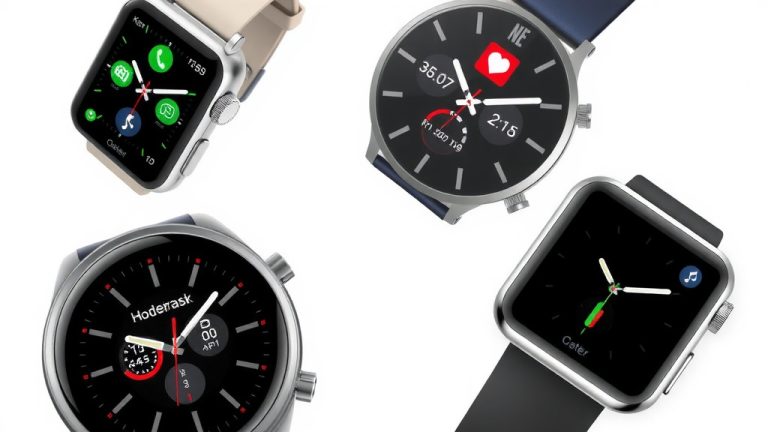
If you’re an iPhone user, the Apple Watch is often the go-to choice. Dexcom has excellent integration with watchOS. You’ll use the Dexcom app on your iPhone to send data to your Apple Watch. This allows you to see your current glucose number, trend arrows, and even set alerts right on your watch face.
Setting it up is usually straightforward. Once you have the Dexcom app running on your iPhone and your Apple Watch is paired, you’ll find options within the Dexcom app to enable watch connectivity. You can then customize which complications (small data displays) show up on your watch face. It’s quite neat to glance down and see your glucose level without needing to pull out your phone.
Samsung Galaxy Watch and Dexcom: Android’s Best Friend
For those who prefer Android phones, the Samsung Galaxy Watch is a fantastic option. Dexcom also supports many Samsung Galaxy Watch models, allowing you to view your data on your wrist. Similar to the Apple Watch, the process involves using the Dexcom app on your compatible Android smartphone.
You’ll need to ensure your Galaxy Watch is paired with your phone and that both devices have the necessary apps installed. The Dexcom app on your phone will then push the data to your watch. You can often set up different watch faces that include your glucose readings. This makes checking your levels during a busy day or a workout incredibly convenient.
Garmin Smartwatches: For the Active Lifestyle
Garmin is well-known for its sports and fitness-focused smartwatches. If you’re an athlete or simply love to stay active, you’ll be pleased to know that many Garmin devices are compatible with Dexcom. This is especially helpful if you want to monitor your glucose while exercising without being tethered to your phone.
The integration with Garmin often works through the Garmin Connect app. You’ll typically link your Dexcom account within the Garmin Connect ecosystem. This allows your glucose data to appear on compatible Garmin watch faces and within the Garmin Connect app itself. It’s a great way to see how your physical activity impacts your glucose levels in real-time.
How Dexcom Data Gets to Your Wrist
No matter which compatible smartwatch you choose, the underlying principle is usually the same. Dexcom relies on a smartphone app to transmit your Continuous Glucose Monitoring (CGM) data. Your CGM sensor sends readings to your compatible smartphone (either iPhone or Android). Then, the Dexcom app on your phone shares that data with your smartwatch.
The Role of the Dexcom App
The Dexcom app is the central hub for your data. It receives information from your CGM, displays it, and manages alerts. When you connect a compatible smartwatch, the Dexcom app also sends this data to the watch’s operating system or a dedicated watch app. You won’t be putting the Dexcom sensor directly on your watch; it’s always communicating wirelessly with your phone first.
Syncing Your Data: What to Expect
Once everything is set up, the data sync is usually quite fluid. Your watch will typically update every few minutes, depending on the specific device and app. You can often set up customizable alerts and alarms on your watch. This means you can be notified of high or low glucose levels, or rapid changes, without needing to look at your phone constantly. It’s a huge convenience for staying informed and proactive.
Beyond the Big Three: Other Potential Compatibilities
While Apple, Samsung, and Garmin are the most common choices, it’s worth noting that the landscape is always changing. Other smartwatches might offer compatibility, often through third-party apps or specific integrations that develop over time. It’s always a good idea to check the latest compatibility lists directly from Dexcom or the smartwatch manufacturer.
Checking the Latest Information
Dexcom provides up-to-date information on compatible devices on their website and within their app. We found that checking the official Dexcom resources is the most reliable way to confirm if a new smartwatch model supports Dexcom data. Manufacturers also often list supported health integrations for their devices. This can save you a lot of guesswork!
Setting Up Your Smartwatch with Dexcom: A Quick Checklist
Ready to get your Dexcom data on your wrist? Here’s a simple rundown of the steps you’ll likely follow:
- Ensure your smartphone is compatible with your Dexcom system.
- Download and set up the Dexcom mobile app on your smartphone.
- Pair your smartwatch to your smartphone using its native app (e.g., Apple Watch app, Samsung Wearable app, Garmin Connect app).
- Within the Dexcom app on your phone, look for settings related to “Sharing” or “Smartwatch Integration.”
- Follow the prompts to connect your smartwatch or enable data sharing.
- Customize your watch face with Dexcom complications or widgets for easy viewing.
By following these general steps, you should be well on your way to having your glucose information readily available at a glance. It’s all about making diabetes management fit more easily into your daily life.
Conclusion
You’ve learned that bringing your Dexcom data to your wrist is totally doable with many popular smartwatches. Brands like Apple, Samsung, and Garmin offer great compatibility, making it simpler to keep an eye on your glucose levels. The key is usually through the Dexcom app on your smartphone, which then syncs with your watch. This convenience can make a real difference in your daily diabetes management routine. Ready to simplify things? Your next step is to check Dexcom’s official resources for the most current compatibility list and then start the setup process for your chosen watch.
Frequently Asked Questions
Do I need a specific Dexcom app on my smartwatch?
Generally, no, you won’t install a separate Dexcom app directly onto your smartwatch. Instead, the Dexcom app on your smartphone sends the glucose data to your watch. You’ll likely see this data appear as a “complication” or widget on your watch face.
Can my smartwatch receive Dexcom alerts even if my phone is silent?
Yes, that’s one of the biggest benefits! Your smartwatch can often vibrate or display alerts for high or low glucose levels even when your phone is on silent. This ensures you don’t miss important notifications.
Will my older smartwatch models work with Dexcom?
Compatibility often depends on the operating system and age of the smartwatch. While newer models from major brands like Apple, Samsung, and Garmin are typically compatible, it’s best to check Dexcom’s official website for a definitive list of supported devices.
How often does the Dexcom data update on my smartwatch?
The data usually updates every few minutes, similar to how it appears on your phone. The exact refresh rate can vary slightly depending on your specific smartwatch and phone combination.
What if my smartwatch isn’t from Apple, Samsung, or Garmin?
While those are the most common brands, other smartwatches might offer compatibility, sometimes through third-party apps or updates. It’s always recommended to visit Dexcom’s support pages or contact the smartwatch manufacturer directly to confirm compatibility for less common brands.