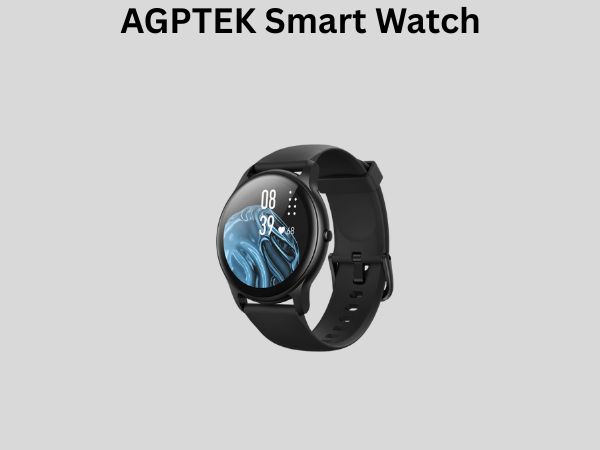
AGPTEK Smart Watch: How to Connect It to Your Phone – Complete Guide
So you’ve just unboxed your new AGPTEK smart watch, and you’re probably wondering how to get it talking to your smartphone. I get it – the excitement is real, but those connection instructions can feel like they’re written in another language, right? Well, I’m here to walk you through this process step by step, and I promise it’s much easier than you might think.
Let me be honest with you: connecting your AGPTEK smart watch to your phone is something that takes just a few minutes once you know what you’re doing. By the end of this guide, you’ll be enjoying all those fantastic health tracking features, notifications, and apps your watch has to offer.
Understanding Your AGPTEK Smart Watch Basics
Before we jump into the connection process, let’s talk about what makes your AGPTEK smart watch tick. Think of your smart watch as a mini computer that lives on your wrist – it’s got its own operating system, storage, and communication capabilities. The whole point of connecting it to your phone is to extend its functionality and make it a truly integrated part of your daily life.
What Is Bluetooth Technology?
Your AGPTEK smart watch uses Bluetooth to communicate with your smartphone. Bluetooth is a wireless technology that allows devices to talk to each other over short distances. It’s like having an invisible conversation between your watch and phone, with data being exchanged constantly to keep everything synchronized.
The beauty of Bluetooth is that it doesn’t drain your battery as quickly as some other wireless options, and it works reliably over distances of about 30 feet. This means you can leave your phone in another room and still receive notifications on your wrist.
AGPTEK Watch Models and Compatibility
Here’s something important to understand: AGPTEK makes several different smart watch models, and while the basic connection process is similar across models, there might be some slight variations. The good news is that whether you have an older model or the latest version, the fundamental steps remain pretty consistent.
Most AGPTEK watches work with both Android and iOS devices, though some older models might have limited compatibility with iOS. Always check your specific model’s documentation to be sure, but the majority of users won’t run into any compatibility issues.
Prerequisites: Getting Ready for Connection
Before you start connecting, let me make sure you’ve got everything you need. It’s like preparing for a road trip – you want to make sure you’ve got your keys and wallet before you leave the house.
Essential Requirements Before Connecting
- Your AGPTEK smart watch with sufficient battery charge (at least 50%)
- Your smartphone with Bluetooth enabled
- The AGPTEK companion app downloaded from your device’s app store
- A stable Wi-Fi connection for initial setup
- Your watch’s user manual or documentation
- Clear line of sight between your watch and phone during pairing
Charging Your AGPTEK Watch
Here’s something a lot of people overlook: make sure your watch has enough battery before you try to connect it. A watch with low battery might struggle to maintain the Bluetooth connection or could shut down during the pairing process. I’d recommend getting it to at least 50% battery, but ideally closer to 80% or higher.
Use the charging cable that came with your AGPTEK watch. Most modern models use a magnetic charging dock or a USB charging cable. It typically takes about two to three hours for a full charge.
Downloading the AGPTEK Companion App
This is absolutely crucial – you cannot connect your watch without the official AGPTEK app. Think of this app as the bridge between your watch and phone. Without it, they’re like two people trying to have a conversation in different languages.
Head to your phone’s app store (Google Play Store for Android or Apple App Store for iOS), search for “AGPTEK,” and download the official companion app. Make sure you’re downloading from AGPTEK’s official developer account to avoid any counterfeit apps.
Step-by-Step Connection Process for Android Devices
If you’re an Android user, here’s exactly how to get your AGPTEK watch connected to your smartphone. Follow these steps in order, and you should have a successful connection within five to ten minutes.
Step 1: Enable Bluetooth on Your Android Phone
First things first – your phone’s Bluetooth needs to be turned on. Swipe down from the top of your screen to access your quick settings menu, and tap the Bluetooth icon to enable it. You should see it light up, indicating that Bluetooth is now active and your phone is ready to discover nearby devices.
Step 2: Launch the AGPTEK Companion App
Open the AGPTEK app that you downloaded earlier. When you launch it for the first time, it will likely ask for some permissions – things like access to your contacts, health data, and location. Grant these permissions, as they’re necessary for the app to function properly.
You’ll probably see a welcome screen or setup wizard. This is your starting point for the connection process.
Step 3: Put Your Watch in Pairing Mode
Now, here’s where it gets interesting. Your AGPTEK watch needs to be in what’s called “pairing mode” so it can be discovered by your phone. The exact method varies slightly depending on your watch model, but typically you’ll either:
- Press and hold the power button for about 3-5 seconds
- Swipe down from the top of the watch face to access settings
- Look for a Bluetooth or connectivity option
- Select “Search for Devices” or “Pairing Mode”
Check your watch’s screen for any visual indicators that it’s in pairing mode – you might see a Bluetooth symbol blinking or a message on the display.
Step 4: Scan for Your Watch in the App
Back in the AGPTEK app on your Android phone, look for a button that says “Search for Devices,” “Add Device,” or “Connect New Device.” Tap this button and let the app scan for your watch. This usually takes about 15-30 seconds.
During this time, make sure your watch and phone are close to each other – within a couple of feet is ideal. This improves the chances of successful discovery.
Step 5: Select Your Device and Confirm Pairing
Once the app finds your watch, it should appear in a list. You’ll typically see the device name, which might be something like “AGPTEK-12345” or a model-specific name. Tap on your watch’s name to initiate the pairing process.
Your phone might display a confirmation dialog asking if you want to pair with this device. Confirm that you do. At the same time, your watch’s screen will also ask for confirmation – you’ll need to accept this on the watch as well, usually by pressing a button or selecting “Yes.”
Step 6: Complete the Initial Setup
Once the pairing is successful, the app will guide you through some initial setup steps. This might include:
- Setting your personal information (name, age, height, weight)
- Configuring notification preferences
- Allowing app permissions
- Setting up health tracking features
- Configuring alarm and reminder settings
Take your time with this setup – these settings can usually be changed later, but it’s nice to get them right from the start.
Connecting to iOS Devices: iPhone and iPad
If you’re an iPhone user, don’t worry – the process is very similar. The main difference is that Apple has some specific requirements for how smartwatch apps work on iOS.
iOS-Specific Prerequisites
Before connecting your AGPTEK watch to your iPhone, make sure you’re running iOS 12.0 or later. You can check this by going to Settings, then General, then About. If your iOS version is older, you’ll need to update it first.
Also, ensure that your iPhone has Bluetooth enabled – you can do this by going to Settings and toggling on Bluetooth.
The iOS Connection Process
The steps for connecting to iOS are essentially identical to Android:
- Download the official AGPTEK app from the Apple App Store
- Open the app and grant any requested permissions
- Put your watch into pairing mode
- Use the app to search for your device
- Select your watch from the list and confirm pairing on both devices
- Complete the initial setup wizard
One thing to note: iOS apps have some limitations compared to Android apps due to Apple’s restrictions. You might not have access to all features on iOS that you would on Android. This is Apple’s policy, not AGPTEK’s limitation, so keep that in mind.
Troubleshooting Common Connection Issues
Sometimes things don’t go perfectly on the first try – and that’s totally normal. Let me walk you through some common issues and how to fix them.
Your Watch Isn’t Showing Up During Discovery
If the app can’t find your watch, here are some things to try:
- Make sure your watch is actually in pairing mode – check the watch screen for pairing indicators
- Restart your watch by powering it off completely and turning it back on
- Move your watch and phone closer together – sometimes they need to be within a few feet
- Forget any previously paired devices and start fresh
- Restart your phone – sometimes this clears up Bluetooth issues
- Check that your phone’s Bluetooth is actually enabled and functioning
Connection Drops Frequently
If your watch keeps disconnecting from your phone, this is usually a sign of Bluetooth interference or a weak signal. Try these solutions:
- Keep your phone and watch within 30 feet of each other
- Avoid using your watch near other Bluetooth devices, as they might interfere
- Clear the app’s cache by going to Settings and finding the app information
- Unpair the device and repair it from scratch
- Update both your phone’s operating system and the AGPTEK app
The App Keeps Crashing
If the AGPTEK app is crashing or freezing, here’s what you can do:
- Force close the app and reopen it
- Check if there’s an app update available in your app store
- Clear the app’s cache and data
- Uninstall and reinstall the app
- Make sure you have enough storage space on your phone
Pairing Fails Immediately After Discovery
Sometimes the pairing process starts but fails before completion. This usually means there’s a compatibility issue or a Bluetooth problem. Try these steps:
- Reset your watch to factory settings if possible
- Make sure both devices have adequate battery
- Disable and re-enable Bluetooth on your phone
- Try pairing with a different phone if possible to test
- Check the AGPTEK website for any known compatibility issues with your specific watch model
Optimizing Your Connection Settings for Best Performance
Once you’ve successfully connected your AGPTEK watch to your phone, there are several settings you can adjust to optimize your experience. Think of this as fine-tuning your setup for maximum enjoyment.
Notification Preferences
The whole point of having a smart watch is to get notifications on your wrist without pulling out your phone constantly. In the AGPTEK app, you can customize which apps send notifications to your watch. I’d recommend:
- Enabling notifications for calls and messages
- Choosing which social media apps send notifications
- Setting up work email alerts if needed
- Disabling notifications for less important apps
This way, you’ll get the important stuff on your wrist without being overwhelmed by notifications.
Health Tracking Features
Your AGPTEK watch likely has various health tracking capabilities – heart rate monitoring, step counting, sleep tracking, and more. In the app settings, you can:
- Set daily step goals
- Configure heart rate monitoring frequency
- Enable or disable automatic sleep detection
- Set reminders to move or drink water
Spending a few minutes configuring these features will make your watch much more useful for your personal health goals.
Bluetooth Connection Stability
To keep your Bluetooth connection stable and reliable:
- Keep your phone’s Bluetooth on at all times when wearing your watch
- Avoid turning your phone’s Bluetooth on and off repeatedly
- Don’t pair your watch with multiple devices simultaneously
- Keep your phone and watch close to each other during the day
- Update both the app and your phone’s operating system regularly
Understanding Bluetooth Connectivity Best Practices
Now that you’ve got your watch connected, let me share some wisdom about maintaining a healthy Bluetooth relationship between your devices. Bluetooth is generally very reliable, but like any relationship, it works best when both parties understand each other’s needs.
The Importance of Keeping Apps Updated
AGPTEK regularly releases updates to their companion app. These updates often include bug fixes, performance improvements, and new features. I can’t stress enough how important it is to keep your app updated. Go to your app store regularly and check for updates – it takes just a minute and can save you from potential connection issues.
Battery Management Considerations
Bluetooth does consume battery on both your phone and watch, but it’s usually negligible. However, if you notice your phone’s battery draining faster than usual, it might be because Bluetooth is trying to reconnect to your watch repeatedly. This typically means there’s a connection issue that needs troubleshooting.
For your watch, remember to charge it regularly – most AGPTEK watches need charging every few days to a week, depending on usage.
Advanced Features After Connection
Once everything is connected and running smoothly, you’ll unlock some really cool features that make your smart watch actually smart.
Remote Control Capabilities
Some AGPTEK models allow you to control your phone’s music player from your wrist. You can play, pause, and skip songs without touching
![7 Best Smart Watch For Steps And Sleep [2026]](https://smartwatchbest.com/wp-content/uploads/2026/09/7-best-smart-watch-for-steps-and-sleep-2026-featured-768x432.jpg)
![7 Best Smart Watch On The Market 2025 [2026]](https://smartwatchbest.com/wp-content/uploads/2026/09/7-best-smart-watch-on-the-market-2025-2026-featured-768x432.jpg)