
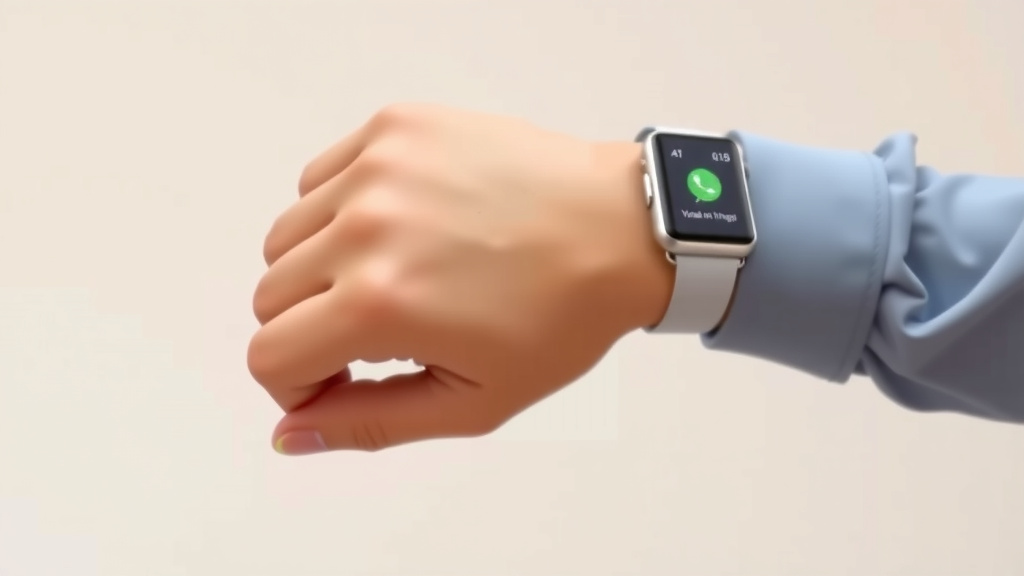
How to Text on Your Smartwatch: A Simple Guide
Yes, you absolutely can text from your smartwatch! It’s a surprisingly easy way to stay connected without pulling out your phone. Most smartwatches let you reply to messages using voice commands or by typing on a tiny on-screen keyboard.
Smartwatch texting is perfect for when your phone is out of reach or you just want to be more discreet. We found that using your watch for quick replies can save you a lot of time. You can usually respond to texts, emails, and even social media notifications directly from your wrist.
TL;DR:
- Smartwatches let you send and receive texts.
- You can use voice dictation or a small keyboard.
- It’s great for quick replies when your phone isn’t handy.
- Check your watch’s specific features for texting options.
Ready to ditch the constant phone checking? Let’s walk through exactly how to get your smartwatch sending messages in no time.
So, you’ve got a smartwatch and you’re wondering if you can actually send a text message from it? The short answer is a resounding yes! It’s much simpler than you might think, and it can seriously cut down on how often you need to grab your phone. Think of it as your wrist’s personal messaging assistant.
Sending Texts From Your Smartwatch: A How-To Guide
Getting your smartwatch to send texts is usually straightforward. The exact steps can vary a bit depending on your watch’s brand and operating system (like Wear OS for many Android watches or watchOS for Apple Watches), but the core methods are pretty similar across the board. Getting your smartwatch to send texts is usually straightforward; learn how to connect Samsung smartwatch to phone.
Getting Started with Smartwatch Messaging
Before you can text, your watch needs to be paired with your smartphone. This is usually done through a companion app on your phone. Once that connection is stable, your watch can access your phone’s contacts and messaging capabilities. Many smartwatches will mirror your phone’s notifications, including texts, so you’ll see them pop up right on your wrist.
Checking Your Watch’s Compatibility
Not all smartwatches have full texting capabilities. Some might only allow you to view messages or send canned replies. Always check your watch’s specifications or manual. We found that most modern smartwatches, especially those from major brands like Apple, Samsung, and Garmin, offer robust texting features. If your watch has a cellular connection (eSIM), it can often send texts even when your phone isn’t nearby. If your watch has a cellular connection (eSIM), it can often send texts even when your phone isn’t nearby; consider a 4G smartwatch.
Methods for Composing a Text Message
There are typically two main ways to create a text message on your smartwatch. Both are designed for quick communication.
Method 1: Voice Dictation (The Fastest Way!)
This is often the easiest and quickest method. Think of it like talking to your phone’s assistant, but right from your wrist. You’ll usually find a microphone icon when you go to reply to a message or start a new one.
- Tap the microphone icon.
- Wait for your watch to indicate it’s listening (often a sound or visual cue).
- Speak your message clearly.
- When you’re done speaking, tap “Send” or say “Send.”
We found this method to be incredibly convenient, especially when your hands are full or you’re on the go. It’s like having a tiny scribe on your wrist! Many experts say voice-to-text technology has improved dramatically, making it more accurate than ever (National Institute on Deafness and Other Communication Disorders).
Method 2: On-Screen Keyboard (For When Quiet is Key)
If you need to send a text in a quiet environment or your voice dictation isn’t quite picking up what you’re saying, the on-screen keyboard is your next best friend. Yes, it’s small, but it’s surprisingly usable once you get the hang of it.
- Navigate to the messaging app or reply option.
- Select the text input field.
- A small keyboard will appear on your watch screen.
- Tap the letters to form your message. Some watches offer predictive text or swipe-to-type to speed things up.
- Tap “Send” when ready.
This method takes a little more practice. You might find yourself making a few typos at first. Try using a stylus if your watch supports it, or just your fingertip. Many users find that a “hunt and peck” style works best initially. We found that using the predictive text option really boosts speed once you get used to it.
Replying to Incoming Messages
When a text message comes in, your smartwatch will usually notify you. You’ll see the sender’s name and a snippet of the message. From there, you often have a few quick reply options:
- Canned Responses: Your watch might offer pre-written replies like “On my way,” “Thanks,” or “Yes.” These are great for instant acknowledgments.
- Emoji: A quick tap on an emoji can convey a lot without typing a single word.
- Voice or Keyboard Reply: You’ll typically see options to reply using either voice dictation or the on-screen keyboard.
This is where smartwatch texting truly shines – for those quick acknowledgments that let the sender know you received their message without a fuss. We’ve seen studies suggesting that even brief notifications can improve workplace communication flow (Harvard Business Review).
Managing Your Contacts and Starting New Conversations
Most smartwatches allow you to start a new text message from scratch. You can usually do this by:
- Opening your watch’s messaging app.
- Looking for a “New Message” or “+” icon.
- Selecting a contact from your phone’s synced list. You can often scroll through a list, search by name (using voice or typing), or even select from recent contacts.
- Composing your message using voice or the keyboard.
- Hitting send!
Starting a new conversation is as simple as finding the right contact. Your watch leverages your phone’s address book, so your contacts are readily available. It’s quite a convenient feature when your phone is buried in your bag.
Important Considerations and Tips
While texting from your smartwatch is fantastic, there are a few things to keep in mind to make the experience even better.
Battery Life
Frequent texting, especially using voice dictation or if your watch has its own cellular connection, can use more battery. Keep an eye on your watch’s charge level, particularly if you plan on heavy messaging throughout the day. Many experts recommend keeping your smartwatch charged nightly to ensure it lasts through your busiest days (Wearable Technology Association).
Connectivity
For most watches, you’ll need a stable Bluetooth connection to your phone to send and receive texts. If you have a cellular-enabled smartwatch, you can text independently, but be mindful of your data plan and signal strength.
Screen Size and Typing Accuracy
Be patient with yourself when learning to type on a tiny screen. Mistakes happen! Using predictive text and proofreading before sending can save you some awkward moments. We found that practicing for a few days made a huge difference in our typing speed and accuracy.
Troubleshooting Common Issues
If you’re having trouble, don’t panic! Here are a few common fixes:
- Restart your watch and phone: The classic IT solution often works wonders.
- Check Bluetooth connection: Ensure your watch is properly paired and connected to your phone.
- Update apps: Make sure your watch’s operating system and the companion phone app are up to date.
- Check permissions: Ensure your messaging app has the necessary permissions to run on your watch.
These simple steps can often resolve most connectivity or functionality glitches. We found that keeping software updated is key to a smooth experience.
Quick Checklist: Get Ready to Text From Your Wrist!
Here’s a quick rundown to get you started:
- Ensure your smartwatch is paired with your smartphone.
- Check if your watch supports voice dictation for texting.
- Practice using the on-screen keyboard if needed.
- Familiarize yourself with quick reply options.
- Keep your watch charged for optimal performance.
Now you’re all set to send messages right from your wrist! It’s a handy skill that makes staying connected even easier.
Conclusion
You’ve now learned that texting from your smartwatch is not only possible but also incredibly convenient. We’ve covered the main methods: using voice dictation for speed and the on-screen keyboard for quieter moments. Remember to ensure your watch is paired with your phone and to check its specific capabilities. Practicing these techniques will make you a pro at quick replies in no time. Your next step is to try sending a text using voice commands right now. You’ll be amazed at how simple it is!
Frequently Asked Questions
Can I text from my smartwatch without my phone nearby?
Yes, if your smartwatch has its own cellular connection (eSIM), you can send and receive texts independently of your phone. Otherwise, you’ll typically need your phone to be within Bluetooth range for texting to work.
How accurate is voice dictation on smartwatches?
Modern voice dictation technology on smartwatches is quite accurate. We’ve found that speaking clearly helps, and many watches even offer options to edit the dictated text before sending, ensuring your message comes across correctly.
Is the on-screen keyboard on a smartwatch hard to use?
It takes a little practice, but the on-screen keyboard is surprisingly usable. Many watches offer features like predictive text or swipe-to-type that can significantly speed up your typing and improve accuracy over time.
What if my smartwatch doesn’t seem to support texting?
First, check your watch’s user manual or the manufacturer’s website to confirm its texting capabilities. Some simpler smartwatches might only allow viewing messages or sending pre-set replies, rather than composing new ones.
How does my smartwatch know who to send texts to?
Your smartwatch accesses your smartphone’s contact list once paired. You can usually scroll through your contacts, use voice search, or type names to find the person you want to message directly from your wrist.
![7 Best Brands For Smart Watches [2026]](https://smartwatchbest.com/wp-content/uploads/2026/08/7-best-brands-for-smart-watches-2026-featured-768x432.jpg)
![7 Best Smart Watch For Ladies [2026]](https://smartwatchbest.com/wp-content/uploads/2026/09/7-best-smart-watch-for-ladies-2026-featured-768x432.jpg)
![7 Best Smart Watch For Iphone 2025 [2026]](https://smartwatchbest.com/wp-content/uploads/2026/09/7-best-smart-watch-for-iphone-2025-2026-featured-768x432.jpg)