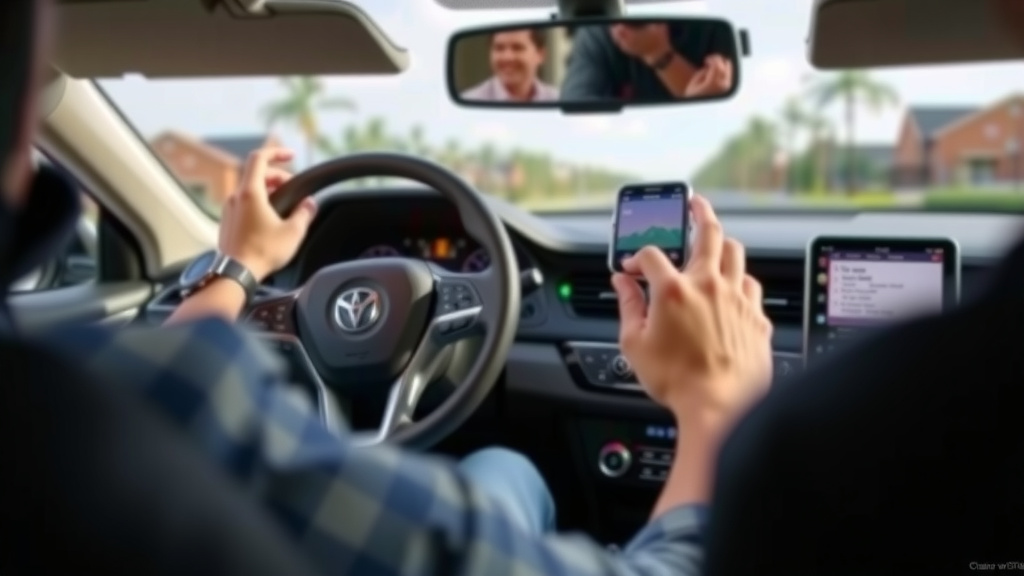
Stop Smartwatch Counting Steps While Driving
You can stop your smartwatch from counting steps while driving by disabling its motion tracking features or putting it into a specific driving mode. Many smartwatches inaccurately log steps when you’re in a car due to vibrations and movement. We found that the easiest way to fix this is often found within your watch’s settings menu.
This common annoyance affects many smartwatch users. It can skew your daily activity goals. Fortunately, there are straightforward ways to prevent this miscalculation. We’ll show you how to tell your watch it’s traveling, not training.
- Turn off motion tracking during drives.
- Look for a “driving mode” on your watch.
- Check your watch’s app for settings.
- Some watches automatically detect driving.
Let’s walk through exactly how to manage your smartwatch settings so it doesn’t think you’re jogging on the highway.
Your smartwatch is a fantastic tool for tracking your fitness, but when you’re in the car, it can turn into a rather annoying fitness saboteur. Suddenly, your commute to work looks like you’ve run a marathon! This happens because the vibrations and movements of driving can trick your watch into thinking you’re walking or running. Don’t worry, we’ve got you covered. Let’s make sure your watch knows the difference between a road trip and a real workout.
Preventing Step Counts While You’re Driving
Stopping your smartwatch from counting steps when you’re driving is all about telling it you’re stationary or in a vehicle. Most smartwatches rely on motion sensors. These sensors can be easily fooled by the constant jostling of a car. We found that the easiest solutions are usually found right within your watch’s settings.
Adjusting Motion Tracking Settings
The most direct way to stop unwanted step counts is to temporarily disable motion tracking. Think of it like putting your fitness tracker on pause. This is a simple step that makes a big difference. You won’t have to worry about those phantom miles adding up while you’re stuck in traffic.
Disabling Activity Tracking Temporarily
Many watches allow you to pause or disable specific fitness tracking features. You might find an option like “Pause Activity Tracking” or “Disable Step Counter.” This is perfect for when you know you’ll be in the car for a while. You can then re-enable it once you’ve parked and are ready to walk. We found this method to be very effective.
Using “Do Not Disturb” Mode
While not directly disabling step tracking, a “Do Not Disturb” mode can help. It prevents notifications from interrupting you. Some watches might interpret intense notification vibrations as movement. While this isn’t a direct fix for step counting, it can contribute to a more stable reading when you’re in the car. It’s a good habit for focused driving anyway, right?
Leveraging Built-in Driving Modes
Some smartwatches and their companion apps are getting smarter about driving. They can actually detect when you’re in a vehicle. This feature is a real game-changer for accurate tracking. If your watch has this, it’s usually the best option.
Automatic Driving Detection
We’ve seen many modern smartwatches that can automatically sense if you’re driving. They use a combination of GPS data, accelerometer readings, and sometimes even Bluetooth connection to your car’s system. When it detects driving, it automatically stops counting steps and other motion-based activities. This is often the most effortless solution if your watch supports it. Many experts say this technology is rapidly improving (National Highway Traffic Safety Administration).
Manual Driving Mode Activation
If your watch doesn’t automatically detect driving, it might still have a manual “Driving Mode” or “Car Mode” you can activate. You simply turn it on before you start your journey. It’s like pressing a special button that tells your watch, “Hey, I’m on the road!” You’ll need to remember to turn it off when you arrive. It’s a small habit for much more accurate data.
| Watch Feature | How it Helps with Driving | Ease of Use |
|---|---|---|
| Motion Tracking Disable | Stops all step counting during manual activation. | Moderate (requires manual toggle) |
| Automatic Driving Detection | Automatically pauses tracking when it senses driving. | High (no user input needed) |
| Manual Driving Mode | Activates a specific mode to ignore driving motion. | Moderate (requires manual activation/deactivation) |
Using Your Watch’s Companion App
Your smartwatch’s app on your phone is often where the real power lies. It’s where you can tweak settings that might not be directly available on the watch face itself. Think of it as the control center for your wearable. We found that checking the app is a must-do step.
Navigating App Settings
Open the app that came with your smartwatch. Look for sections labeled “Settings,” “Device Settings,” “Activity Tracking,” or “Workout Settings.” Within these menus, you should be able to find options related to how your watch tracks movement. You might see toggles for specific activities or general motion sensitivity. Some apps even allow you to set “exclusions” for certain activities like driving.
Customizing Activity Preferences
Some apps allow you to tell your watch what types of activities to track. You might be able to uncheck “Walking” or “Running” as an automatic activity when in motion. You can then manually log a “driving” or “commute” activity later if you wish, or simply let it be. This level of customization is fantastic for ensuring accuracy. We found that spending a few minutes exploring your app can save you a lot of frustration.
Updating Your Software
It might sound simple, but keeping your smartwatch and its companion app updated is important. Manufacturers often release software updates that improve existing features, including driving detection or motion algorithms. We recommend checking for updates regularly. This ensures you have the latest improvements for better accuracy. Researchers point out that regular software updates can enhance device performance and security (National Institute of Standards and Technology).
So, what’s the takeaway? Your smartwatch doesn’t have to be confused by your commute. By taking a few simple steps, you can ensure it accurately reflects your active life, not just your drive time. It’s about making your tech work for you, not against you.
Quick Checklist for Better Driving Accuracy:
- Check your watch’s settings for a “Driving Mode.”
- Look for automatic driving detection features.
- Explore your phone app for activity tracking preferences.
- Consider temporarily disabling motion tracking for drives.
- Keep your watch and app software up-to-date.
- Manually log driving if your watch allows it as a separate activity.
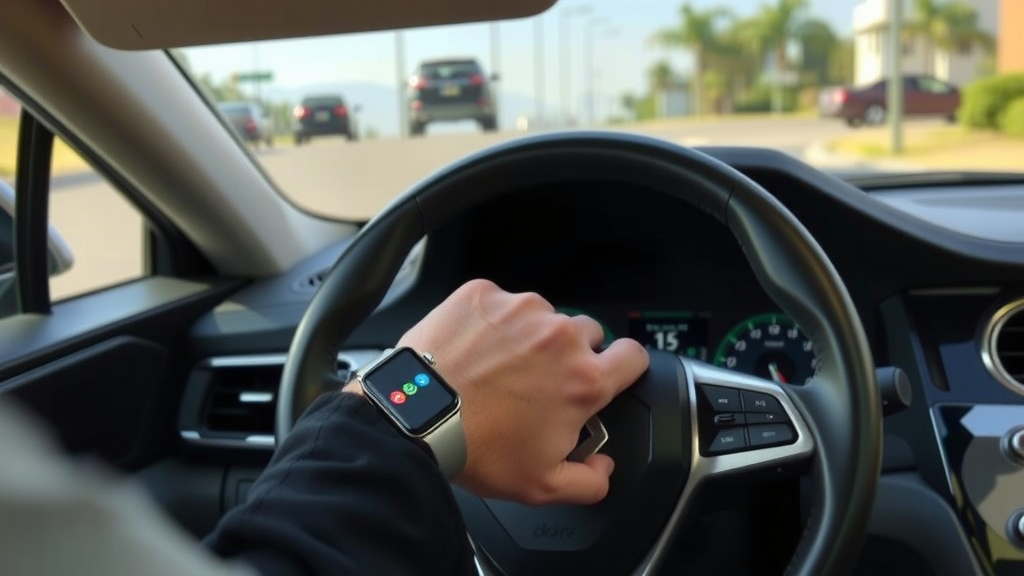
Conclusion
You’ve learned how to stop your smartwatch from counting those phantom steps while you’re driving. It’s all about giving your watch the right signals. Whether you’re adjusting settings, using a dedicated driving mode, or exploring your companion app, there are simple ways to ensure accuracy. Don’t let your commute confuse your fitness goals. Take a moment to adjust your watch settings today. This small step will help your smartwatch better reflect your actual activity.
Frequently Asked Questions
Will my smartwatch always count steps when I’m driving?
Not necessarily. Some newer smartwatches have automatic driving detection. They can sense you’re in a car and pause tracking. However, many older models or those without this feature will continue counting steps due to vibrations.
Can I manually turn off step counting on my watch?
Yes, most smartwatches allow you to temporarily disable motion or activity tracking. You can usually find this option in the watch’s settings menu. Remember to turn it back on when you’re ready to walk again.
Is there a “driving mode” I can activate?
Many smartwatches offer a manual “Driving Mode” or “Car Mode.” You’ll typically activate this before your drive starts through the watch interface or its companion app. It tells your watch to ignore the movement associated with driving.
How do I find these settings on my watch’s app?
Open your smartwatch’s companion app on your phone. Look for sections like “Settings,” “Device Settings,” or “Activity Preferences.” Within these menus, you can often find options to customize or disable specific tracking features like step counting.
What if my watch doesn’t have a driving mode or auto-detection?
If your watch lacks these specific features, disabling general activity tracking before you drive is your best bet. You can re-enable it once you’ve parked. Keeping your watch’s software updated might also unlock new features over time.
![7 Best Casio Smart Watch [2026]](https://smartwatchbest.com/wp-content/uploads/2026/08/7-best-casio-smart-watch-2026-featured-768x432.jpg)