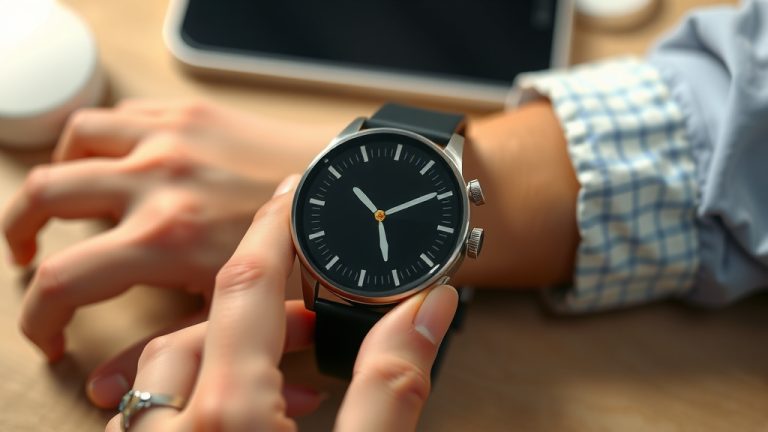
How to Change Date and Time on Your Smartwatch
Changing the date and time on your smartwatch is usually pretty straightforward. You’ll typically access this setting through your watch’s main settings menu, just like on your phone. Most smartwatches automatically sync with your phone’s time, but you can often adjust it manually if needed.
Sometimes, your watch’s time might seem a little off, especially after traveling or if it hasn’t synced properly. Knowing how to manually update the date and time ensures your notifications, alarms, and calendar events are always accurate. We’ve found that a quick settings check is usually all it takes.
- Access your watch’s settings.
- Look for Date & Time options.
- Adjust manually or ensure auto-sync is on.
- Confirm changes are saved.
Let’s walk through the common steps to get your smartwatch displaying the correct date and time, no matter your model.
Your smartwatch is a tiny computer on your wrist. Like any computer, it needs to know the correct time and date. This helps with everything from waking you up on time to tracking your fitness goals accurately. We understand that sometimes this can get a little out of sync. Don’t worry, adjusting it is usually quite simple!
Updating Your Smartwatch’s Date and Time Settings
Most smartwatches are designed to automatically keep time with your smartphone. This is a handy feature that saves you a lot of hassle. However, if you’ve recently traveled across time zones or had connection issues, you might need to make a manual adjustment.
Understanding Automatic Time Sync
Your smartwatch typically uses a Bluetooth connection to sync with your phone. When your phone’s time changes, your watch should update automatically. We’ve found that this is the most common and easiest way to keep your watch’s clock accurate. This sync is usually enabled by default in your watch’s settings.
How Automatic Sync Works
Think of your watch as a little echo of your phone. When your phone gets the correct time from the cellular network or Wi-Fi, it sends that information over to your watch. It’s like they’re constantly whispering the right time to each other. This reliance on your phone means if your phone’s time is wrong, your watch’s time will be wrong too. So, always ensure your phone’s time is set correctly first.
Manually Adjusting the Date and Time
What if automatic sync isn’t working, or you prefer to set things yourself? You can usually do this directly on your watch. The exact steps will vary slightly depending on the brand and model of your smartwatch, but the general process is very similar across most devices.
Finding the Settings Menu
To begin, you’ll need to access your watch’s main settings. On most smartwatches, you can do this by swiping down from the top of the screen or by pressing a physical button. Look for an icon that resembles a gear or a wrench. This is your gateway to all settings.
Locating Date & Time Options
Once you’re in the settings menu, scroll through the options until you find something labeled “Date & Time,” “Clock,” or “System.” Tap on it to open the relevant settings. Here, you’ll usually see options for both automatic and manual settings. We recommend checking if the automatic setting is enabled first.
Setting the Time Manually
If you choose to set the time manually, you’ll likely see options to adjust the hour, minute, and sometimes even the second. You may also need to set the date (day, month, year) and choose your time zone. Many watches will present this like a scrollable wheel or a keypad. Take your time to input the correct information. Make sure to double-check the AM/PM setting if your watch uses a 12-hour format. Getting this right is essential for accurate alarms.
Setting the Date Manually
Similarly, you’ll find options to adjust the current date. You’ll typically scroll through the months, days, and years to select the correct one. If you’re setting this after traveling, ensure you’ve chosen the correct day for your current location. We’ve found that it’s easy to accidentally set it a day ahead or behind if you’re not careful.
Troubleshooting Common Issues
Sometimes, even after you’ve made the changes, your watch might not display them correctly. This can be frustrating, but there are a few things you can try. The most common culprits are connection problems or a need for a simple restart.
Checking Your Phone’s Connection
If your watch relies on your phone for time, ensure your Bluetooth connection is active and stable. Open the companion app for your smartwatch on your phone. We often find that re-pairing the devices or simply toggling Bluetooth on and off can resolve connection hiccups.
Restarting Your Smartwatch
A good old-fashioned restart can often fix minor glitches. To restart your smartwatch, you typically need to press and hold the power button until a power-off option appears. Select “Power Off” or “Restart,” and then turn it back on once it’s shut down. This simple step can refresh the system and help it apply your new settings.
Updating Your Watch’s Software
Just like your phone, your smartwatch receives software updates that can improve performance and fix bugs. Check your watch’s settings for a “Software Update” or “About” section. If an update is available, install it. Sometimes, these updates are specifically designed to improve how the watch handles time synchronization. Experts recommend keeping your device’s software up-to-date (CDC).
Here’s a quick rundown of the steps we’ve covered to ensure your smartwatch time is accurate:
- Check if automatic time sync with your phone is on.
- Ensure your phone’s date and time are correct.
- Navigate to your watch’s settings menu.
- Find the Date & Time options.
- Manually set the date and time if needed.
- Restart your watch after making changes.
By following these steps, you should be able to easily manage the date and time on your smartwatch. Keeping this accurate ensures all your important alerts and scheduling features work as they should, keeping your day on track. You’ve got this!
Conclusion
You’ve now learned the simple steps to ensure your smartwatch displays the correct date and time. Whether relying on automatic syncing with your phone or making manual adjustments, keeping your watch’s clock accurate is essential for everything from alarms to fitness tracking. We’ve found that a quick check of your phone’s connection and a simple restart can often resolve most issues. The next time your watch time seems off, you’ll know exactly how to fix it. Go ahead and access your watch’s settings right now to confirm everything is as it should be!
Frequently Asked Questions
Can I change my smartwatch’s time zone without changing my phone’s time zone?
Generally, most smartwatches sync their time zone settings directly from your smartphone. If you want to set a different time zone on your watch, you’ll likely need to change your phone’s time zone setting first. Some advanced models might offer independent time zone settings, but this is less common.
My smartwatch time is off by an hour. What should I do?
An hour difference often indicates an issue with Daylight Saving Time or a time zone setting. First, check if your phone’s time and time zone are set correctly, especially if your watch syncs automatically. If it’s set manually on the watch, navigate to the Date & Time settings and adjust the time zone and DST settings.
Will changing the date and time affect my fitness tracking data?
Changing the date and time on your watch typically won’t erase your stored fitness data. However, it’s good practice to ensure the date and time are correct before starting new activities or workouts. This helps maintain the accuracy and chronological order of your activity logs.
How often should I check my smartwatch’s time sync?
For most users, checking the sync isn’t necessary unless you notice an issue. If you frequently travel across time zones or experience Bluetooth connection problems, it’s wise to periodically verify the sync in your watch’s settings. Keeping your phone’s clock updated is key.
My smartwatch won’t let me set the time manually. Why is that?
If you can’t set the time manually, it’s likely because the automatic time sync feature is enabled and locked. You’ll need to go into your watch’s Date & Time settings and disable the automatic sync option first. Once manual control is activated, you should be able to adjust the time and date as needed.

![7 Best Smart Watch For Kayaking [2026]](https://smartwatchbest.com/wp-content/uploads/2026/09/7-best-smart-watch-for-kayaking-2026-featured-768x432.jpg)
![7 Best Fossil Smart Watches [2026]](https://smartwatchbest.com/wp-content/uploads/2026/08/7-best-fossil-smart-watches-2026-featured-768x432.jpg)