Smartwatch 101: Your Beginner’s Guide
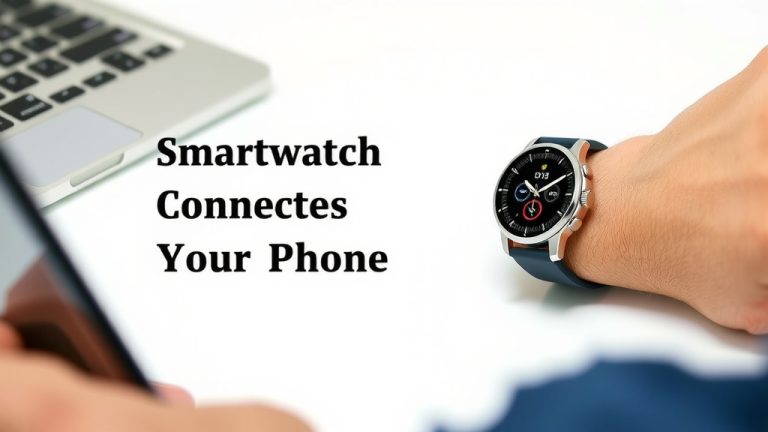
Getting started with your new smartwatch is easier than you think! You can easily set up your smartwatch by pairing it with your smartphone, typically through a dedicated app. This connection lets you access features like notifications, fitness tracking, and even making calls right from your wrist. Think of it as your phone’s helpful sidekick.
Smartwatches offer a fantastic way to stay connected and monitor your health. From receiving text messages at a glance to tracking your daily steps and heart rate, these devices simplify everyday tasks. Many models also allow for contactless payments and music control, making them incredibly convenient for your busy life. You’ll find they can really help you These watches are designed for seamless Android integration.manage your day better.
- Pair your watch with your phone using the app.
- Learn to navigate the watch’s menus and screens.
- Set up notifications that matter most to you.
- Explore basic fitness tracking features.
- Customize watch faces to your style.
Let’s walk through exactly how to get your smartwatch up and running, step by step.
Getting Your Smartwatch Set Up and Running
So you’ve got a shiny new smartwatch! That’s fantastic. Getting it to work with your phone is usually pretty straightforward. Think of your smartwatch as a helpful buddy for your phone. It keeps you connected without always needing to pull out your smartphone.
The Essential First Step: Pairing with Your Smartphone
The very first thing you need to do is connect your smartwatch to your smartphone. This process is called pairing. Most smartwatches use a special app for this. You’ll find this app in your phone’s app store. Search for the brand of your smartwatch. For example, if you have an Apple Watch, you’ll use the “Watch” app. If you have a Samsung Galaxy Watch, you’ll likely use the “Galaxy Wearable” app.
Downloading and Opening the Companion App
First, head to your phone’s app store. This is the App Store for iPhones or the Google Play Store for Android phones. Search for the official app related to your smartwatch brand. Once downloaded, open the app. It will guide you through the setup process.
The Pairing Process Itself
Your smartwatch will usually prompt you to open the app on your phone. Follow the on-screen instructions on both devices. You might see a code or a series of numbers appear on your watch screen. You’ll then need to enter this code into the app on your phone. This confirms that you’re connecting the correct devices. It’s a bit like a secret handshake between your watch and your phone!
What Happens After Pairing
Once paired, the app will often help you install updates for your smartwatch. It’s a good idea to let these updates run. They can improve performance and add new features. The app is also where you’ll manage many of your watch’s settings later on. We’ll get to that in a bit.
Navigating Your Smartwatch’s Interface
Now that your watch is connected, let’s talk about how to use it. Smartwatches have touchscreens and physical buttons. Understanding how to move around the menus is key. You’ll get the hang of it quickly with a little practice.
The Watch Face: Your Command Center
The main screen of your watch is called the watch face. This is where you see the time, of course. But it can also show other useful information, like your step count or the weather. You can usually swipe left or right on the watch face to access different screens or widgets. These are like quick shortcuts to apps or features.
Swiping and Tapping: Your Main Actions
Swiping is your primary way to move around. A swipe down from the top often brings up quick settings, like brightness or Do Not Disturb mode. Swiping up from the bottom might show your notifications. Swiping left or right, as we mentioned, cycles through your widgets or apps. Tapping an icon or a notification will open it.
Using Physical Buttons
Most smartwatches have at least one physical button. This is often called a crown or a power button. Pressing it usually takes you back to the watch face from anywhere. Pressing and holding it might bring up a power menu or activate a voice assistant. Some watches have multiple buttons, each with a specific function.
Setting Up Notifications That Matter to You
One of the biggest benefits of a smartwatch is getting notifications without checking your phone. But too many notifications can be overwhelming. You’ll want to set them up so you only see what’s important.
Managing Notification Settings in the App
This is where that companion app on your phone becomes really important. Open the app and look for a section on notifications. Here, you can usually choose which apps on your phone are allowed to send alerts to your watch. We found that turning off notifications for social media apps you don’t check often can really reduce distractions.
Which Alerts Should You Enable?
Think about what information you need quickly. Calls and text messages are usually a must. Calendar alerts can be very useful too. For many people, email notifications can be helpful, but it depends on your workflow. You can often set up specific types of alerts for different apps. For instance, you might want all texts to show up, but only urgent emails.
Exploring Basic Fitness Tracking
Many smartwatches are fantastic fitness trackers. They can help you stay motivated and monitor your health. Even basic models offer some pretty neat features.
Your Daily Activity Goals
Your watch can track things like your steps, distance walked, and calories burned. Many devices have activity rings or progress bars that fill up as you move. Meeting these goals can be surprisingly motivating. The Centers for Disease Control and Prevention (CDC) recommends adults get at least 150 minutes of moderate-intensity aerobic activity per week, and your smartwatch can help you track progress toward that (CDC).
Heart Rate Monitoring
Most modern smartwatches include a heart rate sensor. This continuously monitors your heart rate throughout the day. It can alert you if your heart rate is unusually high or low when you’re not active. This can sometimes be an early indicator of health issues. Some studies suggest that consistent heart rate monitoring can aid in understanding your cardiovascular health (NIH).
Starting a Workout
When you’re ready to exercise, open the workout app on your watch. You can select the type of activity you’re doing, like running, cycling, or yoga. The watch will then track metrics specific to that workout, such as duration, pace, and calories burned. This data is usually saved and accessible later in the companion app on your phone.
Personalizing Your Smartwatch: Watch Faces and More
Your smartwatch is a personal device. Making it look and feel like yours is part of the fun! Customizing it can make it even more useful.
Choosing and Changing Watch Faces
This is perhaps the easiest way to personalize your watch. Most smartwatches offer a variety of pre-installed watch faces. You can usually browse through them by swiping left or right on the main screen. To change it, you might need to press and hold the current watch face. Then, you can swipe to choose a new one and tap to select it. Many companion apps also offer a much larger selection of watch faces to download. Some allow you to customize complications, which are small pieces of information displayed on the watch face, like the date or a battery indicator.
Rearranging Apps and Widgets
Just like on your phone, you can often organize the apps on your smartwatch. Look in the companion app for settings related to app layout or widgets. You can usually add, remove, or rearrange them. This helps you get to your most-used features faster.
Here’s a quick checklist to get you started:
- Pair your watch with your phone using the official app.
- Familiarize yourself with swiping and button controls.
- Customize notification settings to reduce distractions.
- Set up your first daily activity goal.
- Change your watch face to one you like.
Conclusion
You’ve now got a solid understanding of how to get your new smartwatch up and running. We’ve covered pairing it with your phone, navigating its interface, and setting up those important notifications. You also learned the basics of using its fitness tracking features and how to personalize your watch face.
The biggest takeaway is that your smartwatch is designed to make your life easier. Don’t be afraid to experiment with its features. Your next step is to try setting a personal activity goal within your watch’s fitness app today. You’ll be amazed at how quickly you get comfortable with your new wrist-worn companion.
Frequently Asked Questions
What if my smartwatch won’t pair with my phone?
First, ensure both your watch and phone have Bluetooth enabled. Restarting both devices can often resolve pairing issues. Double-check that you’re using the correct companion app for your specific smartwatch model.
How often should I charge my smartwatch?
Most smartwatches need to be charged daily or every other day, depending on usage. Battery life can be extended by dimming the screen, turning off continuous heart rate monitoring, and limiting notifications.
Can I use my smartwatch without my phone nearby?
Some functions, like fitness tracking and checking the time, work without your phone. However, features like receiving notifications, making calls, or using GPS often require your phone to be connected or nearby via Bluetooth.
How do I update my smartwatch’s software?
Software updates are typically managed through the smartwatch’s companion app on your smartphone. Connect your watch to your phone, open the app, and look for an update or software section in the settings.
Is it safe to wear my smartwatch all day and night?
Yes, it is generally safe. Most modern smartwatches use LED lights for heart rate monitoring that are considered safe for continuous wear. They are also designed to be comfortable for 24/7 use, including sleep tracking.
![7 Best Rugged Smart Watch For Men [2026]](https://smartwatchbest.com/wp-content/uploads/2026/08/7-best-rugged-smart-watch-for-men-2026-featured-768x432.jpg)
![7 Best Smart Watch For Google Pixel 9 [2026]](https://smartwatchbest.com/wp-content/uploads/2026/07/7-best-smart-watch-for-google-pixel-9-2026-featured-768x432.jpg)
![7 Best Luxury Smart Watch 2025 [2026]](https://smartwatchbest.com/wp-content/uploads/2026/08/7-best-luxury-smart-watch-2025-2026-featured-768x432.jpg)