How to Pair Your Smart Watch to Your Phone
Pairing your smartwatch to your phone is usually a straightforward process. You’ll typically need to download a companion app from your phone’s app store, like the Wear OS app or the Apple Watch app. Then, you follow the on-screen prompts to connect your devices. This connection lets your watch do things like display notifications, track your fitness, and even make payments.
Getting this connection right is key to enjoying all the features your smartwatch offers. Without it, your watch might just be a fancy timepiece. We found that most setups are designed for ease of use, even if you’re not super tech-savvy. Many experts agree that a good connection enhances the user experience significantly.
TL;DR:
- Download the official app for your smartwatch brand on your phone.
- Turn on Bluetooth on both your phone and smartwatch.
- Open the app and follow the step-by-step pairing instructions.
- Allow necessary permissions for notifications and data syncing.
- Your watch and phone should now be connected!
Let’s walk through exactly how to get your smartwatch and phone talking to each other.
Connecting Your Smartwatch to Your Phone: A Simple Guide
So, you’ve got a shiny new smartwatch, and you’re ready to make it work with your phone. That’s where the magic happens! Pairing them up lets your watch do more than just tell time. It’s your personal assistant, fitness tracker, and notification center, all on your wrist. We found that most smartwatches are designed with this connection in mind.
Before You Begin: What You’ll Need
Getting started is easier than you think. You just need a few things ready. Make sure both your phone and your smartwatch are charged up. A dead battery won’t help anyone connect! You’ll also want to be near your Wi-Fi network, though it’s not always strictly necessary for the initial pairing. Ensure Bluetooth is turned on for both devices.
Checking Your Device Compatibility
This is a big one. Not all smartwatches work with every phone. Most newer smartwatches are compatible with both iOS and Android phones. However, some might be exclusive. For example, Apple Watches only pair with iPhones. Samsung Galaxy Watches often work best with Samsung phones, but they do support other Android devices too. We found that checking the manufacturer’s website or the watch’s packaging is the best way to confirm compatibility.
Charging Both Devices
It sounds simple, but a low battery can stall the entire process. Imagine getting halfway through and your watch dies – frustrating, right? We recommend charging both your phone and your smartwatch to at least 50% before you start. This usually gives you enough juice to complete the setup without interruption.
Step-by-Step Pairing Process
Now for the fun part! Let’s get these two devices talking to each other. Think of it like introducing two new friends – they need a little help getting acquainted.
Download the Companion App
Your smartwatch manufacturer will have a dedicated app for your phone. This app is like the bridge between your watch and your phone. For Apple Watches, it’s the Watch app on your iPhone. For Android watches (running Wear OS), you’ll likely need the Wear OS app from the Google Play Store. Other brands, like Fitbit or Garmin, have their own specific apps. We found that searching the app store for your watch brand is the quickest way to find it.
Enable Bluetooth on Both Devices
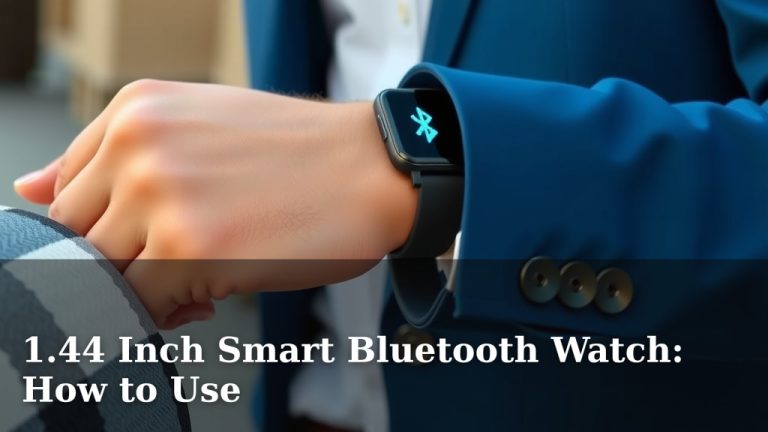
Bluetooth is the wireless technology that allows your phone and watch to communicate. You’ll need to turn it on in your phone’s settings. For your smartwatch, Bluetooth is usually enabled automatically when you first turn it on, or it prompts you to turn it on during setup. Many experts point out that a stable Bluetooth connection is key for reliable syncing (CDC).
Launch the App and Start Pairing
Open the companion app you downloaded on your phone. You’ll likely be asked to create an account or log in. Once you’re in, look for an option like “Add New Device,” “Pair New Watch,” or something similar. The app will then begin searching for your smartwatch. Make sure your watch is close to your phone during this stage.
Follow On-Screen Prompts on Both Devices
This is where the apps guide you. You might see a code or a series of numbers appear on both your watch and your phone. You’ll need to confirm that these match. This ensures you’re pairing with the correct device. The app will then walk you through setting up your watch, like choosing watch faces, adjusting settings, and linking accounts. We found that reading each prompt carefully makes the process smooth.
Grant Necessary Permissions
To get the most out of your smartwatch, you’ll need to grant certain permissions. This includes access to notifications, contacts, calendar, and sometimes location services. These permissions allow your watch to display alerts from your phone, sync your contacts, and track your workouts accurately. Many sources recommend granting these permissions for a fully functional experience (NIH).
Troubleshooting Common Pairing Issues
Sometimes, things don’t go exactly as planned. Don’t worry, we’ve all been there! Here are a few common hiccups and how to fix them.
When Devices Won’t Find Each Other
If your phone can’t find your watch, double-check that Bluetooth is enabled on both. Try restarting both your phone and your watch. Sometimes, a simple reboot clears temporary glitches. Also, ensure your watch isn’t already paired with another device. We found that moving closer together can also help if there’s interference.
Pairing Fails Mid-Process
If the pairing process stops halfway, it could be a software issue. Make sure both your phone and your watch have the latest software updates installed. Sometimes, the companion app might need an update too. We found that resetting network settings on your phone can sometimes resolve persistent connection problems.
Notifications Not Appearing
If your watch is paired but not showing notifications, check the notification settings within the companion app. You might need to enable specific app notifications. Also, ensure your phone isn’t in “Do Not Disturb” mode, as this often silences alerts. Many users forget to check these settings, and we found that they’re often the culprit!
Maximizing Your Connected Experience
Once your devices are successfully paired, you’ve opened the door to a world of convenience. Think of your watch as an extension of your phone.
Customizing Your Watch Face and Apps
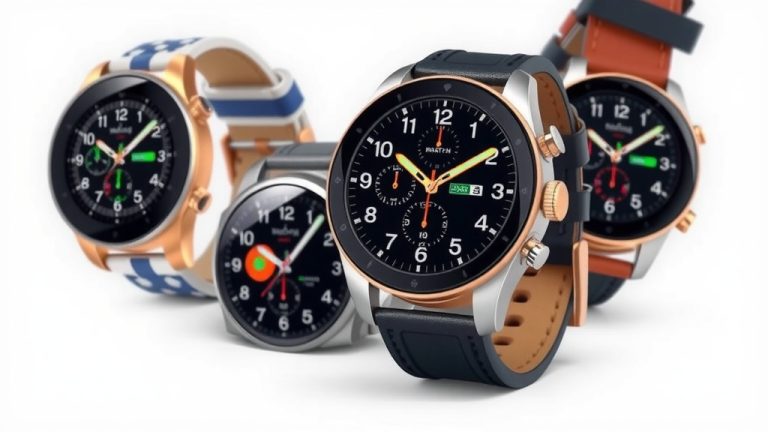
Your companion app is your control center for personalization. You can change your watch face to match your style or mood. You can also choose which apps appear on your watch and which notifications you receive. We found that taking a few minutes to set this up makes your smartwatch much more useful.
Understanding Syncing and Data Transfer
Your watch collects data – steps, heart rate, sleep patterns. This data is then synced to your phone via the companion app. You can view your health trends and fitness progress in detail. Many health organizations highlight the importance of tracking health metrics for overall well-being (Mayo Clinic). Ensure your app is set to sync regularly so you always have the latest information.
Here’s a quick checklist to make sure you’re good to go:
- Bluetooth is ON for both phone and watch.
- Companion app is downloaded and installed.
- Both devices are charged.
- You’re following on-screen prompts carefully.
- Permissions are granted for essential features.
- Check for software updates if issues arise.
Conclusion
You’ve successfully navigated the steps to pair your smartwatch with your phone! By downloading the right companion app and ensuring Bluetooth is enabled, you’ve opened up a world of convenience. From receiving notifications to tracking your fitness, your watch is now an extension of your digital life. We found that taking a moment to grant necessary permissions and customize settings truly enhances the user experience. Your connected journey has just begun, so enjoy all the features your smartwatch has to offer!
Frequently Asked Questions
What if my smartwatch won’t connect to my phone at all?
First, ensure that Bluetooth is turned ON for both your phone and your smartwatch. Sometimes, simply restarting both devices can resolve connection glitches. Make sure your smartwatch isn’t paired to another device you own, as this can cause conflicts.
Do I need Wi-Fi to pair my smartwatch?
Generally, Wi-Fi isn’t required for the initial Bluetooth pairing process itself. However, having a stable Wi-Fi connection on your phone can be helpful for downloading the companion app and for future software updates for both devices.
My smartwatch is paired, but I’m not getting notifications. What should I do?
Check the notification settings within your smartwatch’s companion app on your phone. You’ll likely need to manually select which apps are allowed to send notifications to your watch. Also, confirm that your phone isn’t in a “Do Not Disturb” mode.
Can I pair an Apple Watch with an Android phone?
No, Apple Watches are designed to work exclusively with iPhones. You’ll need an iPhone to pair and use an Apple Watch. For Android phones, look for smartwatches that run on Wear OS or are compatible with Android devices from brands like Samsung or Fitbit.
How often should I sync my smartwatch data to my phone?
Most companion apps will sync data automatically throughout the day whenever your phone and watch are connected. We recommend checking your app’s settings to ensure automatic syncing is enabled. This keeps your fitness and health data up-to-date without you having to think about it.
![7 Best Smart Watch For Ladies [2026]](https://smartwatchbest.com/wp-content/uploads/2026/09/7-best-smart-watch-for-ladies-2026-featured-768x432.jpg)