Connect Spotify to Your Smartwatch: A Simple Guide
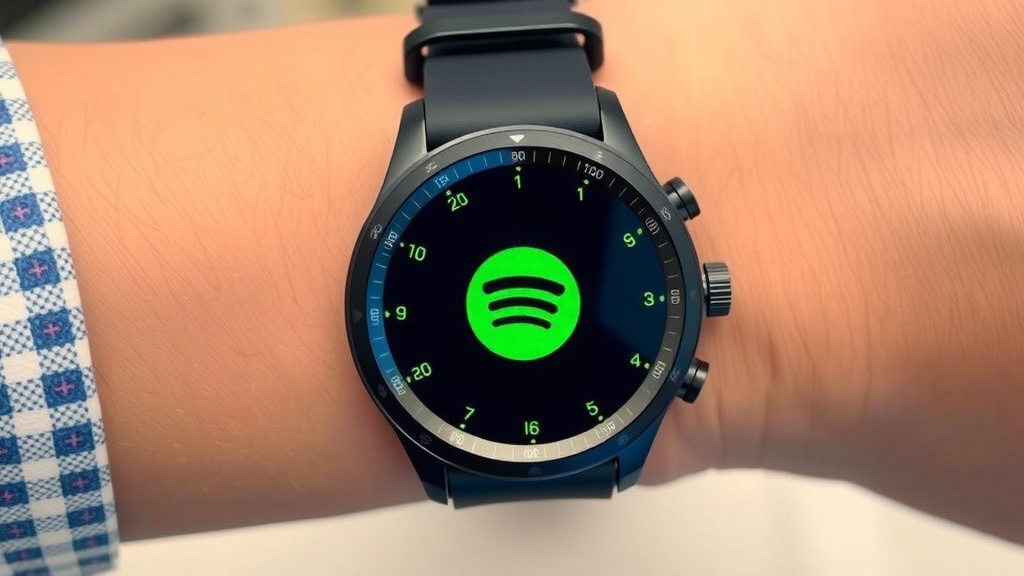
Yes, you can absolutely connect Spotify to your smartwatch to enjoy your music and podcasts on the go. This allows for phone-free listening during workouts or commutes. Most modern smartwatches support this feature, making it easier than ever to leave your phone behind.
Connecting Spotify means you can stream music directly from your wrist. You can also download playlists for offline playback. Many smartwatches offer built-in storage for your favorite tunes, which is perfect for situations where you don’t have internet access.
- Connect Spotify to your smartwatch.
- Download playlists for offline listening.
- Control playback directly from your wrist.
- Enjoy music without your phone.
Let’s walk through exactly how to get your Spotify tunes onto your smartwatch, step by step.
Getting Spotify on Your Smartwatch: A Step-by-Step Guide
Connecting Spotify to your smartwatch is a fantastic way to enjoy music and podcasts without your phone. This means your workouts or commutes can be a lot more freeing. We found that most modern smartwatches make this process surprisingly straightforward.
Is Your Smartwatch Compatible with Spotify?
The first step is checking if your smartwatch actually supports the Spotify app. This is a pretty common feature now, but older models might not have it. You’ll typically find Spotify pre-installed on many devices, or you can download it from the watch’s app store.
Checking Your Watch’s App Store
Most smartwatches, like those from Apple, Samsung, and Garmin, have their own app stores. You can usually search for “Spotify” right on your watch. If it shows up, you’re golden! If not, you might have an older model or one that doesn’t support Spotify.
Spotify Premium is Usually Required
It’s important to know that you generally need a Spotify Premium subscription to download music and podcasts for offline listening on your smartwatch. Free users can often control Spotify playing on their phone from their watch, but offline playback is a Premium perk. We found this to be a consistent requirement across most platforms.
Connecting Spotify to Your Smartwatch: The Process
Once you’ve confirmed compatibility and your Premium subscription is ready, it’s time to link your accounts. This process is usually done through the Spotify app on your phone, which then syncs with your watch.
Step 1: Install the Spotify App on Your Watch
If the Spotify app isn’t already on your watch, find it in your watch’s app store and install it. This is usually a quick download. Make sure your watch is connected to Wi-Fi during this step for the best results.
Step 2: Log In to Your Spotify Account
Open the Spotify app on your watch. You’ll likely be prompted to log in with your Spotify username and password. Some watches might guide you to a code to enter on your phone’s Spotify app or website to authorize the connection. This two-factor approach helps keep your account secure.
Step 3: Downloading Music and Podcasts for Offline Listening
This is where the real magic happens – enjoying your tunes without your phone! On your watch’s Spotify app, you can browse your playlists, albums, and podcasts. You’ll see a download icon (often a downward-pointing arrow). Tap this icon to download your selected content directly to your watch’s storage.
How Much Can You Download?
The amount of music you can download depends on your smartwatch’s storage capacity. Some watches have just a few gigabytes, while others offer more. You can store hundreds of songs, which is usually plenty for a workout or even a long trip. We found that checking your watch’s storage settings can give you a clear picture of how much space you have left.
Downloading Specific Playlists vs. All Music
You can choose to download individual playlists or albums. Many users prefer to curate specific playlists for different activities, like a running mix or a chill-out set. This makes it easy to switch between music styles without having to carry your phone.
Step 4: Controlling Playback from Your Wrist
Even if you’re not downloading for offline listening, you can still use your watch to control Spotify playing on your phone. This means you can play, pause, skip tracks, adjust volume, and even like songs, all from your wrist. It’s like having a tiny remote control for your music.
Smartwatch-Specific Connection Tips
The exact steps can vary slightly depending on your smartwatch brand. Here are a few common ones.
For Apple Watch Users
You’ll need the Spotify app installed on your iPhone and your Apple Watch. Open Spotify on your watch, log in, and then go to your playlists. Look for the download icon. You can also sync downloaded Spotify playlists to your Apple Watch via the Watch app on your iPhone. Make sure your watch is charging and connected to Wi-Fi to download content.
For Wear OS (Google) Users
Similar to Apple Watch, ensure you have the Spotify app on your phone and watch. Log in on your watch. You can download playlists directly. Wear OS watches often integrate well with your Google account, making the login process smooth. Some newer Wear OS devices offer more robust offline capabilities.
For Samsung Galaxy Watch Users
Samsung watches running Tizen or Wear OS have a dedicated Spotify app. Log in and download your favorite playlists. Samsung often allows for downloading directly to the watch’s internal storage, which is fantastic for phone-free listening. You can manage downloads through the Spotify app on your watch.
For Garmin Users
Garmin devices often require you to connect your watch to your computer using the Garmin Express app to download music. However, newer Garmin models with Wi-Fi support can allow for Spotify downloads directly to the watch. You’ll need to link your Spotify account through the Garmin Connect app on your phone first. Then, you can select playlists to download via the watch’s music app.
Quick Checklist: Spotify on Your Smartwatch
- Confirm your smartwatch is compatible with the Spotify app.
- Ensure you have a Spotify Premium subscription for offline features.
- Install the Spotify app on your smartwatch.
- Log in to your Spotify account on the watch.
- Download your favorite playlists or podcasts to your watch.
- Test playback without your phone nearby.
Conclusion
Connecting Spotify to your smartwatch truly frees you from your phone. You’ve learned how to check compatibility, install the app, and even download your favorite playlists for offline listening. This means your workouts and commutes can be more enjoyable, with your music always at your wrist. It’s a fantastic upgrade for any music lover. Now, go ahead and set up your watch for phone-free listening and experience the freedom for yourself!
Frequently Asked Questions
Can I use Spotify on my smartwatch without a Premium subscription?
With a free Spotify account, you can generally control music playing on your phone from your watch. This allows for basic playback functions like play, pause, and skipping tracks. However, downloading music or podcasts for offline listening on your watch typically requires a Spotify Premium subscription.
How much storage space do I need on my smartwatch for Spotify?
The amount of music you can store depends on your smartwatch’s internal storage capacity. Many watches offer several gigabytes, which is usually enough for hundreds of songs. You can check your watch’s storage settings to see how much space is available for downloads.
What happens if my smartwatch loses its internet connection while playing music?
If you’ve downloaded playlists or podcasts for offline playback, your music will continue to play without an internet connection. This is a major benefit of using the download feature, ensuring your music isn’t interrupted by a lost Wi-Fi or cellular signal.
Do I need to keep my phone nearby to use Spotify on my smartwatch?
Not necessarily! If you have downloaded your music or podcasts to your smartwatch, you can leave your phone at home. The watch acts as a standalone music player for your downloaded content, perfect for runs or gym sessions.
How often do I need to sync my smartwatch with Spotify?
If you’re downloading music for offline listening, you’ll want to sync your watch periodically to download new playlists or updates. For simply controlling music on your phone, a connection is needed each time. We recommend syncing whenever you add new music to your playlists.
![7 Best Smart Analog Watch [2026]](https://smartwatchbest.com/wp-content/uploads/2026/08/7-best-smart-analog-watch-2026-featured-768x432.jpg)
![7 Best Smart Watch For Sports Tracking [2026]](https://smartwatchbest.com/wp-content/uploads/2026/09/7-best-smart-watch-for-sports-tracking-2026-featured-768x432.jpg)