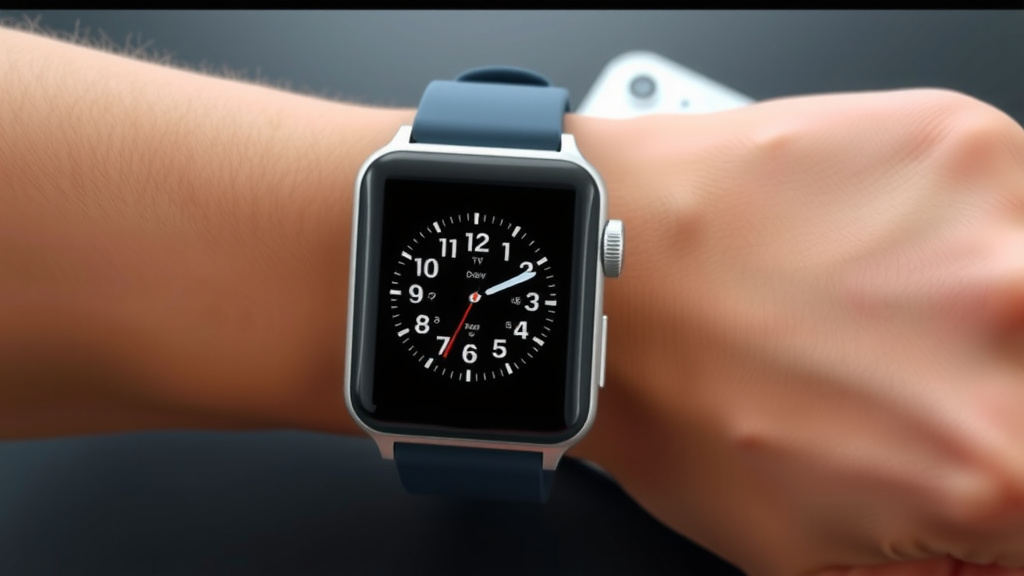
Connect Your Smart Watch to iPhone: Easy Step-by-Step Guide
Connecting your smartwatch to your iPhone is usually quite simple. You’ll need to use the watch’s companion app on your iPhone to complete the pairing process. It’s designed to be user-friendly, so don’t worry if you’re not super tech-savvy.
This connection allows your watch to do much more than tell time. It syncs your health data, delivers notifications, and lets you control music. Most modern smartwatches and iPhones work together with ease.
- Download the correct app for your watch brand.
- Enable Bluetooth on your iPhone.
- Follow the on-screen prompts in the app.
- Keep both devices close during pairing.
- You’re ready to enjoy your connected watch!
Ready to get your smartwatch and iPhone talking to each other? Let’s walk through exactly how this works step by step.
Pairing Your Smartwatch with Your iPhone: A Simple Guide
Connecting your smartwatch to your iPhone is an exciting step. It opens up a world of convenience and data. We’ll guide you through the process step by step. You’ll have your devices talking in no time.
Getting Started: What You’ll Need
Before you begin, gather a few essentials. This ensures a smooth setup. It makes the whole experience less frustrating. You’ll be glad you prepped.
Download the Right App
Every smartwatch brand has its own app. This is your bridge to your iPhone. You need to find the correct one in the App Store. For example, Apple Watch uses the “Watch” app, which is pre-installed on iPhones. For other brands, like Samsung, Garmin, or Fitbit, search for their specific name. Check your watch’s manual if you’re unsure. This app is where you’ll manage settings and view data.
Charge Both Devices
A dead battery can halt the process. Make sure both your iPhone and smartwatch have a decent charge. We recommend at least 50% for each. A full charge is even better. This prevents interruptions during setup. You don’t want to run out of juice mid-pairing.
Enable Bluetooth on Your iPhone
Bluetooth is the magic that connects your devices wirelessly. You must turn it on for the pairing to work. Go to your iPhone’s Settings app. Tap on “Bluetooth.” Toggle the switch to the green “On” position. Your iPhone will then start looking for nearby devices. Keep it on throughout the pairing process.
Keep Your Devices Close
During the initial connection, your devices need to be near each other. Think of it like a first introduction. They need to be close enough to “hear” each other. This usually means within a few feet. Keep them on the same table or desk. This helps the Bluetooth signal connect reliably. A strong signal is key for a good first impression.
The Pairing Process: Step-by-Step
Now that you’re prepared, let’s dive into the actual pairing. It’s a straightforward journey. You’ll follow prompts on both your watch and your iPhone.
Start the Watch App
Open the smartwatch’s companion app on your iPhone. If you haven’t downloaded it yet, do so now. Once opened, you’ll usually see an option to “Start Pairing” or “Add New Device.” Tap this to begin. The app is now ready to find your watch.
Initiate Pairing on Your Watch
Most smartwatches will prompt you to start pairing when first turned on. If yours didn’t, look for a “Pairing Mode” or “Connect to Phone” option in its settings. Consult your watch’s manual if you can’t find it. This step makes your watch discoverable by the app.
Follow On-Screen Instructions
This is where the magic really happens. The app on your iPhone and the screen on your watch will guide you. You might see a code or a symbol appear on both devices. Confirm that they match. This is a security measure. It ensures you’re connecting the correct devices. You’ll then be asked to enter details like your Apple ID. This helps sync services and settings.
What if the Code Doesn’t Match?
Don’t panic if the codes don’t immediately sync up. Try restarting both devices. Then, begin the pairing process again. Sometimes a fresh start is all it takes. Ensure Bluetooth is still enabled on your iPhone. If problems persist, check your watch’s documentation.
Set Up Your Watch Preferences
Once paired, you’ll customize your watch experience. The app will let you choose which notifications you want to receive. You can also set up health tracking preferences. This includes things like activity goals. You might also choose watch faces. This is your chance to make it truly yours. Think about what you want your watch to do most.
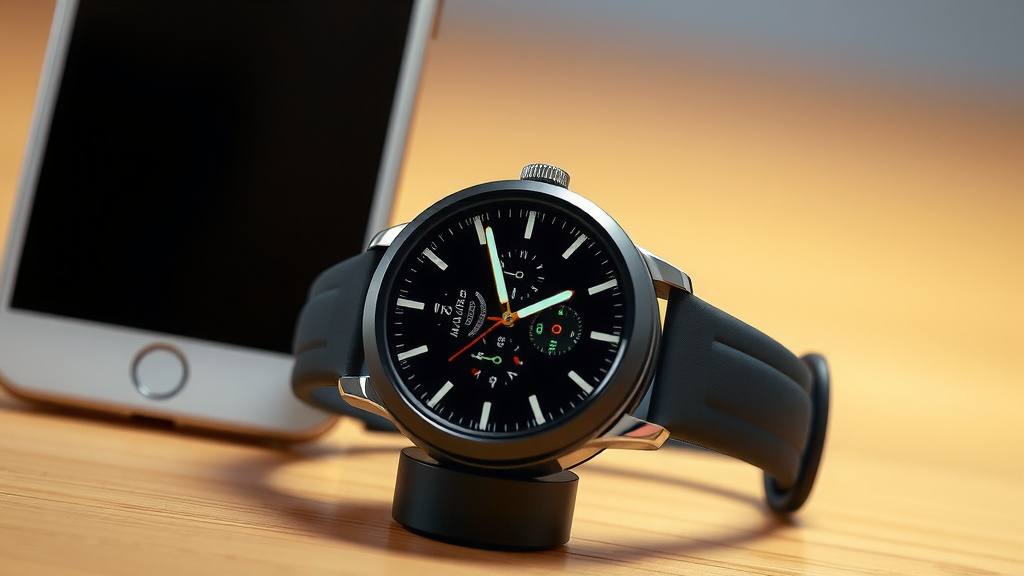
Troubleshooting Common Connection Issues
Occasionally, things don’t go as planned. Most connection issues are easily resolved. Here are a few common hiccups and how to fix them.
Bluetooth Not Finding the Watch
If your iPhone can’t see your smartwatch, check a few things. First, ensure Bluetooth is on. Next, make sure the watch is in pairing mode. Many watches have a timeout, so you might need to re-initiate pairing on the watch. Also, try moving closer to your watch. Sometimes a simple restart of both devices can fix this. Research suggests a quick reboot clears temporary glitches (Apple Support).
Pairing Fails or Disconnects
A failed pairing or frequent disconnections can be frustrating. Ensure your iPhone’s operating system is up to date. Outdated software can cause compatibility issues. You might also want to check for updates for your watch’s app. Low battery on either device can also cause problems. Keep them charged!
Syncing Issues
If your watch connects but doesn’t sync data, try forcing a sync. Open the watch app and look for a sync button or option. Sometimes, you need to turn Bluetooth off and then back on. If data still isn’t appearing, try unpairing and re-pairing the devices. This often resolves persistent syncing bugs.
Checklist for a Smooth Connection
Here’s a quick rundown to ensure your connection is successful:
- Download the correct app for your smartwatch brand from the App Store.
- Ensure both your iPhone and smartwatch are charged sufficiently.
- Turn on Bluetooth in your iPhone’s Settings menu.
- Keep your devices close together during the initial pairing process.
- Follow all on-screen prompts carefully on both devices.
- Confirm any pairing codes or visual cues match exactly.
Conclusion
Connecting your smartwatch to your iPhone is a straightforward process. By downloading the correct app, enabling Bluetooth, and following the on-screen prompts, you can quickly enjoy the benefits of a connected device. Remember to keep both your devices charged and close during setup. This connection enhances your daily life with synced data and notifications. Now that your devices are paired, you can start customizing your watch to fit your lifestyle. Enjoy exploring all the features your new setup offers!
Frequently Asked Questions
Can I connect my smartwatch without the companion app?
Generally, no. The companion app is essential for pairing and managing most smartwatches with your iPhone. It acts as the bridge between your watch and your phone for initial setup and ongoing settings.
My iPhone won’t find my smartwatch on Bluetooth. What should I do?
First, double-check that Bluetooth is turned on in your iPhone’s settings. Then, ensure your smartwatch is in pairing mode and close by. Sometimes restarting both devices can resolve detection issues.
How long does the pairing process usually take?
The initial pairing process typically takes just a few minutes. Once the devices recognize each other, you’ll follow prompts, which are usually quite quick. Any extended time might indicate a connection issue needing troubleshooting.
Will connecting my smartwatch drain my iPhone’s battery faster?
Yes, having Bluetooth and an active connection can slightly increase your iPhone’s battery consumption. However, modern devices are optimized, and the drain is usually minimal for most users.
What if I get a new iPhone? Do I need to re-pair my smartwatch?
If you restore your new iPhone from a backup of your old one, your smartwatch might reconnect automatically. If not, you’ll likely need to unpair it from the old iPhone (or it will disconnect automatically) and then pair it with your new iPhone through the app.
![7 Best Smart Watch For Golf And Running [2026]](https://smartwatchbest.com/wp-content/uploads/2026/09/7-best-smart-watch-for-golf-and-running-2026-featured-768x432.jpg)