How to Connect a FitPro Smart Watch: Easy Steps
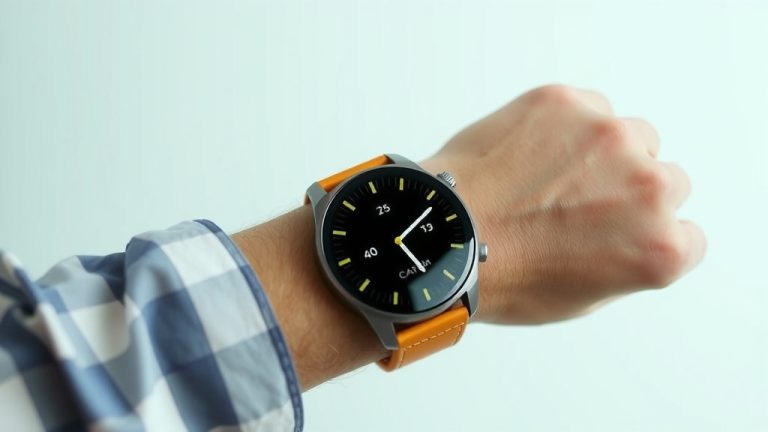
Connecting your FitPro smartwatch is a straightforward process, typically involving downloading the companion app and following on-screen prompts to pair your device. You’ll likely need your watch and smartphone handy to get started.
Getting your new FitPro watch talking to your phone is key to enjoying its features. This connection allows you to receive notifications, track your fitness progress, and update your watch’s software. We found many users get up and running in just a few minutes with these basic steps.
- Download the official FitPro app from your app store.
- Ensure Bluetooth is turned on for both your phone and watch.
- Open the app and look for an option to “Add Device” or “Pair New Watch.”
- Follow the prompts to find and connect your FitPro.
- Confirm any pairing codes that appear on your watch and phone.
Let’s walk through exactly how to get your FitPro smartwatch connected to your phone, step by step.
Getting Your FitPro Smartwatch Connected: A Simple Guide
Connecting your FitPro smartwatch to your smartphone is your ticket to a whole world of fitness tracking and smart notifications. We know that sometimes tech can feel a bit daunting, but getting your FitPro paired is surprisingly straightforward. Think of it like introducing two new friends – they just need a little help meeting each other!
The main goal is to establish a reliable link between your watch and your phone. This connection allows data to flow back and forth. Your watch can send your steps and heart rate to your phone. Your phone can then send alerts and updates to your watch. We found this process usually takes just a few minutes if you follow the right steps.
Before You Begin: What You’ll Need
To ensure a smooth connection, having a few things ready beforehand makes all the difference. It’s like packing for a trip – being prepared means a much more enjoyable journey!
Your FitPro Smartwatch
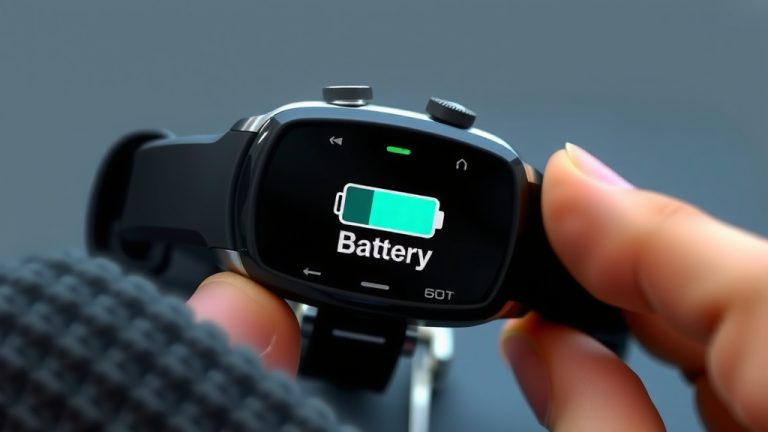
First, make sure your FitPro watch is charged. A dead battery won’t do anyone any favors. We recommend having at least 50% charge before you start. This prevents any interruption during the pairing process.
Your Smartphone
You’ll need your smartphone handy. This is what your FitPro will connect to. It can be an iPhone or an Android device. Just ensure your phone is also reasonably charged, so it doesn’t shut down mid-pairing.
The FitPro Companion App
You absolutely must have the official FitPro app installed on your smartphone. This app is the bridge that allows your phone and watch to communicate. We found that trying to connect without the app is pretty much impossible. So, this is a non-negotiable first step.
Bluetooth Enabled
Bluetooth is the wireless technology that enables your devices to talk to each other. You need to make sure Bluetooth is turned on for both your smartwatch and your smartphone. It’s usually found in your phone’s settings or quick-access menu.
Step-by-Step Connection Process
Now that you’re prepped, let’s get down to the actual pairing. We’ve broken it down into easy-to-follow steps to guide you through.
Download and Install the FitPro App
If you haven’t already, head to your smartphone’s app store. This would be the Apple App Store for iPhones or the Google Play Store for Android devices. Search for “FitPro” and look for the official app. Install it on your phone. We found that there can be similar-looking apps, so double-check the developer or logo to ensure it’s the right one.
Open the App and Create/Log In to Your Account
Once installed, open the FitPro app. You’ll likely be prompted to create a new account or log in if you already have one. Follow the on-screen instructions to set up your profile. This often involves entering basic information like your name, age, and gender. This data helps your watch provide more accurate fitness tracking.
Enable Bluetooth on Your Phone and Watch
As mentioned earlier, Bluetooth needs to be active on both devices. On your phone, swipe down from the top (or up from the bottom on some models) to access the control center or quick settings. Tap the Bluetooth icon to turn it on. For your FitPro watch, this is usually done through its settings menu. Scroll through the options until you find “Bluetooth” and ensure it’s enabled.
Initiate the Pairing Process in the App
Within the FitPro app, you’ll need to tell it you want to add a new device. Look for an option that says something like “Add Device”, “Pair New Device”, or “Connect Watch”. This is usually found on the main screen or within a “Device” or “Settings” tab. Tap on this option to begin the search for your FitPro watch.
Allow the App to Scan for Devices
The app will now start scanning for nearby Bluetooth devices. Keep your FitPro watch close to your phone. You might see a list of available devices appear on your phone screen. Your FitPro watch should show up in this list, often identified by its model name or a unique identifier.
Select Your FitPro Watch from the List
Once your watch appears in the app’s scan results, tap on its name. This tells the app which device you want to connect to. If you don’t see your watch immediately, don’t panic! Sometimes it takes a minute or two. You might need to refresh the scan or ensure Bluetooth is definitely on for both devices.
Confirm the Pairing Request
This is a critical step for security. You’ll likely see a pairing request appear on both your phone and your smartwatch. Your phone might ask you to confirm a PIN code, or your watch might display a code that you need to confirm on your phone. Make sure the codes match, if shown. Tap “Pair” or “Connect” on your phone and confirm on your watch. Many experts emphasize checking these codes to prevent unauthorized connections (National Cyber Security Centre).
Wait for the Connection to Complete
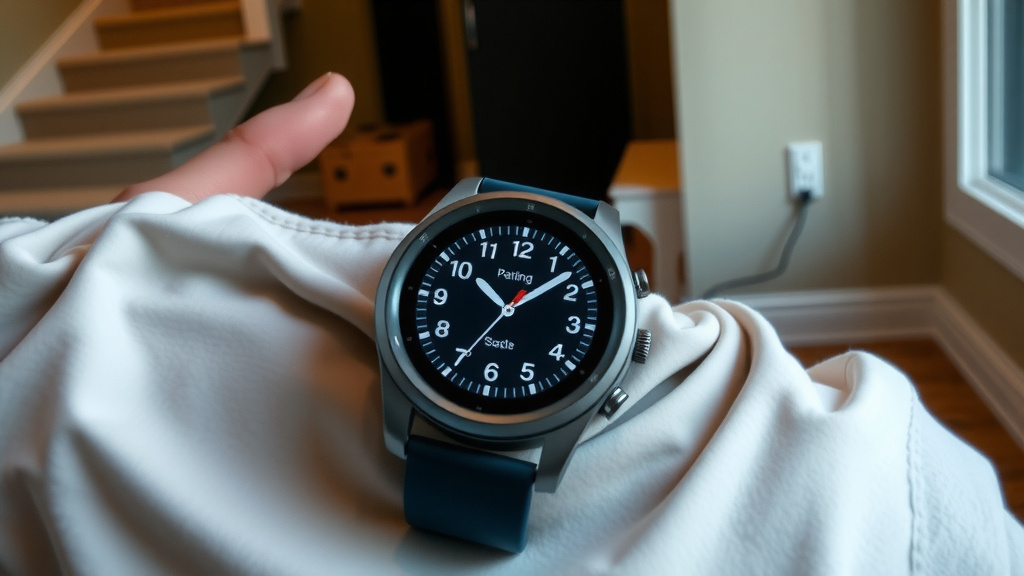
Once confirmed, the devices will complete the pairing process. This might take a moment. You’ll usually see a confirmation message on your phone app, and your watch might display a connection icon. We found that patience is key here; sometimes the data transfer takes a little time.
Post-Connection Checklist: What to Do Next
Congratulations, your FitPro smartwatch is now connected! But we’re not quite done yet. A few final checks ensure everything is working perfectly.
- Sync Your Data: Open the FitPro app and initiate a manual sync. This pulls all the data from your watch to your phone.
- Check Notifications: In the app settings, make sure notification permissions are enabled for the apps you want alerts from.
- Update Firmware: The app will often prompt you if there’s a firmware update available for your watch. It’s a good idea to install these for improved performance and new features.
- Explore App Settings: Familiarize yourself with the FitPro app. You can customize watch faces, set goals, and view your fitness history.
To make sure everything is up and running smoothly, we suggest performing a quick test. Send yourself a test notification from your phone and check if it appears on your watch. Also, go for a short walk and then check the FitPro app to see if your steps and distance have been recorded accurately. This final check confirms your connection is strong and reliable.
Conclusion
You’ve successfully navigated the steps to connect your FitPro smartwatch! We’ve covered everything from ensuring your devices are ready to the final confirmation of a strong link. This connection is your gateway to maximizing your watch’s fitness tracking and smart notification capabilities. Don’t forget to sync your data and check your notification settings within the app. Your next step is to explore the FitPro app to customize your experience and set some fitness goals!
Frequently Asked Questions
What if my FitPro watch doesn’t appear in the app’s scan?
First, ensure that Bluetooth is actively turned on for both your phone and your watch. Also, confirm that your watch is in pairing mode, which might require a specific action on the watch itself. Sometimes, simply closing and reopening the FitPro app can resolve this issue.
Can I connect my FitPro watch to multiple phones at once?
Generally, most smartwatches are designed to connect to one primary device at a time. Trying to connect to a second phone simultaneously can cause connection instability or prevent pairing altogether. You’ll typically need to unpair the watch from the old phone before connecting it to a new one.
My watch shows a pairing code, but my phone doesn’t. What should I do?
This usually means there’s a slight delay or a hiccup in the Bluetooth communication. Make sure both devices are close together and that the FitPro app has the necessary permissions to access Bluetooth on your phone. Try restarting both your phone and watch, then attempt the pairing process again.
Do I need an internet connection to pair my FitPro watch?
While Bluetooth is used for the initial pairing and ongoing data syncing, an internet connection (Wi-Fi or cellular data) on your smartphone is usually required for the FitPro app to create an account, log in, and download firmware updates.
How often should I sync my FitPro watch with the app?
We recommend syncing your FitPro watch with the app at least once a day, or whenever you want to review your fitness data. This ensures that your phone has the most up-to-date information from your watch, allowing for accurate tracking and analysis of your activity.
![7 Best Smart Watch Of 2025 [2026]](https://smartwatchbest.com/wp-content/uploads/2026/09/7-best-smart-watch-of-2025-2026-featured-768x432.jpg)