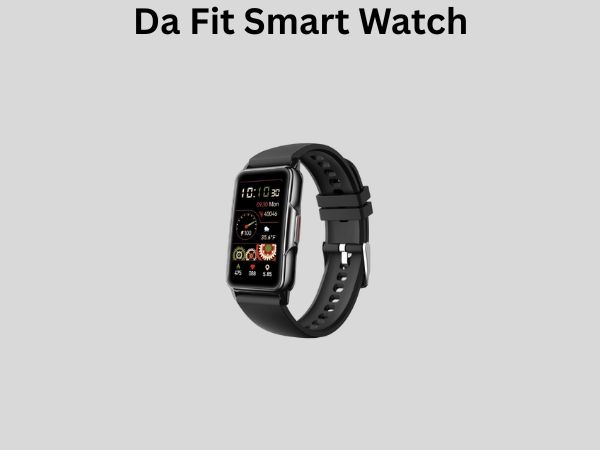
Da Fit Smart Watch: How to Change the Time – Complete Step-by-Step Guide
If you’ve just gotten your hands on a Da Fit smart watch, congratulations! You’re holding one of the most affordable and user-friendly wearables on the market today. But here’s the thing – if the time on your device is running behind or ahead, it can throw off your entire day. I’ve been there, staring at my wrist wondering if I’m actually late or if my watch is just confused. That’s why I’m walking you through everything you need to know about changing the time on your Da Fit smart watch.
Whether you’ve traveled across time zones, suffered a dead battery, or simply want to ensure your device displays the correct time, this guide has you covered. Let’s dive in.
Understanding Your Da Fit Smart Watch Interface
Before we jump into the nitty-gritty of changing the time, you need to understand how your Da Fit smart watch works. Think of it like learning to navigate a new city – once you understand the basic layout, everything else becomes much easier.
Your Da Fit smart watch comes with a touchscreen display and physical buttons on the side. These buttons are your gateway to accessing different features and settings. The interface is designed to be intuitive, meaning even if you’re not particularly tech-savvy, you should be able to find what you’re looking for without too much frustration.
The Main Screen and Navigation
When you first wake up your Da Fit smart watch, you’ll see the main clock face. This is your home screen, and it’s where you’ll return to after completing any task. The touchscreen allows you to swipe up, down, left, and right to access different features like your heart rate monitor, step counter, and settings menu.
The physical buttons on the side of your watch serve as shortcuts. Typically, these buttons allow you to go back, access the menu, or confirm selections. Understanding these buttons is crucial because they’re your lifeline when navigating through menus.
Why Your Da Fit Smart Watch Time Might Be Wrong
Let me ask you something – have you ever wondered why your watch’s time suddenly changed? There are actually several reasons this might happen, and understanding them can help you prevent future issues.
Automatic Time Synchronization Issues
Your Da Fit smart watch is designed to automatically sync with your paired smartphone. This means when your phone has the correct time, your watch should too. However, sometimes this synchronization fails. Maybe your phone’s Bluetooth connection dropped, or perhaps there’s a glitch in the system. It happens more often than you’d think.
Time Zone Changes and Travel
If you’ve recently traveled to a different time zone, your watch might not have automatically adjusted. While some smartwatches update the time based on your location, the Da Fit sometimes requires manual adjustment, especially if you’re using airplane mode or have your location services turned off.
Battery Drain and Reset
When your Da Fit smart watch battery completely dies, it can sometimes lose track of time. Once you charge it back up, you might find that the clock has reset to a default time. This is actually a common issue with many digital devices, not just smartwatches.
Software Glitches
Like any electronic device, your Da Fit smart watch isn’t immune to occasional glitches. A software hiccup could cause the time display to become inaccurate. This is usually temporary, but sometimes it requires manual adjustment to get back on track.
Method 1: Changing Time Through the Da Fit App
The easiest and most reliable way to change the time on your Da Fit smart watch is through the companion mobile app. This method is foolproof because you’re making changes from your phone, which likely already has the correct time set.
Step-by-Step Process Using the Da Fit App
Here’s exactly what you need to do:
- Open the Da Fit app on your smartphone. Make sure your phone and watch are connected via Bluetooth.
- Navigate to the settings section, usually found at the bottom right of the app interface.
- Look for the “Device Settings” or “Watch Settings” option.
- Scroll down until you find the “Time” or “Time and Date” setting.
- Tap on it to open the time adjustment menu.
- You’ll see options to adjust hours, minutes, and sometimes seconds.
- Use the plus and minus buttons to set the correct time.
- Confirm your changes by tapping “Save” or “OK”.
- Wait for the changes to sync to your watch – this usually takes a few seconds.
Troubleshooting App-Based Time Changes
Sometimes, despite following all these steps, the time doesn’t update on your watch. If this happens to you, don’t worry. First, make sure your Bluetooth connection is stable. Try disconnecting and reconnecting your watch to your phone. If that doesn’t work, close the Da Fit app completely and reopen it. Occasionally, you might need to restart both your phone and your watch.
I’ve found that force-closing the app and clearing its cache can work wonders. On Android, you can do this by going to Settings → Apps → Da Fit → Storage → Clear Cache. On iPhone, you’d just force-close the app by swiping up from the bottom and closing it.
Method 2: Direct Time Adjustment on the Watch
Not everyone wants to pull out their phone every time they need to adjust something on their watch. If you prefer to change the time directly on your Da Fit device, you can absolutely do that. It takes a bit longer, but it’s entirely possible.
Accessing the Settings Menu on Your Watch
To change the time directly on your watch, you’ll need to navigate to the settings menu. Here’s how:
- Start at the main clock face on your watch.
- Swipe up from the bottom of the screen. This brings up your app menu.
- Look for a settings icon, which typically looks like a gear or cogwheel.
- Tap on it to enter the settings menu.
- You’ll see various options displayed on your screen.
- Swipe down or use the side buttons to navigate through these options.
Finding the Time and Date Setting
Once you’re in the settings menu, you need to find the time and date option. This is usually one of the first or second options you’ll see, sometimes labeled as “Time & Date,” “Clock,” or simply “Time.” The exact naming can vary depending on your watch’s software version, but it’s almost always somewhere near the top of the settings list.
Adjusting the Hour and Minute Values
Once you’ve found the time setting, you’ll see options to adjust the hours and minutes. Tap on the hour field first. You’ll then see plus and minus buttons or arrows that allow you to increase or decrease the hour value. It’s like scrolling through a list, but for numbers. Keep tapping until you reach the correct hour.
After you’ve set the hour, move to the minutes field and repeat the process. Be patient here – if you’re trying to set the minutes to something like 47, you’ll need to tap quite a few times. Some watches allow you to tap and hold to speed up the process, which can save you precious time.
Confirming Your Changes
Once you’ve set both the hours and minutes to match the current time, look for a “Confirm,” “Save,” or “OK” button. Tap it to apply your changes. You should immediately see the time update on your watch’s main display.
Method 3: Using Automatic Time Sync Features
Here’s something many Da Fit users don’t realize – your watch can automatically update its time if you set it up properly. This is like having a personal assistant who never lets you be late because your watch is wrong.
Enabling Automatic Time Synchronization
To set up automatic time syncing, open the Da Fit app on your phone and go to Device Settings. Look for an option called “Automatic Time” or “Sync Time with Phone.” Toggle this setting on. When this feature is enabled, your watch will regularly check your phone’s time and update itself accordingly.
When Automatic Sync Doesn’t Work
If you’ve enabled automatic sync but your watch still shows the wrong time, there are a few things you can check. First, ensure that your phone’s Bluetooth is turned on and your watch is paired. Second, make sure your phone has the correct time set in its system settings – if your phone is wrong, your watch will be wrong too. Finally, try unpairing and re-pairing your watch to your phone. Sometimes a fresh connection can resolve synchronization issues.
Advanced Time Adjustment Options
For users who want more control over their device, the Da Fit smart watch offers some advanced time-related settings that you might find useful.
24-Hour vs. 12-Hour Time Format
Your watch can display time in either a 12-hour format (with AM and PM) or a 24-hour military format. To change this, go to your watch settings and look for “Time Format” or “Display Format.” Choose whichever format you prefer. Some people find the 24-hour format clearer, especially if they’re always forgetting whether it’s AM or PM.
Time Zone Settings
If you frequently travel or work with people in different time zones, you can manually set your time zone within the Da Fit app. This information helps your watch understand how far you are from UTC (Coordinated Universal Time) and adjust accordingly. You’ll find this option in the Device Settings under “Time Zone” or “Location.”
Common Issues and Their Solutions
Even with clear instructions, problems can still arise. Let me share some of the most common issues I’ve encountered and how to fix them.
The Time Keeps Reverting to Wrong Time
If you change the time, but it keeps going back to an incorrect time, there’s likely an automatic sync issue. Disable automatic time synchronization in your Da Fit app settings and manually set the time instead. If you want automatic sync to work properly, make sure your phone’s time is correct first.
The Watch Won’t Update Time After Changing It
Sometimes you’ll complete all the steps to change the time, but the watch screen still shows the old time. This is usually a display lag issue. Try restarting your watch by holding the power button for about 10 seconds until it shuts down, then turn it back on. The correct time should display once it boots back up.
Bluetooth Connection Problems During Time Sync
If your phone and watch keep disconnecting during the time-syncing process, you might need to forget the device and re-pair it. On your phone, go to Bluetooth settings, find your Da Fit watch, and select “Forget.” Then, open the Da Fit app and pair your watch again from scratch. This usually resolves connectivity issues.
Time Is Correct But Watch Is Slow or Fast
If the time on your watch is technically correct but seems to run slow or fast compared to real time, your watch might have a hardware issue. However, before assuming the worst, try a full restart. Power off your watch completely, wait 30 seconds, and power it back on. If the problem persists, it might be time to contact Da Fit customer support.
Best Practices for Maintaining Accurate Time
Now that you know how to change the time, let’s talk about keeping it accurate going forward. Prevention is always better than cure, as the saying goes.
Regular Automatic Sync Checks
Make it a habit to check that automatic time synchronization is enabled in your Da Fit app. Do this once a month, and you’ll never have to manually adjust your watch’s time again. It’s a small task that saves a lot of frustration.
Keep Your Phone’s Time Accurate
Since your watch syncs with your phone, keeping your phone’s time correct is paramount. Enable automatic time updates on your phone by going to Settings and looking for “Date and Time.” Make sure “Automatic Date and Time” is toggled on.
Maintain Strong Bluetooth Connectivity
For automatic sync to work, your watch and phone need a stable Bluetooth connection. Avoid wearing your watch too far away from your phone, and make sure there are no significant obstacles between them. Keep your watch close to your phone at least once a day to ensure proper synchronization.
When to Contact Customer Support
Despite your best efforts, sometimes technology simply doesn’t cooperate. If you’ve tried everything and your Da Fit smart watch still won’t update its time, it might be time to reach out to the professionals.
Signs You Need Professional Help
You should contact Da Fit customer support if:
- The time changes correctly but then immediately reverts without any action from you
- Your watch won’t connect to your phone via Bluetooth at all
- The time seems to run significantly faster or slower than real time
- You’ve reset your watch multiple times and the problem persists
How to Reach Da Fit Support
You can reach Da Fit customer support through the official app, their website, or through email. When you contact them, have your watch’s model number and serial number ready. Also, be prepared to describe exactly what you’ve tried so far – this information helps them assist you more quickly.
Conclusion
Changing the time on your Da Fit smart watch is straightforward once you understand the process. Whether you choose to adjust it through the Da Fit mobile app, directly on the watch itself, or by enabling automatic synchronization, you now have all the knowledge you need. The key is knowing that multiple methods are available, so if one doesn’t work perfectly for you, you have backup options. I recommend starting with the automatic sync feature and only manually adjusting when necessary. Your future self will thank you for taking the time to set this up correctly. With accurate time on your wrist, you’ll never have an excuse to be late again!
Frequently Asked Questions About Da Fit Smart Watch Time Adjustment
Can I change the time on my Da Fit smart watch without using the app?
Yes, you absolutely can! You can change the time directly on your watch by accessing the Settings menu, finding the Time option, and adjusting the hours and minutes using the plus and minus buttons. This method doesn’t require your phone at all, making it convenient if you’re away from your device or prefer hands-on control.
Why does my Da Fit smart watch time keep changing back to the wrong time?
This usually happens because automatic time synchronization is enabled and your phone has the incorrect time set. Check your phone’s clock and make sure it’s accurate. If your phone’s time is wrong, your watch will constantly sync to that incorrect time. Alternatively, if you want to keep a specific time on your watch, you can disable automatic synchronization in the Da Fit app settings.
How often does my Da Fit smart watch sync with my phone automatically?
The Da Fit smart watch typically syncs with your phone whenever they’re connected via Bluetooth and the app is running in the background. For the most reliable synchronization, keep your phone and watch close to each other at least once daily. The exact frequency can depend on your specific watch model and app version.
![7 Best Budget Smart Watches For Women [2026]](https://smartwatchbest.com/wp-content/uploads/2026/08/7-best-budget-smart-watches-for-women-2026-featured-768x432.jpg)
![7 Best Smart Watch 2025 For Health [2026]](https://smartwatchbest.com/wp-content/uploads/2026/08/7-best-smart-watch-2025-for-health-2026-featured-768x432.jpg)
![7 Best Android Smart Watch For Texting [2026]](https://smartwatchbest.com/wp-content/uploads/2026/06/7-best-android-smart-watch-for-texting-2026-featured-768x432.jpg)