How to Turn Off Smart Stack on Apple Watch
You can easily turn off Smart Stack on your Apple Watch by removing its widgets from your watch face. Smart Stack acts like a dynamic folder, automatically showing you the most relevant widgets. If you find it distracting or prefer a cleaner look, simply swipe left on your watch face and access the edit mode to remove it.
Smart Stack is a helpful feature designed to give you quick access to information. It learns your habits and presents widgets like your activity rings, weather, or calendar events. However, if you’re not using it or find it changes too often, disabling it is quite straightforward and doesn’t require any complex settings. Many users find removing it helps them focus on their preferred complications.
- Smart Stack automatically displays relevant widgets.
- You can remove it from your watch face to disable it.
- This stops it from changing throughout the day.
- It’s a simple way to declutter your watch face.
Ready to take back control of your Apple Watch screen? Let’s walk through exactly how to remove Smart Stack step by step.
Taking Control: How to Disable Smart Stack on Your Apple Watch
You’ve probably noticed your Apple Watch face changing throughout the day. That’s Smart Stack at work, a feature designed to show you the most relevant information right when you need it. While helpful for some, others find it a bit too dynamic. If you prefer your watch face to stay exactly as you set it, disabling Smart Stack is a simple process. You don’t need to be a tech wizard to make this change. Let’s get your watch face back to your preferred, stable view.
Understanding What Smart Stack Does
Before we remove it, let’s quickly touch on what Smart Stack is all about. Think of it as a smart organizer for your watch face widgets. It uses your activity, location, and time of day to predict what you might want to see next. For instance, it might show your workout stats after you finish a run, or your calendar for the upcoming meeting. It’s meant to be helpful, offering quick glances at what matters most in that moment. Many users appreciate this predictive power. However, research shows a preference for **predictable interfaces** for some individuals, especially when focused on a task (Nielsen Norman Group).
Why You Might Want to Turn Off Smart Stack
There are a few common reasons why you might be looking to turn off Smart Stack. Perhaps you’ve found that the widgets change too frequently, breaking your concentration. Or maybe you just prefer a simpler, more static watch face. Some users might feel they don’t get enough use out of the predicted widgets. It’s perfectly understandable to want your Apple Watch face to be a **calm, predictable space**. You set it up the way you like it, and you want it to stay that way. This is a **personal preference**, and Apple gives you the control to make that choice.
Another reason could be that you’ve already customized your watch face with specific complications you love. Smart Stack might push those aside, and you’d rather **keep your favorite complications visible**. It’s all about making your Apple Watch work best for *your* daily routine. If Smart Stack feels more like a distraction than a helper, it’s time to make a change.
Step-by-Step: Removing Smart Stack from Your Watch Face
Turning off Smart Stack is done by removing it directly from your watch face. There’s no hidden setting in the Watch app on your iPhone or on the watch itself that says “Turn off Smart Stack.” Instead, you’re simply deleting the Smart Stack widget from the specific watch face you’re currently using. If you have multiple watch faces, you’ll need to repeat this for each one where Smart Stack appears. Let’s walk through it.
Accessing Edit Mode on Your Apple Watch
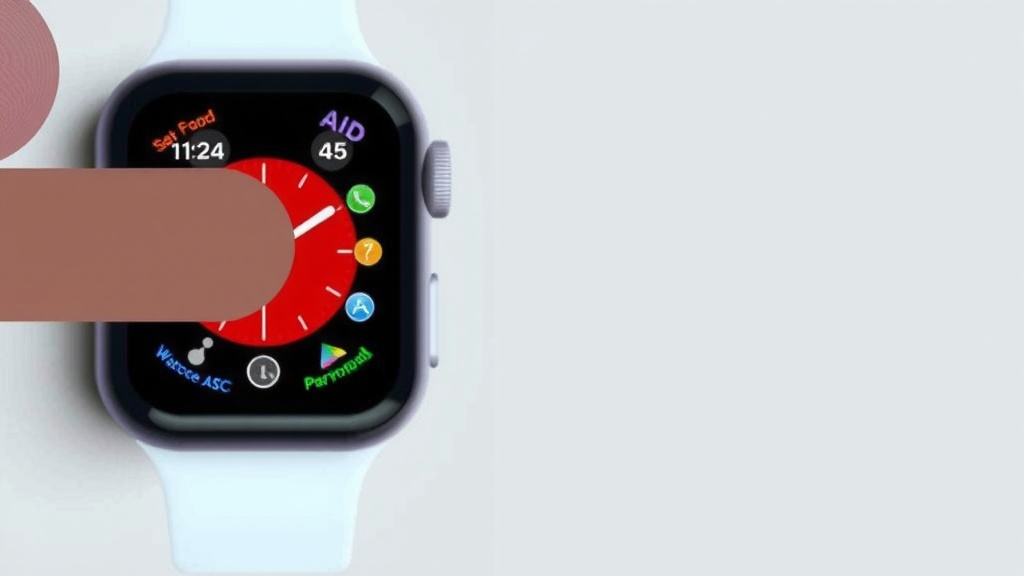
First things first, you need to wake up your Apple Watch. Make sure the watch face is displayed clearly. Don’t interact with any apps or complications on the screen. You want to see your personalized watch face. Now, firmly press and hold the center of the watch face. You’ll feel a slight haptic buzz, and the screen will zoom out a bit. This action tells your Apple Watch you want to enter “Edit Mode.” This is where you can **customize your watch face**. Think of it like getting ready to rearrange furniture in a room – you need to be in the editing zone.
Identifying and Deleting the Smart Stack Widget
Once you’re in Edit Mode, you’ll notice that the elements on your watch face can be swiped left and right. The Smart Stack usually appears as a tile or a group of icons, often near the top or center. You might see it represented by a circular icon or a stack of smaller icons. To remove it, swipe left on your watch face until you find the Smart Stack widget. You’ll see a red “X” button appear on the widget. Simply tap that red “X.” A confirmation will pop up asking if you want to remove Smart Stack. Tap “Remove” to confirm. You have successfully removed it from this watch face!
Removing Smart Stack from Additional Watch Faces (If Applicable)
Did you realize Smart Stack was on more than one watch face? No worries! You can remove it from each one. While still in Edit Mode (where you can swipe left and right between elements), continue swiping left until you cycle through all the editable areas of your current watch face. If you see the Smart Stack widget appear on another part of the watch face or on a different watch face you’ve set up, simply repeat the process: swipe to it and tap the red “X” followed by “Remove.”
Navigating Between Different Watch Faces
If you want to remove Smart Stack from a completely different watch face, you’ll first need to switch to that watch face. While your watch is awake and showing a watch face, swipe left or right to cycle through your available watch faces. Find the one you want to edit. Once you’re on the desired watch face, repeat the process: firmly press and hold the center of the screen to enter Edit Mode, then swipe to find and remove the Smart Stack widget.
What Happens After You Remove Smart Stack?
Once you’ve successfully removed Smart Stack from your desired watch faces, you’ll notice a change. Your watch face will no longer automatically update with different widgets throughout the day. The complications you’ve chosen will remain exactly where you put them. This gives you a **stable and predictable display**. You’ll now have to manually access different widgets if you need them, either by swiping left to your pre-set secondary complications or by opening the Smart Stack app if it’s still available as an app icon. This means **more manual control** over what you see.
For some, this offers a sense of calm and order. For others, it might mean a few extra taps to get to the information they need. It’s all about finding what works best for you and your workflow. Many experts suggest that customization leads to **greater user satisfaction** with technology (Apple Human Interface Guidelines).
Restoring Smart Stack If You Change Your Mind
Perhaps you’ve decided you miss the dynamic nature of Smart Stack. Don’t worry, it’s easy to bring it back! You just need to add it again as a widget to your watch face. Go back into Edit Mode by firmly pressing and holding the center of your watch face. Swipe left until you get to the end of the editable complications. You should see an option to “Add Widget.” Tap that. You’ll then see a list of available widgets. Scroll through this list and find “Smart Stack.” Tap on it to add it back to your watch face. You can then position it where you like.
Tips for a Clean and Functional Apple Watch Face
Turning off Smart Stack is just one way to personalize your Apple Watch experience. Here are a few extra tips to keep your watch face tidy and useful:
- Choose Wisely: Select only the complications you use most often. Too many can be overwhelming.
- Group Similar Info: If you use Smart Stack, try adding related widgets together.
- Use Different Watch Faces: Create multiple watch faces for different activities (e.g., one for workouts, one for work).
- Keep it Simple: Sometimes, less is more. A clean watch face can reduce distractions.
- Regularly Review: Check your watch face settings every few months to ensure they still meet your needs.
By making these small adjustments, you can ensure your Apple Watch face is a **tool that enhances your day**, rather than a source of distraction. It’s all about tailoring the technology to fit your life perfectly. Remember, your Apple Watch is meant to serve you, and having control over its display is a big part of that.
Conclusion
You’ve learned that disabling the Smart Stack on your Apple Watch is a straightforward process. It involves removing the widget directly from your watch face, offering you a more stable and predictable display. This simple change gives you greater control over what information appears at a glance. Remember, your Apple Watch is a personal device, and customizing its interface to your preferences is key to a great user experience. If you find yourself missing the dynamic updates, adding Smart Stack back is just as easy. Take a moment to adjust your watch face settings now to make your watch work perfectly for you.
Frequently Asked Questions
Can I turn off Smart Stack globally, or just for one watch face?
You can only turn off Smart Stack for specific watch faces. If you have multiple watch faces, you’ll need to repeat the removal process on each one where you want Smart Stack disabled. This allows you to keep it on some faces while removing it from others.
Will removing Smart Stack affect my complications?
No, removing Smart Stack will not affect your other complications. You can have your chosen complications remain on your watch face without interference. Smart Stack is just one specific widget you can choose to display or not display.
What if I accidentally remove Smart Stack and want it back?
Don’t worry, bringing Smart Stack back is simple! You can easily add it again by entering Edit Mode on your watch face, tapping “Add Widget,” and selecting “Smart Stack” from the list. You can then position it where you like.
Does removing Smart Stack save battery life on my Apple Watch?
While Smart Stack’s dynamic nature might use slightly more power than static complications, removing it typically won’t result in a significant battery life improvement. The primary benefit of removing it is for aesthetic preference and a less distracting display.
How do I know if I’m using Smart Stack on my watch face?
You’ll know you’re using Smart Stack if your watch face widgets change automatically throughout the day based on context, time, or location. If the widgets you see at the top of your watch face change without you doing anything, it’s likely Smart Stack is active.