Connect Your Smartwatch to Wi-Fi: A Simple Guide
Connecting your smartwatch to WiFi is a straightforward process that lets you use many of its best features without your phone. You’ll need to ensure your watch is charged and near your router. Most smartwatches allow you to connect directly through their settings menu, making it easy to get online.
Getting your smartwatch on WiFi opens up a world of possibilities. You can download apps, receive notifications, and even stream music directly. We found that this connection is essential for **standalone functionality** and keeping your watch’s software **up-to-date**.
TL;DR:
- Make sure your watch is charged.
- Be near your WiFi router.
- Open your watch’s settings.
- Select WiFi and choose your network.
- Enter your WiFi password.
- Your watch should now be connected.
Let’s walk through exactly how to get your smartwatch connected to your home WiFi step by step.
Getting Your Smartwatch Connected to WiFi
Connecting your smartwatch to your home WiFi network is simpler than you might think. It allows your watch to operate more independently from your phone. You can download apps, stream music, and get updates without draining your phone’s battery. Let’s get your watch online!
Understanding WiFi and Your Smartwatch
Why Connect to WiFi?
You might wonder why you need to connect your smartwatch to WiFi at all, especially if you always have your phone nearby. Well, many smartwatches can do a lot more when they have a direct internet connection. Research shows that a WiFi connection allows for **faster downloads** and **real-time updates** without needing your phone to be in range. This is especially handy if you leave your phone at home or in another room.
What You’ll Need
Before you begin, make sure you have a few things ready. Your smartwatch needs to be charged, ideally above 50%. You’ll also need to be within **range of your WiFi router**. This usually means being in the same room or a nearby area. Finally, you’ll need your WiFi network name (SSID) and password. Think of it like connecting any other device, like a tablet or laptop, to your home internet.
Step-by-Step Connection Guide
Accessing Your Watch’s Settings
The first step is to find the settings menu on your smartwatch. This is usually accessed by swiping down or up from the main watch face, or by pressing a physical button. Look for an icon that resembles a gear or a wrench. Once you tap on it, you’ll enter the watch’s main settings area. This is where you’ll find all the options to customize your watch’s behavior.
Navigating to WiFi Settings
Within the settings menu, you’ll need to find the network or connectivity options. Scroll through the list until you see an option labeled “WiFi,” “Network,” or “Connectivity.” Tap on this option. Your watch will then likely start scanning for available WiFi networks in its vicinity. This process usually takes a few seconds.
Selecting Your Network and Entering the Password
Once your watch has found nearby networks, you’ll see a list. Find your home WiFi network name (SSID) and select it. A virtual keyboard will appear on your watch screen, or you might need to use a dial or swipe method to enter your WiFi password. This can sometimes be a bit tricky on a small screen, so take your time. Double-check that you’ve entered the password correctly, as passwords are case-sensitive. Many experts recommend using a strong, unique password for your WiFi network (National Cyber Security Alliance).
Confirming the Connection
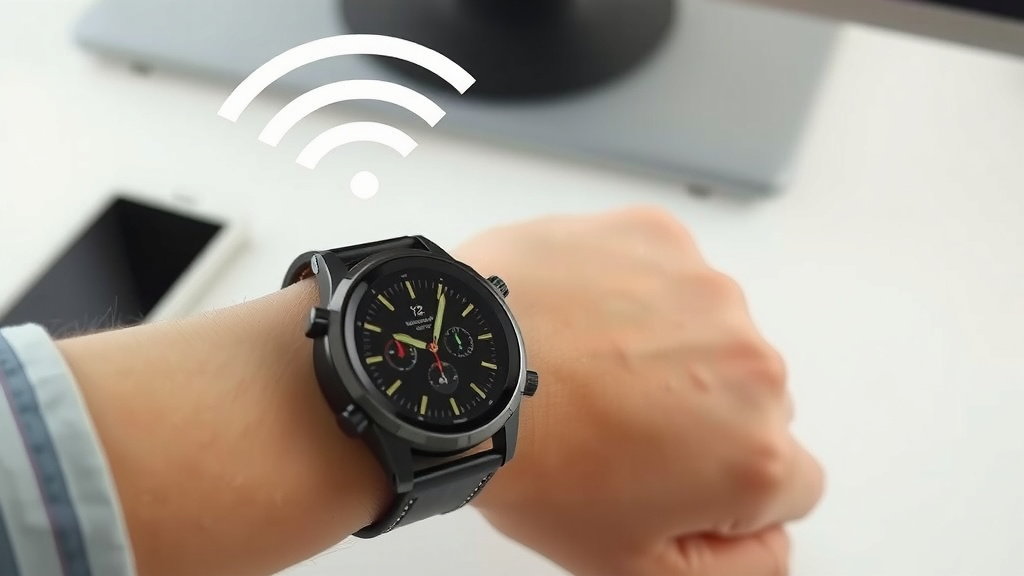
After entering your password, tap “Connect” or “Join.” Your smartwatch will attempt to connect to your WiFi network. You should see a confirmation message on the screen, often with a WiFi symbol appearing in the status bar of your watch face. If it doesn’t connect, don’t worry! You can try entering the password again or moving closer to your router. Sometimes, a simple restart of both your watch and router can resolve connection issues.
Troubleshooting Common Issues
“Password Incorrect” Errors
This is by far the most common issue. Did you accidentally type a capital letter when it should be lowercase, or vice-versa? WiFi passwords are very precise. If you’re unsure, check the password on another device that’s already connected. You can often find your network’s password on a sticker on your router itself.
Watch Not Finding Your Network
If your watch can’t see your network, ensure you’re close enough to the router. Thick walls or certain appliances can interfere with the signal. Many people find that their router just needs a quick reboot to broadcast its signal effectively again. Just unplug it, wait about 30 seconds, and plug it back in. Your watch should be able to see it after the router powers back up.
Connection Seems Unstable
An unstable connection might mean your WiFi signal is weak where you are. Try moving to a spot with a stronger signal. If your router is old, it might be time to consider upgrading. Network congestion can also play a role; if many devices are using your WiFi heavily, it can slow things down for everyone, including your watch.
What to Do Once Connected
Explore Standalone Features
Now that your watch is online, you can start using its standalone features. You can download music directly to your watch for offline listening. Many apps, like weather or news apps, will now update in real-time. You can also use voice assistants on your watch for hands-free queries.
Keep Your Watch Updated
A WiFi connection is essential for keeping your smartwatch’s operating system and apps up-to-date. Manufacturers release updates to improve performance, fix bugs, and add new features. Ensure your watch is connected to WiFi regularly so it can download these important updates automatically. Staying updated is key for security and functionality, as recommended by tech experts.
Here’s a quick checklist to ensure you’re on the right track:
- Charge your smartwatch sufficiently.
- Stand near your WiFi router.
- Find the WiFi settings on your watch.
- Select your home network name.
- Enter your WiFi password carefully.
- Confirm the WiFi symbol appears.
Conclusion
You’ve now learned how to connect your smartwatch to WiFi, opening up a host of new possibilities. This connection makes your watch more independent, allowing for faster app downloads and essential software updates without your phone. You can enjoy standalone features like music streaming and real-time notifications. If you encountered any hiccups, remember that troubleshooting common issues like incorrect passwords or weak signals is usually straightforward. Take a moment to confirm your watch shows a steady WiFi symbol, and then enjoy the enhanced functionality your connected smartwatch offers!
Frequently Asked Questions
Can I connect my smartwatch to WiFi without my phone nearby?
Yes, that’s one of the main benefits of connecting your watch to WiFi. Once connected, your watch can access the internet and its features independently of your phone. You can download apps, get updates, and use online services directly from your wrist.
What if my smartwatch doesn’t show my WiFi network?
Ensure you are close enough to your WiFi router, as walls and distance can weaken the signal. Try restarting both your smartwatch and your WiFi router. Sometimes, a simple reboot is all it takes for your watch to detect the network.
How do I know if my smartwatch is successfully connected to WiFi?
Once connected, your smartwatch will typically display a WiFi symbol in its status bar or on the watch face. You might also receive a confirmation message on the screen. You can usually check the connection status in your watch’s network or WiFi settings menu.
Is it safe to connect my smartwatch to public WiFi networks?
Connecting to public WiFi networks, like those at coffee shops or airports, carries risks. These networks are often less secure and can be targets for hackers. It’s best to stick to your trusted home or work WiFi for connecting your smartwatch unless absolutely necessary.
My smartwatch keeps disconnecting from WiFi. What should I do?
Frequent disconnections often point to a weak or unstable WiFi signal. Try moving closer to your router or consider repositioning your router for better coverage. If the issue persists, your router might be outdated, or network congestion could be a factor, so a router reboot is a good first step.
![7 Best Smart Watch For Google Pixel 9 [2026]](https://smartwatchbest.com/wp-content/uploads/2026/07/7-best-smart-watch-for-google-pixel-9-2026-featured-768x432.jpg)