Sync Your Smartwatch with MyFitnessPal Now
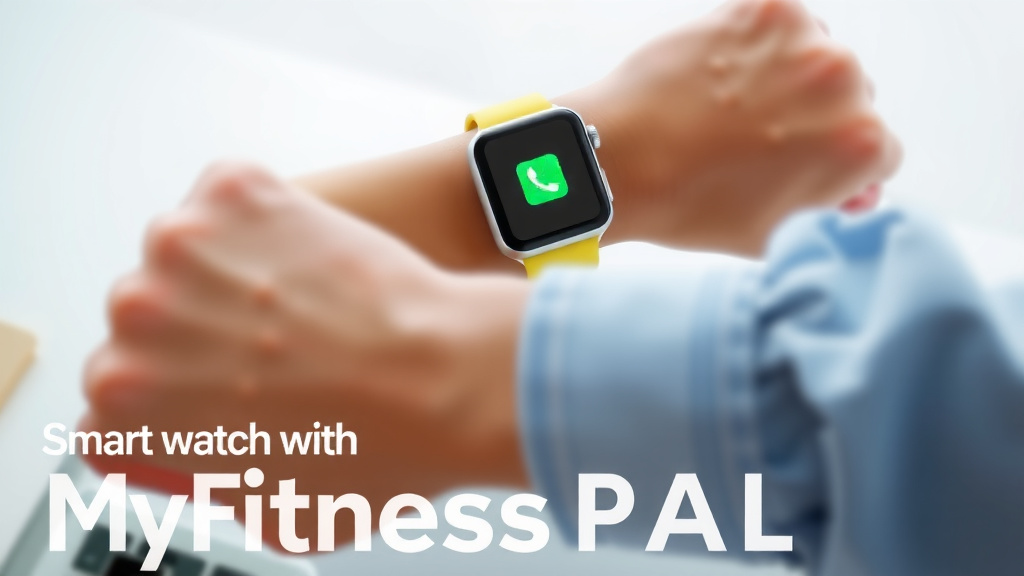
Connecting your smartwatch to MyFitnessPal is a great way to automate your calorie and activity tracking. You can easily link most popular smartwatches by going to the Apps & Devices section in your MyFitnessPal settings. This connection ensures your workouts and daily steps are automatically logged, saving you time and boosting accuracy.
This integration is key for a complete picture of your health. It allows MyFitnessPal to pull data directly from your wearable device. This means you get a more accurate view of your calorie balance and progress towards your fitness goals. Many users find it a game-changer for consistency.
- Connect your smartwatch in MyFitnessPal’s settings.
- Go to the “Apps & Devices” section.
- Select your smartwatch brand and follow the prompts.
- Allow MyFitnessPal to access your activity data.
- Check for successful syncing regularly.
Ready to get your smartwatch and MyFitnessPal chatting? Let’s walk through exactly how to link them step by step.
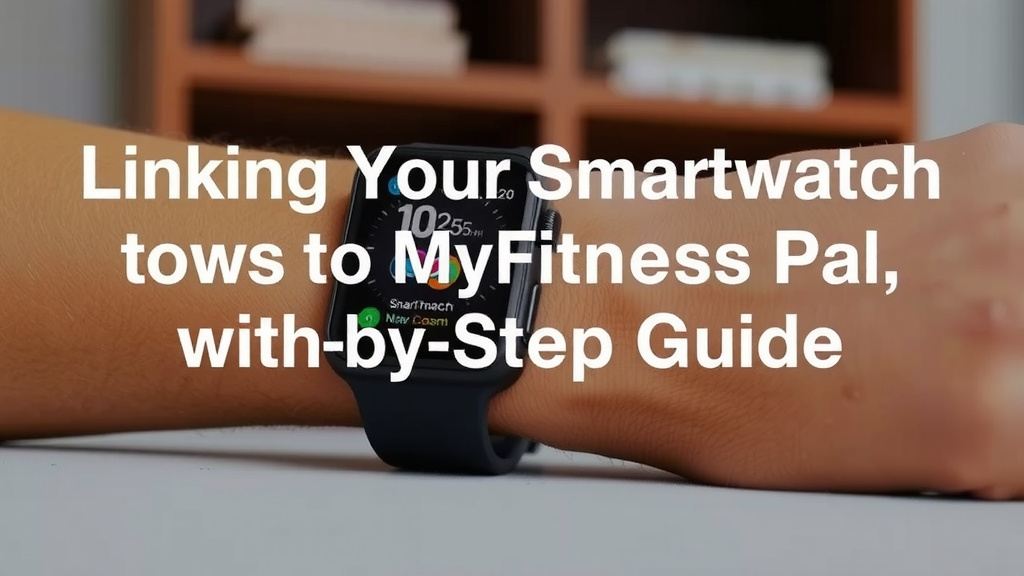
Linking Your Smartwatch to MyFitnessPal: A Step-by-Step Guide
Connecting your smartwatch to MyFitnessPal is an **excellent way to streamline** your health tracking. This integration ensures your daily activity data automatically syncs. You’ll get a more accurate picture of your calorie burn. This makes it easier to manage your weight goals. Let’s get your devices talking!
Getting Started: The Basics of Syncing
Before you begin, make sure you have both the MyFitnessPal app and your smartwatch’s companion app installed on your phone. You’ll also need your login details for both accounts. The connection process usually happens within the MyFitnessPal app itself. It’s designed to be quite straightforward for most users.
Why Sync Your Smartwatch?
Think of your smartwatch as a personal activity monitor. It tracks steps, heart rate, and workouts without you thinking about it. MyFitnessPal is your food diary and calorie tracker. When you sync them, MyFitnessPal can automatically factor in the calories you’ve burned through exercise. This means your daily calorie goal is adjusted dynamically. It’s like giving MyFitnessPal a real-time update on your physical output.
This syncing helps prevent a common issue: underestimating calorie needs after a workout. Many people forget to log their exercise or log too little. A synced smartwatch ensures this data is captured accurately. The Centers for Disease Control and Prevention (CDC) recommends regular physical activity for overall health. Tracking it effectively helps you meet these recommendations consistently.
What Data Does MyFitnessPal Pull?
Typically, MyFitnessPal will pull your:
- Daily Steps: This is a fundamental metric for tracking general activity.
- Calories Burned: This includes calories burned from all activities, not just structured workouts.
- Workout Details: Information like duration, type of exercise, and intensity can be synced.
- Heart Rate Data: Some integrations may also pull heart rate information, providing deeper insights into workout intensity.
This data helps MyFitnessPal provide a more **accurate calorie balance** for the day. You’ll see a clearer picture of your net calories (calories consumed minus calories burned).
Connecting Popular Smartwatch Brands
MyFitnessPal supports connections with many popular wearable brands. The general steps are similar across most platforms. We’ll walk through the most common ones.
Garmin Connect Users
If you have a Garmin smartwatch, the process is quite simple.
- Open your MyFitnessPal app.
- Go to the “More” tab.
- Tap on “Apps & Devices.”
- Search for “Garmin Connect” and select it.
- You’ll be prompted to log in to your Garmin Connect account.
- Grant MyFitnessPal permission to access your Garmin data.
Fitbit Users
Connecting a Fitbit is also a common integration.
- Open MyFitnessPal.
- Navigate to “More” then “Apps & Devices.”
- Find and select “Fitbit.”
- Log in to your Fitbit account when prompted.
- Authorize MyFitnessPal to access your Fitbit data.
Apple Watch and Apple Health
For Apple Watch users, the connection is usually made through Apple Health.
- Ensure your Apple Watch is syncing its data to the Apple Health app on your iPhone.
- Open MyFitnessPal.
- Go to “More” then “Apps & Devices.”
- Select “Apple Health.”
- Tap “Connect.”
- You’ll be taken to your iPhone’s Health settings. Here, you need to grant MyFitnessPal permission to read data from HealthKit, specifically for steps, workouts, and other relevant metrics.
Samsung Health Users
If you use a Samsung smartwatch or fitness tracker that syncs with Samsung Health:
- Open MyFitnessPal.
- Go to “More” > “Apps & Devices.”
- Look for and select “Samsung Health.”
- Tap “Connect.”
- You will need to log in to your Samsung account.
- Allow MyFitnessPal the necessary permissions to read your activity data from Samsung Health.
Troubleshooting Common Syncing Issues
Sometimes, connections don’t work perfectly right away. Don’t get discouraged! Here are a few things to check if your data isn’t syncing.
Check Permissions
The most common reason for syncing failure is incorrect permissions. When you first connect, you grant access. Sometimes, these permissions can be revoked or get mixed up.
- Go back into the “Apps & Devices” section of MyFitnessPal.
- Find your connected device.
- Tap on it and look for an option like “Reconnect” or “Check Connection.”
- You might need to re-authorize the connection by logging into your smartwatch’s account again.
Manual Syncing
While most connections sync automatically, sometimes a manual push is needed.
- In MyFitnessPal, go to the “More” tab.
- Tap “Apps & Devices.”
- Select your connected app (e.g., Fitbit, Garmin Connect).
- Look for a “Sync Now” or “Refresh” button.
App Updates
Ensure both your MyFitnessPal app and your smartwatch’s companion app are up to date. Outdated versions can sometimes cause compatibility issues. We found that keeping apps updated is a simple yet effective troubleshooting step.
Re-linking Devices
If all else fails, you might need to disconnect and reconnect your smartwatch.
- In MyFitnessPal’s “Apps & Devices” section, find your smartwatch.
- Select the option to “Disconnect” or “Unlink.”
- Once disconnected, go through the initial setup process again to link your device.
Quick Checklist for a Successful Sync
Here’s a quick rundown to ensure your smartwatch and MyFitnessPal are best friends:
- Confirm both apps are installed and updated.
- Log into both your MyFitnessPal and smartwatch accounts.
- Grant all necessary permissions for data access.
- Check your connected apps list in MyFitnessPal.
- Perform a manual sync after connecting.
- Verify that your steps and workouts appear in MyFitnessPal.
Conclusion
You’ve now learned how to connect your smartwatch to MyFitnessPal, a key step for effortless health tracking. By linking your devices, you ensure your activity and calorie burn are automatically logged. This provides a more accurate daily calorie goal. You can now enjoy a complete picture of your fitness journey without manual data entry. The next step is to perform a manual sync right after connecting to confirm everything is working. Happy tracking!
Frequently Asked Questions
How often does my smartwatch sync with MyFitnessPal?
Most smartwatch connections sync automatically once a day. Some integrations may sync more frequently. You can usually trigger a manual sync within the MyFitnessPal app if you need to see your latest data sooner.
What if MyFitnessPal isn’t showing my steps from my watch?
This is often due to permission settings or a temporary sync issue. First, check that you granted MyFitnessPal permission to read step data in your smartwatch’s app or Apple Health. You can also try performing a manual sync or unlinking and relinking your device.
Can I connect multiple smartwatches to MyFitnessPal?
MyFitnessPal generally supports connecting only one primary device or app at a time for activity tracking. If you switch smartwatches, you’ll need to disconnect the old one and connect the new one through the “Apps & Devices” section.
Does connecting my smartwatch affect my calorie goal in MyFitnessPal?
Yes, absolutely. When your smartwatch data syncs, MyFitnessPal uses your logged calories burned to adjust your daily calorie goal. This means your goal dynamically changes based on your activity levels throughout the day.
Will connecting my smartwatch drain my phone’s battery faster?
While the syncing process does use some battery, it’s typically minimal. The Bluetooth connection and data transfer are optimized to be efficient. Keeping both apps updated can help ensure the connection is as power-friendly as possible.
![7 Best Budget Smart Watches For Men [2026]](https://smartwatchbest.com/wp-content/uploads/2026/08/7-best-budget-smart-watches-for-men-2026-featured-768x432.jpg)