Connect Earbuds to Smart Watch: A Simple Guide
Yes, you can absolutely connect your earbuds to your smartwatch! It’s a straightforward process that usually involves Bluetooth. You’ll be enjoying your favorite tunes or podcasts on the go in no time.
Many smartwatches are designed to work with wireless earbuds, offering a convenient way to listen to music, take calls, or use voice assistants. This opens up a whole new level of freedom for your workouts and daily activities.
- Make sure both devices are charged.
- Turn on Bluetooth on your smartwatch.
- Put your earbuds in pairing mode.
- Select your earbuds from the smartwatch’s Bluetooth list.
Ready to get your earbuds paired up? Let’s walk through the simple steps to connect them to your smartwatch.
Pairing Your Earbuds with Your Smartwatch: A Simple Guide
You’re ready to ditch the phone and let your smartwatch be your music hub. Connecting your earbuds is usually a breeze. It mainly relies on Bluetooth technology. Your smartwatch acts as the audio source. Your earbuds become the playback device. Let’s get them talking to each other.
Getting Your Devices Ready for Pairing
Before you dive into the settings, a little preparation goes a long way. Think of it like getting your ingredients ready before cooking.
Ensure Adequate Battery Power
This might seem obvious, but it’s the most common reason pairing fails. Low battery can interrupt the process. Make sure both your smartwatch and your earbuds have a solid charge. Some earbuds need a decent amount of power just to enter pairing mode.
Locate Your Earbuds’ Pairing Mode
Each set of earbuds is a little different. You need to tell them you’re looking to connect to something new. This is usually done by pressing and holding a button on the charging case or on the earbuds themselves. Refer to your earbud manual if you’re unsure. Often, a light will flash to show they’re in pairing mode.
Connecting Through Your Smartwatch’s Bluetooth Settings
Now for the main event. Your smartwatch has a built-in Bluetooth manager. This is where you’ll find and select your earbuds.
Accessing Your Smartwatch’s Bluetooth Menu
On most smartwatches, you’ll access Bluetooth settings through the main settings app. Swipe down or up from the watch face. Look for a gear icon or a menu option labeled ‘Settings.’ Within settings, you’ll find ‘Bluetooth’ or ‘Connections.’ Tap on it.
Enabling Bluetooth on Your Smartwatch
Once you’re in the Bluetooth menu, there’s usually a toggle switch. Make sure Bluetooth is turned on. You’ll often see a symbol, like a blue Bluetooth logo, appear at the top of your watch screen. This confirms it’s active and ready to search.
Scanning for Available Devices
After turning on Bluetooth, your smartwatch should automatically start looking for nearby devices. If it doesn’t, there’s usually a ‘Scan,’ ‘Refresh,’ or ‘Search for Devices’ option. Tap that. Your watch will then list all the Bluetooth devices it can find.
Selecting Your Earbuds from the List
Here’s where you’ll see your earbuds appear. They’ll usually show up with their brand name or model number. It might be something like “XYZ Earbuds Pro” or “Sonic Buds.” Tap on the name of your earbuds. Your watch will then attempt to connect.
Confirming the Connection
You might see a prompt on your watch asking you to confirm the pairing. Sometimes, you’ll hear a chime or a voice prompt in your earbuds confirming they’re connected. A solid Bluetooth icon on your watch usually means success.
Troubleshooting Common Connection Issues
What if your earbuds don’t appear, or the connection drops? Don’t worry, it happens. Most problems have simple fixes.
Ensure Earbuds Are in Range and Pairing Mode
Is your watch close enough to the earbuds? Bluetooth has a limited range, typically around 30 feet. Also, double-check those earbuds are actively in pairing mode. They don’t stay in that mode forever. You might need to re-initiate pairing mode.
Restart Both Devices
Sometimes, a simple restart can clear up temporary glitches. Turn off your smartwatch completely. Power down your earbuds. Wait a minute, then turn them both back on. Try pairing again.
Forget and Re-pair
If your earbuds were previously connected to your phone, they might still be trying to connect there. On your smartwatch’s Bluetooth list, find your earbuds. There should be an option to ‘Forget Device’ or ‘Unpair.’ Do this, then put your earbuds back into pairing mode and try to connect them fresh to your watch.
Check for Software Updates
Is your smartwatch’s operating system up to date? Sometimes, older software versions can have compatibility issues. We found that keeping devices updated often resolves many minor bugs and connectivity problems (Apple Support, Google Support).
Using Your Earbuds with Your Smartwatch
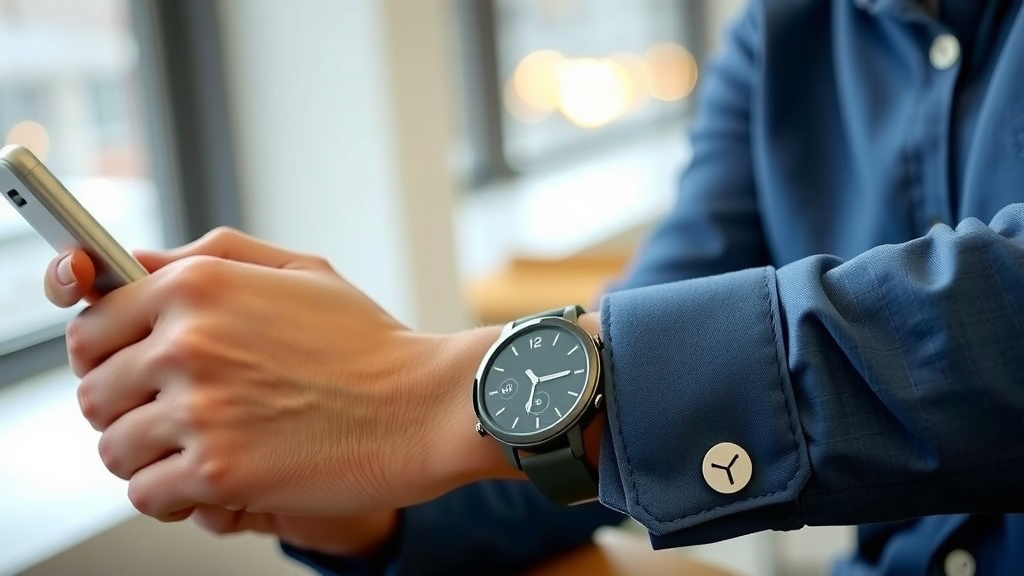
Once connected, your smartwatch becomes your portable music player. You can control playback directly from your wrist.
Controlling Music Playback
Most smartwatches have a media control app. You can usually access it by swiping on the watch face or pressing a button. From here, you can play, pause, skip tracks, and adjust the volume. It’s like having a tiny remote control on your arm.
Storing Music Directly on Your Smartwatch
Some higher-end smartwatches allow you to store music files directly on the device. This means you can leave your phone at home entirely. You’ll need to sync your music from your computer or a streaming service app to your watch first. Then, you can play it through your Bluetooth earbuds. This is a fantastic option for runners who want to travel light.
Making Calls and Using Voice Assistants
Connected earbuds can also be used for calls made through your smartwatch. If your watch has a microphone, you can chat using your earbuds. You can also activate your smartwatch’s voice assistant, like Siri or Google Assistant, using your earbuds. Just say the wake word.
Here’s a quick checklist to get you going:
- Charge both devices fully.
- Put your earbuds in pairing mode.
- Turn on Bluetooth on your smartwatch.
- Scan for devices on your watch.
- Select your earbuds from the list.
- Confirm the pairing on your watch.
Conclusion
You’re now ready to experience true audio freedom by connecting your earbuds to your smartwatch. We’ve walked through making sure your devices are prepped, diving into your smartwatch’s Bluetooth settings, and even troubleshooting common hiccups. The power to control your music, take calls, or use voice commands is now right on your wrist. Don’t let a bit of tech jargon hold you back.
Your next step is simple: grab your earbuds and your smartwatch, and give pairing a try. You’ll be enjoying your audio on the go in no time!
Frequently Asked Questions
Can I connect any Bluetooth earbuds to my smartwatch?
Generally, yes! Most smartwatches use standard Bluetooth technology, so they should connect with most Bluetooth-enabled earbuds. Always check your smartwatch’s specifications if you’re unsure about compatibility.
How long does it take to pair my earbuds?
The pairing process is usually quite fast, often taking less than a minute. Once your earbuds are in pairing mode and your smartwatch is scanning, they should appear on the list quickly.
Why aren’t my earbuds showing up on my smartwatch’s Bluetooth list?
Make sure your earbuds are actively in pairing mode, as this mode usually times out. Also, ensure your earbuds are close enough to the smartwatch. Sometimes, restarting both devices can resolve the issue.
Can I connect my earbuds to both my phone and my smartwatch at the same time?
Most earbuds can only be actively connected to one device at a time. You’ll typically need to disconnect them from your phone before pairing them with your smartwatch, and vice-versa.
What if my smartwatch won’t stay connected to my earbuds?
This could be due to a weak Bluetooth signal or interference. Try moving closer to your smartwatch and away from other potential sources of wireless interference. Ensuring both devices have updated software can also help maintain a stable connection.
![7 Best Budget Smart Watches 2025 [2026]](https://smartwatchbest.com/wp-content/uploads/2026/08/7-best-budget-smart-watches-2025-2026-featured-768x432.jpg)
![7 Best Smart Watch For Heart Rate [2026]](https://smartwatchbest.com/wp-content/uploads/2026/07/7-best-smart-watch-for-heart-rate-2026-featured-768x432.jpg)
![7 Best Smart Watch For Treadmill [2026]](https://smartwatchbest.com/wp-content/uploads/2026/09/7-best-smart-watch-for-treadmill-2026-featured-768x432.jpg)